Forum Discussion

VineeshKV88
Dec 25, 2021Tin Contributor
Outlook Search not showing Recent Emails (December-2021)
Hi All, The outlook search option stopped working properly after WIndows10 update. The issue has happened after installing a security update from Windows (December 14, 2021—KB5008212). I had...

robmar0se
Jan 21, 2022Tin Contributor
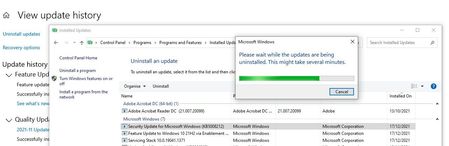
Hi Would someone help me trying to uninstall KB5008212?
Unable to uninstall, it shows in the list of updates, but not in the list of updates that may be uninstalled. When trying to uninstall via Command prompt it says it isn't installed; digging down it is indicated as being superceded.
It was insatlled on 17/12 (after 20h2), the next rollup KB5008876 was installed on 14/01 is also superceded. KB5010793 was updated today, but doesn't show in my list of updates!! (updates show as fully upto date).
I don't have system protection backups so unable to rollback Win10.
Any suggestion how to get rid of 8212 to resolve Outlook search issues?
Unable to uninstall, it shows in the list of updates, but not in the list of updates that may be uninstalled. When trying to uninstall via Command prompt it says it isn't installed; digging down it is indicated as being superceded.
It was insatlled on 17/12 (after 20h2), the next rollup KB5008876 was installed on 14/01 is also superceded. KB5010793 was updated today, but doesn't show in my list of updates!! (updates show as fully upto date).
I don't have system protection backups so unable to rollback Win10.
Any suggestion how to get rid of 8212 to resolve Outlook search issues?

Marcin_Czernik
Jan 21, 2022Copper Contributor
uninstall wont help, only one good reaction is workaround, make a key in registry:
https://support.microsoft.com/en-us/office/outlook-search-not-showing-recent-emails-after-windows-update-kb5008212-cc5345cf-8007-403a-bb23-f3818653c2df
In Windows, right-click Start, and then select Run. In the Open: box type regedit, and then click OK. This will open the registry editor.
Find this subkey in the registry and then click it:
HKEY_LOCAL_MACHINE\SOFTWARE\Policies\Microsoft\Windows
Click Edit > New > Key and name the new key Windows Search.
Select the new Windows Search key.
Click Edit > New > DWORD Value.
Type PreventIndexingOutlook for the name of the DWORD, and then press Enter.
Right-click PreventIndexingOutlook, and then click Modify.
In the Value data box, type 1 to enable the registry entry, and then click OK.
Exit Registry Editor, and then restart Outlook.
https://support.microsoft.com/en-us/office/outlook-search-not-showing-recent-emails-after-windows-update-kb5008212-cc5345cf-8007-403a-bb23-f3818653c2df
In Windows, right-click Start, and then select Run. In the Open: box type regedit, and then click OK. This will open the registry editor.
Find this subkey in the registry and then click it:
HKEY_LOCAL_MACHINE\SOFTWARE\Policies\Microsoft\Windows
Click Edit > New > Key and name the new key Windows Search.
Select the new Windows Search key.
Click Edit > New > DWORD Value.
Type PreventIndexingOutlook for the name of the DWORD, and then press Enter.
Right-click PreventIndexingOutlook, and then click Modify.
In the Value data box, type 1 to enable the registry entry, and then click OK.
Exit Registry Editor, and then restart Outlook.