Forum Discussion

Outlook Search not showing Recent Emails (December-2021)
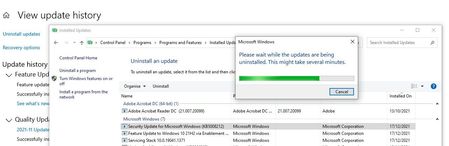

Just found this :
In Windows, right-click Start, and then select Run. In the Open: box type regedit and then click OK. This will open the registry editor.
Find this subkey in the registry and then click it:
HKEY_LOCAL_MACHINE\SOFTWARE\Policies\Microsoft\Windows
Click Edit > New > Key, and name the new key Windows Search.
Select the new Windows Search key.
Click Edit > New > DWORD Value.
Type PreventIndexingOutlook for the name of the DWORD, and then press Enter.
Right-click PreventIndexingOutlook, and then click Modify.
In the Value data box, type 1 to enable the registry entry, and then click OK.
Exit Registry Editor, and then restart Outlook.
 eworbitJan 07, 2022Tin Contributor
Saw this on bleepingcomputer too. This search takes about 30 seconds on SSD drives for average sized PST files. But setting the PreventIndexingOutlook key is an easy work-a-round.
The Outlook product manager needs to take this opportunity to have an independent functioning index in Outlook in case windows search breaks again in the future. I wish they did it like Thunderbird.
 pedromarinheiroJan 07, 2022Tin Contributor" But setting the PreventIndexingOutlook key is an easy work-a-round." but very slow for big PST files.
The best way thats worked for me, without removing the KB5008212 is stopping windows search service
net stop "wsearch"
close outlook and reopen it.
The Windows search will start working again and start indexing the recent emails from last indexing rebuild / last stop of wsearch- Daniel1701Jan 20, 2022Copper ContributorI liked your work-around so much I just set it up to restart the Windows Search service automatically on every login using task scheduler, a .bat, and a .vbs file. This requires an admin user privilege to be set once in task scheduler to run. Steps are below incase someone wants to do the same:
1. create "run.bat" with this code:
:stop
sc stop WSearch
rem cause a ~10 second sleep before checking the service state
ping 127.0.0.1 -n 10 -w 1000 > nul
sc query WSearch | find /I "STATE" | find "STOPPED"
if errorlevel 1 goto :stop
goto :start
:start
net start | find /i "Windows Search">nul && goto :start
sc start WSearch
exit
2. Create in the same directory "SilentRun.vbs" with the code:
Set WshShell = CreateObject("WScript.Shell")
WshShell.Run chr(34) & "run.bat" & Chr(34), 0
Set WshShell = Nothing
3.Create the scheduled task
a. Open Task Scheduler->Create Task...
b. Under General Tab: Name=RestartWindowsService ; Run with highest priviledge=Checked ; Configure for=Windows 10
c. Under Triggers Tab: New->Begin the task=On workstation unlock
d. Under Actions Tab: New-> Browse -> Select SilentRun.vbs ; Start in=URL in Program/script field except for "SilentRun.vbs"
e. Under Conditions Tab: Start the task only if the computer is on AC power=Unchecked