Forum Discussion

navigation bar moved to left
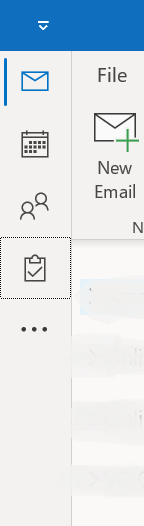

NOTE: Do be cautious making any edits to your registry! Errors can make your computer need to be reset, cause data loss or become unusable!!!
Solved!
The registry editor does resolve this issue.
For those who do not know how to do this, here are the steps:
- Step one: It is very important that a registry backup be made and only desired changes be made to the registry.
- If you are unsure how to do a backup, search online how to do this (I use Google).
- Step two: close Outlook:
- Note: Ensure all important emails/drafts are saved before closing Outlook.
- Hold the "Ctrl+Alt+Delete" keys and select "Task Manager". Then, in the pop-up box select Microsoft Outlook and click on "End Task".
- Step three: in your Windows Operating System (OS) taskbar search box type "Registry Editor".
- Step four: Click on the Registry Editor (App) icon to open.
- Step five: in the left column of the Registry Editor window, you should see a folder hierarchy. You will need to click through the folders to find the correct one (which will open on the right). Follow this folder path:
- HKEY_CURRENT_USER > Software > Microsoft > Office > 16.0 > Common > ExperimentEcs > Overrides
- How to navigate through folders: Each ">" symbol above represents a transition into a sub-folder. Each sub-folder can be navigated to by double-clicking the folder icon or single-clicking the ">" expand icon.
- HKEY_CURRENT_USER > Software > Microsoft > Office > 16.0 > Common > ExperimentEcs > Overrides
- Step six: When you have navigated to the "Overrides" folder, look in the right-hand column to determine whether there is a key called: "Microsoft.Office.Outlook.Hub.HubBar".
- If yes: then right click on the key, select "Modify...", In the "Value Data:" field, replace whatever is there with the single word "false" (do not include quotes).
- Note: You may want to remember the exact value that was there in case you ever want to revert this.
- If no: If the "Microsoft.Office.Outlook.Hub.HubBar" key does not exist in this folder, you can easily create it by right-clicking on an empty space in the right-hand column, hovering over "New > " in the pop-up selector, and clicking on "String Value". Then, simply type or copy and paste: "Microsoft.Office.Outlook.Hub.HubBar" into the key naming box (without quotes).
- To save your new key: click any blank area in the right side of the Registry Editor and outside the key naming box.
- After you have created the new key, right click on the key and select "Modify...". In the "Value Data:" field, replace whatever is there with the single word "false" (do not include quotes).
- If yes: then right click on the key, select "Modify...", In the "Value Data:" field, replace whatever is there with the single word "false" (do not include quotes).
- Step seven: close the Registry Editor application by clicking the "X" in the top-right corner.
- Step eight: This is the fun part! Restart Outlook with no pesky left-sidebar navigation pane!!!
- Step nine: share this solution with someone who needs help! 🙂
NOTE: Do be cautious making any edits to your registry! Errors can make your computer need to be reset, cause data loss or become unusable!!!

You, my new friend this morning, are a GENIUS !! This pesky toolbar showed up this morning and I had nothing better to do with my time but to find a way to remove it. 30 minutes of trying other peoples hacks got me nowhere. However, your thorough and exacting instructions worked flawlessly. It amazes me the things that we can find solutions for on the web. Even something as simple, but irritating, as this small issue. Job well done !! Thank you. jergrafs
- jergrafsAug 15, 2022Tin Contributor
Thanks ButchyBoy,
I struggled with this for a long time and was really frustrated.
I was pretty hesitant to mess with my registry. But, after doing this myself and having it work and knowing there weren't any clear and specific explanations online, I wanted to help save someone else the headache. I am glad that it helped. Though I admit, I only provided the instructions the solution came from others. I just broke it into simple steps. 🙂