Forum Discussion

navigation bar moved to left
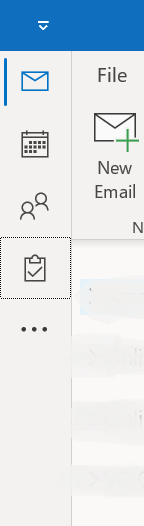

As a further indication that this UI design is the future, a preview video of Windows 11 22H2 show the Task Manager tabs have moved from the top to the left.
I, for one, welcome our new insect overlords. 

Might be a bit of a thread necro, but I just recently ran into this problem with a client and Outlook. Turning "Coming Soon" off didn't help at all - still would have the Folder List on the left, and Safe Mode did nothing as well. I ran across this gem in Reddit :
shadowsong42 :
Necro-ing this thread so that future me will be able to find the answer the next time a coworker has this problem.
The "coming soon" option didn't work for me, but a variation on a regedit suggestion did the trick.
The suggestion was to go to the key
HKEY_CURRENT_USER\Software\Microsoft\Office\16.0\Common\ExperimentEcs\Overrides
and find the string value
Microsoft.Office.Outlook.Hub.HubBar
and change it from true to false.
Now, I'm running an Insider Channel, so it turns out I don't have to mess with registry hacks. Instead, I have an extra item in the Options window called "Experiment", containing a list of "Feature Names" that look a lot like registry values.
Search for "HubBar" in the list of features, change the feature value from true to false, restart Outlook, and voila: Bob's your uncle and the nav bar (or HubBar, I guess) is back where it should be.
I did the Registry hack shadowsong42 mentioned, and it worked perfectly. Hopefully this will help out others with this problem. MICROSOFT, PLEASE GIVE US A CHOICE! Make it appear vertically by default, but give us an option to change so those people that have a problem with it can change it.
 Dennis_PospichAug 23, 2022Copper Contributor
After so many suggestions and other regedits which didn't work for me, this finally did. Thank you so much. I had to add this string value
Microsoft.Office.Outlook.Hub.HubBar
with value=false as it was not existing in my registry (at least at this point in time) in key
HKEY_CURRENT_USER\Software\Microsoft\Office\16.0\Common\ExperimentEcs\Overrides
Finally moved the **bleep** nav bar back to bottom. However, since this key is in "Experiment" domain, I fear soon I'll have to google again for this nonsense. Can't believe how UI designers think wasting so much vertical space and reducing content page space for those 4 items makes any sense at all...
If you want to help fix this bull* for good, please support this idea in Outlook feedback:
https://feedbackportal.microsoft.com/feedback/idea/6b9896c4-e49f-ec11-a81c-002248504419
 chris leeAug 13, 2022Copper ContributorThanks for that. It finally did the trick
 MarkDJ-iconAug 12, 2022Copper Contributor
I didn't have the registry key so I created a new string key Microsoft.Office.Outlook.Hub.HubBar and modified it to have value false and restarted Outlook... Boom, the HubBar is back at the bottom... Thanks ! DanLhotka
- masterlinksAug 12, 2022Copper Contributor
can you provide screen shots of what you did and how you did it? I am not the most technical person. I can get in the registry editor but if I have to create a new string I am not sure how to do this to make it work. I am sure there are others on here in the same situation and any help you can provide would be appreciated.MarkDJ-icon
- Stradivarius001Aug 12, 2022Tin ContributorI believe there are 2 ways to fix this depending on whether your Outlook screen has the "Coming Soon" button on the top right (if it does, turn it off!)
If you don't have the Coming Soon button, ShadowSong42's fix (elsewhere in this string) worked for me:
1) Open REGEDIT (*Note* - if you're not familiar with Registry edits, ask someone who is - making the wrong changes here can seriously screw things up...):
2) Navigate to
HKEY_CURRENT_USER\Software\Microsoft\Office\16.0\Common\ExperimentEcs\Overrides
3) Look for a String Value called "Microsoft.Office.Outlook.Hub.HubBar"
4) If it's there, change it from True to False. If you don't find it, you can simply add it.
5) Restart Outlook
2) Everyone else.
For
 Eike_SieglerAug 12, 2022Copper Contributor
perfect, it works. Today 2022-08-12DanLhotka
 John_RoldanAug 11, 2022Tin ContributorThank you! This did the trick.
I had to create the string value, Microsoft.Office.Outlook.Hub.HubBar, at the location you provided, and then add False to the value, but once I did, and rebooted, the Navigation Bar was back where it belongs, at the bottom, under the folder list, without consuming space better used to actually READ my email information.- Kevin_SavageApr 18, 2023Copper Contributorthank you to John Roldan and DanLhotka.
Your instruction to create the string value Microsoft.Office.Outlook.Hub.HubBar and then add False to the string value worked.
The suggestion was to go to the key
HKEY_CURRENT_USER\Software\Microsoft\Office\16.0\Common\ExperimentEcs\Overrides
and add the string value
Microsoft.Office.Outlook.Hub.HubBar
and change it from true to false.
After I modified the registry the Outlook HubBar moved back to the bottom of the Outlook screen. Great! A_E_BApr 19, 2023Copper Contributor
Kevin_Savage This solution worked perfectly for me as well, Thanks!
- JbmotoAug 11, 2022Copper Contributor
This worked perfectly for me! Thank you! John_Roldan
- masterlinksAug 10, 2022Copper Contributor
So I was actually on my computer today logged off and now I am experiencing the Task bar on the Left. I tried to do the Registration Editor but the option wasn't there any more. Any Other ideas I really don't like it on the side. DanLhotka
- Aug 10, 2022It's now in HKEY_CURRENT_USER\Software\Microsoft\Office\16.0\Common\ExperimentConfigs\ExternalFeatureOverrides\outlook
But... it will probably be updated either overnight or every time updates come out. When users tried a similar key to kill a changed feature they didn't like, the key was reset every time they rebooted.- mikkoimAug 11, 2022Copper Contributor
and today i found it in:
Computer\HKEY_CURRENT_USER\SOFTWARE\Microsoft\Office\16.0\Common\ExperimentEcs\Overrides
Microsoft® Outlook® for Microsoft 365 MSO (Version 2205 Build 16.0.15225.20368) 64-bit
