Forum Discussion

navigation bar moved to left
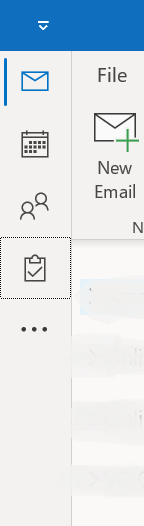

Here is what I got from Microsoft help and it worked:
This view is a part of new user interface change implemented by the development team and that is the reason the navigation bar is now appear on the extreme left of the Outlook window.
We request you to access the link in a incognito or in-private window and download the Registry file. Once the file is downloaded, please double click the file and click on 'Yes' to merge it. Lastly, restart Outlook twice. We are positive that this will mitigate the problem observed.
https://microsoft-my.sharepoint-df.com/:f:/p/v-nikash/EqTsUAWSTMdJuisQIYxUv1cBKVs1nOl2FuwqcaDiqAXGfA?e=PTBD87

Windows Registry Editor Version 5.00
[HKEY_CURRENT_USER\SOFTWARE\Microsoft\Office\16.0\Common\ExperimentEcs\Overrides]
"ofm1jti54ear4s1"="true"
[HKEY_CURRENT_USER\SOFTWARE\Microsoft\Office\16.0\Common\ExperimentEcs\Overrides\Outlook]
"Microsoft.Office.Outlook.PreviewPlace.Cleanup"="ofm1jti54ear4s1"
You can manually add those in the registry editor, and it does work.
- Dana SimisonMar 24, 2023Copper Contributor
megazone They don't work. Seems MS has closed some of the loop holes to jam something down our throats.
 DustyDevilAug 20, 2022Copper Contributor
Hi
thanks for info re navigation bar received from Microsoft. The link had expired, so I tried changing manually by editing the registry, but no difference.
Am I supposed to edit the default registry key in the contents as it is, i.e. with double quotes, or do I drop the quotes:
"ofm1jti54ear4s1"="true"and
"Microsoft.Office.Outlook.PreviewPlace.Cleanup"="ofm1jti54ear4s1"
Do you have the contact details of the person at Microsoft, in case I cannot get this to work?
Many thanks
DD John_RoldanAug 21, 2022Copper ContributorHello DD
The suggestion was to go to the key
HKEY_CURRENT_USER\Software\Microsoft\Office\16.0\Common\ExperimentEcs\Overrides
and find the string value:
Microsoft.Office.Outlook.Hub.HubBar
and change it from true to false.
In my case, I had to create the string value:
Microsoft.Office.Outlook.Hub.HubBar
at that location, and then add:
False
to the value.
Once I did, and rebooted, the Navigation Bar was back where it belongs, at the bottom, under the folder list, without consuming space better used to actually READ my email information. LyleSemAug 22, 2022Copper Contributor
Here is a paraphrase and combination of the steps I used from previous pages (tailored so that a reboot isn't necessary) on this message board.
Only perform the steps below if you are comfortable editing the Windows Registry!!!
Version:
Microsoft® Outlook for Microsoft 365 MSO (Version 2207 Build 16.0.15427.20182) 64-bit
Steps to remove the left sidebar in Outlook o365 (without a reboot, no admin access required):
Close Outlook (and preferably all open applications)Open Registry (WinKey + R) then type "regedit"
Locate the following path in the tree ...
Computer\HKEY_CURRENT_USER\SOFTWARE\Microsoft\Office\16.0\Common\ExperimentEcs\Overrides
Add these key and value pairs ...
- MicrosoftDoesNotListen = "true"
- Microsoft.Office.Outlook.Hub.HubBar = "false"
See pic #1 below.
Locate the following path in the tree (or create if missing) ...
Computer\HKEY_CURRENT_USER\SOFTWARE\Microsoft\Office\16.0\Common\ExperimentEcs\Overrides\Outlook
Add this key ...
- Microsoft.Office.Outlook.PreviewPlace.Cleanup = "MicrosoftDoesNotListen"
See pic #2 below.
Kill "explorer.exe" in the TaskManager and keep TaskManager open
Within the TaskManager, under File -> Run New Task ... type the following "explorer.exe" then click "OK"
Re-open Outlook, hopefully your left sidebar is gone and the icons are at the bottom of the favorites folder pane.
I have not tested after a restart, but hopefully this solution sticks. Also no guarantee after Windows updates are pushed to the machine.
In my opinion, not allowing the Outlook User a choice on where they would like to place their quick icons is absolutely atrocious!!!
Pic #1
Pic #2

