Forum Discussion

Circular blue arrows never go away on many files

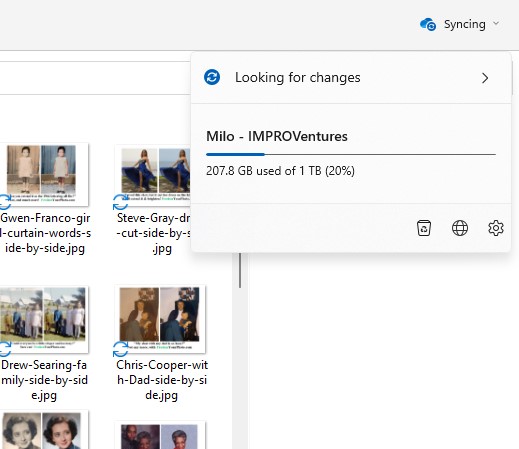

The blue arrows on your OneDrive files indicate that the files are in the process of syncing with the cloud. This is a normal behavior of OneDrive and it means that the files are being uploaded or downloaded to/from the cloud .
The green checkmark indicates that the file is synced and up-to-date with the cloud.
If you’re seeing blue arrows on your files for an extended period of time, it could be due to a slow internet connection or a large number of files being synced at once.
You can try pausing and resuming sync to see if that helps. If the issue persists, you can try resetting OneDrive or contacting OneDrive support for further assistance.
If OneDrive shows “Processing changes" for a long time, it could be because you have an online file open, lots of files stuck in a queue, or a very large file syncing. Here are some possible solutions:
1.Files On-Demand: If you opened an online file and are using Files On-Demand, mark the file as "Always Keep on this device".
2.Syncing a lot of files: This can be resolved by pausing and then resuming your sync.
3.Syncing a very large file: You can move large files out of your OneDrive storage folders, or choose not to sync folders which have large files.
4.Temporary or hidden files: These may be blocking sync.
If “Processing changes” remains, you can Reset OneDrive. Also, check if OneDrive is syncing that folder correctly or if any files in that folder are indicated as causing sync errors. If all else fails, you might want to consider unlinking OneDrive and running OneDrive setup again.
Please note that it’s normal for the OneDrive status to always say “Syncing”. It’s continuously checking for any file changes to keep everything up-to-date.
Once all files are synced, it should display “Synced”.
 MrGenieJan 27, 2025Tin Contributor
Typical MS nonsense claiming MS to be flawless and perfect, the ultimate master race.
Ignoring the thousands of people over the years reporting this problem.Here's the update for you, it's not OneDrive, also OwnCloud and Nextcloud clients which both use ms default dll's have the same issue so it's a bug in some dll.
I could find it just as I did for the MSXML3.dll years ago where MS in all their racism and arrogance claimed they are perfect, and eventually finally brought out a patch to fix it after I proven to them the fault is in msxml3.dll doing heap dumps, stack dumps, reading back in assembler, because MS doesn't share source code so it took me hundreds of hours to find the bug and once found could report it to MS.
This bug is >99% likelihood also one of the .dll's sadly I am not a student anymore and don't have the time to do the job for MS to locate the error and fix it.