Forum Discussion

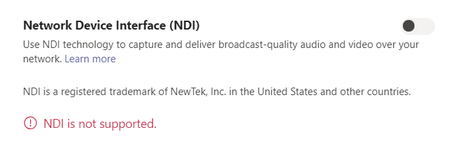
NDI is not supported - error message
 Nov 17, 2020
Thomsch I got mine to work by disabling GPU acceleration in the General settings and then restarting Teams. On my system with an Intel GPU, NDI would be selectable after a reboot but would then turn off with the "NDI is not supported" error as soon as I started a meeting. Interestingly enough, after I disabled GPU and enabled NDI, I was then able to turn GPU acceleration back on and NDI continued to work (at least for now.)
Hopefully this works for other people - we'll see how it goes over the next few events.

DeltyZero, okay that makes sense. Thx. Then I just want to check one last thing: Will the quality of the NDI video feed from Teams be affected in some way if the GPU acceleration is disabled?
PeterBerglund Your question got me thinking... on an event I did last week, one presenter looked like they were at 480p, while another looked like they were at 720p. Both were using identical laptops to present, so that was a head-scratcher. Could it be the network? No, they were both wired and on the same VLAN. Could it be the laptop? No, they were the same. So what was it? The one that looked better did not have NDI enabled but did have their GPU enabled!
So on a hunch I set up a couple laptops in my office and discovered that only the computer that you are using with your encoder has to have NDI enabled. No other computers need NDI turned on (and therefore GPUs disabled!) I was able to use NDI output from all computers connected to the same Teams meeting as the one computer with NDI enabled. As long as the computer you're using with NDI has a fast CPU and plenty of memory it should look good no matter who is presenting in the meeting.
Try it out and let me know if you find the same to be true.
I hope that helps!