Forum Discussion

Copilot missing in Word, Excel and PowerPoint desktop apps

Accessibility: Since your account has a Copilot license, you should be able to access Copilot features in several applications:
Desktop Apps: Teams and the new Outlook desktop app should have Copilot functionality readily available.
Web Applications: Copilot should also be integrated with the online versions of Word, Excel, and PowerPoint.
Functionality: You can leverage Copilot's AI-powered assistance in various ways, including:
Enhanced Communication: Improve your writing in emails and messages with suggestions and summaries.
Data Analysis: Gain insights from your data in Excel and create visualizations with Copilot's help.
Presentation Creation: Craft impactful presentations in PowerPoint with Copilot's creative suggestions.
Tips to Get Started:
Explore the Interface: Take some time to explore the Copilot interface within each application. It might be a menu option or a sidebar depending on the app.
Review Documentation: Microsoft provides helpful documentation on Copilot features and functionalities. You can search for "Copilot for Microsoft 365 user guide" online.
Experiment and Learn: Don't be afraid to experiment with Copilot's suggestions and see how it can streamline your workflow.
If you encounter any issues accessing Copilot features, you can check with your company's IT department for troubleshooting assistance.
I hope this helps! Enjoy using Copilot and let me know if you have any further questions.
 DawnS755Jul 12, 2024Copper Contributor
frankfalvey Are you saying then that Copilot is NOT available in the desktop versions of Word, Excel, and PowerPoint?
- frankfalveyJul 12, 2024MCTYes, Microsoft 365 Copilot is available in the desktop versions of Word, Excel, and PowerPoint, provided you have an eligible Microsoft 365 subscription. Here’s a more detailed guide on how to get it:
Check Subscription Eligibility:
Verify that you have a Microsoft 365 subscription that includes access to Copilot. Typically, this feature is available in specific business and enterprise plans.
Update Microsoft 365 Desktop Applications:
Ensure your desktop applications (Word, Excel, PowerPoint) are updated to the latest version:
Open any Office application (e.g., Word).
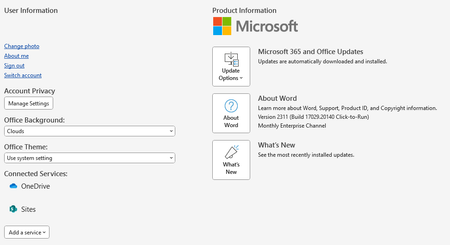
Navigate to File > Account.
Click Update Options and then select Update Now.
Enable AI Features:
If Copilot features are not automatically enabled, you may need to enable AI features in the application settings or through the Microsoft 365 admin center.
Access Copilot:
Look for AI-related features or icons in the Ribbon or help sections of Word, Excel, and PowerPoint. Copilot will typically appear as suggestions, automated content generation, or data analysis tools within these applications.
Admin Configuration:
If you are using Microsoft 365 in an organizational context, ensure your IT admin has enabled Copilot features for your account through the Microsoft 365 admin center.
Steps to update desktop applications:
Open any Microsoft 365 desktop application (e.g., Word).
Go to File > Account (or Office Account).
Select Update Options.
Click Update Now.
By following these steps, you can ensure that you have access to Microsoft 365 Copilot in your desktop versions of Word, Excel, and PowerPoint. BotCleanserMay 18, 2025Tin Contributor
Not a very detailed explanation because you are leaving out what to do if those steps don't work. I have a valid, proper license, the account is refreshed and correct, the 365 products are all current in their updates, but still no CoPilot to be found anywhere. And, so you don't think I'm just a dumb user - I've got 50+ years of dev experience and can write device drivers, debug the OS at the bus level, etc. ... This is just another typical MS not-ready-for-production release where they expect us, the users, to spot their bugs for them. This has always been the case - and it is such an ugly business model. If I didn't have to use MS for specific projects, I'd slick all 11 of the windows machines I have and run Linux alone. :( Can't you guys refrain ever from premature software releases?