Forum Discussion

SKU, quota and policy restrictions on Azure for Students and Free Subscriptions
 Jun 03, 2026
Hi CvWyk, going direct to your questions
Additional backend restrictions beyond visible policies? Yes, behavior strongly indicates additional subscription/SKU restrictions beyond visible policies. Dynamic VM restrictions per student? Evidence strongly suggests yes in practice, though Microsoft does not publicly document the exact mechanism. Regional capacity controls different across students? Yes — capacity and eligibility appear to vary per subscription and region. Best way to identify deployable SKUs? Use az vm list-skus and verify against each student’s allowed regions before labs. and for your students, here's a list to make things easier
Azure for Students VM Troubleshooting Checklist
Quick Student Guide
Use this checklist when your Azure VM deployment fails.
Step 1 — Confirm You Are Using an Allowed Region
Your student subscription only works in certain Azure regions.
Check allowed regions:
- Open Azure Portal
- Search for Policy
- Go to:
- Authoring → Assignments
- Open:
- Allowed resource deployment regions
- Write down your allowed regions
Only deploy VMs in those regions.
Step 2 — Try Another Allowed Region
Even allowed regions may fail temporarily due to Azure capacity shortages.
If deployment fails:
- Try another allowed region
- Test several approved regions
Some students only succeed after changing regions multiple times.
Step 3 — Use Recommended VM Sizes
Some older VM sizes are restricted or retired.
Recommended VM sizes:
- Standard_B2ats_v2
- Standard_B2ts_v2
- Standard_B2als_v2
Avoid:
- B1s
- older B-series VM sizes
Step 4 — Do NOT Select Availability Zones
Availability Zones can block VM creation on student subscriptions.
Best practice:
- Leave zone selection on default
- Use:
- “No infrastructure redundancy required”
This avoids:
- “Unsupported availability zone”
- “SKU unavailable in selected zone”
Step 5 — Check VM Quotas
You may hit VM quota limits even with free credit available.
Check quotas:
- Go to:
- Subscriptions → Usage + quotas
- Look for:
- Total Regional vCPU quota
- VM family quotas
Common error:
- “Total Regional Core quota exceeded”
Step 6 — If No VM Sizes Appear
Possible causes:
- region capacity exhausted
- restricted subscription
- unsupported VM family
- temporary Azure capacity issue
Try:
Another allowed region
Another Bsv2 VM size
Removing Availability Zones
Trying again laterStep 7 — Use CLI to Check Available VM Sizes (Advanced)
The Azure Portal sometimes shows incomplete information.
Azure CLI command:
Shell
az vm list-skus \
--location <region> \
--resource-type virtualMachines \
--output table
Show more lines
Example:
Shell
az vm list-skus \
--location denmarkeast \
--size Standard_B \
--all
``
Show more lines
This shows which VM sizes are actually available for your subscription
Step 8 — Still Not Working?
Document the following before asking for help:
Subscription type
Region used
VM size attempted
Exact error message
Screenshot of:- Allowed regions
- Usage + quotas page
This makes troubleshooting much faster.
Recommended “Safe” Student Deployment Setup
Setting
Recommended Value
Region
One of your allowed regions
VM Size
B2ats_v2 / B2ts_v2
Availability Zone
None
OS
Ubuntu Gen2
vCPU usage
Keep under 4 cores
Important Reality Check
Azure for Students subscriptions can behave differently between students because:
- allowed regions differ
- VM capacity changes dynamically
- some VM sizes are restricted
- region availability is not always consistent
A deployment that works for one student may fail for another student with the same subscription type.
 Microsoft
Microsoft’s response confirms that your troubleshooting process is correct: Azure for Students subscriptions evaluate policies, quotas, SKU restrictions, availability zones, and live regional capacity separately, so a student can have allowed regions, available credit, and visible quota yet still be unable to deploy a VM. It is possible for all allowed regions to effectively fail at the same time due to SKU or capacity restrictions, and the “policy not started” or “Not Registered” behavior likely indicates a backend policy initialization or propagation issue rather than a normal quota problem. There also appears to be little educator-facing documentation warning that allowed regions do not guarantee deployable VM availability, meaning your educators independently worked out the practical deployment workflow very accurately, sorry for not being as supportive as I want, but that's what I found internally.
Let me know if you need anything else
 CvWykJun 09, 2026Tin Contributor
Thank you so much Carlos Chavez I appreciate your response.
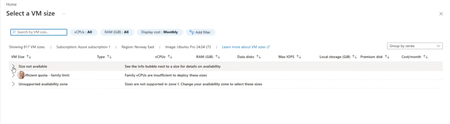
I am still getting 4 out of 50 students who end up with a policy that allows 5 locations but they are not available in the locations list, no matter which image they use. So the troublehsooting is getting thin.
Please see the screenshot. The student’s allowed Azure locations are limited to: Spain Central, Germany West Central, Poland Central, UAE North, and Sweden Central.
In a standard Pay-As-You-Go Azure subscription, the VM Region list normally includes 60+ Azure regions worldwide. However, in this student’s subscription (and others I've seen over the past 5 months), the available Region list is substantially shorter, and none of the regions allowed for her subscription appear in the VM creation Region list. As a result, she is unable to create a virtual machine in any of the regions currently available to her subscription.
I have run through a few work arounds with this student using PowerShell. There is also an issue with Bash, you cannot create a VM unless you add a location and a size, listing sizes brings up nothing for her allowed regions. But PowerShell allows the creation of a vm using:
New-AzVM -ResourceGroupName rg-RG1 -Name VM1 -Image Ubuntu2404
You can see them here:
https://drive.google.com/file/d/1wXFxVB16hnr8IKBE2gF9nL1J04_gRuHq/view?usp=sharing
Is there a way to escalate this to Microsoft so that we can get this fixed? My students normally LOVE this course, but this issue is putting a damper on their experience.
Thanks again!