Forum Discussion

Unable to deploy Windows Defender Application Guard via Intune
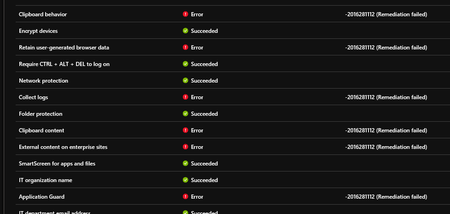

I still have this problem as well. But I did work with another Microsoft Support engineer recently and still working with after reviewing some of the event log info, it appears that the devices are not meeting the hardware requirements for AG. The device must have available 4 cores and 8GB of RAM free.
I have several devices that are just at 8GB and have the 4 cores and are failing, but I have larger devices, 16GB of RAM and 4+ cores that are also failing with the same error. And since 1803 we are running 1909 now as well.
When I get more info, I'll update the thread.
If audit is enabled for AG check your event log here:
Applications and Services Logs / Microsoft / Windows / WDAG-PolicyEvaluator-CSP

Hey Alex Melching,
thanks for your information. Its quite funny because I had the same conversation with another Microsoft Support engineer who told me the same (the device is not meeting the hardware requirements). It also wasn't working when we bought new devices which met the requierements. At the moment we set the AG policies via Powershell script which is changing some registry keys. I don't like this workaround because we still have these remediation errors in our device overview and if we want to change one of the policies regarding AG we have to edit the whole powershell script and reupload it. But atleast now I know that we are not the only ones regarding this problem.
 herman_munsterJun 10, 2020Copper Contributor
Hi Alex Melching et al
I don't know if anyone is still interested but here goes ....
My organisation had this problem too and pretty much we did everything mentioned so far but it did not fix it.....
In any case, after many weeks working with a MS engineer we got to a solution that I still cannot explain and I have asked for more information so I don't feel like such a "goose".
To make the errors disappear:
- As an admin, go to the Intune portal and navigate to the "App Protection Policies" blade.
- Create a new App Protection Policy (Windows 10)
- After name and description choose whether you wish to apply the policy to devices that are enrolled or not enrolled.
- Click Next
- Select "Add" a Protected App
- Do not select an App, just make the following property changes:
Under "Required Settings"
- Corporate Identity : <your_organisation>@onmicrosoft.com>
Under Advanced Settings (Network Perimeter):
- Add a network boundary of type 'Cloud Resource' (using a name that makes sense to you) and
- Adding the *Value* "/*AppCompat*/"
- Click OK
- Add a network boundary of type 'Neutral' (using a name that makes sense to you) and
- Adding the *Value* "login.windows.net,login.microsoftonline.com"
- Click on Review and save and
- Assign it to a test group (devices in my case) and let me know if it fixes the problem?
It worked almost instantly on our system, we didn't need to sync or re-boot or anything.
Please don't ask me how it works - I am still trying to figure that out.
If you figure it out, please let me know.
- Alex MelchingJun 10, 2020Iron Contributor
Thanks for the definitely unique work around, but does it resolve the remediation errors in the configuration policy in Intune?
I don't see how APP is associated with MDAG deployment.
- herman_munsterJun 10, 2020Copper Contributor
Thanks. But it was all MS Engineer.
I kept asking the same question. In answer to your question - Yes, it does solve the remediation errors showing in the configuration profile of the device.
As for the “why”, I as yet have no idea. Something to do with network boundaries I suspect.
I will keep researching - wish me luck. 🙂