Forum Discussion

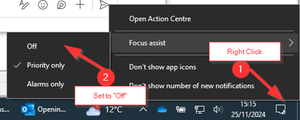
How to centrally switch off Focus Assist / Do not disturb

Registry-Based Approach
The Focus Assist / Do Not Disturb settings are controlled primarily by HKEY_CURRENT_USER, which means applying these settings requires per-user customization. Here are the key registry settings you can modify:
HKEY_CURRENT_USER\SOFTWARE\Microsoft\Windows\CurrentVersion\FocusAssist
Disable Do Not Disturb (Windows 11)
HKEY_CURRENT_USER\SOFTWARE\Microsoft\Windows\CurrentVersion\Notifications\Settings
Deploy via Intune
To deploy these registry changes centrally with Intune:
- Create a PowerShell Script:
# Disable Focus Assist/Do Not Disturb
Set-ItemProperty -Path "HKCU:\SOFTWARE\Microsoft\Windows\CurrentVersion\FocusAssist" -Name "QuietHoursActive" -Value 0 -Force
Set-ItemProperty -Path "HKCU:\SOFTWARE\Microsoft\Windows\CurrentVersion\FocusAssist" -Name "QuietHoursEnabled" -Value 0 -Force
Set-ItemProperty -Path "HKCU:\SOFTWARE\Microsoft\Windows\CurrentVersion\Notifications\Settings" -Name "NOC_GLOBAL_SETTING_DND" -Value 0 -Force
# Disable Focus Assist/Do Not Disturb
Set-ItemProperty -Path "HKCU:\SOFTWARE\Microsoft\Windows\CurrentVersion\FocusAssist" -Name "QuietHoursActive" -Value 0 -Force
Set-ItemProperty -Path "HKCU:\SOFTWARE\Microsoft\Windows\CurrentVersion\FocusAssist" -Name "QuietHoursEnabled" -Value 0 -Force
Set-ItemProperty -Path "HKCU:\SOFTWARE\Microsoft\Windows\CurrentVersion\Notifications\Settings" -Name "NOC_GLOBAL_SETTING_DND" -Value 0 -Force
Upload to Intune:
- Navigate to Devices > Scripts > Add Script.
- Upload the PowerShell script and assign it to user groups.
Deploy via Group Policy Preferences
If you are using Active Directory and Group Policy:
- Open Group Policy Management.
- Navigate to:
- User Configuration > Preferences > Windows Settings > Registry.
- Create new registry preferences:
- Path: HKEY_CURRENT_USER\SOFTWARE\Microsoft\Windows\CurrentVersion\FocusAssist
- Key: QuietHoursActive, Value: 0
- Key: QuietHoursEnabled, Value: 0
- Path: HKEY_CURRENT_USER\SOFTWARE\Microsoft\Windows\CurrentVersion\Notifications\Settings
- Key: NOC_GLOBAL_SETTING_DND, Value: 0
- Path: HKEY_CURRENT_USER\SOFTWARE\Microsoft\Windows\CurrentVersion\FocusAssist
- Apply the GPO to the relevant Organizational Units (OUs).
Consider Using CSPs in Intune
You can also use Intune Configuration Profiles with Custom OMA-URI Settings:
- Go to Endpoint Manager > Devices > Configuration profiles > Create profile.
- Select Platform: Windows 10 and later and Profile type: Templates > Custom.
- Configure OMA-URI settings:
- URI: ./User/Vendor/MSFT/Policy/Config/Notifications/DisableDND

Hi,
I tested this script on two devices (Window 11 and Window 10), both failed. Here is the extract from IntuneManagementExtension.log (Windows 10 device).
Please advise
Also getting an error using URI
- unslogDec 16, 2024Brass Contributor
Hi kyazaferr
Are you able to assist further please?
We still cannot find a solution to this problem.
 PVincentDVAMay 07, 2025Copper Contributor
I'd be interesting in if anyone found a resolution in Intune to control DnD. I tried the CSP, using an Integer of 1 and it errored out. Tried a string value of 1 and same deal. Searching for "DisableDND" comes up with nothing, so I'm not sure it's even a valid CSP. Definitely not documented by MS.