Forum Discussion

Powershell extract TPM and Envryption Readiness information from Intune
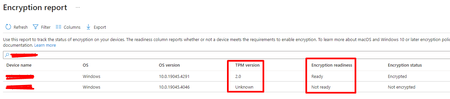

Hi dmarquesgn, have you tried the excellent solution called https://graphxray.merill.net/? It will help you find which Powershell commands to use when using the Intune portal.
The answer I got from the addon was the following:
Import-Module Microsoft.Graph.Beta.DeviceManagement.Actions

$params = @{
	select = @(
		"DeviceId"
		"DeviceName"
		"DeviceType"
		"OSVersion"
		"TpmSpecificationVersion"
		"EncryptionReadinessState"
		"EncryptionStatus"
		"UPN"
	)
	filter = ""
	skip = 0
	search = ""
	top = 50
}

Get-MgBetaDeviceManagementReportEncryptionReportForDevice -BodyParameter $params
tobiassandberg Thanks for the tip, I didn't knew it.
Abou the cmdlet "Get-MgBetaDeviceManagementReportEncryptionReportForDevice", is the only form of extracting the data to output it to a file? This way we need to then import it.
One other question, I'm exporting the results and import them into a variable with "Get-Content". When I look at the content, this seems a JSON, so I convert it using the option "ConvertFrom-Json" and then I get a PSCustomObject variable. But the format seems odd, as I can't access it's individual values like in an array.
Is there any option to import this directly as an array so I can parse it easily?
Thanks
- tobiassandbergMay 07, 2024Iron Contributor
Thanks dmarquesgn!
With the recent changes to Intune’s reporting mechanism by Microsoft, the method you’re using is the only one I’m aware of to retrieve such information. Regrettably, this process generates a file rather than a direct output, necessitating the need to save it for subsequent processing. Docs are describing it here: https://learn.microsoft.com/en-us/mem/intune/fundamentals/reports-export-graph-apis
Regarding your second question, try this and see if it helps you:# Assume that $jsonFilePath contains the path to your JSON file $jsonFilePath = "path_to_your_json_file.json" # Read the JSON file and convert it to a PowerShell object $json = Get-Content -Path $jsonFilePath -Raw | ConvertFrom-Json # Now $json is a PowerShell object that represents the JSON data # You can access its properties like this: $columns = $json.columns $values = $json.values # Now $columns is an array of column names and $values is an array of rows # You can access individual items in these arrays like this: $firstColumnName = $columns[0] $firstRow = $values[0] # Now $firstColumnName is the first column name and $firstRow is the first row # $firstRow is a PSCustomObject that represents a row, you can access its properties like this: $firstDeviceName = $firstRow.DeviceName- dmarquesgnMay 08, 2024Iron Contributor
tobiassandberg Thanks for the inputs, they are quite useful.
I've been playing with that code you've send, and it's not quite that, but I've found how to access each element. So now I would like to circle each element and add the values into an array, so I can then do the usual searching and sorting. But I'm yet not too familiar with arrays. So how can I build an array just like a csv file with properties or headers, which are:
DeviceId, DeviceName, DeviceType, etc, etc, and then add the values into each property?
Thanks
- tobiassandbergMay 08, 2024Iron Contributor
dmarquesgn maybe this will work better for you? It's two different ways of handling the array.
# Assume that $jsonFilePath contains the path to your JSON file
$jsonFilePath = "path_to_your_json_file.json"

# Read the JSON file and convert it to a PowerShell object
$json = Get-Content -Path $jsonFilePath -Raw | ConvertFrom-Json

# Now $json is a PowerShell object that represents the JSON data
# You can access its properties like this:
$columns = $json.columns
$values = $json.values

# Array
$values

# We can loop through the array and get specific values
foreach($value in $values){
    $DeviceName = $value.DeviceName
    $ManagedBy = $value.ManagedBy
    $Ownership = $value.Ownership
    $CompliantState = $value.CompliantState
    $OS = $value.OS
    $OSVersion = $value.OSVersion
    $LastContact = $value.LastContact
    $UPN = $value.UPN
    $DeviceId = $value.DeviceId
}

# Initialize an empty array to hold the row objects
$rows = @()

# Loop through each element in your data
foreach ($element in $values) {
    # Create a new object to represent the row
    $row = New-Object PSObject

    # Add properties to the row object
    $row | Add-Member -MemberType NoteProperty -Name "DeviceId" -Value $element.DeviceId
    $row | Add-Member -MemberType NoteProperty -Name "DeviceName" -Value $element.DeviceName
    $row | Add-Member -MemberType NoteProperty -Name "DeviceType" -Value $element.DeviceType
    # Add more properties as needed...

    # Add the row object to the rows array
    $rows += $row
}

# Array formatted differently
$rows

# Now $rows is an array of objects, each representing a row from your data
# You can access individual rows and their properties like this:
$firstRow = $rows[0]
$firstDeviceId = $firstRow.DeviceId