Forum Discussion

Microsoft 365 Apps - Teams not installed (Using Company Portal)

First check here: CasparAbo
Trust apps needs to be 1, if it is then try the below. If it isn't then you're probably blocking store apps by GPO/Intune policies.
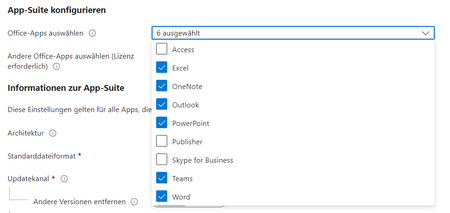
If it is, this is what we did: Removed Teams from the 365 apps installer in Intune
Created a new Teams app from https://go.microsoft.com/fwlink/?linkid=2243204&clcid=0x409
Settings:
# Define the path where New Microsoft Teams is installed
$teamsPath = "C:\Program Files\WindowsApps"
# Define the filter pattern for Microsoft Teams installer
$teamsInstallerName = "MSTeams_*"
# Retrieve items in the specified path matching the filter pattern
$teamsNew = Get-ChildItem -Path $teamsPath -Filter $teamsInstallerName
# Check if Microsoft Teams is installed
if ($teamsNew) {
# Display message if Microsoft Teams is found
Write-Host "New Microsoft Teams client is installed."
exit 0
} else {
# Display message if Microsoft Teams is not found
Write-Host "Microsoft Teams client not found."
exit 1
}
I think because 365 Apps was device pushed it had no license, so didn't install Teams. This way installs it like any other app, you just need to keep the bootstrapper up to date. This way will keep the latest Teams installing for each build though.

thanks for your post.
I've created an intunewin-file and created a new app. I follow all of your steps but the app will not be installed.
can you figured out what i did wrong?
thanks a lot
- ITInfraFeb 26, 2024Copper Contributor
Looks ok to me. Double check c:\program files\windowsapps has the msteams_* folder. Easiest way to see it is open notepad as admin and then manually navigate to the path (it's a hidden folder). Not sure if it's different for your region.
Run the script manually with the exit codes and if it's good it should say it's installed.
# Define the path where New Microsoft Teams is installed
$teamsPath = "%localappdata%\Microsoft\WindowsApps"# Define the filter pattern for Microsoft Teams installer
$teamsInstallerName = "MSTeams_*"# Retrieve items in the specified path matching the filter pattern
$teamsNew = Get-ChildItem -Path $teamsPath -Filter $teamsInstallerName# Check if Microsoft Teams is installed
if ($teamsNew) {
# Display message if Microsoft Teams is found
Write-Host "New Microsoft Teams client is installed."
} else {
# Display message if Microsoft Teams is not found
Write-Host "Microsoft Teams client not found."
}- BillGoldbergFeb 27, 2024Copper Contributor
thanks 🙂