Forum Discussion

Domain Join Configuration Profile suddenly erroring out.
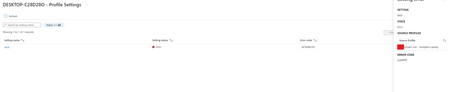

I too encountered similar problems and other problems in the past.
To resolve the issues for once from root. I completely un-installed the existing Intune Connector for Active Directory and Installed the new version.
Before Installing the Intune Active Directory Install. Install WebView2 or follow below instructions.
1. Verify Prerequisites
1.1.Windows Server 2016 or later
1.2 .NET Framework version 4.7.2 or later ( verify by Navigating to HKLM\SOFTWARE\Microsoft\NET Framework Setup\NDP\v4\Full).
1.3. The server hosting the Intune Connector for Active Directory must have access to the Internet and Active Directory. (https://learn.microsoft.com/en-us/intune/intune-service/fundamentals/intune-endpoints)
1.4.To increase scale and availability, multiple connectors can be installed in a domain. Each connector must be able to create computer objects in the domain that it supports.
1.5.The administrator installing the Intune Connector for Active Directory must be a local administrator on the server where the Intune Connector for Active Directory is being installed.
1.6.Explicitly granting permissions on C:\Program Files\Microsoft Intune\ODJConnector\ODJConnectorEnrollmentWizard.
2. Installation Procedure
2.1.Navigate to https://developer.microsoft.com/en-us/microsoft-edge/webview2/?form=MA13LH#download download Evergreen Bootstrapper version and then Run as Administrator.
2.2.After successful WebView2 installation, we'll install Intune Connector. Go To Intune Admin Center > Devices > Enrollment > Intune Connector for Active Directory > Add > Download and Run as Administrator.
2.3.After successfully installing the Connector, do the Sign-in using Intune Administrator account or Global Administrator account.
2.4 Now we neeed to grant the right permissions. Navigate to C:\Program Files\Microsoft Intune\ODJConnector\ODJConnectorEnrollmentWizard. Click on Properties and then give Full Control to the login account.
2.5. Open ODJConnectorEnrollmentWizard.exe.config with Notepad. Add the OU's Distinguished Name after the value="
2.6.Create msDs-ManagedServiceAccount objects in the Managed Service Accounts container in Active Directory.
2.7.Local administrator rights on the server where the Intune connector is installed.
3. Post Installation procedure
Also, the whole process makes a lot easier if you use domain admin account to install and configure the setup otherwise you will need to work with AD/directory services team to grant necessary permissions.
Below are the example steps of giving msDs-ManagedServiceAccount permission to a domain account.
3.1.In Active Directory, use the tool ADSIEDIT.msc to assign the msDs-ManagedServiceAccount permissions to the account.
3.2.Launch ADSIEDIT.msc, navigate to CN=Managed Service Accounts, and right-click on the container.
3.3.Select Properties, go to the Security tab, and click on Advanced.
3.4.Add the account and enable permissions for Create msDs-ManagedServiceAccount.
3.5.Choose type “Allow”, applies to “This object only” and Enable “Create msDs-ManagedServiceAccount” while leaving the default read permissions.
3.6.Next, go back to the Intune Connector, hit Configure Managed Service Account