Forum Discussion

Right Angle Connectors are now going Diagonal?
 Oct 04, 2019
I found the solution.
It doesn't have anything to do with the ShapeSheet.
What happened, was I changed the page settings:
Design > Page Setup
I removed "Auto Size"
But since this involves changing settings for the Page, Visio creates gremlins for anything that is also tied to the Page settings. In this case:
Design > Page Setup > Layout and Routing
... is also encased in the Page. So it broke itself.
Solution:
Delete every connector
Delete the Master "Dynamic connector"
Create a new Page
Copy all shapes over to Page-2
Delete Page-1
Reconnect every connector
Luckily for me, I only had 20 connectors to recreate. Hopefully this thread comes in handy for someone else!
*EDIT: Clarification*
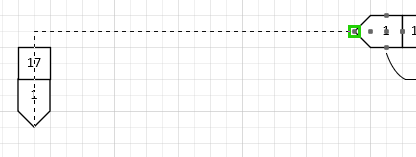
The images I have shown look like the diagonals are moving at angles parallel to the shapes.
The reality is, every connector was moving at a different odd angle. If I created new Squares, no ShapeSheet data, the connectors still moved at strange angles. There was no convergence to where they were pointed. All settings for angular snapping were disabled.

And, over a year later, neither of the above worked for me, but I found another way I wanted to share. Follow Russ_Johnson_WNPT’s Feb. 07, 2024 instructions, but on the Layout and Routing tab of the Page Setup dialog box, don’t click on Spacing. Instead, make sure the Routing / Style: drop down at top left is set to Right Angle, then click ok. Fixed my default connectors back to right angles. Hope this helps someone else!
 KevinD_CCFJul 02, 2025Copper Contributor
Does not work for me. I am using Visio 2021. Mind you, this issue has existed for at least 15 years, going back to no later than Visio 2010. None of the solutions suggested above makes any difference whatsoever. everything is set to 'right angle' but it persists in making some straight line, even though the 'right angle' is selected. It even does straight lines that pass 'through' other shapes.
Edited to add, it may be something to do with adding extra 'Connection Points'. My connectors work fine from pre-existing shape connector points, the only problems come from connectors from connection points I have added.