Forum Discussion

Power Point Alt Tags
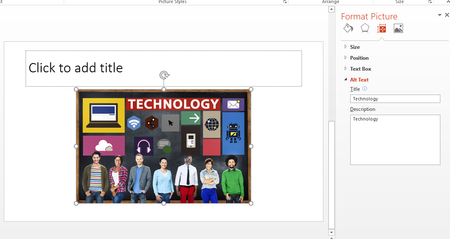

Hi AJ
I think you may be getting confused between an Alt tag and Screen tips (older term tool tips).
Screen tips let you hover over an image and you can see a text description appear. See sample image below.
If this is what you want, try the following instructions:
- Right click onto your desired image and click onto Hyperlink. The Insert Hyperlink box will appear.
- Click onto Place in This Document under the Link to left side bar.
- Select the slide that your image resides under Select a place in this document.
- Click onto the ScreenTip... in the top right of the box.
- Type your desired text.
- Press OK to save the text. Press OK again to save your hyperlink set up.
- Now run your presentation and hover your mouse over your image. You should see the screen tip appear.
Hopefully that does the trick!
Good luck
Damien

I'm not at all getting confused and I do know what Screen Tips are.
Please see the attachment.
I apologize for not being clear initially.
The alt tags I set up myself as pointed out in the initial post don't appear anywhere in the screen reading software that I was using to test it.
Thanks.

- Damien_RosarioJan 09, 2018Silver Contributor
Hi AJ
From what you have shown, and from what I understand, you've applied the Alt text correctly.
I don't know why your software isn't picking up on the text when you run it although I don't personally use any accessible technologies and can't really test it for you.
It might be worth testing the presentation on other readers if you haven't already tried, otherwise I don't have the answer that you seek.
You've got me on this one!
Good luck friend!
Damien
- AJChoJan 11, 2018Brass Contributor
No worries, and I appreciate your attempts.
I'm starting to think I'm asking the wrong questio. I tried a separate computer and it worked with a similar setup, so I'm wondering now if it's a setting I have set somewhere in my local instance of PPT on my work computer. Works fine on my personal one though.
- Damien_RosarioJan 11, 2018Silver ContributorA frustrating problem! Sometimes when I have usual issues like this when I don't know why it's happening, I create a fresh (new) PPTX file, copy the text from my other slide show into the new one, and then see if that resolves the issue.
You'd probably have to recreate the slide show, but it might be a workaround to your issue.
I suggest you try with one or two slides and see if the reader works on that?
Cheers
Damien