Forum Discussion

Sum returns 0
 Dec 29, 2017
Make sure to enter the second formula by pressing Ctrl+Shift+Enter as I mentioned before, this keystroke shortcut will force the formula to deliver the right result.
Give it a try.
It's a common issue!
Quick solution:
=SUMPRODUCT(VALUE(SUM RANGE))
Please refer to my answer to this question to learn more about this issue!

It didnt seem to work... or I did it wrong which is much more probable.
I put
=SUMPRODUCT(VALUE(d5:d29))
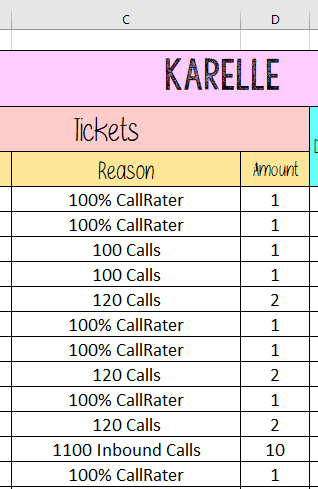
I only want it to sum up the range D5:D29
- Haytham AmairahDec 29, 2017Silver Contributor
I guess that you have in sum range some blank cells!
If so, please use this workaround:
=SUM(IFERROR(VALUE(sum_range),0))
NOTE: to enter this formula, don't press Enter, but press Ctrl+Shift+Enter simultaneously, and do that each time you open the formula in the edit mode.
 jose cedeñoFeb 12, 2018Copper Contributor
sorry to boder but i've been trying to use the same step you gave to solve this problem and it keeps giving my 0. please would you help me
- Haytham AmairahFeb 12, 2018Silver Contributor
Hi Jose,
Please post a question in this community and describe your issue in details to figure out how to help you!
- Whitney AndersenDec 29, 2017Copper Contributor
So the first formula you gave me returned the #VALUE! error. The second formula just comes up as 0
- Haytham AmairahDec 29, 2017Silver Contributor
Make sure to enter the second formula by pressing Ctrl+Shift+Enter as I mentioned before, this keystroke shortcut will force the formula to deliver the right result.
Give it a try.
- Haytham AmairahDec 29, 2017Silver Contributor
It should work!
Let me know what its result!
Is it 0 or something else?