Forum Discussion

Script to convert CSV to table
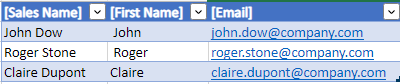

From what I could gather from your text, you want to create an office script that converts a CSV file to an Excel spreadsheet, and then use that script in Power Automate to send emails.
Here's an example of how you can write an Office script to convert a CSV file to an Excel spreadsheet:
function main(workbook: ExcelScript.Workbook) {
  // Get the current worksheet
  let sheet = workbook.getActiveWorksheet();

  // Get the data from the CSV file
  let csvData = `Sales Name,First Name,Email
John Dow,John,email address removed for privacy reasons
Roger Stone,Roger,email address removed for privacy reasons
Claire Dupont,Claire,email address removed for privacy reasons`;

  // Split the CSV data into rows
  let rows = csvData.split("\n");

  // Loop through each row
  for (let i = 0; i < rows.length; i++) {
    // Split the row into columns
    let columns = rows[i].split(",");

    // Loop through each column
    for (let j = 0; j < columns.length; j++) {
      // Set the value of the cell
      sheet.getCell(i, j).setValue(columns[j]);
    }
  }

  // Create a table from the data
  let table = sheet.addTable(sheet.getUsedRange().getAddress(), true);
}
*Script from Internet.
This script gets the data from a CSV file and splits it into rows.
It then loops through each row and splits it into columns.
The script sets the value of each cell in the worksheet based on the data from the CSV file.
Finally, it creates a table from the data in the worksheet.
You can then use this script in Power Automate to convert your CSV file into an Excel table and send emails based on the data in the table.
As for making the emails clickable, you can format the cells containing email addresses as hyperlinks. This will make them clickable and allow users to easily send emails by clicking on the email addresses.
I hope this helps!

Thank you for your reply. In the script you provided the sales name, first name and email are always the same. The names and emails are changing all the time. So in the script it should be interactive, depending what is in the csv file.
Is that possible to have it in a script?
- NikolinoDEApr 18, 2023Platinum Contributor
Example how to change the code to format the cells in email column as hyperlinks:
async function main(context: Excel.RequestContext) {
  // Get the file from OneDrive
  let response = await fetch("<YOUR_FILE_URL>");
  let csvData = await response.text();

  // Get the current worksheet
  let sheet = context.workbook.worksheets.getActiveWorksheet();

  // Split the CSV data into rows
  let rows = csvData.split("\n");

  // Loop through each row
  for (let i = 0; i < rows.length; i++) {
    // Split the row into columns
    let columns = rows[i].split(",");

    // Loop through each column
    for (let j = 0; j < columns.length; j++) {
      // Set the value of the cell
      sheet.getCell(i, j).values = [[columns[j]]];

      // Format the email column as a hyperlink
      if (j === 2 && i > 0) {
        sheet.getCell(i, j).hyperlink = `mailto:${columns[j]}`;
        sheet.getCell(i, j).format.font.color = "blue";
        sheet.getCell(i, j).format.font.underline = "Single";
      }
    }
  }

  // Create a table from the data
  let table = sheet.tables.add(sheet.getUsedRange().getAddress(), true);
  table.getHeaderRowRange().format.fill.color = "#4472C4";
  table.getHeaderRowRange().format.font.color = "white";

  await context.sync();
}
Just hope the file isn't in OneDrive.
- Pierre73Apr 18, 2023Copper Contributor
NikolinoDE
I copy past your script and I have some errors. I see I have to modify <YOUR FILE URL>, but I have errors on line 1, 7 and 32.- NikolinoDEApr 18, 2023Platinum ContributorIt retrieves a CSV file from a specified URL, parses the data, and inserts it into a table in the active worksheet.
To use this script, you need to replace <YOUR_FILE_URL> with the URL of the CSV file you want to import.
Make sure that the URL is enclosed in quotation marks and that you have permission to access the file.