Forum Discussion

Recreating a Twitter Search URL in Excel
- May 07, 2017
Hi Niels,
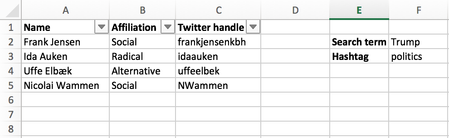
The most complex part of your task is to combine <from> part of the search string - we have to combine Twitter handle column in one string based on criteria are columns filtered or not.
Afraid the easiest way is to use VBA. I took one of samples found on Web https://www.mrexcel.com/forum/excel-questions/637445-concatenate-text-visible-cells.html
(Press Alt+F11 to open VBA environmen, copy/paste function code in new module)
Public Function ConcatenateVisible(rng As Variant, seperator As String)
    For Each cll In rng
        If cll.EntireRow.Hidden = False Then _
            ConcatenateVisible = ConcatenateVisible & cll.Value & seperator
    Next
    ConcatenateVisible = Left(ConcatenateVisible, Len(ConcatenateVisible) - Len(seperator))
End Function
On your table above function
=ConcatenateVisible(C2:C5," OR from:")
returns result like
frankjensenkbh OR from:idaauken OR from:uffeelbek
After that the all what we need is to combine site URL and query string on it, e.g.
https://twitter.com/search?q=

to combine with

Radikale %23dkpol from:idaauken OR from:nielstybjerg OR from:loveyourleads
All parts for that we have now, resulting string use in HYPERLINK function
=HYPERLINK("https://twitter.com/search?q=" & F2 & " %23" & F3 & " from:"&ConcatenateVisible(C2:C5," OR from:"), "Search Twitter")which returns needed hyperlink.
File is attached - it is in macro-enabled format


Definitely use the concatenate function or the & sign.
You can do something like this:
=URLpart1&$F$2&URLpart2&$F$3&URLpart3&C2&URLpart4
With the concatenate functions it would be like this:
=concatenate(URLpart1,$F$2,URLpart2,$F$3,URLpart3,C2,URLpart4)
As far as filtering goes, it would be easy to fill in the first formula, drag the fill handle down to apply that formula to all rows, then filter as needed.
- SergeiBaklanMay 08, 2017Diamond Contributor
Zachary, latest part concatenates all invisible cells from column C, it looks like
" from:" & C2 & " OR from:" & C4 & " OR from:" & C5
assuming rows 2, 4 and 5 are visible.
If only row 4 is visible the part shall be
" from:" & C4
and so on
- Zachary GrotovskyMay 08, 2017Brass ContributorThanks for the comments, Sergei. I included absolute references and relative references based on the image included in Niels' example. Not sure what you mean by " from:" Can you please explain further?
- SergeiBaklanMay 08, 2017Diamond Contributor
Zachary,
Filtering is in task description, URL is generated based on list of filtered people.
As for the URL it has standard two parts - web address of the site and query to it.
Address of the search home page for twitter is
https://twetter.com/search
as for any query you add ?q= and after that search string. For example, for the URL
https://twitter.com/search?q=Radikale%20%23dkpol%20from:frankjensenkbh%20OR%20from:idaauken%20OR%20from:uffeelbek
search string if you re-write above html in more human friendly notation will be
Radikale #dkpol from:frankjensenkbh OR from:idaauken OR from:uffeelbek
which means you search Radikale with hashtag #dkpol and from accounts listed further.
All above is in the task description, actually search string could have more complex structure, you may see if check twitter advanced search.