Forum Discussion

Problems with programmatically using Date fields in Excel
 Aug 17, 2023So, after a simply ENORMOUS amount of phaffing. The solution is to move the Recurrence get/set after the setting of the .Start and .End parameters. Why that is, god knows. But that solves it.

It appears that the issue might be related to how the date values are being handled and formatted in your VBA code. When working with dates in VBA, it is important to ensure proper conversion and formatting to ensure compatibility and accuracy across different versions of Office.
Here are a few suggestions to address the issues you are facing:
- Date Formatting: When concatenating date values with strings, you should ensure that the date is formatted as a string in a format that Excel recognizes. You can use the Format function to format the date as required.
vba
apptStart = Format(Cells(i, 3), "yyyy-mm-dd") & " 9:00:00 AM"
apptEnd = Format(Cells(i, 3), "yyyy-mm-dd") & " 9:01:00 AM"
2. UTC Conversion: If you are using UTC values, make sure you convert the date values to UTC properly. Since apptStart and apptEnd are in local time, you should adjust them to UTC before assigning them to .StartUTC and .EndUTC.
vba
.StartUTC = DateValue(apptStart) + TimeValue(apptStart) - TimeSerial(1, 0, 0)
.EndUTC = DateValue(apptEnd) + TimeValue(apptEnd) - TimeSerial(1, 0, 0)
3. DateValue Function: Use the DateValue function to extract only the date portion of a DateTime value.
vba
.StartUTC = DateValue(apptStart) + TimeValue(apptStart) - TimeSerial(1, 0, 0)
.EndUTC = DateValue(apptEnd) + TimeValue(apptEnd) - TimeSerial(1, 0, 0)
By following these suggestions, you can ensure that the date values are properly formatted and converted before assigning them to Outlook appointment properties. This should help resolve the issue of appointments being created with incorrect or identical dates. Remember to adjust the time zone difference appropriately when working with UTC time values.The text and steps were created with the help of AI.
My answers are voluntary and without guarantee!
Hope this will help you.
- MikeMay5669Aug 14, 2023Tin Contributor
Sorry but that A) Doesn't work (same result) and B) Doesn't actually make sense. Why would you manually have to format a date as a date when the cell format is already set to "Date"? And why, if Excel (part of Office) understands a date as a date, and Outlook (also part of THE SAME VERSION of Office) is expecting to receive a DateTime value, does Outlook not understand the same data types as Excel?
The real question here is What has changed in the Outlook/Excel/Office object model since version 16 that has broken this, as it was working fine in all previous versions of Office?
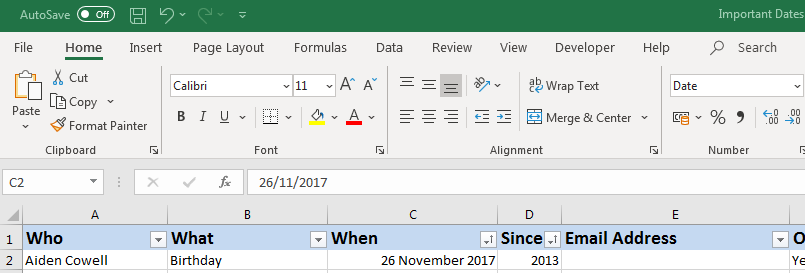
I'm of course grateful for people guessing or issuing conjecture, but what's needed here is an actual Microsoft MVP VBA programmer to actually answer the questions! I've helpfully attached a screen grab showing the cells correctly formatted as Dates and...showing Dates...