Forum Discussion

How do I make excel change the colour of a cell depending on a different cells date?
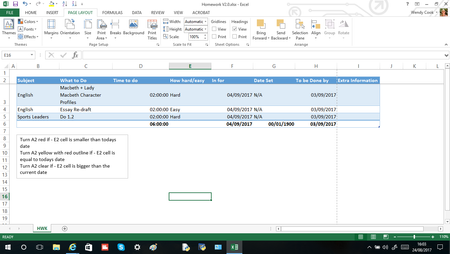
- Nov 21, 2022
Let's say you want to highlight a row if column F contains "Closed".
Use the formula
=$F2="Closed"
If you want something different, please provide more detailed information.

I have a spreadsheet with quarterly invoices. I want all cells in a row to turn black after the date in column H (ie where the N/As are in the first 5 rows.) and I want my range to be columns L,M,N,Q,R,S, U,V,W. (I will have different numbers of rows depending on the sheet and the year adn would rather not have to specify range.) I'm trying to tell it to look at a cell, check the header row to determine if that date is after the date in Column H, and if so change all other cells in date columns black for the rest of the row. And I want it repeated for the whole sheet. I just can't figure out how to code that.
This is what I want it to look like at the end.
Is there some form of conditional formatting or macro use that I could make this happen?
Thanks!

Select L1:X100 (or further if you like).
On the Home tab of the ribbon, click Conditional Formatting > New Rule...
Select 'Format only cells that contain'.
Leave the first drop down set to 'Cell Value'.
Select 'equal to' from the second drop down.
In the box next to it, enter the formula
="N/A"
Click Format...
Activate the Fill tab.
Select black as fill color.
Click OK, then click OK again.