Forum Discussion

How do i highlight a particular cell/change color when a particular condition is met.
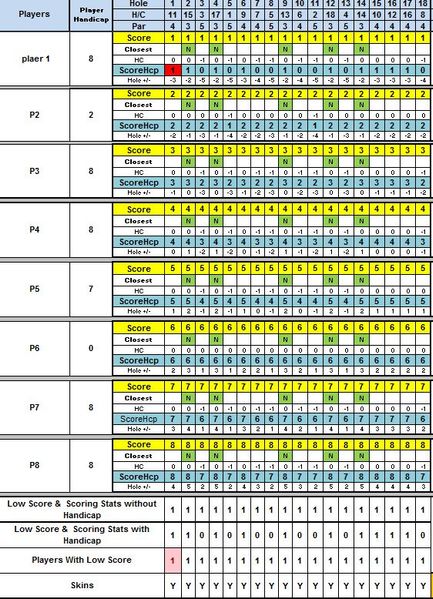
- Apr 17, 2017
Okay, let do it bit another way and step by step. I based on my test sheet:
in row 12:12 we have lowest score for all players, and in 13:13 number of such players.
Apply to the cell $B$1 conditional formatting rule
=(B1=B$12)*(B$13=1)
which check if simultaneously B1 has minimum score and we have only one such player in B:B column. Be careful with absolute and relative references in formula, that's important.
After that pick-up format of the cell B1 by Format Painter and apply it sequently to cells B3, B5, B7, B9.
You may stay on cell B9 and check Conditional formatting for it, it shall show the rule
=(B9=B$12)*(B$13=1)
After that select entire column B:B (or only cells B1:B9), pickup its format by Format Painter and apply it to next columns C:C, etc.
For cell C9, for example, it shall appears the rule
=(C9=C$12)*(C$13=1)
Now you have lot of rules for you matrix, one separate rule for each cell with the score. In my previous post that was one rule applied to set of cells. Result is the same.
If your matrix is as small as in your example and numeber of players is more or less fixed above is enough, for big matrix and flexible number of players some optimization could be applied.

Hi Sukhbir,
The simpliest solution looks like this
but that's only to illustrate the idea

Thanks Sergei, i tried your solution but i am not getting the required results. Maybe i am not putting the formula in correct order.
Thanks though.
Sukhbir
- SergeiBaklanApr 17, 2017Diamond Contributor
Okay, let do it bit another way and step by step. I based on my test sheet:
in row 12:12 we have lowest score for all players, and in 13:13 number of such players.
Apply to the cell $B$1 conditional formatting rule
=(B1=B$12)*(B$13=1)
which check if simultaneously B1 has minimum score and we have only one such player in B:B column. Be careful with absolute and relative references in formula, that's important.
After that pick-up format of the cell B1 by Format Painter and apply it sequently to cells B3, B5, B7, B9.
You may stay on cell B9 and check Conditional formatting for it, it shall show the rule
=(B9=B$12)*(B$13=1)
After that select entire column B:B (or only cells B1:B9), pickup its format by Format Painter and apply it to next columns C:C, etc.
For cell C9, for example, it shall appears the rule
=(C9=C$12)*(C$13=1)
Now you have lot of rules for you matrix, one separate rule for each cell with the score. In my previous post that was one rule applied to set of cells. Result is the same.
If your matrix is as small as in your example and numeber of players is more or less fixed above is enough, for big matrix and flexible number of players some optimization could be applied.
- sukhbirgApr 18, 2017Copper Contributor
Thanks Sergei, it worked. !!
- sukhbirgApr 18, 2017Copper Contributor
Hi Sergei, thanks for helping on the original issues. i have another question, is it possible to have a formula to count the cells which changed color due to conditional formating which you helped in the previous issue. i tried using colorCcount and looks like it doesnt count the cells which have changed color due to conditional formating. It works fine if i change the color manually.
Thanks
Sukhbir