Forum Discussion

HELP: Using multiple drop down lists to generate a series of responses depending on combination.
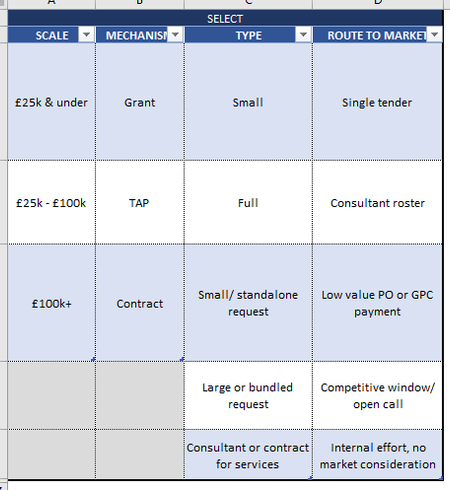

To achieve the functionality you described, you maybe can use a combination of Excel formulas such as INDEX and MATCH, along with IF statements. Here's a general outline of how you can set it up:
- Define your Criteria and Solution Categories: Set up your Excel sheet with the criteria categories (e.g., Scale, Mechanism, Type, Route to Market) and the corresponding dropdown lists for each category. Also, define the Solution categories and their options.
- Create a Lookup Table: Create a lookup table that maps each combination of criteria to the corresponding responses in the Solution categories. This table will help you determine which responses to display based on the selected criteria.
- Use INDEX and MATCH Functions: In the cell where you want to display the responses, use the INDEX and MATCH functions to look up the appropriate response based on the selected criteria combination. You will need to nest multiple INDEX and MATCH functions to handle the lookup for each Solution category.
- Wrap with IF Statements: You can wrap the INDEX and MATCH functions with IF statements to handle cases where certain criteria combinations do not have specific responses. This way, you can display a default response or leave the cell blank if no response is available.
- Test and Refine: Test your setup with different combinations of criteria to ensure that the correct responses are displayed. You may need to refine your formulas and lookup table based on the actual data and requirements.
Here's a simplified example of what your formulas might look like:
=IFERROR(INDEX(ResponseRange, MATCH(1, (Criteria1 = Criteria1Range) * (Criteria2 = Criteria2Range) * (Criteria3 = Criteria3Range) * (Criteria4 = Criteria4Range), 0)), "")
In this formula:
- ResponseRange is the range of responses in your lookup table.
- Criteria1, Criteria2, Criteria3, Criteria4 are the selected criteria values.
- Criteria1Range, Criteria2Range, Criteria3Range, Criteria4Range are the ranges where your criteria options are located.
You will need to replace these placeholders with the actual cell references and ranges in your Excel sheet.
By setting up your Excel sheet in this way, you can dynamically generate specific combinations of responses based on the selected criteria. Remember to adjust the ranges and formulas as needed based on your specific setup and requirements. The text was created with the help of AI.
My answers are voluntary and without guarantee!
Hope this will help you.
Was the answer useful? Mark as best response and like it!
This will help all forum participants.