Forum Discussion

Expense report help
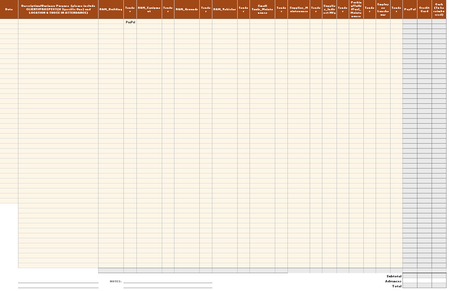
- Apr 26, 2018
This is kind of a tricky solution. It's a little tough to understand....but basically I'm using a SUMPRODUCT formula to get you the result you require.
=SUMPRODUCT(0+(D12:T12="PayPal"),0+ISODD(COLUMN(C12:S12)),C12:S12)
The ranges are offset to align the two arrays. So for the PayPal range I use D12:T12 but for the $$$ Range I use C12:S12. The reason this offset is necessary is in order to align the two ranges where the $$$ is adjacent to the Criteria.
Here's a simplified example of how the data is being evaluated...
0.00 Paypal
3.00 Credit
4.00 PayPal
5.00 PayPal
Then this evaluates the items that are = PayPal
0.00 True
3.00 Credit
4.00 True
5.00 True
Then we sum up the numbers $4 + $5 + $0 = $9
Here's a little more info on SumProduct for your reference:
https://www.ablebits.com/office-addins-blog/2016/08/24/excel-sumproduct-function-formula-examples/
https://exceljet.net/formula/sum-every-nth-column
Please see the attached example file for the solution.

Matt,
I really appreciate all the help. I'm very close now and definitely grasp the idea now. I'm having a conflict with my formula. The row that is filled in all the way across generates a sum in the correct column, but if you remove any one of the "tender" options it generates an error. In reality, each row will be one purchase and they'll place the amount in the correct why/what/where column, so each row only have one of the columns generated, but obviously all need to be available in the formula to suit wherever the purchase might put it. I attached my actual template, with all sensitive information removed so you can see what I'm running in to. I believe I need to "nest" my formulas, but I'm not sure I know how to put those together. I also think my false value of "" could be wiping the numbers.

This is kind of a tricky solution. It's a little tough to understand....but basically I'm using a SUMPRODUCT formula to get you the result you require.
=SUMPRODUCT(0+(D12:T12="PayPal"),0+ISODD(COLUMN(C12:S12)),C12:S12)
The ranges are offset to align the two arrays. So for the PayPal range I use D12:T12 but for the $$$ Range I use C12:S12. The reason this offset is necessary is in order to align the two ranges where the $$$ is adjacent to the Criteria.
Here's a simplified example of how the data is being evaluated...
0.00 Paypal
3.00 Credit
4.00 PayPal
5.00 PayPal
Then this evaluates the items that are = PayPal
0.00 True
3.00 Credit
4.00 True
5.00 True
Then we sum up the numbers $4 + $5 + $0 = $9
Here's a little more info on SumProduct for your reference:
https://www.ablebits.com/office-addins-blog/2016/08/24/excel-sumproduct-function-formula-examples/
https://exceljet.net/formula/sum-every-nth-column
Please see the attached example file for the solution.
- Dusty KlinectApr 26, 2018Copper Contributor
Awesome! That solved it for me. I ended up moving the formula around and reassigning each column for the appropriate word filter. I then summed the columns by tender type and subtracted any potential upfront cash from the subtotal to give a grand total. The formatting got whacky when I copied the spreadsheet to re-save, but I attached my final version with workflow examples for those who might be looking for a solution in the future. Thanks, Matt. This saved me a ton of frustration and time.
- Matt MickleApr 26, 2018Bronze Contributor
Dusty-
Glad you were able to get everything resolved with your workbook. It was very kind of you to post the example file for people who are looking for a similar solution. Nice way to give back to the community! Have a great day!