Forum Discussion

Excel Help with Conditional Formatting -dates
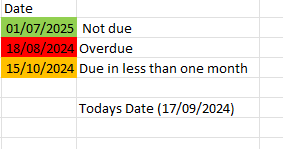
- Sep 17, 2024
Select the cells with the dates. Set the fill color to green. This will be the default.
On the Home tab of the ribbon, click Conditional Formatting > New Rule...
Select 'Format only cells that contain'.
Leave the first drop down set to 'Cell Value'.
Select 'less than or equal to' from the second drop down.
In the box next to it, enter the formula=EDATE(TODAY(), 1)
Click Format...
Activate the Fill tab.
Select amber as fill color.
Click OK, then click OK again.Repeat these steps, but with
=TODAY()
and red as fill color.
Finally, repeat with 'equal to' instead of 'less than or equal to', with
=""
and No Color as fill color.
This removes the fill color from empty cells.

Select the cells with the dates. Set the fill color to green. This will be the default.
On the Home tab of the ribbon, click Conditional Formatting > New Rule...
Select 'Format only cells that contain'.
Leave the first drop down set to 'Cell Value'.
Select 'less than or equal to' from the second drop down.
In the box next to it, enter the formula
=EDATE(TODAY(), 1)
Click Format...
Activate the Fill tab.
Select amber as fill color.
Click OK, then click OK again.
Repeat these steps, but with
=TODAY()
and red as fill color.
Finally, repeat with 'equal to' instead of 'less than or equal to', with
=""
and No Color as fill color.
This removes the fill color from empty cells.