Forum Discussion

Complicated formula to search for certain data
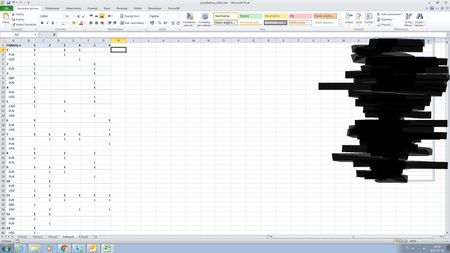

Just one moge question do you maybe know how to find out about frequency? if I would like to check if there is a pattern about on which day the customer usually makes transactions?

Okay, good. On your big file performance could be an issue with current formula. I could play with that, but need to know on which version of Excel you are (2007, 2010, 2013 or 2016) assuming you are on Windows desktop.
As for the frequency the simplest way is to add one more column with day of month
=DAY(<date>)
and after that pivot your table with Customers names in rows, Days in columns and Count of customer names in Values.
- Bartosz SzymańskiAug 08, 2017Brass Contributor
I also solved a problem with products, I used pivot table - silly me, never thought about that before :D
- Bartosz SzymańskiAug 08, 2017Brass Contributor
Had a little problem with transferring the formula but it finally worked for the whole file, thanks :)
- SergeiBaklanAug 07, 2017Diamond Contributor
Here is the file with formula. Please note i removed transactions from the bottom to make the file less.
Products - okay, understood.
- Bartosz SzymańskiAug 07, 2017Brass Contributor
there is some mistake in this formula cause when I'm addin that, the outcome of formula is always just "FALSE"
How many diffrent products per cusotmer, sorry for not clarifying.
- SergeiBaklanAug 07, 2017Diamond Contributor
Hi Bartosz,
Transactions: you may add one more column to the table ("Currency")
=[@[DR_CCY]] & "/" & [@[CR_CCY]]
or like, make one more pivot table with Customers in rows, Currency in columns and Count of Currency in columns. Add filtering if necessary.
Products: not sure right now. Please clarify if you'd like to know how many different product per customer (doesn't matter which ones); or how many customers are with same product; or what.
- Bartosz SzymańskiAug 06, 2017Brass Contributorthank you for your time and response. Table looks great! We are almost in the end of my data analysis task. Two more questions, how to count how many transactions every customer made by currency pair. For instance customer made 2 transactions on EUR/USD and 3 transactions on GBP/USD. How to count that? And last one would be counting the number of product used by customer. I erased product names from table but I hope that its doable even without it. Thank you Sergei for your help! Is there any way I could maybe help you?
- SergeiBaklanAug 05, 2017Diamond Contributor
And if to compare payments in prev month to the payments month before the previous.
I added two columns - PaidPrevMonth
=IF(AND([@[Value Date]]>EOMONTH(TargetDate,-2),[@[Value Date]]<=EOMONTH(TargetDate,-1)),[@[Revenue $]],0)
and PaidMonthBefore
=IF(AND([@[Value Date]]>EOMONTH(TargetDate,-3),[@[Value Date]]<=EOMONTH(TargetDate,-2)),[@[Revenue $]],0)
after that calculated field Payments to pivot table
= (PaidPrevMonth< 0.4*PaidMonthBefore)
(better <= on real figures)
All 3 are added to the values of the pivot table with SUM aggregation, after that filter values as Sum of Payments = 1
Details are in attached file. Not sure everything works correctly, no data in source file to test.
- SergeiBaklanAug 05, 2017Diamond Contributor
Hi Bartosz,
In Excel operations with the arrays are time consuming, let try to do the same without the arrays and without using of data model.
First, i'd highly recommend you to transform your data range into the table, that will be much easier to work. For your file - stay on A1, press Shift+Ctrl and after that arrow down key. Keep Shift pressed, by right arrow key expand the selection till colimn O and in Ribbon find Format as Table to do. After that better to change the name of the table on something more human friendly, let say Transactions
Let put in U1 the date with which we will compare dates transactions and in Ribbon->Formulas->Name Manger add the name for this cell, let it'll be TargetDate
Stay on any cell in most right Team column, right click, Insert, Insert table column to the right. Change the Column1 name on more suitable, DaysBefore in my case.
Into any empty cell of this column add the formula
=TargetDate-[@[Value Date]]
Not necessary to type the second part, after you type "-" (minus) click on the cell in in same row and first column, Excel will substitute structured refrence. Enter and the result immediatelly will be in all cells of the column.
After that add pivot table, customers in Rows, DaysBefore in Values. Change aggregation for DaysBefore from Sum on Min.
From the Row Labels drop down menu select Values Filter, here Greater Than, and use 90 to select customers who didn't pay for more than 90 days before target day.
Please see attached file. Days frequency is also here. Not sure right now about comparing paid sums, perhaps some later.
- SergeiBaklanAug 04, 2017Diamond Contributor
That makes the life harder. Microsoft added data model directly into the Excel starting from version 2013. To work with it in 2010 you have to install some add-in which could be not possible in corporate environment.
Okay, i'll think what could be done with not using data model.
- Bartosz SzymańskiAug 04, 2017Brass ContributorIm on 2010 version