Forum Discussion

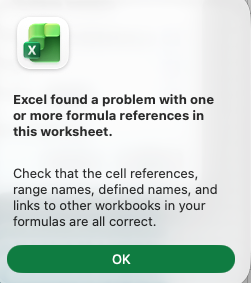
Advanced Filtering encounters an error in Excel for Mac
 Oct 22, 2026
When Advanced Filter copies results to another worksheet, start from the destination sheet, not the source sheet.
- Open the empty destination sheet and select A1.
- Choose Data > Advanced Filter, then Copy to another location.
- For List range, select the source data, including its column headers.
- Leave Criteria range blank, set Copy to to the destination’s A1, and check Unique records only.
- Click OK.
Select the ranges using the range-picker buttons to avoid mistyped sheet references. Each source column should have a nonblank, distinct header.
The message in your screenshot is a general reference error, so it doesn’t identify the exact cause. If the steps above still fail, try the same operation with a small sample in a new workbook. If that works, check the original workbook’s defined names for #REF! errors under Formulas > Name Manager.

One follow-up question. The resulting column of cells contain some cells that have bold formatted text in them which I would like to delete. Is it possible to filter that column to find all the cells that have bold text in them?