Forum Discussion

Add a new customer to a list of customers in a table

arr = Application.Transpose(Sheets("New Customer").Range("A29:A53").Value)
to refer to Sheets("New Customer").Range("B15:AG15")
thus eliminating the need for the Transpose function.
I just don't understand VBA enough to make this change.

- peiyezhuJun 24, 2024Bronze Contributor
So, how do I get "arr" to refer to B18:M18 so I add a new customer and their window/solar details to my list of All Customers?
B18:M18?
G18:M18 ALL Empty.
Why refer to blank cells (G18:M18)
their window/solar?
Window Tally Sheet has only one row data besides first header row.
Sheet solar too.
What do you mean their window/solar?
- SeanHaynesJun 23, 2024Copper Contributor
New customers are added to the New Customer sheet. I then enter window washing or solar panel cleaning details on their respective worksheets. Once that is done I come back to the New Customer sheet and click on a button to run a macro copy the new customer's details to the All Customers sheet, name, address...to number of "Hard" solar panels.
How do I do this with all data in 1 row?
- peiyezhuJun 23, 2024Bronze Contributor
However, I prefer to have this data in rows instead of columns so it's much easier to copy data from the Selected New Customer to my list of all customers.
Sorry,I can not understand which one is the destiantion table.
why does List of all custermers list all items in multiple rows rather than columns?
In former threads,the new customer has been list in multiple rows.
We have tried to transpose them save to columns in a row.
Can you share your source table and expected result?
G15 merge cell Panes?
I15 merge cell External Screen?
If you use merge cell,it is not easy for further calculation or analysis.
When you save your data, please refer the source table layout for a pivtot table.
- SeanHaynesJun 23, 2024Copper Contributor
@peiyezhuSince adding your code to my spreadsheet, I have learned that it's handy to have the name, address, email, etc for multiple new customers on hand. However, I prefer to have this data in rows instead of columns so it's much easier to copy data from the Selected New Customer to my list of all customers. As it stands now, I have cell formulas to copy data from my list of 10 new customers, to a column on the left that is the source for data to be copied to my list of all customers (red arrows). What I'd like is a macro that copies name, address, city, email, and mileage to the Selected New Customer row (green arrow) where it is matched up with the other details from elsewhere in the spreadsheet. This way I don't have the awkwardness of some data being vertical and other data being horizontal.
- SeanHaynesJun 20, 2024Copper ContributorWhoops, I guess I wasn't clear. The data are in Sheets("New Customer").Range("B15:AG15").
How do I add these cells to the array? - peiyezhuJun 20, 2024Bronze Contributor
The reason for using `Application.Transpose` in this context is to effectively convert a column range into a row range. By default, the array created from a column range is vertical (one column wide and multiple rows tall). However, when you want to paste this data into a row horizontally, you need to transpose the array so that it becomes horizontal (one row wide and multiple columns tall).
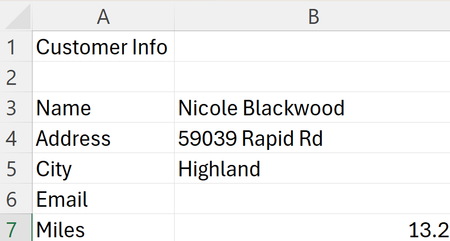
In this code, `arr = Application.Transpose(Sheets("New Customer").Range("B3:B7").Value)` is transposing the column range "B3:B7" from the "New Customer" sheet into a horizontal array. This allows the data to be pasted into the "All Customers" sheet as a row in the specified location.
The use of `Application.Transpose` is a common technique to manipulate array orientation in VBA, especially when dealing with transferring data between rows and columns.
