Forum Discussion

Issues with Capturing Windows11 25H2

Hi,
that specific Sysprep failure is strongly pointing to an UEFI/BCD/Firmware boot entry issue, not the capture process itself.
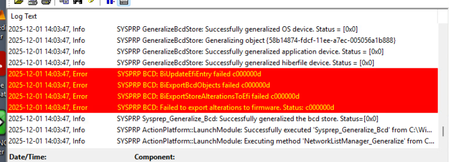
Your log lines show:
- BiUpdateEfiEntry failed c000000d
- Failed to export alterations to firmware. Status: c000000d
In practice, Sysprep is trying to write/update the UEFI boot entry and/or export BCD changes to firmware, and it can’t. Here’s what I would check/fix in this order:
1) Confirm the VM is truly UEFI/GPT (and keep it simple)
In vSphere 8, verify the VM firmware is set to EFI (not Legacy BIOS). For troubleshooting, I’d also temporarily disable Secure Boot and make sure the VM has:
- one OS disk only (no extra attached disks/ISOs during sysprep)
- no weird snapshot chain (power off, consolidate if needed)
This error can happen when the EFI variables/NVRAM state is inconsistent or the ESP isn’t what Windows expects.
2) Validate the EFI System Partition is present and readable
Inside the guest, check you have an EFI System Partition (FAT32).
You can mount it and confirm the BCD exists:
mountvol S: /S
dir S:\EFI\Microsoft\Boot\
If that path is missing or looks wrong, Sysprep’s BCD step often fails.
3) Rebuild the UEFI boot files (common fix)
Still in the guest (admin CMD):
mountvol S: /S
bcdboot C:\Windows /s S: /f UEFI
mountvol S: /D
Then reboot once and re-try Sysprep.
4) Check for “firmware” boot entry oddities
Sometimes there are stale/duplicate firmware entries (especially after cloning/template operations). You can inspect:
bcdedit /enum firmware
bcdedit /enum all
If it’s full of old/duplicate entries, cleaning that up (carefully) or resetting the VM’s UEFI/NVRAM state can help. In vSphere, another practical workaround is: create a fresh VM (same firmware type), attach the existing OS disk, boot once, then retry Sysprep.
5) Use Sysprep VM mode
On Windows 11, Sysprep supports VM mode and it can reduce hardware-specific friction:
%WINDIR%\System32\Sysprep\sysprep.exe /generalize /oobe /shutdown /mode:vm
6) Collect the right log files (to confirm the exact stop point)
If it still fails, the smoking gun is usually in:
%WINDIR%\System32\Sysprep\Panther\setuperr.log
%WINDIR%\System32\Sysprep\Panther\setupact.log
C:\Windows\Panther\UnattendGC\setupact.log
If you paste the relevant lines around the failure, we can confirm whether it’s ESP access, firmware NVRAM write, or something else.
Extra note (best practice)
If your end goal is just “updated media” for OSD, consider avoiding build-and-capture and instead use the Microsoft WIM + offline servicing (LCU/SSU). It’s generally more stable across new Windows releases. But if you must capture, the UEFI/BCD path above is where I’d focus based on your error.