Forum Discussion

Text to Column
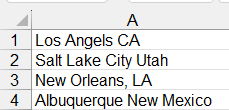

You don’t need to count spaces or manually insert delimiters at all. Since the state is always the last “word”, you can extract it dynamically and everything before it becomes the city.
Formula approach (no helper columns needed)
Assuming your data is in A1.
City (Column B):
=LEFT(A1, FIND("@", SUBSTITUTE(A1, " ", "@", LEN(A1)-LEN(SUBSTITUTE(A1," ","")))) - 1)
State (Column C):
=RIGHT(A1, LEN(A1) - FIND("@", SUBSTITUTE(A1, " ", "@", LEN(A1)-LEN(SUBSTITUTE(A1," ","")))))
Even better for Excel 365 & 2021
City
=TEXTBEFORE(A1," ",-1)
State
=TEXTAFTER(A1," ",-1)
These are much cleaner and automatically split at the last space.
If you want remove commas…
To clean up cases like "New Orleans, LA":
Wrap the city formula with:
=SUBSTITUTE(LEFT(A1, FIND("@", SUBSTITUTE(A1, " ", "@", LEN(A1)-LEN(SUBSTITUTE(A1," ","")))) - 1), ",", "
Better if you use Power Query solution for the next time, that makes this completely automatic for future reports.
My answers are voluntary and without guarantee!
Hope this will help you.
Was the answer useful? Mark as best response and like it!
This will help all forum participants.