Forum Discussion

Regression in v2605: Subform with overlapping controls breaks timer in unrelated form
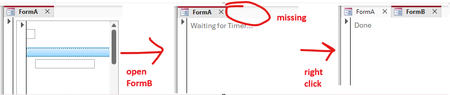

Thank you. I tested your very clear and well constructed repro in the latest CC version 2605 build 20026.20140 and it gave the expected result "Done" rather than the issue you described. I tested using both tabbed documents (where I could only see part of Form A) and with overlapping windows (where Form A was fully visible). I believe Karl has been able to reproduce this problem but for whatever reason I didn't experience it.
UPDATE:
Just re-tested on another Win 10 machine with 365 version 2606 20131.20000 Beta Channel 64-bit.
This time I do see the Waiting for Timer issue you reported. I can’t show that as a screenshot as clicking anywhere on the ribbon causes the code to immediately complete and show Done. Similarly so does clicking the Snipping Tool to do a screengrab
- HeinziATJun 08, 2026Iron Contributor
Thank you! My test system is a Windows 11 VM with 365 20026.20140 Current Channel 32-bit.
Yes, there are a few ways to "trigger" completion: Right-clicking is one of them (works only in non-runtime mode, where you actually have a context menu), clicking on the form tabs is another one (also works in runtime mode).
Regarding the screenshot: If you start the full version of the Windows Snipping Tool (via start menu rather than via Win-Shift-S), there's a "Delay" option in the tool bar. That's very useful for taking pictures of such "brittle" UI issues where operating the snipping tool itself can interfere.
- MendipDataSystemsJun 08, 2026Brass Contributor
Thanks for the reminder about the delay options in the Snipping Tool. I used it a lot in the older (and in many ways better) snip and sketch for showing drop downs etc, but forgot about it here.
- Jun 08, 2026
Hi Heinzi,
(I already replied last week with this information but my post never appeared here, for whatever reason. Let's see, if it works this time.)
The bug is not reproducible on all machines. Not only Colin couldn't see it on one of his systems but, unfortunately, also the Access team can't reproduce it. So, there has to be sth else involved that influences/triggers it, e.g. a graphic component or a Windows setting or whatever.
If you find sth in your practice that is involved then let us know. Of course, only when they can reproduce the problem at Microsoft, they can investigate and fix it.
Servus
Karl
****************
Access Forever News DevCon
Access-Entwickler-Konferenz AEK- HeinziATAug 13, 2026Iron Contributor
OK, I got additional information on this:
DPI dependence
I can reproduce this issue if my screen is set to a 100% scale factor, but not if the scale factor is more than 100%. This might explain why the issue can be reproduced on some PCs but not on others.
Some spying
Looking at the MS Access window with Spy++ reveals that, while waiting for the timer to occur, FormA gets spammed with a never-ending sequence of WM_USER+459 messages. Here is an excerpt from the logs:
...
<002162> 000000000023195A S message:0x05CB [User-defined:WM_USER+459] wParam:00000000 lParam:00000000
<002163> 000000000023195A R message:0x05CB [User-defined:WM_USER+459] lResult:001F1D66
<002164> 0000000000271966 P WM_PAINT hdc:00000000
<002165> 000000000023195A S message:0x05CB [User-defined:WM_USER+459] wParam:00000000 lParam:00000000
<002166> 000000000023195A R message:0x05CB [User-defined:WM_USER+459] lResult:001F1D66
<002167> 000000000023195A S message:0x05CB [User-defined:WM_USER+459] wParam:00000000 lParam:00000000
<002168> 000000000023195A R message:0x05CB [User-defined:WM_USER+459] lResult:001F1D66
<002169> 000000000023195A S message:0x05CB [User-defined:WM_USER+459] wParam:00000000 lParam:00000000
<002170> 000000000023195A R message:0x05CB [User-defined:WM_USER+459] lResult:001F1D66
<002171> 000000000023195A S message:0x05CB [User-defined:WM_USER+459] wParam:00000000 lParam:00000000
<002172> 000000000023195A R message:0x05CB [User-defined:WM_USER+459] lResult:001F1D66
<002173> 000000000023195A S message:0x05CB [User-defined:WM_USER+459] wParam:00000000 lParam:00000000
<002174> 000000000023195A R message:0x05CB [User-defined:WM_USER+459] lResult:001F1D66
<002175> 000000000023195A S message:0x05CB [User-defined:WM_USER+459] wParam:00000000 lParam:00000000
<002176> 000000000023195A R message:0x05CB [User-defined:WM_USER+459] lResult:001F1D66
<002177> 000000000023195A S message:0x05CB [User-defined:WM_USER+459] wParam:00000000 lParam:00000000
<002178> 000000000023195A R message:0x05CB [User-defined:WM_USER+459] lResult:001F1D66
<002179> 000000000023195A S message:0x05CB [User-defined:WM_USER+459] wParam:00000000 lParam:00000000
<002180> 000000000023195A R message:0x05CB [User-defined:WM_USER+459] lResult:001F1D66
<002181> 000000000023195A S message:0x05CB [User-defined:WM_USER+459] wParam:00000000 lParam:00000000
<002182> 000000000023195A R message:0x05CB [User-defined:WM_USER+459] lResult:001F1D66
<002183> 000000000023195A S message:0x05CB [User-defined:WM_USER+459] wParam:00000000 lParam:00000000
<002184> 000000000023195A R message:0x05CB [User-defined:WM_USER+459] lResult:001F1D66
<002185> 000000000023195A S message:0x05CB [User-defined:WM_USER+459] wParam:00000000 lParam:00000000
<002186> 000000000023195A R message:0x05CB [User-defined:WM_USER+459] lResult:001F1D66
<002187> 0000000000271966 P WM_PAINT hdc:00000000
<002188> 000000000023195A S message:0x05CB [User-defined:WM_USER+459] wParam:00000000 lParam:00000000
<002189> 000000000023195A R message:0x05CB [User-defined:WM_USER+459] lResult:001F1D66
...
In this case, 000000000023195A is the Detail section of FormA, and 0000000000271966 is the Detail section of FormA_subform.
I don't know the purpose of WM_USER+459, but the Access dev team surely does, so I guess this information might be useful to them.
A workaround
Since the Zoom feature got activated in the Monthly Enterprise Channel last Patch Tuesday, we had to find a workaround fast. The one we currently use is to hide the subform (subform.Visible = False) in FormA_Deactivate and show it again in FormA_Activate. This seems to work fine so far.
