Forum Discussion

Merging formatted text boxes in MS Access

My text boxes were, indeed, formatted as Rich Text.
Not only that, the fields' properties were set to Rich Text not only in the table, but also on the very report.
But that's where I think we're not on the same page.
You say you were able to concatenate several Rich Text fields and preserve their individual formatting. Did you make one text box Blue, and another text box Red, and when you performed string concatenation did the two text boxes maintain their Blue and Red formatting?
I'm not simply trying to bring to text boxes together and have them look exactly the same.
Again, you said you performed this without any problems. Could you please provide a screen grab? Thanks!

Hi,
Here are screenshots of design view and print preview. Richtext4 shows how to get rid of the DIV tags to avoid line breaks.
Servus
Karl
****************
Access News
Access Forever
Access DevCon
Access-Entwickler-Konferenz AEK
- Jul 14, 2024
Hi,
Well, as I said, there are potential workarounds that could fit better for you than the usual Rich Text thing. Here's one without VBA:
1 = Two textboxes bound to table fields, all without Rich Text.
2 = Two (hidden) textboxes with expressions that combine/concatenate formatting HTML tags and the content of the text fields. They also don't need to be set to Rich Text.
3 = The text box that concatenates the two hidden text boxes. This is the only one that needs to be set to Rich Text as it displays the formatting.
Servus
Karl
****************
Access News
Access Forever
Access DevCon
Access-Entwickler-Konferenz AEK - DMP2024Jul 14, 2024Copper Contributor
Hi Karl,
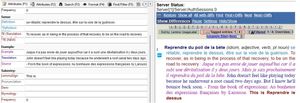
I think I made some headway. (See pic on the left below.)
Yes, I technically concatenated several text boxes, each with its own formatting/coloring, etc. So that is a victory! Thank you so much. I can't tell you how many people thought this was impossible. Thanks for the link, too.
However, the changes made here only apply to the selected text. If I want to make a new entry, I have to format the text all over again and manually remove the <div> HTML tags to ensure the fields flow one after the other.
Given I will be entering hundreds, if not thousands of entries, this method would be too slow. However, I will keep using it for the time being as I continue to learn MS Access.
My goal, however, is to replicate some of the workflow happening in the TLex Software (See the right side of the pic). This software has been such a source of inspiration for me.
In TLex, you simply enter the info into the data entry text boxes, and the information is automatically displayed in its proper formatting without the need to manually select the text to change the color.
So, I suppose I'll save that venture for another day, given automating that process would likely require VBA, which I haven't learned yet.
But thank you for going on this journey with me, Karl.
- Jul 14, 2024
Hi,
In your sample db I see that the reason why it doesn't work for you is what I wrote in a previous answer about you "painting" formats in design view:
You are not using the assumed Rich Text (HTML) format for the fields in the table but just format the text boxes in design view of the report. So, the solution would be to use Rich Text fields.
You have set Rich Text in the Text Format property of the table fields and in the report controls but you do not USE it to format the text. Instead you only set the font and color formats for the text box controls in the report. This has nothing to do with Rich Text formatting which gets saved as HTML tags in the table field itself. Read the article I linked yesterday to understand how Rich Text formatting works.
If you don't want to use Rich Text formatting as intended, you could assign the desired formatting, i.e. HTML tags, in the report by code and/or hidden controls. But that would just be a workaround.
Servus
Karl
****************
Access Forever
Access News
Access DevCon
Access-Entwickler-Konferenz AEK - DMP2024Jul 14, 2024Copper ContributorSure.
Here's a GoogleDrive link:
https://drive.google.com/file/d/1ekDtLYVANXc2o0ixFHmisZUBMbHRKXM2/view?usp=sharing
Thanks for your help. - Jul 14, 2024
Hi,
You absolutely wanted a real screenshot! 😉 It is from my European (German/Austrian) system where we use the semicolon as Windows List Separator. If you have e.g. North American Windows settings you use the comma.
If you want, put a tiny accdb online somewhere with just 1 table, 1 report and a few records showing your attempt and I (or others here) can have a look at what's going wrong.
Servus
Karl
****************
Access News
Access Forever
Access DevCon
Access-Entwickler-Konferenz AEK - DMP2024Jul 14, 2024Copper Contributor
Hi Karl,
I can't make it work. No matter what I do, it simply doesn't work for me.
Are you sure I'm supposed to be using semicolons (;) instead of commas (,)? ChatGPT flagged the code you offered as faulty because of the use of semicolons instead of commas.
Nonetheless, I tried your code (with commas, because I couldn't run the report with semicolons) and, in the end, Access did not preserve the formatting from the original text box.