Forum Discussion

formatting date where you don't live in USA

Microsoft Access actually automatically displays dates in the dd/mm/yyyy format outside of U.S.
However this is based on the region you have selected or overriding date format you have selected in Microsoft Windows Regional and Language Options setting. I would suggest I get checking and changing, if needed, those settings for your PC.
That said, you can override that I'd you are sure that users of your database will almost always want dates in International (non-US) format.
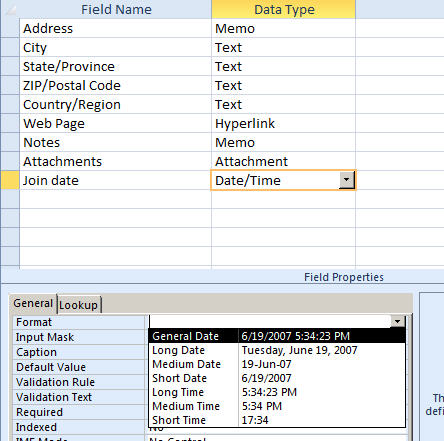
In Design View for Tables you can select a Date/Time field and go to Field Properties > Format. There, as shown in the attached screenshot, you can select General Date, Long Date, etc predefined formats and preview how they would look based on your PC's locale settings.
You can also enter a custom display format to always use such as the following for international format:
m/dd/yyyy
Or if you want time as well then:
m/dd/yyyy h:mm:ss
You can also use such formats with the Format function in VBA or even Query Expressions and Calculated Fields:
In VBA that would be:
Format(varDate, "\#dd\/mm\/yyyy\#")
In SQL or Query Designer that would be:
Format(dateField, "/mm/dd/yyyy")
However, if you want to specify a hardcoded date literal in query criteria or VBA using ## notation (efficiently, with parsing from a strong, though that's an option too) then you should always use US date format. However that isn't displayed to your end users. With criteria in Query Designer such as:
> #2/2/2012#
With more examples including various date functions you can use in Queries and VBA here:
https://support.office.com/en-us/article/examples-of-using-dates-as-criteria-in-access-queries-aea83b3b-46eb-43dd-8689-5fc961f21762
Here is an excerpt of relevant documentation on how PC regional settings are used:
Access automatically displays the date and time in the General Date and Long Time formats. The dates appear as, mm/dd/yyyy in the U.S. and as, dd/mm/yyyy outside the U.S. were mm is the month, dd is the day, and yyyy is the year. The time is displayed as, hh:mm:ss AM/PM, where hh is the hour, mm is minutes, and ss is seconds but you can display the date and time in several formats.
These automatic formats for dates and times vary depending on the geographic location specified in the Microsoft Windows Regional and Language Options setting on your computer. For example, in Europe and many parts of Asia, depending on your location, you might see the date and time as 28.11.2018 12:07:12 PM or 28/11/2018 12:07:12 PM. In the United States, you would see 11/28/2018 12:07:12 PM. It is possible to change these automatic formats by using custom display formats. The display format that you select will not affect how the data is entered or how Access stores that data. For example, you can enter a date in a European format such as 28.11.2018, and have the table, form, or report display the value as 11/28/2018.
See more about setting date formats in fields and query results, along with documentation about how your Windows regional settings are used for the default date format, here:
https://support.office.com/en-us/article/format-the-date-and-time-field-in-access-47fbbdc1-52fa-416a-b8d5-ba24d881b698
- DanMoorehead_PowerWeb5AISep 23, 2018Iron ContributorAnthony,
You can also enter custom date formats using the patterns I had provided into the Format property for Text Boxes like seen in attached screenshot and documented here:
https://www.techonthenet.com/access/forms/format_date2007.php
For international date patterns such as:
m/dd/yyyy
When you edit the Format property for a field in Table Design such as to specify default date format (or for numbers etc as well), then that will be used as well for any form or report control that you bind (link) to that table field, as well as for queries which select / return / include that field.- DanMoorehead_PowerWeb5AISep 24, 2018Iron Contributor
Does what I had described in my previous replies – regarding what Access currently supports for automatic international date format (eg. DD/MM/YYYY) display (based on each user's locale settings), as well as ways to force international date format display (via Format property for Fields in Table Design, Text Boxes) and existing SQL/VBA functions (instead of the complex date parsing / calculation you had mentioned doing) – cover what you are wanting to do in Access?
If not, if you can describe specifically what you are trying to accomplish with dates, beyond those supported use cases, I may be able to help with that. And, if not, you can submit a feature request to add built-in support for that.
Features requests for Microsoft Access can be submitted on User Voice at the link below, if you want them to be considered by the Microsoft Access development team:
https://access.uservoice.com/
I hope that helps.
Best regards,
Dan
--Dan Moorehead
Founder, PowerAccess (https://www.PowerAccess.net"Empowering Microsoft Access with new Tools | VBA Framework | PowerGit | PowerSQL | CodeGen | Excel➜Access➜SQL Conversion"