Hi, Microsoft 365 Insiders! I’m Doug Geoffray, a Technical Product Manager on the Office Accessibility team. I’m happy to announce a new setting in Microsoft Word for Windows that allows you to use the up and down arrow keys to move through all the content in your document based on the logical reading order.
More logical navigation through Word documents for screen readers
This update was crucial for improving the Word experience for screen reader users, many of whom gave us feedback that using the up and down arrow keys didn’t properly reflect how they wanted to navigate through documents.
Previously, using the up and down arrow keys moved you to whatever was visually above or below your cursor, which could skip content in the reading sequence and cause you to miss important pieces of content such as lines, columns, and even pages. With the new experience, these keys better recognize and more intuitively navigate columns of text, tables, text wrapped around an image, and dropped cap letters, and when you’re in a multi-page view. Screen reader users can now be confident that they receive the same information as sighted users.
How it works
By default, this new navigation feature is disabled, giving you the same up and down arrow experience as before. To enable this feature and enjoy the new logical navigation, take these steps:
- Open a Word document on your Windows device, then press ALT + F to open the File menu.
- Press T to open Options, and then press A for Accessibility options.
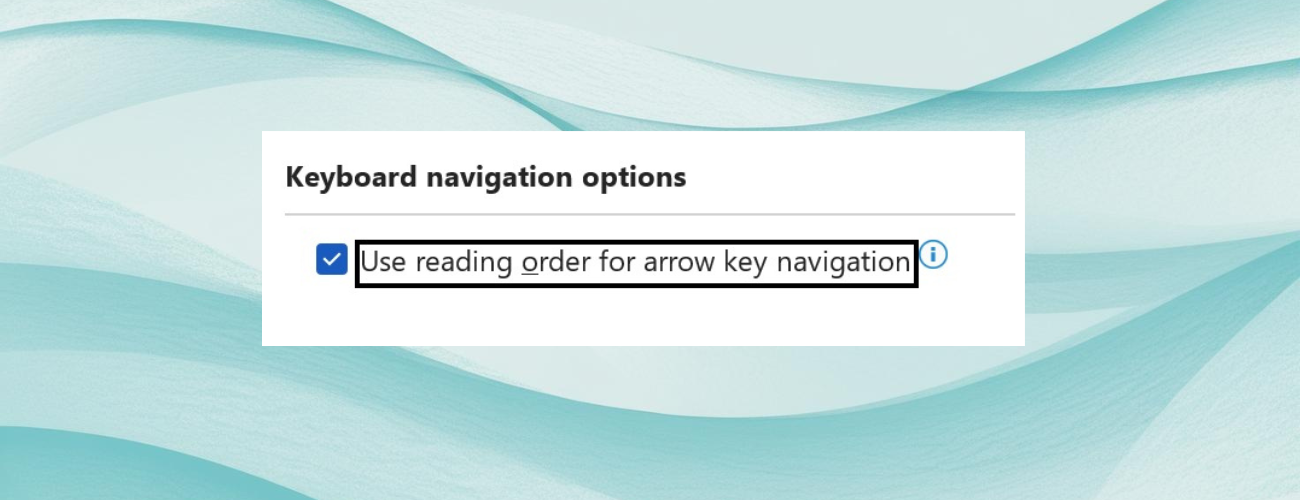
- Press the Tab key until you get to the Use reading order for arrow key navigation check box, and then press Space to select it.
- Tab to the OK button, and then press Enter to apply the change.
After you've enabled the option, notice the following changes to the up and down arrow key experience:
- Columns of text: Previously, If your cursor was at the bottom of the first column of text and you pressed the down arrow, your cursor would move to the first line of text after all the column information, skipping the remaining columns of text. Now, the down arrow moves your cursor to the top of the second column.
- Multi-page view: Previously, if your screen was showing two pages side-by-side (page 1 on the left and page 2 on the right) and your cursor was at the bottom of page 1, pressing the down arrow would move to the top of page 3 instead of the top of page 2. Now, pressing the down arrow will now move to the top of page 2.
- Tables: Previously, if your cursor was in column 1, row 1 and you pressed the down arrow, you would go straight down to column 1, row 2 and so on until you exit the table, skipping all information from the other columns. Now, if your cursor is in column 1, row 1 and you press the down arrow, you will go to the first cell in the column 2, and so on. If you are in the last column in the table and you press the down arrow, you will move to the first column in the row below.
- Text wrapping around an image: Previously, if you had text wrapping around an image, the down arrow would move through the text only for the side of the image the cursor was in, skipping the content on the other side of the image. Now, the down arrow will move between the columns of text on each side of the image.
- Dropped cap letters: Previously, if you pressed the down arrow to a paragraph that started with a dropped cap letter (where the first letter is much larger), the next time you pressed the down arrow, it would skip all the lines that wrapped to the right of the dropped cap letter. Now, pressing the down arrow will navigate each of the lines to the right of the dropped cap letter before moving under it.
Availability
This change is available to Word for Windows users running Version 2603 (Build 19727.20000) or later.
Feedback
We’d love to hear your thoughts on how this update is working! In Word, select Help > Feedback or type Alt + Y1 + K to provide feedback.

 Microsoft
Learn about the Microsoft 365 Insider program at https://aka.ms/MSFT365InsiderProgram
For technical support and break/fix questions, please visit Microsoft Support Community.