Logic Apps Data Mapper makes it easy to define visual, code-free transformations across structured JSON data. One pattern that's both powerful and clean: using built-in collection functions to compute summary values from arrays.
This post walks through an end-to-end example: calculating a total from a list of items using just two functions — `Multiply` and `Sum`.
🧾 Scenario: Line Item Totals + Order Summary
You’re working with a list of order items. For each item, you want to:
- Compute Total = Quantity × Price
- Then, compute the overall OrderTotal by summing all the individual totals
📥 Input
{ "orders" : [ { "Quantity" : 10, "Price" : 100 }, { "Quantity" : 20, "Price" : 200 }, { "Quantity" : 30, "Price" : 300 } ] }
📤 Output
{ "orders" : [ { "Quantity" : 10, "Price" : 100, "Total" : 1000 }, { "Quantity" : 20, "Price" : 200, "Total" : 4000 }, { "Quantity" : 30, "Price" : 300, "Total" : 9000 } ], "Summary": { "OrderTotal": 14000 } }
🔧 Step-by-step walkthrough
🗂️ 1. Load schemas in Data Mapper
Start in the Azure Data Mapper interface and load:
- Source schema: contains the orders array with Quantity and Price
- Target schema: includes a repeating orders node and a Summary → OrderTotal field
📸 Docked schemas in the mapper
🔁 2. Recognize the repeating node
The orders array shows a 🔁 icon on <ArrayItem>, marking it as a repeating node.
📸 Repeating node detection
💡 When you connect child fields like Quantity or Price, the mapper auto-applies a loop for you. No manual loop configuration needed.
➗ 3. Multiply Quantity × Price (per item)
Drag in a Multiply function and connect:
- Input 1: Quantity
- Input 2: Price
Now connect the output of Multiply directly to the Total node under Orders node in the destination.
This runs once per order item and produces individual totals:
[1000, 4000, 9000]📸 Multiply setup
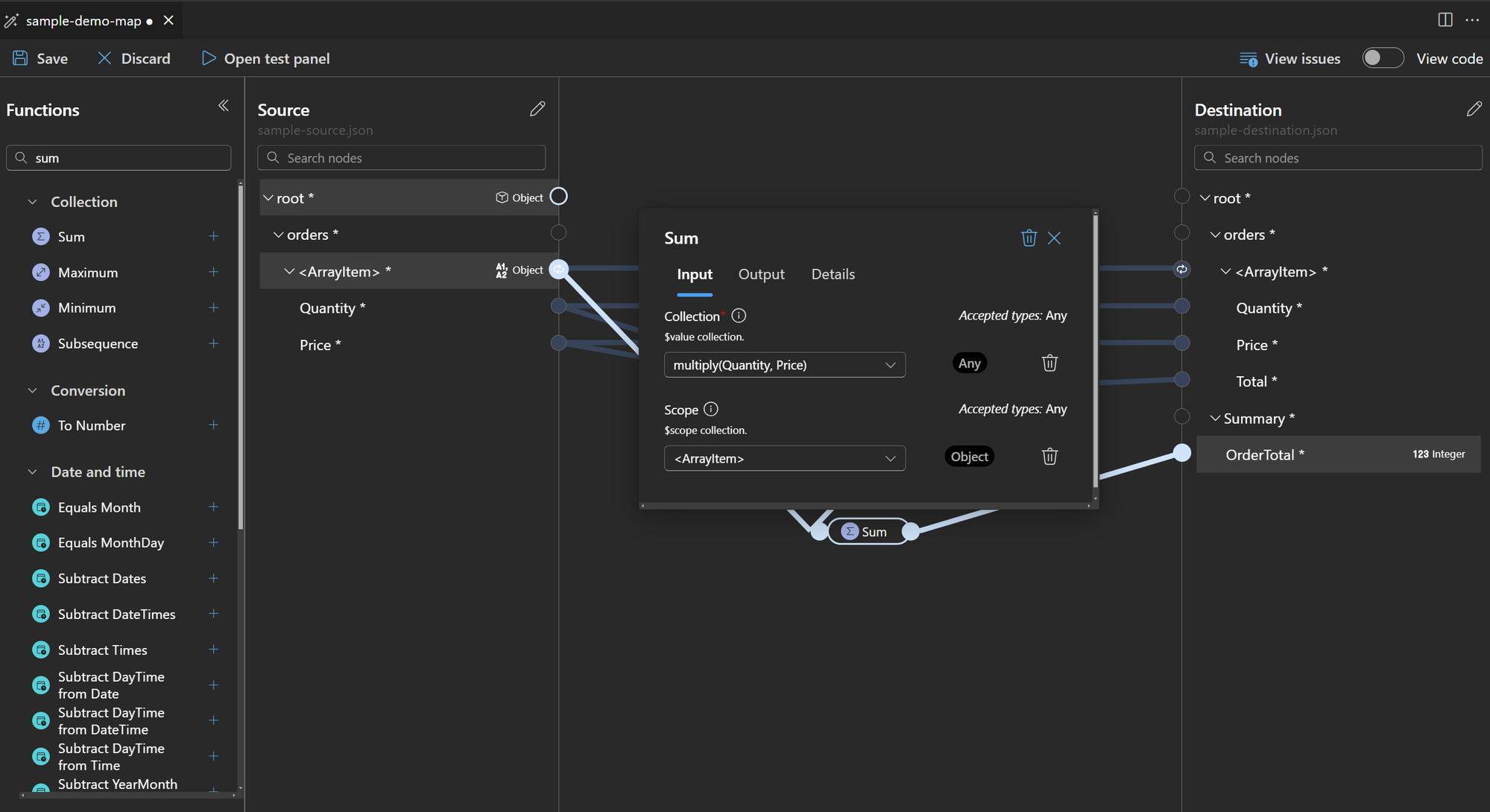
➕ 4. Aggregate All Totals Using Sum
Use the same Multiply function output and pass it into a Sum function. This will combine all the individual totals into one value. Drag and connect:
- Input 1: multiply(Quantity, Price)
- Input 2: <ArrayItem>
Connect the output of Sum to the destination node Summary → OrderTotal
1000 + 4000 + 9000 = 14000📸 Sum function
✅ 5. Test the Output
Run a test with your sample input by clicking on the Open test panel. Copy/paste the sample data and hit Test.
The result should look like this:
{
  "orders": [
    {
      "Quantity": 10,
      "Price": 100,
      "Total": 1000
    },
    {
      "Quantity": 20,
      "Price": 200,
      "Total": 4000
    },
    {
      "Quantity": 30,
      "Price": 300,
      "Total": 9000
    }
  ],
  "Summary": {
    "OrderTotal": 14000
  }
}
🧠 Why this pattern works
- 🔁 Repeating to repeating: You’re calculating Total per order
- 🔂 Repeating to non-repeating: You’re aggregating with Sum into a single node
- 🧩 No expressions needed — it’s all declarative
This structure is perfect for invoices, order summaries, or reporting payloads where both detail and summary values are needed.
📘 What's coming
We’re working on official docs to cover:
- All functions including collection (Join, Direct Access, Filter, etc.) that work on repeating nodes
- Behavior of functions inside loops
- Real-world examples like this one
💬 What should we cover next?
We’re always looking to surface patterns that matter most to how you build.
If there’s a transformation technique, edge case, or integration scenario you’d like to see explored next — drop a comment below and let us know. We’re listening.
🧡 Special thanks to Dave Phelps for collaborating on this scenario and helping shape the walkthrough.

 Microsoft
