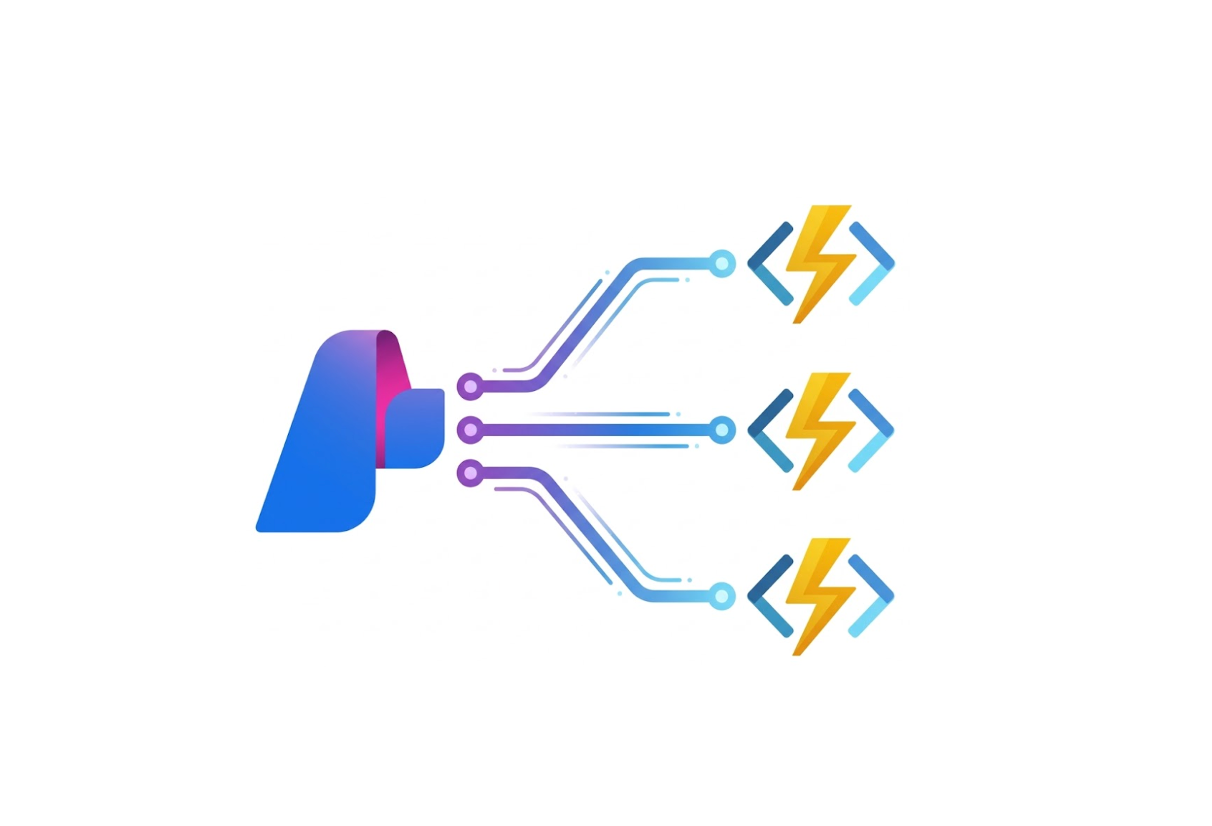
This blog post is for developers who have an MCP server deployed to Azure Functions and want to connect it to Microsoft Foundry agents. It walks through why you'd want to do this, the different authentication options available, and how to get your agent calling your MCP tools.
Connect your MCP server on Azure Functions to Foundry Agent
If you've been following along with this blog series, you know that Azure Functions is a great place to host remote MCP servers. You get scalable infrastructure, built-in auth, and serverless billing. All the good stuff. But hosting an MCP server is only half the picture. The real value comes when something actually uses those tools.
Microsoft Foundry lets you build AI agents that can reason, plan, and take actions. By connecting your MCP server to an agent, you're giving it access to your custom tools, whether that's querying a database, calling an API, or running some business logic. The agent discovers your tools, decides when to call them, and uses the results to respond to the user.
Why connect MCP servers to Foundry agents?
You might already have an MCP server that works great with VS Code, VS, Cursor, or other MCP clients. Connecting that same server to a Foundry agent means you can reuse those tools in a completely different context, i.e. in an enterprise AI agent that your team or customers interact with. No need to rebuild anything. Your MCP server stays the same; you're just adding another consumer.
Foundry agent using custom MCP server hosted on Azure Functions.Prerequisites
Before proceeding, make sure you have the following:
1. An MCP server deployed to Azure Functions. If you don't have one yet, you can deploy one quickly by following one of the samples:
2. A Foundry project with a deployed model and a Foundry agent
Authentication options
Depending on where you are in development, you can pick what makes sense and upgrade later. Here's a summary:
| Method | Description | When to use |
| Key-based (default) | Agent authenticates by passing a shared function access key in the request header. This method is the default authentication for HTTP endpoints in Functions. | Development, or when Entra auth isn't required. |
| Microsoft Entra | Agent authenticates using either its own identity (agent identity) or the shared identity of the Foundry project (project managed identity). | Use agent identity for production scenarios, but limit shared identity to development. |
| OAuth identity passthrough | Agent prompts users to sign in and authorize access, using the provided token to authenticate. | Production, when each user must authenticate individually. |
| Unauthenticated | Agent makes unauthenticated calls. | Development only, or tools that access only public information. |
Connect your MCP server to your Foundry agent
If your server uses key-based auth or is unauthenticated, it should be relatively straightforward to set up the connection from a Foundry agent.
The Microsoft Entra and OAuth identity passthrough are options that require extra steps to set up. Check out detailed step-by-step instructions for each authentication method.
At a high level, the process looks like this:
- Enable built-in MCP authentication : When you deploy a server to Azure Functions, key-based auth is the default. You'll need to disable that and enable built-in MCP auth instead. If you deployed one of the sample servers in the Prerequisite section, this step is already done for you.
- Get your MCP server endpoint URL: For MCP extension-based servers, it's https://<FUNCTION_APP_NAME>.azurewebsites.net/runtime/webhooks/mcp
- Get your credentials based on your chosen auth method: a managed identity configuration, OAuth credentials
- Add the MCP server as a tool in the Foundry portal by navigating to your agent, adding a new MCP tool, and providing the endpoint and credentials.
Microsoft Entra connection required fields
OAuth Identity required fields
Once the server is configured as a tool, test it in the Agent Builder playground by sending a prompt that triggers one of your MCP tools.
Closing thoughts
What I find exciting about this is the composability. You build your MCP server once and it works everywhere: VS Code, VS, Cursor, ChatGPT, and now Foundry agents. The MCP protocol is becoming the universal interface for tool use in AI, and Azure Functions makes it easy to host these servers at scale and with security.
Are you building agents with Foundry? Have you connected your MCP servers to other clients? I'd love to hear what tools you're exposing and how you're using them. Share with us your thoughts!
What's next
In the next blog post, we'll go deeper into other MCP topics and cover new MCP features and developments in Azure Functions. Stay tuned!

 Microsoft