xdr
3 Topics
Finding the Elusive MDE PUA Audit Events on Linux
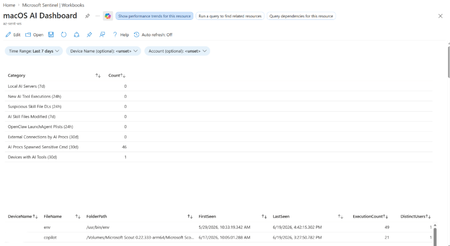
Potentially Unwanted Applications, or PUA, they aren't necessarily malware, but they are applications you probably don't want running across your environment either. Microsoft defines potentially unwanted applications as software that can adversely affect endpoint performance or use. Examples include advertising software, software bundlers, and applications that use behaviors intended to evade security products. Microsoft Defender can also consider an application's reputation when determining whether software qualifies as potentially unwanted. That sounds straightforward. On Windows, it generally is. On Linux, finding the resulting audit events requires knowing exactly where to look. And that is where things get interesting. PUA, PUP… Same Neighborhood, Slightly Different Address Before going further, it is worth clearing up some terminology. Across the security industry, you will commonly encounter both PUP, or Potentially Unwanted Program, and PUA, or Potentially Unwanted Application. The terms are frequently used for software that isn't necessarily malicious but has characteristics that make its presence undesirable, such as intrusive advertising, bundling additional software, or other behavior the user might not have knowingly requested. Microsoft uses Potentially Unwanted Application (PUA) as its product and detection terminology. Microsoft specifically distinguishes PUA from malware. A PUA might cause poor system performance, display unexpected advertisements, install other software, or have a poor reputation because of undesirable behavior, but those characteristics don't automatically make the application malware. Microsoft's classification criteria include examples such as: Advertising software that displays advertisements or promotions, including injecting advertisements into webpages. Bundling software that offers to install additional software that isn't digitally signed by the same entity, or that itself qualifies as PUA. Evasion software that actively attempts to avoid detection by security products or behaves differently when security software is present. Applications that have developed a poor reputation based on undesirable behavior. Microsoft's broader software-classification model also distinguishes between unknown software, malware, unwanted software, and other classifications. Software can therefore be legitimate and functional while still meeting Microsoft's criteria for classification as potentially unwanted. For the rest of this article, we'll use PUA, because that is the terminology used by Microsoft Defender and, more importantly for our investigation, the Linux product logs identify these detections explicitly as: potentially_unwanted_application That string is going to become very useful once we start looking for the supposedly elusive audit events. PUA Audit and Block on Windows On Windows, PUA protection is part of Microsoft Defender Antivirus. Administrators can configure Defender to identify applications that Microsoft considers potentially unwanted and determine how those applications should be handled. Microsoft documents PUA protection and provides the AMTSO Potentially Unwanted Application test file (Feature Settings Check - Potentially Unwanted Applications - AMTSO) as its standard demonstration scenario. Microsoft's demonstration documentation identifies Windows, Windows Server, macOS, and Linux among the supported operating systems for the PUA demonstration. The two operating modes we're interested in are conceptually simple: Audit Defender identifies the PUA but doesn't block it. This is useful when you want to understand the potential impact of enabling PUA protection before enforcing it. Block Defender identifies the PUA and takes the configured protection action. On Windows, for a device onboarded to Microsoft Defender for Endpoint – that telemetry and audit information is available in the XDR Security portal. You can find PUA detections in the Additional Fields of the AntivirusDetection action type in the DeviceEvents table – and an alert will fire when in PUA is in block mode: DeviceEvents | where ActionType == "AntivirusDetection" | extend x = parse_json(AdditionalFields) | project Timestamp, DeviceName, FolderPath, FileName, SHA256, ThreatName = tostring(x.ThreatName), WasExecutingWhileDetected = tostring(x.WasExecutingWhileDetected), WasRemediated = tostring(x.WasRemediated) | where ThreatName startswith_cs 'PUA:' Microsoft Defender Antivirus events can be investigated through: Applications and Services Logs > Microsoft > Windows > Windows Defender > Operational Defender detection events can provide information such as the threat name, threat ID, category, path, detection origin, detection type, and detection source. That makes auditing and troubleshooting reasonably familiar territory for Windows administrators. The experience on Linux, however, is different. PUA Protection on Linux Microsoft Defender for Endpoint on Linux also supports PUA protection. Microsoft documents three PUA actions: Off: PUA protection is disabled. Audit: PUA files are reported in the product logs, but no remediation is performed. Block: PUA files are reported and action is taken against them. The distinction between Audit and Block is particularly important. In PUA Audit mode: PUA files are reported in the product logs. They aren't reported in the Defender portal through this PUA mechanism. No infection record is stored in threat history. No action is taken against the file. In Block mode: The detection is reported in the product logs. It is reported in the Defender portal. A record is stored in threat history. Defender takes action on the PUA. PUA behavior can be configured locally with mdatp. To configure Audit: sudo mdatp threat policy set --type potentially_unwanted_application --action audit To configure Block: sudo mdatp threat policy set --type potentially_unwanted_application --action block There is one important distinction worth calling out here: PUA Audit mode isn't the same thing as the broader Microsoft Defender for Endpoint Antivirus Passive Mode on Linux. PUA Audit is specifically the handling policy for applications that are detected and classified as potentially unwanted. For this article, we're testing and focusing on PUA Audit. A Windows PUA on Linux? Yes. Here's where the test gets more interesting. The AMTSO PUA test artifact is a Windows executable. At first glance, that doesn't seem particularly useful when we're trying to validate PUA protection on Linux. After all, we're testing on Linux. But Defender's file inspection isn't limited to applications that can execute natively on the operating system. A Windows PE file sitting on a Linux filesystem can still be inspected and classified. And we can demonstrate that directly. Microsoft's PUA demonstration directs administrators to the AMTSO Potentially Unwanted Application test file, and Microsoft's current demonstration documentation includes Linux among the supported operating systems. On our Linux test machine, we downloaded: PotentiallyUnwanted.exe The important point is that we don't need to execute the Windows executable on Linux. In our testing, simply causing filesystem activity against the file was sufficient to make Defender inspect it. The file initially resided in: /home/ritter/Downloads/PotentiallyUnwanted.exe We then used the Linux graphical file manager to move it into: /home/ritter/Music/PotentiallyUnwanted.exe That was enough to generate another PUA Audit observation. The Defender record showed: "scan_reason":"move" And, more importantly, Defender classified the file as: "name":"PUA:Win32/EICAR_Test_File" with: "type":"potentially_unwanted_application" and: "status":"infected" The event also recorded information about the process responsible for the filesystem operation. In our test, moving the file graphically resulted in the process being recorded as: /usr/bin/nautilus So although the test artifact is a Windows executable, MDE running on Linux still inspected and classified it as PUA:Win32/EICAR_Test_File. That's exactly what we needed. So Where Is the Audit Event? This is the elusive part. If you immediately start looking in the Defender portal or expect PUA Audit to behave like PUA Block, you're likely to come away wondering whether anything happened. Microsoft's Linux documentation tells us that Audit-mode PUA files are reported in the product logs and that no infection record is stored in threat history. Fair enough. But that naturally leads to another question: Which product log? Instead of guessing, we asked Linux. A recursive grep across the MDE log directory provides a simple way to find anything containing the PUA classification string: sudo grep -RniH 'potentially_unwanted' /var/log/microsoft/mdatp/ Where: R searches recursively. n displays the matching line number. i makes the search case-insensitive. H forces grep to display the filename. And there it was. On our test system, the PUA Audit records were located in: /var/log/microsoft/mdatp/microsoft_defender_core_err.log If you only want to determine which log files contain PUA records: sudo grep -Rli 'potentially_unwanted' /var/log/microsoft/mdatp/ Once you've identified the log, you can search it directly: sudo grep -ni 'potentially_unwanted' /var/log/microsoft/mdatp/microsoft_defender_core_err.log Or include surrounding lines for additional context: sudo grep -ni -B5 -A10 'potentially_unwanted' /var/log/microsoft/mdatp/microsoft_defender_core_err.log Our test produced records containing information similar to: [Audit]: Source: { "$type":"real_time", "scan_reason":"move", "process":{ "path":"/usr/bin/nautilus" } }, File: /home/ritter/Music/PotentiallyUnwanted.exe, Threat: { "name":"PUA:Win32/EICAR_Test_File", "type":"potentially_unwanted_application", "status":"infected" } And there it is. The PUA audit event exists. You just have to go spelunking through the local Defender product logs to find it. The Microsoft documentation is technically correct: PUA Audit detections are written to the product logs. Knowing what string to search for and which log actually contained the events on our test system makes that guidance considerably more actionable. That's Fine for One Server. What About 1,000? Running grep on a test machine is easy. Running grep individually across hundreds or thousands of Linux servers obviously isn't the operational model we want. Once we know where the information resides, however, the problem changes from a Defender problem into a log collection problem. And that's a much easier problem to solve. One option is Azure Monitor Agent (AMA). AMA supports collecting custom text logs from Linux systems through an Azure Monitor Data Collection Rule (DCR) and sending those records to a Log Analytics workspace. Conceptually: A DCR can be configured to collect the Defender text log identified during testing. Azure Monitor supports Linux custom-text-log file patterns and wildcards for appropriate log-file collection scenarios. Azure Monitor Custom Text Logs also supports ingestion-time transformations, allowing records to be filtered or formatted before they're written to the destination table. That creates an interesting opportunity. Rather than collecting every line from a verbose Defender diagnostic log, a collection strategy could focus on the records containing: potentially_unwanted_application Once centralized in Log Analytics, those records become queryable with KQL. For example, if the records were ingested into a custom table called MDEPUAAudit_CL, an initial investigation could start with: MDEPUAAudit_CL | where RawData contains "potentially_unwanted" From there, the raw records could be parsed for useful reporting fields including: Host Timestamp File path Detection name PUA classification Scan reason Initiating process First occurrence Last occurrence Number of observations Turning Audit Mode into a Deployment Tool This is ultimately where the exercise becomes useful. PUA Audit doesn't have to be merely a configuration checkbox. It can become a pre-enforcement assessment mechanism. The workflow looks something like this: Instead of asking: "What happens if we turn PUA Block on?" we can start answering a much better question: "What has Defender already identified as PUA while we've been running in Audit?" And now we know where the answer is hiding. Reference Live link Detect and block potentially unwanted applications with Microsoft Defender for Endpoint on Linux https://learn.microsoft.com/en-us/defender-endpoint/linux-pua Detect and block potentially unwanted applications with Microsoft Defender Antivirus https://learn.microsoft.com/en-us/defender-endpoint/detect-block-potentially-unwanted-apps-microsoft-defender-antivirus How Microsoft identifies malware and potentially unwanted applications https://learn.microsoft.com/en-us/unified-secops/criteria Potentially unwanted applications (PUA) demonstration https://learn.microsoft.com/en-us/defender-endpoint/defender-endpoint-demonstration-potentially-unwanted-applications AMTSO Feature Settings Check: Potentially Unwanted Applications https://www.amtso.org/feature-settings-check-potentially-unwanted-applications/ Microsoft Defender Antivirus event IDs and error codes https://learn.microsoft.com/en-us/defender-endpoint/troubleshoot-microsoft-defender-antivirus Microsoft Defender for Endpoint on Linux resources https://learn.microsoft.com/en-us/defender-endpoint/linux-resources Collect text file from virtual machine with Azure Monitor https://learn.microsoft.com/en-us/azure/azure-monitor/vm/data-collection-log-text Collect logs from text files with Azure Monitor Agent and ingest to Microsoft Sentinel https://learn.microsoft.com/en-us/azure/sentinel/connect-custom-logs-ama Collect guest log data from virtual machines with Azure Monitor https://learn.microsoft.com/en-us/azure/azure-monitor/vm/data-collection DeviceEvents table in the Advanced Hunting schema https://learn.microsoft.com/en-us/defender-xdr/advanced-hunting-deviceevents-table Microsoft Defender XDR Advanced Hunting schema tables https://learn.microsoft.com/en-us/defender-xdr/advanced-hunting-schema-tables
Security Copilot RBAC for Embedded Experience in Unified Security Platform
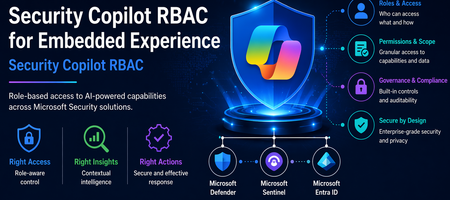
Introduction The evolution of Security Operations Centers (SOC) is increasingly driven by AI-powered capabilities that improve efficiency, accuracy, and response time. Microsoft Security Copilot represents a significant advancement in this space by embedding AI-driven assistance directly within security platforms such as Microsoft Defender XDR, Microsoft Sentinel, and Microsoft Entra. The concept of embedded experience is central to this transformation. Rather than operating as a standalone interface, Security Copilot is integrated within existing security tools, allowing analysts to invoke AI-generated insights directly during investigations. This reduces the need for tool switching and accelerates decision-making. The purpose of this document is to define and explain the Role-Based Access Control (RBAC) model required to securely enable this embedded experience. It provides a structured understanding of how access is governed across multiple layers, how these layers interact, and how organizations can align permissions with SOC workflows while maintaining a least-privilege security posture. Understanding Embedded Experience Security Copilot in embedded mode operates within the context of the host platform. When invoked from Defender or Sentinel, it does not function independently but instead consumes data already accessible to the user. This model ensures that Copilot enhances visibility without expanding access boundaries. This behavior is governed by an On-Behalf-Of (OBO) model, where Security Copilot leverages the permissions of the authenticated user. It does not introduce new entitlements or override existing RBAC configurations. As a result, the insights generated by Copilot are always limited to what the user is already authorized to see, reinforcing Zero Trust principles and preventing unauthorized data exposure. Prerequisites for Embedded Experience To enable Security Copilot in an embedded environment, organizations must establish foundational prerequisites that ensure seamless and secure operation. First, access to underlying platforms such as Microsoft Defender XDR, Microsoft Sentinel, and Microsoft Entra must already be provisioned. Since Copilot is not a standalone data source, it cannot function without these integrations. Second, RBAC alignment across identity, platform, and service layers must be configured correctly. Misalignment can lead to incomplete results, restricted functionality, or inconsistent analyst experiences. Finally, governance processes such as access review, monitoring, and adherence to least privilege principles should be implemented. These controls ensure that Copilot usage remains compliant, auditable, and aligned with organizational security policies. RBAC Framework for Security Copilot Security Copilot adopts a multi-layer RBAC model consisting of three tightly integrated layers. These layers collectively determine whether a user can access Copilot features and what data they can retrieve. RBAC Layer Mapping RBAC Layer Role Type Purpose Example Roles Access Impact Security Copilot Platform Feature access control Determines who can use Copilot capabilities Security Copilot Owner, Security Copilot Contributor Enables use of Copilot features but does not grant data access Microsoft Entra ID Identity and directory governance Controls access to identity data and reports Security Reader, Reports Reader, Security Administrator Governs identity insights and directory visibility Service-Specific RBAC Data access control Defines access to security data within services Defender Security Reader, Sentinel Reader Determines what Copilot can retrieve and present This layered approach ensures that no single role grants full access. All three layers must align for complete functionality. Security Copilot Platform Roles Security Copilot platform roles control who can interact with the Copilot interface and execute AI-driven workflows. The Security Copilot Owner role provides administrative control over Copilot configuration, including access management and platform-level settings. This role is typically assigned to administrators responsible for governance and operational enablement. The Security Copilot Contributor role enables analysts to run prompts, perform investigations, and interact with Copilot features during daily SOC operations. However, this role does not grant visibility into security data by itself. This clear separation ensures that Copilot remains a controlled interface layer rather than a source of privilege escalation. Microsoft Entra ID Roles Microsoft Entra roles govern access to identity-related data, which is critical for security operations involving user behavior, sign-in logs, and directory insights. Roles such as Security Reader provide read-only visibility into security data, while Reports Reader enables access to reporting and analytics capabilities. In certain advanced cases, the Security Administrator role may be required for configuration-level actions. The document emphasizes avoiding excessive privilege assignment, particularly the use of Global Administrator roles for daily operations, as this conflicts with least privilege principles. Service-Specific RBAC Roles Service-level roles determine the data sources that Security Copilot can access when embedded in platforms. In Microsoft Defender XDR, roles such as Security Reader allow access to alerts, incidents, and endpoint data. In Microsoft Sentinel, Sentinel Reader provides access to log data, analytics, and incidents. In Microsoft Entra, roles like Reports Reader provide access to identity insights. Copilot cannot retrieve or analyze data beyond what these roles permit. The output it generates is always constrained to the user’s effective permissions across these services. Unified RBAC Behavior in Embedded Experience In an embedded scenario, all three RBAC layers are evaluated simultaneously. When a SOC analyst invokes Copilot in Defender, the system validates whether the user has permission to use Copilot, access identity data, and retrieve Defender-specific insights. Only when all these conditions are satisfied does Copilot provide a comprehensive output. This ensures that Copilot responses are both contextually rich and access-compliant, eliminating the risk of unauthorized data exposure while maintaining operational efficiency. Security Copilot Core Use Cases Security Copilot enables a layered set of capabilities that span both analyst interaction patterns and agent-driven execution models. These use cases collectively enhance SOC efficiency, decision-making, and operational scalability. Use Case Mapping Table Use Case Description Embedded / Agent Example Value to SOC Summarization Transforms complex alerts, incidents, and telemetry into structured, human-readable insights by correlating signals across multiple sources Summarizing a Defender XDR incident involving endpoint, identity, and cloud alerts into a unified attack narrative Reduces analyst fatigue and significantly accelerates triage by eliminating manual data aggregation Guided Response Provides contextual, step-by-step investigative guidance and recommended remediation actions based on observed patterns and threat intelligence Suggesting investigation paths in Sentinel, including pivoting to identity logs, device timeline, and lateral movement indicators Improves consistency in investigations and enables less experienced analysts to operate effectively Script Analysis Evaluates scripts, queries, and command-line activities to identify malicious patterns, errors, or optimization opportunities Analyzing PowerShell scripts or KQL queries used in threat hunting scenarios to detect obfuscation or suspicious logic Enhances detection accuracy and reduces the risk of missing critical indicators Reporting Generates structured incident summaries, executive reports, and compliance-ready documentation with contextual insights Producing incident summaries for leadership or compliance teams with both technical and business context Improves communication, supports audit readiness, and reduces manual reporting overhead Agent-Driven SOC Use Cases (Expanded Capabilities) With the introduction of Security Copilot agents, the platform extends beyond assistance into orchestrated, intelligence-driven operations across SOC workflows. Agent-Based Use Case Description Real Agent Example SOC Impact Dynamic Threat Detection Continuously analyzes telemetry to identify previously undetected or weak signals across the attack surface Dynamic Threat Detection Agent correlates signals across Defender workload telemetry to surface hidden threats Improves detection coverage and reduces the likelihood of missed attacks Threat Intelligence Correlation & Briefing Aggregates internal and external intelligence sources to generate contextual threat insights aligned to organizational risk Threat Intelligence Briefing Agent produces structured intelligence reports based on attack patterns and exposure context Enhances situational awareness and supports proactive defense strategies Advanced Threat Hunting Enables hypothesis-driven and AI-assisted threat hunting by generating queries, exploring telemetry, and correlating historical data Advanced Threat Hunting Agent builds and executes queries across Defender and Sentinel datasets for proactive investigation and telemetry exploration Accelerates threat discovery and reduces reliance on manual query development Security Analysis & Threat Prioritization Performs AI-driven analysis of security telemetry to identify high-risk patterns, prioritize threats, assess risk exposure, and recommend investigative actions Security Analyst Agent analyses password spray attacks, ransomware activity, malware campaigns, identity abuse, and other security risks by generating telemetry-driven assessments and recommendations Improves analyst productivity, prioritizes high-impact threats, and enables faster decision making Security Triage Automation Automates alert prioritization and classification by adding contextual enrichment and reducing noise Security Triage Agent / Phishing Triage Agent evaluates alerts and distinguishes between real threats and false positives Reduces alert fatigue and improves prioritization accuracy in high-volume environments End-to-End Investigation Orchestration Performs multi-step investigation by gathering signals, correlating activity, and building attack timelines Security Analyst Agent investigates incidents across identity, endpoint, email, cloud, and data signals to produce a consolidated incident narrative Reduces Mean Time to Investigate (MTTI) and ensures consistent investigation outcomes Cross-Domain Threat Correlation Connects signals across identity, endpoint, cloud, email, and data domains to identify multi-stage attack chains Agents operating across Defender, Entra, Sentinel, and Security Copilot correlate activities such as phishing leading to identity compromise and lateral movement Breaks down silos and enables holistic threat visibility across the environment Remediation & Response Enablement Identifies vulnerable assets and supports remediation workflows through contextual recommendations Agents integrated with endpoint and policy systems suggest patching actions, containment actions, and configuration changes based on detected risks Improves response effectiveness and strengthens overall security posture Each of these use cases operates within the RBAC boundaries defined earlier, ensuring secure and context-aware outputs. Mapping Use Cases to SOC Processes The four core use cases align directly with SOC operational stages, enabling a consistent and repeatable analysis model. Summarization plays a significant role during the detection and triage phase, where analysts need quick clarity on incoming alerts. Instead of manually analyzing raw data, Copilot provides a structured overview, helping analysts determine priority and relevance. Guided response becomes critical during the investigation and response phase, where decision-making speed is essential. By suggesting next steps and correlating data points, Copilot assists analysts in navigating complex attack scenarios. Script analysis supports both threat hunting and investigation, allowing analysts to validate scripts, queries, or automation logic. This reduces the risk of overlooking malicious behavior embedded in scripts. Reporting aligns with the post-incident and compliance phase, where structured documentation is required. Copilot generates summaries that can be shared with leadership or compliance teams, ensuring clarity and consistency. Together, these use cases create a continuous cycle of detection, investigation, response, and reporting, fully integrated with SOC workflows. Summary Security Copilot’s embedded experience represents a transformative shift in how AI is integrated into security operations. By embedding intelligence directly within platforms such as Defender and Sentinel, it enhances analyst productivity while maintaining strict governance controls. The three-layer RBAC model, consisting of Security Copilot roles, Microsoft Entra roles, and service-specific roles, ensures that access is both secure and compliant with least privilege principles. The On-Behalf-Of model further guarantees that Copilot does not expand access beyond existing permissions. The inclusion of structured use cases such as summarization, guided response, script analysis, and reporting enables organizations to operationalize Copilot effectively across SOC processes. When RBAC is properly aligned and integrated with SOC workflows, Security Copilot becomes a powerful enabler of faster investigations, improved accuracy, and enhanced security posture—all while maintaining strict control over data access and governance.