windows server
132 TopicsUsing PowerShell to change the User Principal Name (UPN) for a user in Active Directory!
Dear Windows Active Directory friends, I am absolutely aware that there are probably already a lot of articles on this topic. Nevertheless, I would like to show you my steps how I did this in a small infrastructure. But why would I want to change the User Principal Name (UPN)? Let's say you want to synchronize the local Active Directory with the Azure Active Directory and you use in the local domain the DNS suffix e.g. tomrocks.local, then the accounts in Azure are created with the default DNS suffix e.g. yourcompany.onmicrosoft.com. In my case, I added a custom domain in Azure: tomrocks.ch. In order to create the accounts correctly in Azure, the first step is to adjust the UPN of the users in the local Active Directory. I use the PowerShell ISE for this, but of course you may also work with another editor. Please start with the following steps to begin the "journey" (the Hashtags are comments): #The first two lines have nothing to do with the configuration but make some space at the bottom of the ISE. Set-Location C:\ Clear-Host #Get a list of the UPN suffixes Get-ADForest | Format-List UPNSuffixes #Let’s add the UPN suffix Get-ADForest | Set-ADForest -UPNSuffixes @{add="tomrocks.ch"} #Get a list of the UPN suffixes Get-ADForest | Format-List UPNSuffixes #List of all the AD Users in the organization Get-ADUser -Filter * | Sort-Object Name | Format-Table Name, UserPrincipalName #Change the UPN for all the AD users in the organization $LocalUsers = Get-ADUser -Filter {UserPrincipalName -like '*tomrocks.local'} -Properties UserPrincipalName -ResultSetSize $null $LocalUsers | foreach {$newUpn = $_.UserPrincipalName.Replace("tomrocks.local","tomrocks.ch"); $_ | Set-ADUser -UserPrincipalName $newUpn} #Confirm that the UPN is changed Get-ADUser -Filter * | Sort-Object Name | Format-Table Name, UserPrincipalName I know this is nothing spectacular at all, but I wanted to share my findings and experiences with you. Thank you for your attention. Kind regards, Tom Wechsler P.S. All scripts (#PowerShell, Azure CLI, #Terraform, #ARM) that I use can be found on github! https://github.com/tomwechsler64KViews1like5Comments
Re: Enable-RemoteMailbox : The term 'Enable-RemoteMailbox' is not recognized
Hi, We have a VM that is used to create Active Directory users and assign them to groups using RPA (Desktop wer Automate). I'm trying to create a mailbox using P/S and I run into an error for the cmdlet: Enable-RemoteMailbox : The term 'Enable-RemoteMailbox' is not recognized as the name of a cmdlet, function. Do I have to install anything to enable it?Solved30KViews0likes1Comment
The underlying connection was closed: An unexpected error occurred on a send
PowerShell Script connecting to SharePoint online using Connect-PNPOnline as below code sample $credential = Import-Clixml $currfolderPath"\SPOnlineCredential.xml" $credentials = New-Object System.Management.Automation.PSCredential ($credential.UserName, $credential.Password) Write-Host "User Crendtial to Run the script" $credential.UserName $con=Connect-PnPOnline -Url $siteName -Credentials $credentials –ReturnConnection $ctx=Get-PnPContext gives below error: System.Net.WebException: The underlying connection was closed: An unexpected error occurred on a send. ---> System.IO.IOException: Unable to read data from the transport connection: An existing connection was forcibly closed by the remote host. ---> System.Net.Sockets.SocketException: An existing connection was forcibly closed by the remote host at System.Net.Sockets.NetworkStream.Read(Byte[] buffer, Int32 offset, Int32 size) --- End of inner exception stack trace --- at System.Net.Sockets.NetworkStream.Read(Byte[] buffer, Int32 offset, Int32 size) at System.Net.FixedSizeReader.ReadPacket(Byte[] buffer, Int32 offset, Int32 count) at System.Net.Security.SslState.StartReceiveBlob(Byte[] buffer, AsyncProtocolRequest asyncRequest) at System.Net.Security.SslState.CheckCompletionBeforeNextReceive(ProtocolToken message, AsyncProtocolRequest asyncRequest) at System.Net.Security.SslState.ForceAuthentication(Boolean receiveFirst, Byte[] buffer, AsyncProtocolRequest asyncRequest) at System.Net.Security.SslState.ProcessAuthentication(LazyAsyncResult lazyResult) at System.Threading.ExecutionContext.RunInternal(ExecutionContext executionContext, ContextCallback callback, Object state, Boolean preserveSyncCtx) at System.Threading.ExecutionContext.Run(ExecutionContext executionContext, ContextCallback callback, Object state, Boolean preserveSyncCtx) at System.Threading.ExecutionContext.Run(ExecutionContext executionContext, ContextCallback callback, Object state) at System.Net.TlsStream.ProcessAuthentication(LazyAsyncResult result) at System.Net.TlsStream.Write(Byte[] buffer, Int32 offset, Int32 size) at System.Net.PooledStream.Write(Byte[] buffer, Int32 offset, Int32 size) at System.Net.ConnectStream.WriteHeaders(Boolean async) --- End of inner exception stack trace --- at PnP.PowerShell.Commands.Base.ConnectOnline.ProcessRecord() at System.Management.Automation.CommandProcessor.ProcessRecord()23KViews0likes5CommentsSite to Zone Assignment List - Powershell
I need to replicate the steps of adding a list of URLs to the Site to Zone Assignment List of a GPO. Is there a way to edit that GPO via PowerShell, enable Site to Zone Assignment List, and pass the list of URLs to it? - Open the Group Policy Management Editor. Go to User Configuration > Policies > Administrative Templates > Windows Components > Internet Explorer > Internet Control Panel > Security Page. Select the Site to Zone Assignment List. Select Enabled and click Show to edit the list. The zone values are as follows: 1 — intranet, 2 — trusted sites, 3 — internet zone, 4 — restricted sites. Click OK. Click Apply and OK.Solved23KViews0likes1CommentSecure Way to store lots of credentials using powershell
Dear Community I wanted to ask if there is any way I can store lots of creedentials while still being able to use them in Powershell? I dont want to enter anything in a popup window, because there are way to many credentials to to that by hand. Is it possible that I can just put them in some kind of file and then get the wanted informations (while the file or its contents are somehow encrypted)? Thanks in advance MartinSolved23KViews0likes6Comments
Share & NTFS permissions export
Hi, I need to export a report from my file server for all the share & NTFS permissions to csv file. I found the next script: $FolderPath = dir -Directory -Path "#Requested Folder path" -Recurse -Force $Report = @() Foreach ($Folder in $FolderPath) { $Acl = Get-Acl -Path $Folder.FullName foreach ($Access in $acl.Access) { $Properties = [ordered]@{'FolderName'=$Folder.FullName;'AD Group or User'=$Access.IdentityReference;'Permissions'=$Access.FileSystemRights;'Inherited'=$Access.IsInherited} $Report += New-Object -TypeName PSObject -Property $Properties } } $Report | Export-Csv -path "#Report Export path" with this script, I got only the NTFS permissions. I need to combine also the share permissions to the same CSV file. thanks for the help.19KViews0likes5Comments
Import-CSV data into to set variables in a script
Good morning all, I don't know much about PowerShell but I am trying to create an script that variable data from each row in CSV file and input data to create the mailbox. For example: CSV: Username, Servername, ServerCode Bob,jane, DC101, 101 Input variable to the following: "Enable-Mailbox -identity "Domianname\User.name" - Database MBDB01-code -PrimarySMTPAddress "User.Name@email.address" -domain controller FQDN_servername" Where User.name = CSV.Username code = CSV.servercode FQDN_servername = CSV.servername Then the result will either out put the Enable-Mailbox line to .txt file or run each Enable-mailbox line RegardsSolved17KViews0likes2CommentsCPU Load Percentage PowerShell Windows Server 2019
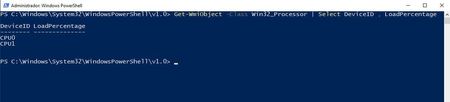
Hello friends I want to check the percentage of use of Windows Server 2019 Server processors. I tried to use the query I was doing with Windows Server 2012, but it returns me the empty value. Could anyone know how I can do this in Windows Server 2019?Solved17KViews0likes6CommentsGet-AzAccessToken "Method not found: Void..."
When running the script below, I get the following error: Get-AzAccessToken : Method not found: 'Void Azure.Identity.BrokeredAuthentication.SharedTokenCacheCredentialBrokerOptio ns..ctor(Azure.Identity.TokenCachePersistenceOptions)'. Import-Module Microsoft.Graph.Authentication Import-Module Az.Accounts function Connect-MgGraphViaCred { [CmdletBinding()] param ( [Parameter(Mandatory = $true)] [System.Management.Automation.PSCredential] $credential, [string] $tenant = "customersbank.com" ) # connect to Azure using credentials $param = @{ Credential = $credential Force = $true } if ($tenant) { $param.tenant = $tenant } Connect-AzAccount # retrieve token for MSGraph $token = (Get-AzAccessToken -ResourceTypeName MSGraph -ErrorAction Stop).token # convert token string to securestring if new version of Connect-MgGraph is used if ((Get-Help Connect-MgGraph -Parameter accesstoken).type.name -eq "securestring") { $token = ConvertTo-SecureString $token -AsPlainText -Force } # use token for connecting to Microsoft Graph $null = Connect-MgGraph -AccessToken $token -ErrorAction Stop } $User = "##username##" $PWord = ConvertTo-SecureString -String "##password##" -AsPlainText -Force $Credential = New-Object -TypeName System.Management.Automation.PSCredential -ArgumentList $User, $PWord Connect-MgGraphViaCred -credential $Credential I am running the script inside a Power Automate Desktop flow. When I run it on my Win10 machine, it runs fine, but it needs to run on a Windows Server 2019 OS, which is where it fails. I am assuming that it has something to do with the version of the Connect-AZAccount or Get-AZAccessToken commands. P.A.D. only supports PowerShell 5, so I am forced to use that version. The server's version of PowerShell is slightly older but, from what I understand, the only way to update it is via Windows Update and that says there are no new updates. Is it possible that this just won't run on Windows Server? Major Minor Build Revision ----- ----- ----- -------- 5 1 19041 3031 - Win 10 Laptop 5 1 17763 4720 - Server 2019 Module Name Win10 Version Server 2019 Version Az 9.7.1 10.2.0 Az.Accounts 2.12.2 2.12.5Solved14KViews2likes10Comments