windows hello for business
18 TopicsWindows Hello for Business - Registered Methods and Last-used Method
Hi folks – Mike Hildebrand here! Today, I bring you a short post about gaining more awareness of Windows Hello for Business (WHFB) configuration information from across your fleet of Windows PCs. Over time, we’ve improved the built-in "Authentication Methods" reporting in the Entra portal. As far as WHFB goes, at this point, the Entra Portal provides high-level counts of WHFB registration and usage: However, we IT Pros are a curious bunch, always looking for more information and more detail about what’s going on in our enterprise. A while back, after being asked by numerous customers for a way to get more details about their WHFB deployment, I published a post about using Entra sign-in log data and a custom Log Analytics Workbook to obtain that information. That post/report has proven helpful - from Entra sign in logs, we can determine who is using WHFB, from which device (and there’s even a map to show where in the world it’s happening). Nice. But that's only the 'cloud-side' of the situation - there are almost always two follow up questions that can only be answered from the endpoint: What WHFB methods has a user registered on the endpoint(s)? PIN only? PIN + fingerprint? Face? Which WHFB method was last used by a given user on a given endpoint? Ask, and yee shall receive Here are two easy/quick Intune Proactive Remediation detection scripts you can use that send configurations to a Windows endpoint and retrieve the local device details (via reg-values) around WH4B enrollment methods and the last-used WHFB method. NOTE: In my 12 days of Christmas blog-a-thon, I posted about creative uses of Intune Proactive Remediations. Once again, thanks to Marius Wyss and his core scripts to collect the WHFB registration and 'last used' info from local endpoints. They’re the real magic here. !! CAUTION !! There is PowerShell code involved here. Due diligence is required on your part. Raise your right hand and read this out loud: “Like everything else, I will thoroughly test this and all code/changes that I work with before I deploy to production. I will document the before-change state to ensure I can revert any changes I make.” CODE DISCLAIMER – These sample scripts are not supported under any Microsoft standard support program or service. The sample scripts are provided AS IS without warranty of any kind. Microsoft further disclaims all implied warranties including, without limitation, any implied warranties of merchantability or of fitness for a particular purpose. The entire risk arising out of the use or performance of the sample scripts and documentation remains with you. In no event shall Microsoft, its authors, or anyone else involved in the creation, production, or delivery of the scripts be liable for any damages whatsoever (including, without limitation, damages for loss of business profits, business interruption, loss of business information, or other pecuniary loss) arising out of the use of or inability to use the sample scripts or documentation, even if Microsoft has been advised of the possibility of such damages. REMINDER/NOTE - When using your scripting editing tool of choice, always be aware of any additional spaces or odd quotation marks or other issues that may result from edit/copy/paste. “Enrollment Types” Detection The ‘Enrolled Methods’ script from Marius o Intune-Remediation-Scripts/WH4B/Enrolled Methods at main · MrWyss-MSFT/Intune-Remediation-Scripts · GitHub o My Remediation Script Settings: o My results: “As of 2/2/2026 at 9:40 AM, Adele registered a PIN (default/required) - a face - and a fingerprint - for WH4B on the SURFACEPRO5 device” “Last Used Method” Detection The ‘Last Used Method’ script from Marius o Intune-Remediation-Scripts/WH4B/Last Used Method at main · MrWyss-MSFT/Intune-Remediation-Scripts · GitHub o My Remediation Settings: o My results: “As of 2/2/2026 at 9:40 AM, Adele last used a face/camera for WHFB on the SURFACEPRO5 device” Additional Examples of Results Enrollment Types Registered o NOTE: Remember, a PIN is required, so where you see ‘Fingerprint configured’ in the output, it means ‘PIN + Fingerprint’ Last-used method There you have it folks - by combing these two Detection Scripts with the Log Analytics Workbook mentioned at the start of the post, you have a solid solution for ‘end to end’ WH4B reporting. Hilde
So, You’ve disabled Windows Hello for Business, but the User can still Sign-in using a PIN
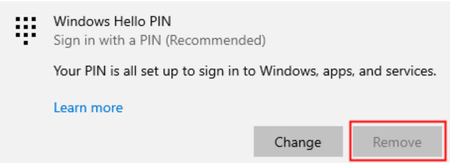
Hi, it’s Brent from the Windows Directory Services team. I recently worked a case concerning a user who had the Windows Hello for Business (“WHfB”) policy disabled, but the user could still sign-in to the computer using their PIN. As you may have guessed, the Windows admin team of the Active Directory domain for this user wanted to know how this could be and how they could remove this sign-in option from the user. Let’s Talk About the Problem The user retaining the ability to sign-in using their PIN wasn’t the only issue the admin team encountered. After requesting the user to remove the WHfB PIN sign-in, they discovered the option to remove the Windows Hello PIN sign-in was greyed out: Now, it seemed there wasn’t a way to remove the user’s ability to sign-in with their WHfB PIN. How Did We Get Here? A Microsoft Intune policy or Windows Active Directory Group Policy Object (“GPO”) was originally enabled for this user to provision Windows Hello for Business sign-in. Sometime after the user was provisioned and using their PIN to sign-in, the Windows admin team determined this user should no longer use WHfB credentials. To remove the user’s ability to do so, they configured the Intune and/or GPO policy to disable Windows Hello for Business. After refreshing the policy to the user’s computer successfully, they confirmed the PassportforWork registry key was set to disabled as follows: HKLM\SOFTWARE\Policies\Microsoft\PassportForWork Enabled REG_DWORD 0x0 The actions performed above will not remove the ability of an already provisioned user from using Windows Hello for Business PIN to sign-in to the Windows computer. To better understand the issue, the following details are provided to clarify the use of policies such as Intune and GPOs in relation to the Windows Hello for Business credential provider. When either an Intune policy or Windows GPO is configured for a user to enable WHfB, the policy is only enabling the user to enroll for provisioning to use Windows Hello for Business. The provisioning process and authentication process for Windows Hello for Business are two separate components within the Windows Hello for Business feature. Since the policy only enables the ability for a user to activate the provisioning process to enroll for Windows Hello for Business, the policy becomes irrelevant after the user successfully provisions. Once a user is provisioned, they will be able to continue using the Windows Hello for Business PIN sign-in even when the policy has been set to disabled. This behavior is expected and by design, which is documented in the following published article: Manage Windows Hello in your organization - Windows Security | Microsoft Learn However, by setting the policy to disabled, the user no longer has the ability to activate the provisioning process. The remove button under the Windows Hello PIN sign-in option is used to activate provisioning, which would allow the user to un-enroll for Windows Hello for Business. Therefore, the inability to select the remove button is also expected and by design in this configuration. How will the PIN Sign-in be Removed if Provisioning is Disabled? To disable Windows Hello for Business in this situation, the Windows Hello container will need to be deleted for the user. To do so, the user will perform the following steps under their user context on each Windows computer they were successfully provisioned prior to the policy being disabled: Have the user sign-in to the Windows computer using their username and password. Open a command prompt under the user’s context (not admin) and run the following command: certutil.exe -deleteHelloContainer Close the command prompt and restart the computer. With the policy set to disabled, the user will no longer be able to activate the provisioning process on this or any other Windows computer going forward. We wouldn’t want the user to enroll for Windows Hello for Business again after we removed it, right? I hope you found this information helpful in your understanding of Windows Hello for Business administration. Until next time. Brent Crummey Related Registry Keys Computer registry - HKLM\SOFTWARE\Policies\Microsoft\PassportForWork User registry - HKCU\SOFTWARE\Policies\Microsoft\PassportForWork References Windows Hello for Business Frequently Asked Questions (FAQ) - Windows Security | Microsoft Learn certutil | Microsoft Learn1.5KViews1like0Comments
Windows Hello for Business - Multi-Factor Unlock - Wireless Trusted Signal WPA3
I have been experimenting with WiFi trusted signal for Windows Hello for Business due to an issue that appears to have popped up after changing access point security to WPA3. I cannot seem to get the trusted signal configuration XML to properly validate the wireless trusted signal when WPA3 is the security type (With security being a required property). It works fine on WPA2, but no syntax for WPA3 seems to work. The official KB article from Microsoft about multi-factor unlock/trusted signals only lists the following as options: Open The wireless network is an open network that doesn't require any authentication or encryption. WEP The wireless network is protected using Wired Equivalent Privacy. WPA-Personal The wireless network is protected using Wi-Fi Protected Access. WPA-Enterprise The wireless network is protected using Wi-Fi Protected Access-Enterprise. WPA2-Personal The wireless network is protected using Wi-Fi Protected Access 2, which typically uses a pre-shared key. WPA2-Enterprise The wireless network is protected using Wi-Fi Protected Access 2-Enterprise. Just worried this may just be straight up incompatible. Has anyone had luck using WPA3 for WHfB with wireless as a trusted signal?632Views1like3CommentsAzure AD Joined device is not honoring Windows Hello for Business Config Policy from Intune
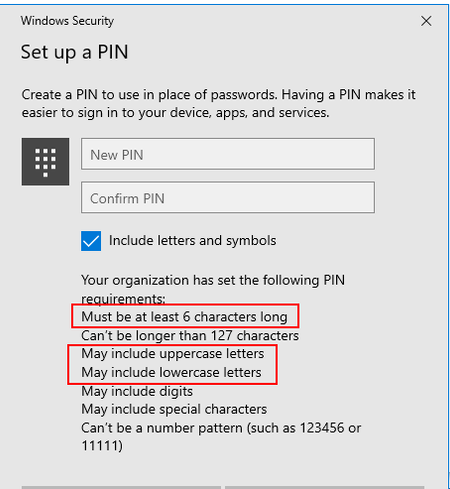
With the availability of Cloud Kerberos Trust we are now able to deploy WHfB to our Hybrid workforce but we do have a handful of Azure AD Joined devices that we also need to deploy to, all of these devices are enrolled in Intune and our user accounts are all on-prem AD and synced to Azure. When I configured the WHfB policy using the Settings Catalog Configuration Profile and apply it to our test devices, the hybrid one works great - it obtains the settings and I can see the updates to the registry and the Windows UI reflects these settings in the WHfB setup - for example, the PIN Complexity settings were set to minimum 4 and allowed all characters, symbols, etc. However when I applied the same policy to an Azure AD Joined device, the device received the settings, made the registry changes, yet when configuring the PIN, the requirements shown on screen were not what was set in the policy. I tried changing some settings in the policy to see if the updated registry settings would affect the Windows UI but still nothing. Where could this setting be getting overwritten from or, does an AADJ device with an on-prem synced user account need to have the WHfB config set a certain way? We are not making any settings using the other methods of configuring WHfB such as Enrollment, Identity Protection Templace, Account Protection (Endpoint Security) and on-prem Group Policy cannot set WHfB policies on user accounts, only devices so this doesn't apply as it's AADJ. You can see the settings that are applied in the policy and what's reflected in the registry and then what the UI says when setting a PIN.7.9KViews1like11Comments