win32
16 TopicsExporting all Microsoft Intune Enterprise App Management catalog apps to CSV using Microsoft Graph
By: Joe Lurie, Sr. Product Manager | Microsoft Intune Managing applications at scale is one of the biggest time-consuming tasks for IT admins. Between packaging installers, writing detection rules, and keeping everything up to date - it adds up fast. That's exactly the problem Enterprise App Management in Microsoft Intune is designed to address. Enterprise App Management gives you access to a curated Enterprise App Catalog with hundreds of popular Win32 apps that are pre-packaged, pre-tested, and ready to deploy. Microsoft handles the install commands, detection logic, and update-ready packaging. Automatic updates for catalog apps are expected to roll out in mid-2026, making the experience even more hands-off. You just pick the app, assign it, and move on. But what if you want a full inventory of what's available in the catalog? Maybe you're evaluating which apps your organization can migrate from manual packaging, or you want to share the list with your app owners for review. In this post, I'll show you how to pull the complete catalog using Microsoft Graph PowerShell and export it to a CSV file. Prerequisites Before you start, make sure you have: Intune admin permissions: An account with Intune permissions to read app and catalog data (such as Intune Administrator or a custom role with app read access). You will also need Microsoft Graph delegated scope: DeviceManagementApps.Read.All (you'll consent to this when connecting). An Intune Suite or Enterprise App Management add-on license: Enterprise App Management is part of the Intune Suite or available as a standalone add-on. Note: Microsoft has announced that Enterprise App Management will also be included in Microsoft 365 E5 licensing starting July 1, 2026 - check current licensing guidance to confirm availability for your tenant. Microsoft Graph PowerShell SDK (Beta module) installed: Note that the catalog API is currently in the beta endpoint which means cmdlet names and properties may change before reaching v1.0. If you don't have the beta module installed yet, run: Install-Module Microsoft.Graph.Beta.Devices.CorporateManagement -Scope CurrentUser -Force Step 1: Connect to Microsoft Graph First, authenticate to Microsoft Graph with the required scope: Connect-MgGraph -Scopes "DeviceManagementApps.Read.All" You'll get a browser prompt to sign in and consent. Once connected, you're ready to query the catalog. Step 2: Retrieve all Catalog apps Microsoft Graph exposes the Enterprise App Catalog through the /beta/deviceAppManagement/mobileAppCatalogPackages collection. The PowerShell cmdlet for it is: $catalogApps = Get-MgBetaDeviceAppManagementMobileAppCatalogPackage -All The -All parameter is important as it handles pagination automatically so you get every catalog package, not just the first page of results. 💡 Tip To see every property available on a catalog package object, pipe the first result to Format-List . $catalogApps | Select-Object -First 1 | Format-List * Step 3: Export to CSV Next, let's select the most useful fields and write them to a CSV file: $csvPath = "C:\Temp\IntuneCatalogApps.csv" New-Item -ItemType Directory -Path (Split-Path $csvPath) -Force | Out-Null $catalogApps | Select-Object ProductDisplayName, VersionDisplayName, PublisherDisplayName | Export-Csv -Path $csvPath -NoTypeInformation Open the CSV in Excel and you've got a clean, sortable list of every catalog package in the Intune Enterprise App Catalog. Putting it all together Here's the complete script you can save and run: # Connect to Microsoft Graph Connect-MgGraph -Scopes "DeviceManagementApps.Read.All" # Pull all Enterprise App Catalog packages $catalogApps = Get-MgBetaDeviceAppManagementMobileAppCatalogPackage -All # Export to CSV $csvPath = "C:\Temp\IntuneCatalogApps.csv" New-Item -ItemType Directory -Path (Split-Path $csvPath) -Force | Out-Null $catalogApps | Select-Object ProductDisplayName, VersionDisplayName, PublisherDisplayName | Export-Csv -Path $csvPath -NoTypeInformation Write-Host "Exported $($catalogApps.Count) catalog apps to $csvPath" -ForegroundColor Green # Disconnect when done Disconnect-MgGraph Sample output Your CSV will look something like this: Product Version Publisher Mozilla Firefox 137.0.1 Mozilla Corporation Google Chrome 135.0.6998.89 Google LLC Zoom Workplace 6.4.6 Zoom Video Communications, Inc. Adobe Acrobat Reader DC 25.001.20467 Adobe Inc. 7-Zip 24.09 Igor Pavlov Why this matters Having a complete list of what's in the catalog is useful for a few scenarios: App rationalization - Share the list with app owners and identify which apps you can stop manually packaging and switch to the catalog instead. Gap analysis - Compare the catalog against your current app portfolio to see what's missing. Change management - Track what's available over time as Microsoft continues to add new apps. Compliance and auditing - Document which catalog apps are available for your tenant. Wrapping up Enterprise App Management is one of the most impactful features in the Intune Suite. It takes the most tedious parts of endpoint management - app packaging and updates - and just handles it for you. And with a short Graph script, you can get full visibility into what's available. And to see how Enterprise App Management secures your app catalog, check out the companion post here: aka.ms/Intune/EAM-Security. Give the script a try and let us know what you think along with other Enterprise App Management topics you’d like to see by leaving a comment below or reaching out on X @IntuneSuppTeam. Want to learn more about Enterprise App Management? Check out the official documentation for the full details. Join our community! Discuss real-world scenarios, get expert guidance, connect with peers, and influence the future of Microsoft Security products. Learn more at https://aka.ms/JoinIntuneCommunity.2.6KViews0likes1CommentHow Enterprise App Management secures your App Catalog from ingestion to device
By: Joe Lurie, Sr. Product Manager | Microsoft Intune One of the most common questions I get from customers when I talk about Enterprise App Management is some version of: "Okay, but how do I know these apps are safe?" It's a fair question. You're trusting a catalog of pre-packaged Win32 apps to land on thousands of managed devices across your organization. If you're responsible for endpoint security, you should be asking that question. This post explains how Enterprise App Management works behind the scenes, how apps get into the catalog, what happens before they're visible to your tenant, and why the architecture matters for your security posture. The architecture: Not a new system, but an extension of what you already trust An important design decision with Enterprise App Management is that it's not a separate app delivery system. It's an extension of the existing Intune Win32 app architecture. From the admin perspective, everything starts in the Intune admin center. But behind the scenes, there's a clean separation between the control plane and the data plane: Control plane: For each app being added to the Enterprise App Management catalog, Intune curates app metadata, including app version, install commands, uninstall commands, detection logic, requirements, and supported configurations. This metadata is validated and normalized before it shows up in your tenant. That's why catalog apps behave consistently whether you're deploying to 50 devices or 50,000. Data plane: Once an app is assigned by an admin, it flows through the same Win32 app delivery and enforcement pipeline you already rely on. Your devices don't know they're installing an "Enterprise App Management app" - they're enforcing a Win32 app with well-defined intent. Same Enrollment Status Page support, same reporting, same retry logic, same Intune Management Extension. No new agent. No new runtime. And finally, Enterprise App Management apps have the same support for App Control for Business with Managed Installer which can automatically tag the apps as safe. This is important because it means Enterprise App Management inherits all the trust and operational maturity of Win32 app management in Intune. Curated content is delivered through established, reliable infrastructure. How Enterprise App Management apps are delivered: The ingestion pipeline This section walks through what happens from the moment an app is sourced to the moment it appears in your catalog. Content ingestion It starts with the catalog. Microsoft receives app metadata, including install and uninstall commands, version info, and download URLs. The data is then ingested, flattened, transformed, and Microsoft's own identifiers are applied. After the data lands in the database, eligibility and filtering gates are applied through allow and deny lists. Apps on the allow list are permitted to download content from controlled internet locations. This process handles both net-new apps and version updates to apps already in the catalog. Security and functional validation This is the part that answers the "how do I know it's safe?" question. Once content ingestion is complete, every app is submitted for security and functional validation. This is a queue-driven service that runs two parallel tracks: Static malware detection scans the installer and related artifacts for malicious content, assigning a VirusTotal score. If an app receives a non-zero score, it's blocked from proceeding, full stop. Static scanning is about establishing baseline trust before deployment. It validates that binaries are intact, that they originate from trusted sources, and they don't carry known indicators of malware or tampering. This process catches embedded malicious payloads, corrupted binaries, and known bad signatures before they can impact any device. Dynamic analysis (detonation) runs in parallel. The app is installed and uninstalled inside a VM detonation chamber, producing install results, logs, and artifacts. This is about validating behavior, not just files. Modern threats don't always look malicious at rest; some issues only surface when an installer or application runs or interacts with the system. Dynamic evaluation catches unexpected system changes, unsafe persistence mechanisms, and activity inconsistent with enterprise deployment expectations. If an app fails automatic validation, it goes through manual validation by Intune engineering. Both layers are required. Static scanning provides speed and broad coverage, while dynamic scanning provides depth and behavioral assurance. After publication: Ongoing scanning The security story doesn't end at publication. Apps already in the catalog are periodically re-scanned. If a version that previously passed validation is later found to fail a malware scan, it's flagged and removed from the catalog. This is a critical detail - the catalog isn't a snapshot-in-time trust decision. It's a continuously validated inventory. Update velocity Once a new app version is received, the target is to have it available in the catalog within 24 hours. Around 80–90% of apps hit that timeline. The remainder are apps that don't pass automatic validation and require manual review, which takes longer. But the pipeline processes updates through the exact same ingestion and validation flow as new apps - no shortcuts. Where Zero Trust fits in If you've been following Microsoft's Zero Trust model, this pipeline should feel familiar. Zero Trust is built on three principles: verify explicitly, use least-privilege access, and assume breach. EAM's validation pipeline maps directly to these: Verify explicitly: Every app is verified through multiple independent signals, including source integrity, static malware scanning, and dynamic behavioral analysis, before it's ever exposed to a tenant. No app gets a pass based on reputation or publisher name alone. Trust is earned through evidence, every time. Use least-privilege access: Enterprise App Management catalog apps ship with prefilled, scoped install and uninstall commands, detection rules, and requirements. You're not handing an installer broad system access and hoping for the best. The deployment surface is defined and constrained by design. Assume breach: This is why the pipeline doesn't stop at initial validation. Ongoing re-scanning means that even apps that previously cleared every check are continuously re-evaluated. If an app that was clean six months ago is later found to carry a risk, it's flagged and pulled from the catalog. The system assumes that trust is perishable, exactly the way Zero Trust says it should be. In practice, this means Enterprise App Management gives you an app lifecycle that's not just convenient - it follows the same security framework your organization is likely already adopting for identity, network, and device access. The app layer is often the last piece to catch up, and Enterprise App Management closes that gap. Here's the ingestion flow that shows how all of this fits together: The Enterprise App Management ingestion pipeline: from source metadata through content ingestion, static and dynamic security validation, manual review for failures, periodic re-scanning, and finally publication to the catalog. Takeaways If you're evaluating Enterprise App Management or explaining it to your security team, here's what I'd suggest that you land on: Enterprise App Management reduces the packaging tax. Pre-packaged apps with prefilled install details, detection rules, requirements, and restart behavior mean you spend less time building the same scaffolding repeatedly and more time on policy and rollout strategy. Patching becomes more predictable. Guided update flows using supersedence and a documented expectation of 24-hour update availability give you a cadence you can plan around, not react to. The security model is layered and continuous. Static scanning, dynamic detonation, manual review fallback, and ongoing re-scanning mean the catalog maintains a high trust bar - not just at ingestion, but over time. And it's all built on the same Win32 delivery infrastructure that you and your devices already trust. The bottom line: Enterprise App Management isn’t just about convenience. It shifts the app lifecycle from a manual, error-prone process to one with built-in security validation, operational consistency, and governance you can defend to your security team. Rather than manually sourcing installers and creating detection rules, use this approach to streamline the process. If you have any questions, leave a comment below or reach out to us on X @IntuneSuppTeam! Want to go deeper? Check out the Enterprise App Management documentation and keep an eye out for upcoming changes to Intune Suite licensing that will make Enterprise App Management available in the Microsoft 365 plans you may already own. And as always, drop feedback at aka.ms/IntuneFeedback. Join our community! Discuss real-world scenarios, get expert guidance, connect with peers, and influence the future of Microsoft Security products. Learn more at aka.ms/JoinIntuneCommunity .2KViews0likes0Comments
Deploying Script as Win32 App
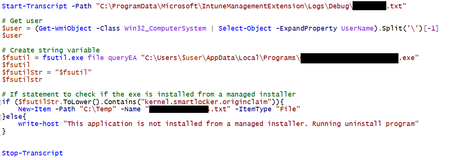
Hi all, I created a script that is supposed to check if a certain app was installed from a managed installer, then create a file in the C:\Temp folder if it was installed from a managed installer. I would deploy this as a Win32 app so that I could use the detection rules in the Win32 App deployment to check which device was installed via a managed installer. However, it doesn't seem to work. I created a transcript log as well to check if I would get an output from the variables, but it seems to only run the else block in the If Statement. We use a Business Premium license, so I don't access to Enterprise license capabilities like proactive remediation scripts. It is run using the System credentials, I've tested the script locally which works. Thank you, I've included some images of the script and transcript log. Script: Transcript Log Output:216Views1like1Comment
We’re running into an Intune issue where a Win32 app with a dependency sits at "Download Pending"
Setup: Main App: Installs in User Context Dependency: Installs in System Context Dependency Detection: Hosts file modification detection script Direct file detection does NOT work either When the hosts file modification is present (detection is met), detection works, and everything installs fine manually The Problem: If detection passes (exit 0) → Everything installs fine. If detection fails (exit 1) → Intune never moves forward, just stays at "Download Pending" indefinitely. Happens with both file-based detection and script-based detection. Dependency app as well at parent app install fine via Intune on their own as well as manual testing. What We Need to Know: Does Intune get stuck in "Download Pending" instead of moving forward when dependency detection fails? Could the install context mismatch (dependency in SYSTEM, main app in USER) be causing this? Myth or fact? Does Intune break the install process if a dependency app is in system context and the parent app is in user context? Again, both apps work fine independent of each other. Thanks for any help!2KViews2likes4Comments
Win32 applications are not appearing in the company portal
Hello, I am new to Intune and am experiencing an issue with Win32 apps not appearing in the company portal application. I can upload line-of-business apps and these apps do appear the company portal application and I can install them successfully. However, I seem to be missing something when uploading Win32 apps. To clarify, the Win32 application's Assignment is set under "Available for all enrolled devices" to a group that contains the Intune user who is logged in to the company portal. Any ideas why I can upload LOB apps to the company portal but not Win32? Thanks Joe F975Views0likes0CommentsCopy a OVPN file in Powershell from Intune
Sounds easy, my powershell script works fine if i run it on my machine, it copies the file into the %USERPROFILE%\OpenVPN\config folder. Its packaged up using the Intunewinapp program, but when i put it into intune it fails to install and copy the file over. Culd something like defender be stopping this process? The script works, the intune package works when launched from powershell, so what causes it to fail when i run it as a win32 app from intune? Anyone had this issue before? This is my script; $PSScriptRoot = Split-Path -Parent -Path $MyInvocation.MyCommand.Definition $Source = "$PSScriptRoot\Thornes.ovpn" $Destination = "$env:USERPROFILE\OpenVPN\config\" Copy-Item -Path $Source -Destination $Destination -Recurse -Force Thanks6.4KViews0likes17Comments
Unable to deploy PowerShell scripts to a newly co-managed device with Intune
Hi there, I am having issues deploying a PowerShell script through Intune to a device that has recently become co-managed with Configuration Manager. The CCM client was successfully installed and uses a CMG when off-network. The user logs into the device with a local admin account not a domain account. This https://learn.microsoft.com/en-us/mem/configmgr/comanage/workloads#client-apps states that the Client Apps workload in ConfigMgr doesn't need to be switched to Intune for PowerShell scripts when running on Windows 10 clients newer than 1903. But in case, I have moved the Client Apps workload to Pilot Intune with a device collection containing my device. Intune acknowledges this and displays the correct Intune Managed Workloads on the device overview screen. Even with this switched, I noticed the issue also impacts Win32 and LoB applications too. I cannot get any new applications to push down to the device anymore (since becoming co-managed) despite the workload supposedly being managed by Intune. The other workloads such as Device Configuration can be correctly controlled with Intune as tested with several configuration policies. Running the same script manually on the device worked as expected. Pushing the script to a separate device that isn't co-managed, only AADJ, also worked as expected. I've also tried targeting the script to a user security group instead of a device based group to no avail. I would appreciate any help on this. Best EthanSolved3.7KViews0likes2Comments
Windows 10 and 11 package icons resources
Hello, I have a problem with my Packaged Win32 application icons resources on Windows 10 and 11. The icons look great in the Start menu and Taskbar but when I add a desktop short to my app, the icon is displayed with a blue background color. Here is my scenario : 1. I generate the resources.pri file using native Visual Studio tool (see attached capture) 2. Then I build an APPX package to publish it on the Store using the command line : "C:\Program Files (x86)\Windows Kits\10\bin\10.0.18362.0\x86\makeappx.exe" pack /d "E:[compiled app folder]" /p e:\package.appx 3. I can sideload my app using the PS1 command Add-AppxPackage -Register [package app folder]\AppxManifest.xml When deployed (sideload or by Store) the icons look nice in the Start menu and taskbar (see captures). When I drag the Icon from the Start menu to the desktop to create a shortcut, then the icon is not correct. Note : I generated all the visual assets using VS for all sizes/scales, and light/dark variants, and unplated. The appmanifest looks like that : <uap:VisualElements DisplayName="PageFabric" Description="PageFabric" BackgroundColor="transparent" Square150x150Logo="Assets\Square150x150Logo.png" Square44x44Logo="Assets\Square44x44Logo.png"> <uap:DefaultTile Wide310x150Logo="Assets\Wide310x150Logo.png" Square310x310Logo="Assets\LargeTile.png" Square71x71Logo="Assets\SmallTile.png"> <uap:ShowNameOnTiles> <uap:ShowOn Tile="square150x150Logo" /> <uap:ShowOn Tile="wide310x150Logo" /> <uap:ShowOn Tile="square310x310Logo" /> </uap:ShowNameOnTiles> </uap:DefaultTile> Anybody has an idea of what I miss for the desktop shortcuts? Thank you!3.7KViews0likes3Comments