vpn gateway
47 TopicsAdvertised gateway prefixes in Azure
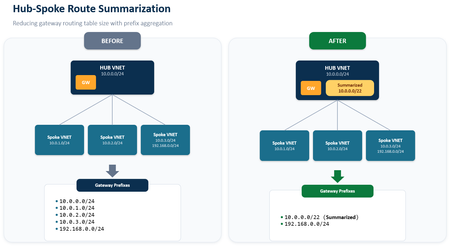
Introduction Large Azure hub-and-spoke environments can advertise a significant number of routes toward on-premises networks. By default, Azure VPN Gateway and ExpressRoute Gateway advertise the address spaces of the hub virtual network and the address spaces of peered spoke virtual networks that use gateway transit. As the number of spokes and address spaces grows, the border gateway protocol (BGP) route table grows as well. Advertised gateway prefixes provide a native way to summarize those Azure-side routes. The feature is configured on the hub virtual network through the summarizedGatewayPrefixes property, which is exposed in the Azure portal as Advertised gateway prefixes. Fewer BGP prefixes Replace many individual networks with one or more aggregated CIDRs. Better scale management Help large hub-and-spoke designs stay within advertised-prefix limits. Cleaner route visibility Make the intended Azure address plan easier to recognize on provider and on-premises route views. In this blog we will demonstrate leveraging Advertised gateway prefixes to summarize many Azure advertised prefixes into one. What are advertised gateway prefixes? Advertised gateway prefixes are summarized CIDR blocks that an Azure hybrid gateway advertises toward on-premises instead of advertising every covered hub and spoke address space individually. The configuration belongs on the gateway virtual network, usually the hub VNet that contains GatewaySubnet and the ExpressRoute or VPN gateway. How the route advertisement changes Default behavior With advertised gateway prefixes Hub: 10.27.0.0/24 Spoke 1: 10.27.1.0/24 Spoke 2: 10.27.2.0/24 Spoke 3: 10.27.3.0/24 Summary: 10.27.0.0/22 Four individual prefixes are advertised. One summary prefix is advertised. A spoke outside the summary is still advertised separately. Example: 172.16.1.0/24 remains visible if it is not covered by 10.27.0.0/22. When should you use it? You use a hub-and-spoke topology with gateway transit and many spoke address spaces. You want to advertise a covering prefix, such as a /16, instead of many smaller prefixes, such as multiple /24 networks. You are approaching ExpressRoute advertised-prefix limits or want to reduce route-table growth before scale becomes a problem. Your Azure address plan is sufficiently structured to create safe, intentional summary ranges. Note: ExpressRoute scale context: Microsoft documentation lists a maximum of 1,000 IPv4 prefixes and 100 IPv6 prefixes advertised from a virtual network to on-premises on a single ExpressRoute connection through private peering. Exceeding the connection prefix limit can cause the connection between the circuit and gateway to disconnect until the prefix count is reduced. Prerequisites A hub virtual network with GatewaySubnet. An ExpressRoute gateway or VPN gateway deployed in the hub virtual network. One or more peered spoke virtual networks if you want to demonstrate route summarization across spokes. A planned IPv4 and, when applicable, IPv6 summary that covers the intended hub and spoke address spaces. Access to the provider or on-premises BGP route view for validation. In this walkthrough, Megaport is used as the external verification point. Configure advertised gateway prefixes in the Azure portal The portal configuration is performed on the hub VNet, not on the ExpressRoute circuit and not on each spoke VNet. In the Azure portal, search for Virtual networks and select the hub VNet that contains GatewaySubnet. Open the hub virtual network Under Settings, select Address space. Open Address space In Advertised gateway prefixes, select + Add prefix. Enter the covering CIDR, such as 10.0.0.0/22 for four contiguous /24 networks. Add the summarized prefix For a dual-stack design, add IPv4 and IPv6 summarized prefixes explicitly. Add additional address families if needed Select Save and confirm the summarized prefixes remain listed in the Advertised gateway prefixes section. Save the configuration Validate the summarized route on routers or provider After Azure applies the change and BGP converges, I’m using ExpressRoute and Megaport here for my example, you can either log in to your router directly or view the incoming BGP routes via your provider’s interface to confirm what routes are being received from Azure. We want to capture a view that displays the BGP prefixes learned from the Azure side. Capture a baseline screenshot before enabling the feature, showing the individual hub and spoke prefixes. After configuration, refresh the route view and locate the new summarized prefix. Confirm that covered hub and spoke prefixes are no longer advertised individually. Confirm that any address space outside the configured summary remains advertised separately. Before: After: In my demo environment I have a hub and 20 spokes all within the 10.27.0.0/16 address prefix. We can see a successful implementation as before enabling the feature, I had a total of 21 prefixes being received at Megaport, after enabling the feature I have 1. Important design considerations Configure the hub, not the spokes: Only the virtual network containing the gateway subnet uses the summarizedGatewayPrefixes property for this behavior. A value placed on a spoke VNet is ignored. Avoid overlap within the prefix list: Do not configure overlapping entries in the advertised gateway prefixes list. Expect uncovered networks to remain visible: If a hub or spoke address space is not covered by a configured summary, the gateway continues to advertise it individually. Plan dual-stack explicitly: IPv4 and IPv6 summaries must be added separately. Removing all entries restores default behavior: When every advertised gateway prefix is removed, Azure returns to advertising hub and peered spoke address spaces individually. Protect the on-premises edge: Use appropriate route policies so only expected prefixes are accepted. Summarization simplifies advertisements, but it does not replace routing governance. Conclusion Advertised gateway prefixes give Azure networking teams a straightforward, native method to control route scale from a gateway-enabled hub VNet. Instead of sending every hub and spoke prefix across ExpressRoute or VPN connections, the gateway can advertise a concise list of summarized prefixes. The result is a smaller and more intentional route advertisement, while uncovered address spaces remain visible for compatibility. References Advertised gateway prefixes in Azure virtual networks Configure advertised gateway prefixes using the Azure portal Azure ExpressRoute FAQ About ExpressRoute virtual network gateways471Views0likes0Comments
Summarized Gateway Prefixes for Route Advertisement in Azure Virtual Networks
Background Many Azure deployments follow a hub-and-spoke topology: one VNet is designated as the hub and holds the connection to on-premises (via ExpressRoute Gateway, VPN Gateway, or both), and workload VNets — the spokes — peer to the hub to reach on-premises and shared services. This centralizes gateway connectivity so many workloads can share a single ExpressRoute or VPN Gateway. However, in large hub-and-spoke topologies, ExpressRoute and VPN Gateway limits on advertised prefixes (for example, 1,000 IPv4 and 100 IPv6 prefixes) can be reached. Because each spoke adds its own address prefixes to that count, these limits are approached quickly, constraining how far the topology can scale. What's New With Summarized Gateway Prefixes, customers can now advertise a single covering prefix (for example, 10.0.0.0/16) instead of many smaller CIDRs (for example, multiple /24s) – dramatically reducing advertised route count and enabling larger-scale Azure environments. A new property, summarizedGatewayPrefixes, is now available on the Virtual Network resource in public preview. When configured on a hub VNet, it controls what your ExpressRoute Gateway and VPN Gateway advertise to on-premises, replacing the default behavior of advertising all individual hub and spoke VNet CIDRs with a set of aggregated prefixes you define. For example, instead of advertising 10.0.1.0/24, 10.0.2.0/24, 10.0.3.0/24, and so on for each spoke, you can advertise a single 10.0.0.0/16. Key Benefits Fewer advertised routes — Replace hundreds of individual spoke CIDRs with a small set of summarized prefixes. Scales with your topology — Supports deployments with 500+ spokes without requiring address plan redesigns or VNet splits. IPv4 and IPv6 — Summarize both address families. Works with both gateway types — Supported on ExpressRoute Gateway and VPN Gateway. Simple configuration — A single property on the VNet resource. No additional services or dependencies. Backward compatible — If the property is left empty, behavior is unchanged: all hub and peered spoke address spaces are advertised as before. How It Works Default behavior ExpressRoute Gateway and VPN Gateway advertise all address spaces of the hub VNet and all address spaces of peered spoke VNets to on-premises. With summarizedGatewayPrefixes configured The gateways advertise the summarized prefixes instead of the hub VNet's individual address spaces. For each peered spoke, if the spoke's address space falls within a summarized prefix, the spoke's individual CIDRs are suppressed from advertisement. Spoke address spaces not covered by a summarized prefix continue to be advertised individually. Example: Without Summarization With Summarization 10.0.1.0/24, 10.0.2.0/24, 10.0.3.0/24, … 10.0.0.0/16 Hundreds of prefixes One prefix Getting Started Open the hub VNet (the VNet containing your GatewaySubnet) in the Azure portal. Go to Address space → Advertised gateway prefixes. Add one or more IPv4 or IPv6 CIDR prefixes that cover the address spaces you want to summarize. Navigate to your virtual network and verify that the summarized prefixes appear. Things to Know The property is set on the hub VNet (the VNet with the GatewaySubnet). The summarized prefixes list can include prefixes outside the VNet's own address space. Avoid overlap among prefixes within the list, but overlap with peered VNet address spaces is expected in hub-and-spoke designs. For dual-stack (IPv4 + IPv6) VNets, define both IPv4 and IPv6 summarized prefixes explicitly.1.6KViews2likes0Comments
Azure VNet Data Gateway for Secure Power BI & Power Platform Access in Enterprises
What Is a VNet data gateway? The VNet data gateway is a Microsoft‑managed gateway service that runs inside a delegated subnet of an Azure Virtual Network. It allows supported Microsoft cloud services—such as Power BI, Power Platform dataflows, and Microsoft Fabric workloads—to securely connect to data sources that are protected using private networking. Key characteristics: No customer‑managed VM or container No OS, patching, or gateway software upgrades Gateway lifecycle fully managed by Microsoft Traffic stays on the Azure backbone network Works seamlessly with Private Endpoints This makes it ideal for enterprise and regulated environments where security and operational efficiency are equally important. Why Enterprises need VNet data gateway Eliminates gateway infrastructure management Traditional gateways require: Virtual machines High availability setup OS patching and scaling Monitoring and troubleshooting With the VNet data gateway: Microsoft manages compute lifecycle No VM or gateway software to maintain No HA or load balancer design needed ✅ Result: Significant reduction in operational and maintenance overhead for platform and infrastructure teams. Secure access to private Azure resources Most enterprise Azure environments use: Private Endpoints NSGs and route tables Firewalls blocking public access The VNet data gateway: Is injected into a delegated subnet in your VNet Uses private IP addressing Enforces NSG and UDR rules Communicates with Microsoft services over a Microsoft‑managed internal tunnel ✅ Result: Data sources remain fully private—no public endpoints or inbound ports required. Designed for Power Platform & Power BI at Scale The gateway supports secure access for: Power BI semantic models Power BI paginated reports Microsoft Fabric Dataflow Gen2 Fabric pipelines and copy jobs Because it’s cloud‑native and centrally managed, the VNet data gateway scales well in large enterprises standardizing on Power Platform and Fabric. High‑level architecture overview At runtime, the VNet data gateway works as follows: A query is initiated from Power BI / Power Platform Query details and credentials are sent to the Microsoft Power Platform VNet service A containerized gateway instance is injected into the delegated subnet The gateway connects to the private data source using private networking Results are sent back to Power BI or Power Platform via a Microsoft‑managed internal tunnel Key security highlights: No inbound connectivity No public IP exposure Traffic remains on Azure backbone Full enforcement of NSGs and routing rules Key Enterprise benefits Least management overhead – no gateway servers Zero Trust aligned – private-only connectivity Fully managed by Microsoft Enterprise-grade security & governance Works with Azure Private Endpoint architectures When to Use VNet Data Gateway Scenario Recommendation Azure private PaaS services ✅ VNet data gateway Private Endpoint–only access ✅ VNet data gateway Zero Trust network model ✅ VNet data gateway Minimal ops & maintenance ✅ VNet data gateway On‑prem only, no Azure ❌ Traditional gateway Step‑by‑step configuration: VNet data gateway (Enterprise setup) High‑level flow (What you will configure) Register required Azure resource provider Prepare Azure Virtual Network and subnet Configure private connectivity to data source Create the VNet data gateway Create and bind data source connections Validate with Power BI / Power Platform workloads Step 1: Register Microsoft.PowerPlatform resource provider Why this step is required The VNet data gateway is a Microsoft‑managed service that is injected into your Azure VNet. Azure must explicitly allow Power Platform to deploy managed infrastructure into your subscription. Configuration steps Sign in to Azure portal Navigate to Subscriptions Select the subscription that hosts the target VNet Go to Resource providers Search for Microsoft.PowerPlatform Click Register ✅ Status must show Registered This step enables subnet delegation to Power Platform services. Step 2: Prepare the Azure Virtual Network Why this step is required The gateway runs inside your VNet. It must be placed in a dedicated, delegated subnet to maintain isolation and security boundaries. Requirements VNet can be in any Azure region Subnet must be exclusive to VNet data gateway Subnet must have outbound connectivity to the data source Configuration steps Go to Azure portal → virtual networks Select your existing VNet (or create one) Navigate to Subnets → + Subnet Configure: Subnet name: snet-vnet-datagateway Address range: /27 or larger (recommended) Subnet delegation: Microsoft.PowerPlatform/vnetaccesslinks Save the subnet ⚠️ Do not place any VMs, app gateway, or other workloads in this subnet. Step 3: Configure private connectivity to the data source Why this step is required Enterprises typically block public access to PaaS services. The VNet data gateway is designed to work natively with private endpoints. Example: Azure SQL / SQL Managed Instance Create Private Endpoint for the data service Attach it to the same VNet (can be different subnet) Create or link a Private DNS Zone, for example: privatelink.database.windows.net Link the Private DNS Zone to the VNet Ensure DNS resolution from the delegated subnet resolves to private IP ✅ This ensures all traffic remains private and internal. Step 4: Create the VNet data gateway Why this step is required This is where the actual Microsoft‑managed gateway is logically created and associated with your VNet. Configuration steps You can do this from either Power BI Service or Power Platform Admin Center. Using Power Platform Admin Center Go to https://admin.powerplatform.microsoft.com Select Data → Gateways Click + New → Virtual network data gateway Provide: Gateway name Azure subscription Resource group Virtual network Delegated subnet Click Create 📌 Notes: Gateway metadata is stored in Power BI tenant home region Gateway runtime executes in the VNet region No VM or scale settings are required Step 5: Create and configure data source connections Why this step is required The gateway exists, but Power BI / Power Platform must know which data sources can be accessed via it. Configuration steps (Power BI example) Go to Power BI Service Navigate to Settings → Manage connections and gateways Select the newly created VNet data gateway Click + New connection Provide: Data source type (Azure SQL, Storage, Databricks, etc.) Server / endpoint name (private DNS name) Authentication (SQL / Entra ID) Save the connection Assign users or security groups ✅ This step enables governance and access control. Step 6: Use the gateway in Power BI / Power Platform Power BI Open dataset or semantic model settings Under Gateway connection, select: Use a data gateway Choose the VNet data gateway Apply changes Refresh or run queries Power Platform / Fabric Select the same connection when configuring: Dataflows Gen2 Fabric pipelines Copy jobs Step 7: Validate and test Validation Checklist ✅ DNS resolves to private IP ✅ No public endpoint access enabled ✅ NSGs allow outbound traffic to data source ✅ Dataset refresh succeeds ✅ No gateway VM exists in subscription Optional: Enable logging and auditing from Power BI / Fabric Monitor gateway health in Admin Center Key Enterprise design guidance (Best practices) Use one gateway per environment tier (Prod / Non‑Prod) Use dedicated VNets for data access where possible Use Private Endpoint only (avoid service endpoints) Control access via AAD groups, not individuals Avoid mixing gateway subnet with other workloads Conclusion: For enterprises looking to consume Power Platform, Power BI, and Microsoft Fabric securely while keeping operational overhead close to zero, the VNet data gateway is the recommended approach. It removes gateway infrastructure complexity, strengthens security posture, and aligns perfectly with modern Azure landing zone and Zero Trust architectures.1.5KViews0likes0Comments
My First TechCommunity Post: Azure VPN Gateway BGP Timer Mismatches
This is my first post on the Microsoft TechCommunity. Today is my seven-year anniversary at Microsoft. In my current role as a Senior Cloud Solution Architect supporting Infrastructure in Cloud & AI Platforms, I want to start by sharing a real-world lesson learned from customer engagements rather than a purely theoretical walkthrough. This work and the update of the official documentation on Microsoft Learn is the culmination of nearly two years of support for a very large global SD-WAN deployment with hundreds of site-to-site VPN connections into Azure VPN Gateway. The topic is deceptively simple—BGP timers—but mismatched expectations can cause significant instability when connecting on‑premises environments to Azure. If you’ve ever seen seemingly random BGP session resets, intermittent route loss, or confusing failover behavior, there’s a good chance that a timer mismatch between Azure and your customer premises equipment (CPE) was a contributing factor. Customer Expectation: BGP Timer Negotiation Many enterprise routers and firewalls support aggressive BGP timers and expect them to be negotiated during session establishment. A common configuration I see in customer environments looks like: Keepalive: 10 seconds Hold time: 30 seconds This configuration is not inherently wrong. In fact, it is often used intentionally to speed up failure detection and convergence in conventional network environments. My past experience with short timers was in a national cellular network carrier between core switching routers in adjacent racks, but all other connections used the default timer values. The challenge appears when that expectation is carried into Azure VPN Gateway. Azure VPN Gateway Reality: Fixed BGP Timers Azure VPN Gateway supports BGP but uses fixed timers (60/180) and won’t negotiate down. The timers are documented: The BGP keepalive timer is 60 seconds, and the hold timer is 180 seconds. Azure VPN Gateways use fixed timer values and do not support configurable keepalive or hold timers. This behavior is consistent across supported VPN Gateway SKUs that offer BGP support. Unlike some on‑premises devices, Azure will not adapt its timers downward during session establishment. What Happens During a Timer Mismatch When a CPE is configured with a 30‑second hold timer, it expects to receive BGP keepalives well within that window. Azure, however, sends BGP keepalives every 60 seconds. From the CPE’s point of view: No keepalive is received within 30 seconds The BGP hold timer expires The session is declared dead and torn down Azure may not declare the peer down on the same timeline as the CPE. This mismatch leads to repeated session flaps. The Hidden Side Effect: BGP State and Stability Controls During these rapid teardown and re‑establishment cycles, many CPE platforms rebuild their BGP tables and may increment internal routing metadata. When this occurs repeatedly: Azure observes unexpected and rapid route updates The BGP finite state machine is forced to continually reset and re‑converge BGP session stability is compromised CPE equipment logging may trigger alerts and internal support tickets. The resulting behavior is often described by customers as “Azure randomly drops routes” or “BGP is unstable”, when the instability originates from mismatched BGP timer expectations between the CPE and Azure VPN Gateway. Why This Is More Noticeable on VPN (Not ExpressRoute) This issue is far more common with VPN Gateway than with ExpressRoute. ExpressRoute supports BFD and allows faster failure detection without relying solely on aggressive BGP timers. VPN Gateway does not support BFD, so customers sometimes compensate by lowering BGP timers on the CPE—unintentionally creating this mismatch. The VPN path is Internet/WAN-like where delay/loss/jitter is normal, so conservative timer choices are stability-focused. Updated Azure Documentation The good news is that the official Azure documentation has been updated to clearly state the fixed BGP timer values for VPN Gateway: Keepalive: 60 seconds Hold time: 180 seconds Timer negotiation: Azure uses fixed timers Azure VPN Gateway FAQ | Microsoft Learn This clarification helps set the right expectations and prevents customers from assuming Azure behaves like conventional CPE routers. Practical Guidance If you are connecting a CPE to Azure VPN Gateway using BGP: Do not configure BGP timers lower than Azure’s defaults Align CPE timers to 60 / 180 or higher Avoid using aggressive timers as a substitute for BFD For further resilience: Consider Active‑Active VPN Gateways for better resiliency Use 4 Tunnels commonly implemented in a bowtie configuration for even better resiliency and traffic stability Closing Thoughts This is a great example of how cloud networking often behaves correctly, but differently than conventional on‑premises networking environments. Understanding those differences—and documenting them clearly—can save hours of troubleshooting and frustration. If this post helps even one engineer avoid a late‑night or multi-month BGP debugging session, then it has done its job. I did use AI (M365 Copilot) to aid in formatting and to validate technical accuracy. Otherwise, these are my thoughts. Thanks for reading my first TechCommunity post.610Views4likes0Comments
Traffic processing BGP Azure VPN gateway A/A
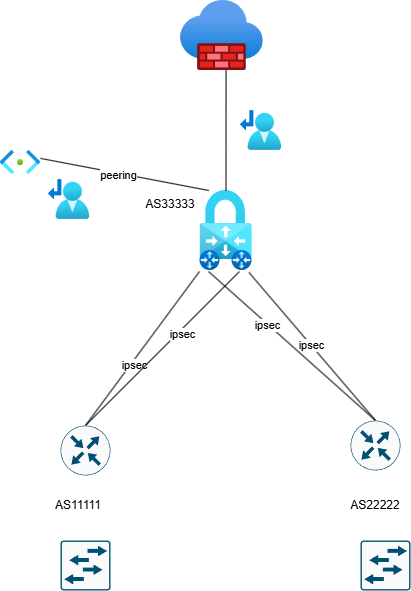
Hello, Can someone explain how Azure processes the traffic with implemented a VPN gateway in Active Active mode?. Azure firewall premium is also configured. BGP is without preferences. The user route definition is set up to the next hop Azure firewall . Is it possible in this scenario occurs the asymmetric routing with traffic drop by azure firewall ? In my understand is that, if we need to configure User route definition on Gateway subnet to inspect traffic to peering subnet, so the firewall don't see traffic passing through VPN gateway. Traffic going through ipsec tunnels can go different paths and firewall do not interfere because everything is routed to it by user route definition.325Views0likes5Comments
Help! - How is VNet traffic reaching vWAN/on‑prem when the VNet isn’t connected to the vWAN hub
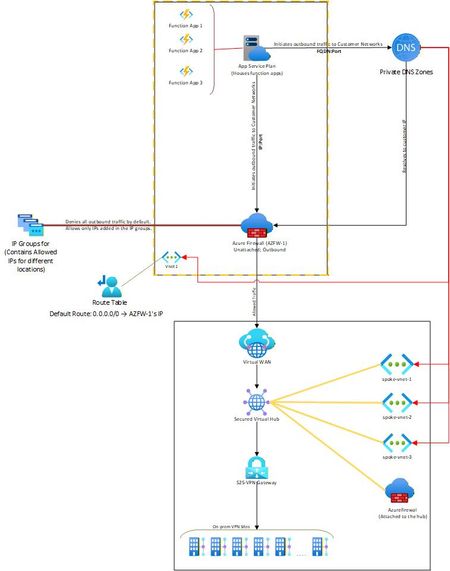
Hello, I needed some clarity on how the following is working: Attached is a network diagram of our current setup. The function apps (in VNet-1) initiate a connection(s) to a specific IP:Port or FQDN:Port in the on-premises network(s). A Private DNS zone ensures that any FQDN is resolved to the correct internal IP address of the on-prem endpoint. In our setup, both the function app and the external firewall reside in the same VNet. This firewall is described as “Unattached” because it is not the built-in firewall of a secured vWAN hub, but rather an independent Azure Firewall deployed in that VNet. The VNet has a user-defined default route (0.0.0.0/0) directing all outbound traffic to the firewall’s IP. The firewall then filters the traffic, allowing only traffic destined to whitelisted on-premises IP: Port or FQDN: Port combinations (using IP Groups), and blocking everything else. The critical question and the part that I am unable to figure out is: Once the firewall permits a packet, how does Azure know to route it to the vWAN hub and on to the site-to-site VPN? Because VNet-1 truly has no connection at all to the vWAN hub (no direct attachment, no peering, no VPN from the NVA). But the traffic is still reaching the on-prem sites. Unable to figure out how this is happening. Am I missing something obvious? Any help on this would be appreciated. Thank you!419Views0likes4CommentsAzure Networking 2025: Powering cloud innovation and AI at global scale
In 2025, Azure’s networking platform proved itself as the invisible engine driving the cloud’s most transformative innovations. Consider the construction of Microsoft’s new Fairwater AI datacenter in Wisconsin – a 315-acre campus housing hundreds of thousands of GPUs. To operate as one giant AI supercomputer, Fairwater required a single flat, ultra-fast network interconnecting every GPU. Azure’s networking team delivered: the facility’s network fabric links GPUs at 800 Gbps speeds in a non-blocking architecture, enabling 10× the performance of the world’s fastest supercomputer. This feat showcases how fundamental networking is to cloud innovation. Whether it’s uniting massive AI clusters or connecting millions of everyday users, Azure’s globally distributed network is the foundation upon which new breakthroughs are built. In 2025, the surge of AI workloads, data-driven applications, and hybrid cloud adoption put unprecedented demands on this foundation. We responded with bold network investments and innovations. Each new networking feature delivered in 2025, from smarter routing to faster gateways, was not just a technical upgrade but an innovation enabling customers to achieve more. Recapping the year’s major releases across Azure Networking services and key highlights how AI both drive and benefit from these advancements. Unprecedented connectivity for a hybrid and AI era Hybrid connectivity at scale: Azure’s network enhancements in 2025 focused on making global and hybrid connectivity faster, simpler, and ready for the next wave of AI-driven traffic. For enterprises extending on-premises infrastructure to Azure, Azure ExpressRoute private connectivity saw a major leap in capacity: Microsoft announced support for 400 Gbps ExpressRoute Direct ports (available in 2026) to meet the needs of AI supercomputing and massive data volumes. These high-speed ports – which can be aggregated into multi-terabit links – ensure that even the largest enterprises or HPC clusters can transfer data to Azure with dedicated, low-latency links. In parallel, Azure VPN Gateway performance reached new highs, with a generally available upgrade that delivers up to 20 Gbps aggregate throughput per gateway and 5 Gbps per individual tunnel. This is a 3× increase over previous limits, enabling branch offices and remote sites to connect to Azure even more seamlessly without bandwidth bottlenecks. Together, the ExpressRoute and VPN improvements give customers a spectrum of high-performance options for hybrid networking – from offices and datacenters to the cloud – supporting scenarios like large-scale data migrations, resilient multi-site architectures, and hybrid AI processing. Simplified global networking: Azure Virtual WAN (vWAN) continued to mature as the one-stop solution for managing global connectivity. Virtual WAN introduced forced tunneling for Secure Virtual Hubs (now in preview), which allows organizations to route all Internet-bound traffic from branch offices or virtual networks back to a central hub for inspection. This capability simplifies the implementation of a “backhaul to hub” security model – for example, forcing branches to use a central firewall or security appliance – without complex user-defined routing. Empowering multicloud and NVA integration: Azure recognizes that enterprise networks are diverse. Azure Route Server improvements enhanced interoperability with customer equipment and third-party network virtual appliances (NVAs). Notably, Azure Route Server now supports up to 500 virtual network connections (spokes) per route server, a significant scale boost that enables larger hub-and-spoke topologies and simplified Border Gateway Protocol (BGP) route exchange even in very large environments. This helps customers using SD-WAN appliances or custom firewalls in Azure to seamlessly learn routes from hundreds of VNet spokes – maintaining central routing control without manual configuration. Additionally, Azure Route Server introduced a preview of hub routing preference, giving admins the ability to influence BGP route selection (for example, preferring ExpressRoute over a VPN path, or vice versa). This fine-grained control means hybrid networks can be tuned for optimal performance and cost. Resilience and reliability by design Azure’s growth has been underpinned by making the network “resilient by default.” We shipped tools to help validate and improve network resiliency. ExpressRoute Resiliency Insights was released for general availability – delivering an intelligent assessment of an enterprise’s ExpressRoute setup. This feature evaluates how well your ExpressRoute circuits and gateways are architected for high availability (for example, using dual circuits in diverse locations, zone-redundant gateways, etc.) and assigns a resiliency index score as a percentage. It will highlight suboptimal configurations – such as routes advertised on only one circuit, or a gateway that isn’t zone-redundant – and provide recommendations for improvement. Moreover, Resiliency Insights includes a failover simulation tool that can test circuit redundancy by mimicking failures, so you can verify that your connections will survive real-world incidents. By proactively monitoring and testing resilience, Azure is helping customers achieve “always-on” connectivity even in the face of fiber cuts, hardware faults, or other disruptions. Security, governance, and trust in the network As enterprises entrust more core business to Azure, the platform’s networking services advanced on security and governance – helping customers achieve Zero Trust networks and high compliance with minimal complexity. Azure DNS now offers DNS Security Policies with Threat Intelligence feeds (GA). This capability allows organizations to protect their DNS queries from known malicious domains by leveraging continuously updated threat intel. For example, if a known phishing domain or C2 (command-and-control) hostname appears in DNS queries from your environment, Azure DNS can automatically block or redirect those requests. Because DNS is often the first line of detection for malware and phishing activities, this built-in filtering provides a powerful layer of defense that’s fully managed by Azure. It’s essentially a cloud-delivered DNS firewall using Microsoft’s vast threat intelligence – enabling all Azure customers to benefit from enterprise-grade security without deploying additional appliances. Network traffic governance was another focus. The introduction of forced tunneling in Azure Virtual WAN hubs (preview) shared above is a prime example where networking meets security compliance. Optimizing cloud-native and edge networks We previewed DNS intelligent traffic control features – such as filtering DNS queries to prevent data exfiltration and applying flexible recursion policies – which complement the DNS Security offering in safeguarding name resolution. Meanwhile, for load balancing across regions, Azure Traffic Manager’s behind-the-scenes upgrades (as noted earlier) improved reliability, and it’s evolving to integrate with modern container-based apps and edge scenarios. AI-powered networking: Both enabling and enabled by AI We are infusing AI into networking to make management and troubleshooting more intelligent. Networking functionality in Azure Copilot accelerates tasks like never before: it outlines the best practices instantly and troubleshooting that once required combing through docs and logs can be conversational. It effectively democratizes networking expertise, helping even smaller IT teams manage sophisticated networks by leveraging AI recommendations. The future of cloud networking in an AI world As we close out 2025, one message is clear: networking is strategic. The network is no longer a static utility – it is the adaptive circulatory system of the cloud, determining how far and fast customers can go. By delivering higher speeds, greater reliability, tighter security, and easier management, Azure Networking has empowered businesses to connect everything to anything, anywhere – securely and at scale. These advances unlock new scenarios: global supply chains running in real-time over a trusted network, multi-player AR/VR and gaming experiences delivered without lag, and AI models trained across continents. Looking ahead, AI-powered networking will become the norm. The convergence of AI and network tech means we will see more self-optimizing networks that can heal, defend, and tune themselves with minimal human intervention.1.6KViews3likes0Comments
Spoke-Hub-Hub Traffic with VPN Gateway BGP and Firewall Issue
Hello, I’m facing a situation where I’m trying to have Azure Firewall Inspection on the VPN Gateway VNET-VNET Connectivity. It seems to work if I go from SpokeA-HubAFirewall-HubAVPN—HubBVPN-SpokeB but if I try to go from SpokeA-HubAFirewall-HubAVPN-HubBVM or Inbound Resolver it fails to route correctly according to Connectivity Troubleshooter it stops at HubAVPN with Local Error: RouteMissing but then reaches destination health so makes me believe it’s getting there but not following the route I want it to take which might be causing routing issues. What Am I missing here? This connectivity was working before introducing the Azure Firewall for Inspection with the UDR. Is what I’m trying to accomplish not possible? I’ve tried different types of UDR rules on the Gateway Subnet, and this is my most recent configuration. The reason I’m trying to accomplish this is because I’m seeing a similar error in our Hub-Spoke Hybrid environment and I’m trying to replicate the issue. Current Configuration 2x Hubs with Spoke networks attached so example Hub-Spoke-A Configuration: Hub-A Contains following subnets and Resources VPN Gateway - GateWaySubnet Azure Firewall - AzureFirewallSubnet Inbound Private Resolver - PrivateResolverSubnet Virtual Machine – VM Subnet Gateway Subnet has an attached UDR with the following routes Propagation - True Prefix Destination – Hub-B Next Hop Type – Virtual Appliance Next Hope IP – Hub-A Firewall Prefix Destination – Spoke-B Next Hop Type – Virtual Appliance Next Hope IP – Hub-A Firewall Hub-Spoke-B Configuration: Hub-B Contains following subnets and Resources VPN Gateway - GateWaySubnet Azure Firewall - AzureFirewallSubnet Inbound Private Resolver - PrivateResolverSubnet Virtual Machine – VM Subnet Gateway Subnet has an attached UDR with the following Routes Propagation - True Prefix Destination – Hub-A Next Hop Type – Virtual Appliance Next Hope IP – Hub-B Firewall Prefix Destination – Spoke-A Next Hop Type – Virtual Appliance Next Hope IP – Hub-B Firewall Spoke Subnets has an attached UDR with the following Routes Propagation - True Prefix Destination – 0.0.0.0/0 Next Hop Type – Virtual Appliance Next Hope IP – HubA/HubB Firewall (Depending on what hub its peered to) VPN Gateways HA VNET-VNET with BGP Enabled. I can see that it knows the routes and like I said this was working prior introducing the UDRs for force traffic through the azure firewall.501Views0likes2CommentsAzure Networking Portfolio Consolidation
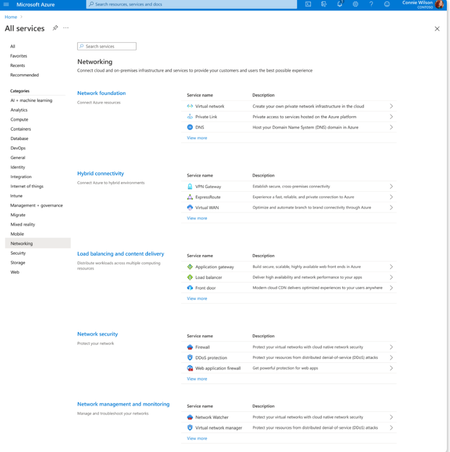
Overview Over the past decade, Azure Networking has expanded rapidly, bringing incredible tools and capabilities to help customers build, connect, and secure their cloud infrastructure. But we've also heard strong feedback: with over 40 different products, it hasn't always been easy to navigate and find the right solution. The complexity often led to confusion, slower onboarding, and missed capabilities. That's why we're excited to introduce a more focused, streamlined, and intuitive experience across Azure.com, the Azure portal, and our documentation pivoting around four core networking scenarios: Network foundations: Network foundations provide the core connectivity for your resources, using Virtual Network, Private Link, and DNS to build the foundation for your Azure network. Try it with this link: Network foundations Hybrid connectivity: Hybrid connectivity securely connects on-premises, private, and public cloud environments, enabling seamless integration, global availability, and end-to-end visibility, presenting major opportunities as organizations advance their cloud transformation. Try it with this link: Hybrid connectivity Load balancing and content delivery: Load balancing and content delivery helps you choose the right option to ensure your applications are fast, reliable, and tailored to your business needs. Try it with this link: Load balancing and content delivery Network security: Securing your environment is just as essential as building and connecting it. The Network Security hub brings together Azure Firewall, DDoS Protection, and Web Application Firewall (WAF) to provide a centralized, unified approach to cloud protection. With unified controls, it helps you manage security more efficiently and strengthen your security posture. Try it with this link: Network security This new structure makes it easier to discover the right networking services and get started with just a few clicks so you can focus more on building, and less on searching. What you’ll notice: Clearer starting points: Azure Networking is now organized around four core scenarios and twelve essential services, reflecting the most common customer needs. Additional services are presented within the context of these scenarios, helping you stay focused and find the right solution without feeling overwhelmed. Simplified choices: We’ve merged overlapping or closely related services to reduce redundancy. That means fewer, more meaningful options that are easier to evaluate and act on. Sunsetting outdated services: To reduce clutter and improve clarity, we’re sunsetting underused offerings such as white-label CDN services and China CDN. These capabilities have been rolled into newer, more robust services, so you can focus on what’s current and supported. What this means for you Faster decision-making: With clearer guidance and fewer overlapping products, it's easier to discover what you need and move forward confidently. More productive sales conversations: With this simplified approach, you’ll get more focused recommendations and less confusion among sellers. Better product experience: This update makes the Azure Networking portfolio more cohesive and consistent, helping you get started quickly, stay aligned with best practices, and unlock more value from day one. The portfolio consolidation initiative is a strategic effort to simplify and enhance the Azure Networking portfolio, ensuring better alignment with customer needs and industry best practices. By focusing on top-line services, combining related products, and retiring outdated offerings, Azure Networking aims to provide a more cohesive and efficient product experience. Azure.com Before: Our original Solution page on Azure.com was disorganized and static, displaying a small portion of services in no discernable order. After: The revised solution page is now dynamic, allowing customers to click deeper into each networking and network security category, displaying the top line services, simplifying the customer experience. Azure Portal Before: With over 40 networking services available, we know it can feel overwhelming to figure out what’s right for you and where to get started. After: To make it easier, we've introduced four streamlined networking hubs each built around a specific scenario to help you quickly identify the services that match your needs. Each offers an overview to set the stage, key services to help you get started, guidance to support decision-making, and a streamlined left-hand navigation for easy access to all services and features. Documentation For documentation, we looked at our current assets as well as created new assets that aligned with the changes in the portal experience. Like Azure.com, we found the old experiences were disorganized and not well aligned. We updated our assets to focus on our top-line networking services, and to call out the pillars. Our belief is these changes will allow our customers to more easily find the relevant and important information they need for their Azure infrastructure. Azure Network Hub Before the updates, we had a hub page organized around different categories and not well laid out. In the updated hub page, we provided relevant links for top-line services within all of the Azure networking scenarios, as well as a section linking to each scenario's hub page. Scenario Hub pages We added scenario hub pages for each of the scenarios. This provides our customers with a central hub for information about the top-line services for each scenario and how to get started. Also, we included common scenarios and use cases for each scenario, along with references for deeper learning across the Azure Architecture Center, Well Architected Framework, and Cloud Adoption Framework libraries. Scenario Overview articles We created new overview articles for each scenario. These articles were designed to provide customers with an introduction to the services included in each scenario, guidance on choosing the right solutions, and an introduction to the new portal experience. Here's the Load balancing and content delivery overview: Documentation links Azure Networking hub page: Azure networking documentation | Microsoft Learn Scenario Hub pages: Azure load balancing and content delivery | Microsoft Learn Azure network foundation documentation | Microsoft Learn Azure hybrid connectivity documentation | Microsoft Learn Azure network security documentation | Microsoft Learn Scenario Overview pages What is load balancing and content delivery? | Microsoft Learn Azure Network Foundation Services Overview | Microsoft Learn What is hybrid connectivity? | Microsoft Learn What is Azure network security? | Microsoft Lea Improving user experience is a journey and in coming months we plan to do more on this. Watch out for more blogs over the next few months for further improvements.3.2KViews4likes0CommentsMigrating Basic SKU Public IPs on Azure VPN Gateway to Standard SKU
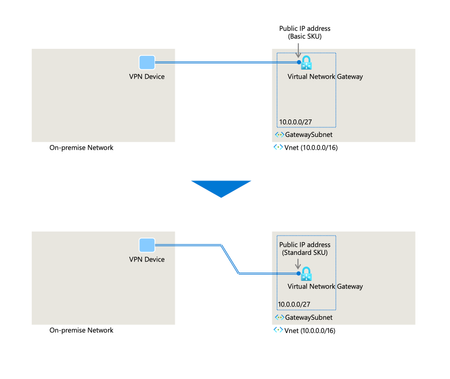
Background The Basic SKU public IP addresses associated with Azure VPN Gateway are scheduled for retirement in September 2025. Consequently, migration to Standard SKU is essential. This document compares three potential migration methods, providing detailed steps, advantages, disadvantages, and considerations. 1. Using Microsoft's migration tool (Recommended) When using Microsoft's migration tool, the gateway's IP address does not change. There is no need to update the configuration information on the on-premises side, and the current configuration can be used as is. The migration tool is currently available in preview for active-passive VPN gateways with VpnGw1-5 SKUs. For more details, refer to the documentation on Microsoft Learn: About migrating a Basic SKU public IP address to Starndard SKU Steps: Check the availability of the migration tool: Confirm the release date of the migration tool compatible with your VPN gateway configuration through Azure service announcements or VPN Gateway documentation. What's new in Azure VPN Gateway? Migrating a Basic SKU public IP address to Standard SKU | VPN Gateway FAQ Preparation for migration: Verify the gateway subnet: Ensure the gateway subnet is /27 or larger. If it is /28 or smaller, the migration tool will fail. Test: It is advised to evaluate the migration tool in a non-production environment beforehand. Migration planning: Schedule maintenance periods and inform stakeholders. Start the migration: Execute the migration tool provided by Microsoft using Azure Portal. Follow the documentation provided when the tool is released. Ref: How to migrate a Basic SKU public IP address to Standard SKU – Preview. Monitor the migration: Monitor the gateway status through Azure Portal during the migration process. Post-migration verification: Confirm that the VPN connection is functioning correctly after the migration is complete. Advantages: Downtime is estimated to be up to 10 minutes. The migration steps are straightforward. Considerations: The release date of the tool varies by configuration (Active-Passive: April-May 2025, Active-Active: July-August 2025). Gateway subnet size restrictions (/27 or larger required). Cautions: Regularly check the release date of the tool. Verify and adjust the gateway subnet size before migration if necessary. 2. Deleting and recreating the VPN Gateway within the existing virtual network Manual migration without using Microsoft's tool is another option, though it will cause downtime and may alter the IP address of the gateway. This option becomes a viable alternative when the GatewaySubnet is smaller than /27 and the migration tool is unavailable. Steps: Collect current VPN Gateway configuration information: Connection types (site-to-site, VNet-to-VNet, etc.) Connection details (IP address of on-premises VPN device, shared key, gateway IP address of Azure VNet, etc.) IPsec/IKE policies (proposals, hash algorithms, SA lifetime, etc.) BGP configuration (ASN, peer IP address, if used) Routing configuration (custom routes, route tables, etc.) VPN Gateway SKU (record for reference) Resource ID of the public IP address (confirm during deletion) You can use the Azure CLI command below to fetch the VPN Gateway configuration. % az network vnet-gateway show --resource-group <your-resource-group-name> --name <your-vpn-gateway-name> Delete the existing VPN Gateway: Use Azure Portal, Azure CLI, or PowerShell to delete the existing VPN Gateway. Upgrade the public IP addresses to Standard SKU. Employ Azure Portal, Azure CLI, or PowerShell to upgrade disassociated public IPs. For a detailed walkthrough, please consult the Microsoft Learn documentation: Upgrade Basic Public IP Address to Standard SKU in Azure Please be aware that the IP address may change if the original public IP was dynamic or if a new public IP address is created. Refer also to Azure Public IPs are now zone-redundant by default Create a new VPN Gateway (Standard SKU): Leverage Azure Portal, Azure CLI, or PowerShell to create a new VPN Gateway, ensuring the following criteria: Virtual network: Select the existing virtual network. Gateway subnet: Select the existing gateway subnet. If the gateway subnet is smaller than /27, it is advisable to expand it to prevent potential future limitations. Public IP address: Opt for the Standard SKU public IP address upgraded or created in step 3. VPN type: Decide between policy-based or route-based as per the existing configuration. SKU: Select Standard SKU (e.g., VpnGw1, VpnGw2). If zone redundancy is required, select the corresponding zone redundant SKU (e.g., VpnGw1AZ, VpnGw2AZ). Other settings (routing options, active/active configuration, etc.) should adhere to the existing configuration. Reconfigure connections: Based on the gathered configuration information, reestablish VPN connections (site-to-site, VNet-to-VNet, etc.) for the new VPN Gateway. Reset IPsec/IKE policies, shared keys, BGP peering, etc. Reconfigure routing: If necessary, adjust custom routes and route tables to direct to the new VPN Gateway. Test and verify connections: Confirm all connections are correctly established and traffic flows as expected. Advantages: Immediate commencement of migration: No need to wait for a migration tool. Completion within the existing virtual network: No need to create a new virtual network. Considerations: Downtime occurrence: All VPN connections are disrupted between the deletion and recreation of the VPN Gateway. The duration of downtime depends on the creation time of the VPN Gateway and the reconfiguration time of connections. Manual re-entry of configuration information: Existing VPN Gateway configuration information must be manually collected and entered into the new VPN Gateway, which may lead to input errors. Cautions: Consider this approach if downtime is acceptable. Record current configuration details before deletion. The IP address may be subject to change depending on the situation. All the VPN tunnels need to be reestablished. If there are firewalls in place, this new public IP must be whitelisted. 3. Setting up a Standard SKU VPN Gateway in a new virtual network and gradually migrating One approach is to set up a Standard SKU VPN Gateway in a separate virtual network and transition to it gradually. This minimizes downtime by keeping the current VPN Gateway operational while establishing the new environment. Detailed planning and testing are essential to prevent routing switch errors and connection configuration issues. Steps: Create a new virtual network and VPN Gateway: Create a new virtual network to deploy a new VPN Gateway with a Standard SKU public IP address. Create a gateway subnet (/27 or larger recommended) within the new virtual network. Assign a Standard SKU public IP address and create a new VPN Gateway (Standard SKU). Select the necessary SKU (e.g., VPNGW1-5) and zone redundancy if needed (e.g., VPNGW1AZ-5). Configure connections between the new VPN Gateway and on-premises VPN device: Configure IPsec/IKE connections (site-to-site VPN) based on the new VPN Gateway's public IP address and on-premises VPN device information. Configure BGP if necessary. Adjust routing: Adjust routing so that traffic from the on-premises network to Azure goes through the new VPN Gateway. This involves changing the settings of the on-premises VPN device and updating the routing policies of network equipment. Adjust Azure-side routing (user-defined routes: UDR, etc.) to go through the new VPN Gateway if necessary. In a hub-and-spoke architecture, establish peering between the spoke virtual networks and the newly created virtual network. Additionally, ensure that the “Enable 'Spoke-xxx’ to use 'Hub-yyy's' remote gateway or route server” option is configured appropriately. Switch and monitor traffic: Gradually switch traffic to the new VPN Gateway. Monitor the stability and performance of VPN connections during the switch. Stop and delete the old VPN Gateway: Once all traffic is confirmed to go through the new VPN Gateway, stop and delete the old VPN Gateway associated with the Basic SKU public IP address. Delete the Basic SKU public IP address associated with the old VPN Gateway. Advantages: Minimizes downtime: Maintains existing VPN connections while building the new environment, significantly reducing service interruption time. Ease of rollback: Easily revert to the old environment if issues arise. Flexible configuration: Consider more flexible network configurations in the new virtual network. Considerations: Additional cost: Temporary deployment of a new VPN Gateway incurs additional costs. Configuration complexity: Managing multiple VPN Gateways and connections may complicate the configuration. IP address change: The new VPN Gateway will be assigned a new public IP address, requiring changes to the on-premises VPN device settings. Cautions: Detailed migration planning and testing are essential. New VPN tunnels must be established to the newly created Standard SKU public IP addresses. If there are firewalls in place, this new public IP must be whitelisted. Be cautious of routing switch errors. Recommended scenarios: When minimizing downtime is a priority. When network configuration changes are involved. When preparing for rollback. Comparison table of migration methods Migration method Length of downtime IP address change Rollback Configuration complexity Using Microsoft's migration tool Short (up to 10 minutes) None (maintained) Possible until final stage Low Deleting and recreating within existing virtual network Long Conditional Impossible Medium Gradual migration to new virtual network Very short Yes (new) Possible High Conclusion If minimizing downtime is necessary, using Microsoft's migration tool or gradually migrating to a new virtual network are options. The method of deleting and recreating within the existing virtual network involves downtime and should be evaluated thoroughly. The choice of migration method should be based on requirements, acceptable downtime, network configuration complexity, and available resources. Important notes (Common to all methods) Basic SKU public IP addresses are planned to be retired by September 2025. It is essential that migration to Standard SKU is completed by this deadline. Post-migration, the VPN Gateway SKU may be automatically updated to a zone redundant SKU. Please refer to the article on Gateway SKU migration for detailed information regarding the implications of these SKU changes. To learn more about Gateway SKU consolidation and migration, see About VPN Gateway SKU consolidation and migration.8.2KViews1like3Comments