vpn gateway
17 TopicsA Guide to Azure Data Transfer Pricing
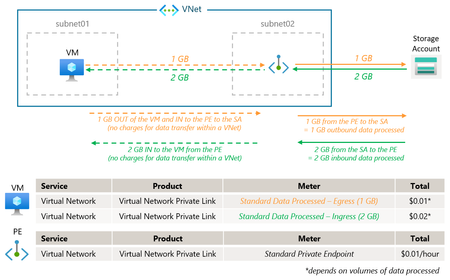
Understanding Azure networking charges is essential for businesses aiming to manage their budgets effectively. Given the complexity of Azure networking pricing, which involves various influencing factors, the goal here is to bring a clearer understanding of the associated data transfer costs by breaking down the pricing models into the following use cases: VM to VM VM to Private Endpoint VM to Internal Standard Load Balancer (ILB) VM to Internet Hybrid connectivity Please note this is a first version, with a second version to follow that will include additional scenarios. Disclaimer: Pricing may change over time, check the public Azure pricing calculator for up-to-date pricing information. Actual pricing may vary depending on agreements, purchase dates, and currency exchange rates. Sign in to the Azure pricing calculator to see pricing based on your current program/offer with Microsoft. 1. VM to VM 1.1. VM to VM, same VNet Data transfer within the same virtual network (VNet) is free of charge. This means that traffic between VMs within the same VNet will not incur any additional costs. Doc. Data transfer across Availability Zones (AZ) is free. Doc. 1.2. VM to VM, across VNet peering Azure VNet peering enables seamless connectivity between two virtual networks, allowing resources in different VNets to communicate with each other as if they were within the same network. When data is transferred between VNets, charges apply for both ingress and egress data. Doc: VM to VM, across VNet peering, same region VM to VM, across Global VNet peering Azure regions are grouped into 3 Zones (distinct from Avaialbility Zones within a specific Azure region). The pricing for Global VNet Peering is based on that geographic structure. Data transfer between VNets in different zones incurs outbound and inbound data transfer rates for the respective zones. When data is transferred from a VNet in Zone 1 to a VNet in Zone 2, outbound data transfer rates for Zone 1 and inbound data transfer rates for Zone 2 will be applicable. Doc. 1.3. VM to VM, through Network Virtual Appliance (NVA) Data transfer through an NVA involves charges for both ingress and egress data, depending on the volume of data processed. When an NVA is in the path, such as for spoke VNet to spoke VNet connectivity via an NVA (firewall...) in the hub VNet, it incurs VM to VM pricing twice. The table above reflects only data transfer charges and does not include NVA/Azure Firewall processing costs. 2. VM to Private Endpoint (PE) Private Endpoint pricing includes charges for the provisioned resource and data transfer costs based on traffic direction. For instance, writing to a Storage Account through a Private Endpoint incurs outbound data charges, while reading incurs inbound data charges. Doc: 2.1. VM to PE, same VNet Since data transfer within a VNet is free, charges are only applied for data processing through the Private Endpoint. Cross-region traffic will incur additional costs if the Storage Account and the Private Endpoint are located in different regions. 2.2. VM to PE, across VNet peering Accessing Private Endpoints from a peered network incurs only Private Link Premium charges, with no peering fees. Doc. VM to PE, across VNet peering, same region VM to PE, across VNet peering, PE region != SA region 2.3. VM to PE, through NVA When an NVA is in the path, such as for spoke VNet to spoke VNet connectivity via a firewall in the hub VNet, it incurs VM to VM charges between the VM and the NVA. However, as per the PE pricing model, there are no charges between the NVA and the PE. The table above reflects only data transfer charges and does not include NVA/Azure Firewall processing costs. 3. VM to Internal Load Balancer (ILB) Azure Standard Load Balancer pricing is based on the number of load balancing rules as well as the volume of data processed. Doc: 3.1. VM to ILB, same VNet Data transfer within the same virtual network (VNet) is free. However, the data processed by the ILB is charged based on its volume and on the number load balancing rules implemented. Only the inbound traffic is processed by the ILB (and charged), the return traffic goes direct from the backend to the source VM (free of charge). 3.2. VM to ILB, across VNet peering In addition to the Load Balancer costs, data transfer charges between VNets apply for both ingress and egress. 3.3. VM to ILB, through NVA When an NVA is in the path, such as for spoke VNet to spoke VNet connectivity via a firewall in the hub VNet, it incurs VM to VM charges between the VM and the NVA and VM to ILB charges between the NVA and the ILB/backend resource. The table above reflects only data transfer charges and does not include NVA/Azure Firewall processing costs. 4. VM to internet 4.1. Data transfer and inter-region pricing model Bandwidth refers to data moving in and out of Azure data centers, as well as data moving between Azure data centers; other transfers are explicitly covered by the Content Delivery Network, ExpressRoute pricing, or Peering. Doc: 4.2. Routing Preference in Azure and internet egress pricing model When creating a public IP in Azure, Azure Routing Preference allows you to choose how your traffic routes between Azure and the Internet. You can select either the Microsoft Global Network or the public internet for routing your traffic. Doc: See how this choice can impact the performance and reliability of network traffic: By selecting a Routing Preference set to Microsoft network, ingress traffic enters the Microsoft network closest to the user, and egress traffic exits the network closest to the user, minimizing travel on the public internet (“Cold Potato” routing). On the contrary, setting the Routing Preference to internet, ingress traffic enters the Microsoft network closest to the hosted service region. Transit ISP networks are used to route traffic, travel on the Microsoft Global Network is minimized (“Hot Potato” routing). Bandwidth pricing for internet egress, Doc: 4.3. VM to internet, direct Data transferred out of Azure to the internet incurs charges, while data transferred into Azure is free of charge. Doc. It is important to note that default outbound access for VMs in Azure will be retired on September 30 2025, migration to an explicit outbound internet connectivity method is recommended. Doc. 4.4. VM to internet, with a public IP Here a standard public IP is explicitly associated to a VM NIC, that incurs additional costs. Like in the previous scenario, data transferred out of Azure to the internet incurs charges, while data transferred into Azure is free of charge. Doc. 4.5. VM to internet, with NAT Gateway In addition to the previous costs, data transfer through a NAT Gateway involves charges for both the data processed and the NAT Gateway itself, Doc: 5. Hybrid connectivity Hybrid connectivity involves connecting on-premises networks to Azure VNets. The pricing model includes charges for data transfer between the on-premises network and Azure, as well as any additional costs for using Network Virtual Appliances (NVAs) or Azure Firewalls in the hub VNet. 5.1. H&S Hybrid connectivity without firewall inspection in the hub For an inbound flow, from the ExpressRoute Gateway to a spoke VNet, VNet peering charges are applied once on the spoke inbound. There are no charges on the hub outbound. For an outbound flow, from a spoke VNet to an ER branch, VNet peering charges are applied once, outbound of the spoke only. There are no charges on the hub inbound. Doc. The table above does not include ExpressRoute connectivity related costs. 5.2. H&S Hybrid connectivity with firewall inspection in the hub Since traffic transits and is inspected via a firewall in the hub VNet (Azure Firewall or 3P firewall NVA), the previous concepts do not apply. “Standard” inter-VNet VM-to-VM charges apply between the FW and the destination VM : inbound and outbound on both directions. Once outbound from the source VNet (Hub or Spoke), once inbound on the destination VNet (Spoke or Hub). The table above reflects only data transfer charges within Azure and does not include NVA/Azure Firewall processing costs nor the costs related to ExpressRoute connectivity. 5.3. H&S Hybrid connectivity via a 3rd party connectivity NVA (SDWAN or IPSec) Standard inter-VNet VM-to-VM charges apply between the NVA and the destination VM: inbound and outbound on both directions, both in the Hub VNet and in the Spoke VNet. 5.4. vWAN scenarios VNet peering is charged only from the point of view of the spoke – see examples and vWAN pricing components. Next steps with cost management To optimize cost management, Azure offers tools for monitoring and analyzing network charges. Azure Cost Management and Billing allows you to track and allocate costs across various services and resources, ensuring transparency and control over your expenses. By leveraging these tools, businesses can gain a deeper understanding of their network costs and make informed decisions to optimize their Azure spending.19KViews15likes2Comments
Migrating Basic SKU Public IPs on Azure VPN Gateway to Standard SKU
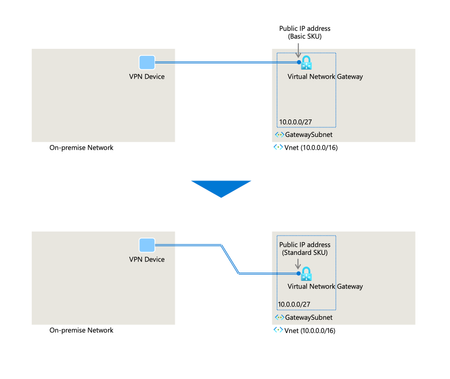
Background The Basic SKU public IP addresses associated with Azure VPN Gateway are scheduled for retirement in September 2025. Consequently, migration to Standard SKU is essential. This document compares three potential migration methods, providing detailed steps, advantages, disadvantages, and considerations. 1. Using Microsoft's migration tool (Recommended) When using Microsoft's migration tool, the gateway's IP address does not change. There is no need to update the configuration information on the on-premises side, and the current configuration can be used as is. The migration tool is currently available in preview for active-passive VPN gateways with VpnGw1-5 SKUs. For more details, refer to the documentation on Microsoft Learn: About migrating a Basic SKU public IP address to Starndard SKU Steps: Check the availability of the migration tool: Confirm the release date of the migration tool compatible with your VPN gateway configuration through Azure service announcements or VPN Gateway documentation. What's new in Azure VPN Gateway? Migrating a Basic SKU public IP address to Standard SKU | VPN Gateway FAQ Preparation for migration: Verify the gateway subnet: Ensure the gateway subnet is /27 or larger. If it is /28 or smaller, the migration tool will fail. Test: It is advised to evaluate the migration tool in a non-production environment beforehand. Migration planning: Schedule maintenance periods and inform stakeholders. Start the migration: Execute the migration tool provided by Microsoft using Azure Portal. Follow the documentation provided when the tool is released. Ref: How to migrate a Basic SKU public IP address to Standard SKU – Preview. Monitor the migration: Monitor the gateway status through Azure Portal during the migration process. Post-migration verification: Confirm that the VPN connection is functioning correctly after the migration is complete. Advantages: Downtime is estimated to be up to 10 minutes. The migration steps are straightforward. Considerations: The release date of the tool varies by configuration (Active-Passive: April-May 2025, Active-Active: July-August 2025). Gateway subnet size restrictions (/27 or larger required). Cautions: Regularly check the release date of the tool. Verify and adjust the gateway subnet size before migration if necessary. 2. Deleting and recreating the VPN Gateway within the existing virtual network Manual migration without using Microsoft's tool is another option, though it will cause downtime and may alter the IP address of the gateway. This option becomes a viable alternative when the GatewaySubnet is smaller than /27 and the migration tool is unavailable. Steps: Collect current VPN Gateway configuration information: Connection types (site-to-site, VNet-to-VNet, etc.) Connection details (IP address of on-premises VPN device, shared key, gateway IP address of Azure VNet, etc.) IPsec/IKE policies (proposals, hash algorithms, SA lifetime, etc.) BGP configuration (ASN, peer IP address, if used) Routing configuration (custom routes, route tables, etc.) VPN Gateway SKU (record for reference) Resource ID of the public IP address (confirm during deletion) You can use the Azure CLI command below to fetch the VPN Gateway configuration. % az network vnet-gateway show --resource-group <your-resource-group-name> --name <your-vpn-gateway-name> Delete the existing VPN Gateway: Use Azure Portal, Azure CLI, or PowerShell to delete the existing VPN Gateway. Upgrade the public IP addresses to Standard SKU. Employ Azure Portal, Azure CLI, or PowerShell to upgrade disassociated public IPs. For a detailed walkthrough, please consult the Microsoft Learn documentation: Upgrade Basic Public IP Address to Standard SKU in Azure Please be aware that the IP address may change if the original public IP was dynamic or if a new public IP address is created. Refer also to Azure Public IPs are now zone-redundant by default Create a new VPN Gateway (Standard SKU): Leverage Azure Portal, Azure CLI, or PowerShell to create a new VPN Gateway, ensuring the following criteria: Virtual network: Select the existing virtual network. Gateway subnet: Select the existing gateway subnet. If the gateway subnet is smaller than /27, it is advisable to expand it to prevent potential future limitations. Public IP address: Opt for the Standard SKU public IP address upgraded or created in step 3. VPN type: Decide between policy-based or route-based as per the existing configuration. SKU: Select Standard SKU (e.g., VpnGw1, VpnGw2). If zone redundancy is required, select the corresponding zone redundant SKU (e.g., VpnGw1AZ, VpnGw2AZ). Other settings (routing options, active/active configuration, etc.) should adhere to the existing configuration. Reconfigure connections: Based on the gathered configuration information, reestablish VPN connections (site-to-site, VNet-to-VNet, etc.) for the new VPN Gateway. Reset IPsec/IKE policies, shared keys, BGP peering, etc. Reconfigure routing: If necessary, adjust custom routes and route tables to direct to the new VPN Gateway. Test and verify connections: Confirm all connections are correctly established and traffic flows as expected. Advantages: Immediate commencement of migration: No need to wait for a migration tool. Completion within the existing virtual network: No need to create a new virtual network. Considerations: Downtime occurrence: All VPN connections are disrupted between the deletion and recreation of the VPN Gateway. The duration of downtime depends on the creation time of the VPN Gateway and the reconfiguration time of connections. Manual re-entry of configuration information: Existing VPN Gateway configuration information must be manually collected and entered into the new VPN Gateway, which may lead to input errors. Cautions: Consider this approach if downtime is acceptable. Record current configuration details before deletion. The IP address may be subject to change depending on the situation. All the VPN tunnels need to be reestablished. If there are firewalls in place, this new public IP must be whitelisted. 3. Setting up a Standard SKU VPN Gateway in a new virtual network and gradually migrating One approach is to set up a Standard SKU VPN Gateway in a separate virtual network and transition to it gradually. This minimizes downtime by keeping the current VPN Gateway operational while establishing the new environment. Detailed planning and testing are essential to prevent routing switch errors and connection configuration issues. Steps: Create a new virtual network and VPN Gateway: Create a new virtual network to deploy a new VPN Gateway with a Standard SKU public IP address. Create a gateway subnet (/27 or larger recommended) within the new virtual network. Assign a Standard SKU public IP address and create a new VPN Gateway (Standard SKU). Select the necessary SKU (e.g., VPNGW1-5) and zone redundancy if needed (e.g., VPNGW1AZ-5). Configure connections between the new VPN Gateway and on-premises VPN device: Configure IPsec/IKE connections (site-to-site VPN) based on the new VPN Gateway's public IP address and on-premises VPN device information. Configure BGP if necessary. Adjust routing: Adjust routing so that traffic from the on-premises network to Azure goes through the new VPN Gateway. This involves changing the settings of the on-premises VPN device and updating the routing policies of network equipment. Adjust Azure-side routing (user-defined routes: UDR, etc.) to go through the new VPN Gateway if necessary. In a hub-and-spoke architecture, establish peering between the spoke virtual networks and the newly created virtual network. Additionally, ensure that the “Enable 'Spoke-xxx’ to use 'Hub-yyy's' remote gateway or route server” option is configured appropriately. Switch and monitor traffic: Gradually switch traffic to the new VPN Gateway. Monitor the stability and performance of VPN connections during the switch. Stop and delete the old VPN Gateway: Once all traffic is confirmed to go through the new VPN Gateway, stop and delete the old VPN Gateway associated with the Basic SKU public IP address. Delete the Basic SKU public IP address associated with the old VPN Gateway. Advantages: Minimizes downtime: Maintains existing VPN connections while building the new environment, significantly reducing service interruption time. Ease of rollback: Easily revert to the old environment if issues arise. Flexible configuration: Consider more flexible network configurations in the new virtual network. Considerations: Additional cost: Temporary deployment of a new VPN Gateway incurs additional costs. Configuration complexity: Managing multiple VPN Gateways and connections may complicate the configuration. IP address change: The new VPN Gateway will be assigned a new public IP address, requiring changes to the on-premises VPN device settings. Cautions: Detailed migration planning and testing are essential. New VPN tunnels must be established to the newly created Standard SKU public IP addresses. If there are firewalls in place, this new public IP must be whitelisted. Be cautious of routing switch errors. Recommended scenarios: When minimizing downtime is a priority. When network configuration changes are involved. When preparing for rollback. Comparison table of migration methods Migration method Length of downtime IP address change Rollback Configuration complexity Using Microsoft's migration tool Short (up to 10 minutes) None (maintained) Possible until final stage Low Deleting and recreating within existing virtual network Long Conditional Impossible Medium Gradual migration to new virtual network Very short Yes (new) Possible High Conclusion If minimizing downtime is necessary, using Microsoft's migration tool or gradually migrating to a new virtual network are options. The method of deleting and recreating within the existing virtual network involves downtime and should be evaluated thoroughly. The choice of migration method should be based on requirements, acceptable downtime, network configuration complexity, and available resources. Important notes (Common to all methods) Basic SKU public IP addresses are planned to be retired by September 2025. It is essential that migration to Standard SKU is completed by this deadline. Post-migration, the VPN Gateway SKU may be automatically updated to a zone redundant SKU. Please refer to the article on Gateway SKU migration for detailed information regarding the implications of these SKU changes. To learn more about Gateway SKU consolidation and migration, see About VPN Gateway SKU consolidation and migration.8.1KViews1like3Comments
Controlling Data Egress in Azure
Regulated companies impose stringent requirements on data governance to prevent data exfiltration. As a Cloud Architect, ensuring the safe and efficient exit of data from our network to external destinations is paramount. This document aims to provide a comprehensive guide to the strategies, best practices, and tools we employ at various customers to maintain robust security measures.6.8KViews3likes0CommentsIntroducing Copilot in Azure for Networking: Your AI-Powered Azure Networking Assistant
As cloud networking grows in complexity, managing and operating these services efficiently can be tedious and time consuming. That’s where Copilot in Azure for Networking steps in, a generative AI tool that simplifies every aspect of network management, making it easier for network administrators to stay on top of their Azure infrastructure. With Copilot, network professionals can design, deploy, and troubleshoot Azure Networking services using a streamlined, AI-powered approach. A Comprehensive Networking Assistant for Azure We’ve designed Copilot to really feel like an intuitive assistant you can talk to just like a colleague. Copilot understands networking-related questions in simple terms and responds with actionable solutions, drawing from Microsoft’s expansive networking knowledge base and the specifics of your unique Azure environment. Think of Copilot as an all-encompassing AI-Powered Azure Networking Assistant. It acts as: Your Cloud Networking Specialist by quickly answering questions about Azure networking services, providing product guidance, and configuration suggestions. Your Cloud Network Architect by helping you select the right network services, architectures, and patterns to connect, secure, and scale your workloads in Azure. Your Cloud Network Engineer by helping you diagnose and troubleshoot network connectivity issues with step-by-step guidance. One of the most powerful features of Copilot in Azure is its ability to automatically diagnose common networking issues. Misconfigurations, connectivity failures, or degraded performance? Copilot can help with step-by-step guidance to resolve these issues quickly with minimal input and assistance from the user, simply ask questions like ”Why can’t my VM connect to the internet?”. As seen above, upon the user identifying the source and destination, Copilot can automatically discover the connectivity path and analyze the state and status of all the network elements in the path to pinpoint issues such as blocked ports, unhealthy network devices, or misconfigured Network Security Groups (NSGs). Technical Deep Dive: Contextualized Responses with Real-Time Insights When users ask a question on the Azure Portal, it gets sent to the Orchestrator. This step is crucial to generating a deep semantic understanding of the user’s question, reasoning over all Azure resources, and then determining that the question requires Network-specific capabilities to be answered. Copilot then collects contextual information based on what the user is looking at and what they have access to before dispatching the question to the relevant domain-specific plugins. Those plugins then use their service-specific capabilities to answer the user’s question. Copilot may even combine information from multiple plugins to provide responses to complex questions. In the case of questions relevant to Azure Networking services, Copilot uses real-time data from sources like diagnostic APIs, user logs, Azure metrics, Azure Resource Graph etc. all while maintaining complete privacy and security and only accessing what the user can access as defined in Azure Role based Access Control (RBAC) to help generate data-driven insights that help keep your network operating smoothly and securely. This information is then used by Copilot to help answer the user’s question via a variety of techniques including but not limited to Retrieval-Augmented Generation (RAG) and grounding. To learn more about how Copilot works, including our Responsible AI commitments, see Copilot in Azure Technical Deep Dive | Microsoft Community Hub. Summary: Key Benefits, Capabilities and Sample Prompts Copilot boosts efficiency by automating routine tasks and offering targeted answers, which saves network administrators time while troubleshooting, configuring and architecting their environments. Copilot also helps organizations reduce costs by minimizing manual work and catching errors while empowering customers to resolve networking issues on their own with AI-powered insights backed by Azure expertise. Copilot is equipped with powerful skills to assist users with network product information and selection, resource inventory and topology, and troubleshooting. For product information, Copilot can answer questions about Azure Networking products by leveraging published documentation, helping users with questions like “What type of Firewall is best suited for my environment?”. It offers tailored guidance for selecting and planning network architectures, including specific services like Azure Load Balancer and Azure Firewall. This guidance also extends to resilience-related questions like “What more can I do to ensure my app gateway is resilient?” involving services such as Azure Application Gateway and Azure Traffic Manager, among others. When it comes to inventory and topology, Copilot can help with questions like “What is the data path between my VM and the internet?” by mapping network resources, visualizing topologies, and tracking traffic paths, providing users with clear topology maps and connectivity graphs. For troubleshooting questions like “Why can’t I connect to my VM from on prem?”, Copilot analyzes both the control plane and data plane, offering diagnostics at the network and individual service levels. By using on-behalf-of RBAC, Copilot maintains secure, authorized access, ensuring users interact only with resources permitted by their access level. Looking Forward: Future Enhancements This is only the first step we are taking toward bringing interactive, generative-AI powered capabilities to Azure Networking services and as it evolves over time, future releases will introduce advanced capabilities. We also acknowledge that today Copilot in preview works better with certain Azure Networking services, and we will continue to onboard more services to the capabilities we are launching today. Some of the more advanced capabilities we are working on include predictive troubleshooting where Copilot will anticipate potential issues before they impact network performance. Network optimization capabilities that suggest ways to optimize your network for better performance, resilience and reliability alongside enhanced security capabilities providing insights into network security and compliance, helping organizations meet regulatory requirements starting with the integration of Security Copilot attack investigation capabilities for Azure Firewall. Conclusion Copilot in Azure for Networking is intended to enhance the overall Azure experience and help network administrators easily manage their Azure Networking services. By combining AI-driven insights with user-friendly interfaces, it empowers networking professionals and users to plan, deploy, and operate their Azure Network. These capabilities are now in preview, see Azure networking capabilities using Microsoft Copilot in Azure (preview) | Microsoft Learn to learn more and get started.4.1KViews3likes2CommentsAzure Networking Portfolio Consolidation
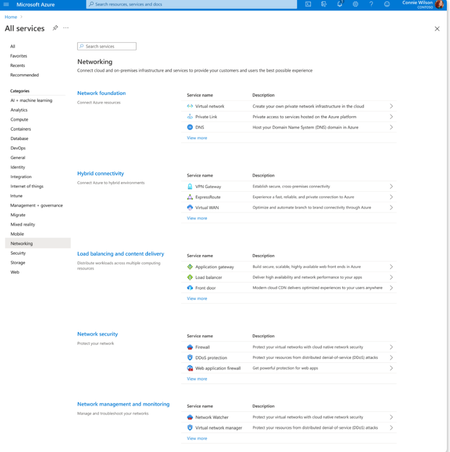
Overview Over the past decade, Azure Networking has expanded rapidly, bringing incredible tools and capabilities to help customers build, connect, and secure their cloud infrastructure. But we've also heard strong feedback: with over 40 different products, it hasn't always been easy to navigate and find the right solution. The complexity often led to confusion, slower onboarding, and missed capabilities. That's why we're excited to introduce a more focused, streamlined, and intuitive experience across Azure.com, the Azure portal, and our documentation pivoting around four core networking scenarios: Network foundations: Network foundations provide the core connectivity for your resources, using Virtual Network, Private Link, and DNS to build the foundation for your Azure network. Try it with this link: Network foundations Hybrid connectivity: Hybrid connectivity securely connects on-premises, private, and public cloud environments, enabling seamless integration, global availability, and end-to-end visibility, presenting major opportunities as organizations advance their cloud transformation. Try it with this link: Hybrid connectivity Load balancing and content delivery: Load balancing and content delivery helps you choose the right option to ensure your applications are fast, reliable, and tailored to your business needs. Try it with this link: Load balancing and content delivery Network security: Securing your environment is just as essential as building and connecting it. The Network Security hub brings together Azure Firewall, DDoS Protection, and Web Application Firewall (WAF) to provide a centralized, unified approach to cloud protection. With unified controls, it helps you manage security more efficiently and strengthen your security posture. Try it with this link: Network security This new structure makes it easier to discover the right networking services and get started with just a few clicks so you can focus more on building, and less on searching. What you’ll notice: Clearer starting points: Azure Networking is now organized around four core scenarios and twelve essential services, reflecting the most common customer needs. Additional services are presented within the context of these scenarios, helping you stay focused and find the right solution without feeling overwhelmed. Simplified choices: We’ve merged overlapping or closely related services to reduce redundancy. That means fewer, more meaningful options that are easier to evaluate and act on. Sunsetting outdated services: To reduce clutter and improve clarity, we’re sunsetting underused offerings such as white-label CDN services and China CDN. These capabilities have been rolled into newer, more robust services, so you can focus on what’s current and supported. What this means for you Faster decision-making: With clearer guidance and fewer overlapping products, it's easier to discover what you need and move forward confidently. More productive sales conversations: With this simplified approach, you’ll get more focused recommendations and less confusion among sellers. Better product experience: This update makes the Azure Networking portfolio more cohesive and consistent, helping you get started quickly, stay aligned with best practices, and unlock more value from day one. The portfolio consolidation initiative is a strategic effort to simplify and enhance the Azure Networking portfolio, ensuring better alignment with customer needs and industry best practices. By focusing on top-line services, combining related products, and retiring outdated offerings, Azure Networking aims to provide a more cohesive and efficient product experience. Azure.com Before: Our original Solution page on Azure.com was disorganized and static, displaying a small portion of services in no discernable order. After: The revised solution page is now dynamic, allowing customers to click deeper into each networking and network security category, displaying the top line services, simplifying the customer experience. Azure Portal Before: With over 40 networking services available, we know it can feel overwhelming to figure out what’s right for you and where to get started. After: To make it easier, we've introduced four streamlined networking hubs each built around a specific scenario to help you quickly identify the services that match your needs. Each offers an overview to set the stage, key services to help you get started, guidance to support decision-making, and a streamlined left-hand navigation for easy access to all services and features. Documentation For documentation, we looked at our current assets as well as created new assets that aligned with the changes in the portal experience. Like Azure.com, we found the old experiences were disorganized and not well aligned. We updated our assets to focus on our top-line networking services, and to call out the pillars. Our belief is these changes will allow our customers to more easily find the relevant and important information they need for their Azure infrastructure. Azure Network Hub Before the updates, we had a hub page organized around different categories and not well laid out. In the updated hub page, we provided relevant links for top-line services within all of the Azure networking scenarios, as well as a section linking to each scenario's hub page. Scenario Hub pages We added scenario hub pages for each of the scenarios. This provides our customers with a central hub for information about the top-line services for each scenario and how to get started. Also, we included common scenarios and use cases for each scenario, along with references for deeper learning across the Azure Architecture Center, Well Architected Framework, and Cloud Adoption Framework libraries. Scenario Overview articles We created new overview articles for each scenario. These articles were designed to provide customers with an introduction to the services included in each scenario, guidance on choosing the right solutions, and an introduction to the new portal experience. Here's the Load balancing and content delivery overview: Documentation links Azure Networking hub page: Azure networking documentation | Microsoft Learn Scenario Hub pages: Azure load balancing and content delivery | Microsoft Learn Azure network foundation documentation | Microsoft Learn Azure hybrid connectivity documentation | Microsoft Learn Azure network security documentation | Microsoft Learn Scenario Overview pages What is load balancing and content delivery? | Microsoft Learn Azure Network Foundation Services Overview | Microsoft Learn What is hybrid connectivity? | Microsoft Learn What is Azure network security? | Microsoft Lea Improving user experience is a journey and in coming months we plan to do more on this. Watch out for more blogs over the next few months for further improvements.3.2KViews4likes0Comments