virtualization
193 Topics
Hyper-V Ubuntu VM: Memory Demand Different at Hyper-V and OS Level
Hello all, Looking for advice and insight for a strange problem we are experiencing. We have a cluster of Windows Server 2025 hosts, on which we are using Hyper-V manager to run mostly Windows VMs. To access these VMs, we are using Apache Guacamole which is hosted on a Ubuntu VM on our cluster. We originally assigned 32GB memory to this VM. Recently, we have noticed an increased memory demand for this VM at the Hyper-V level which prompted us to increase the assigned memory of the VM to 64GB. Despite this, the memory demand has continued rising despite no apparent change in the usage of Guacamole. When logging into the VM and observing the memory usage here, the VM is using no where near the amount that is assigned. As shown in the attached images which were taken at the same time: Memory Demand Hyper-V Level (And seems to be continuing to increase...): Memory Demand OS Level: This morning, the memory demand spiked to 95GB on Hyper-V but at OS level was only 12GB and we were forced to restart the VM. The biggest concern is where this discrepancy is coming from and the potential unnecessary disruptions that will be caused from having to restart/rebuild the VM. Has anyone experienced this sort of issue before and found a fix? Can anyone suggest how to debug this issue? TIA95Views0likes1CommentUnderstanding device redirection changes in Hyper-V Virtual Machine Connection enhanced session mode
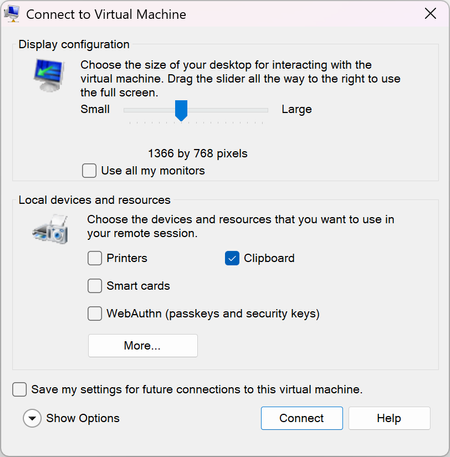
Understanding device redirection changes in Hyper-V Virtual Machine Connection Starting with the October 2026 security update, Hyper-V Virtual Machine Connection (VMConnect) changes how it shares your local devices and resources with a virtual machine (VM) when you connect in enhanced session mode. The connection dialog now shows the most sensitive resources up front, and several of them are no longer shared by default. This article explains what changed, why, and what to do. What is enhanced session mode? When you connect to a VM from Hyper-V Manager or by running vmconnect.exe, Virtual Machine Connection opens a window that shows the VM's screen. If the VM's operating system supports it, VMConnect can use enhanced session mode, which uses the Remote Desktop Protocol (RDP) over the VMBus channel between the host and the VM. Enhanced session mode adds features such as resizable displays, multiple monitors, and redirection: sharing parts of your local computer with the VM, such as your clipboard, printers, smart cards, or security keys. The dialog looks like this: Basic session mode connects to the VM's console without RDP and doesn't share these resources. This update doesn't change basic session mode. Why this changed In enhanced session mode, the VM acts as the Remote Desktop server and your computer acts as the client. Any resource you redirect is available to software running inside the VM. Before this update, VMConnect shared your clipboard, printers, smart cards, and WebAuthn (Windows Hello and security keys) with the VM by default. Smart card and WebAuthn redirection appeared only on a secondary page (Show Options > Local Resources > More...). If you connected to a VM by selecting Connect, you shared those credential channels without being shown that you did. That's a problem if the VM isn't fully trustworthy. For example, it might run untrusted software, be used for malware analysis or testing, be managed by someone else, or be compromised. Software in such a VM could: Use your redirected smart card or Windows Hello for Business credentials to authenticate as you to other systems. Send WebAuthn (passkey or security key) prompts to your computer that look legitimate, to try to get you to approve a sign-in for an attacker. Send print jobs to your local printers. Interact with the client-side components on your host that handle each redirected device. This exposes more of your host to an attacker in the guest. A VM is a security boundary. Sharing a resource across that boundary should be a choice you make, not a default you never see. IMPORTANT: Only share local resources with VMs you trust. If you don't know whether you need a resource in the VM, leave it unchecked. You can turn it on later. What changed After you install this update, when you connect to a VM in enhanced session mode, the Virtual Machine Connection dialog shows a checkbox for each of the following resources directly, without selecting Show Options: Clipboard Printers Smart cards WebAuthn (Windows Hello or security keys) The default for each local resource is now: Resource Default before this update Default after this update Where it appears after this update Clipboard On On Connection dialog Printers On Off Connection dialog Smart cards On Off Connection dialog WebAuthn (Windows Hello or security keys) On Off Connection dialog Drives Off Off Show Options > Local Resources > More... Other supported Plug and Play (PnP) devices Off Off Show Options > Local Resources > More... USB devices Off Off Show Options > Local Resources > More... Audio playback On On Show Options > Local Resources > Remote audio Audio recording (microphone) Off Off Show Options > Local Resources > Remote audio Clipboard stays on by default because copying and pasting between the host and the VM is the most common reason people use enhanced session mode. Turning it off by default would disrupt the most people. It's now shown in the dialog, so you can turn it off for any VM where you don't need it. Audio playback stays on because it only sends sound from the VM to your speakers. It doesn't give the VM access to your data or credentials. If you select Connect without changing anything, you get clipboard sharing and audio playback, and nothing else. Saved settings and when you see the dialog VMConnect can save your connection settings separately for each VM. To do this, select Save my settings for future connections to this virtual machine in the connection dialog. After the update, you see the dialog once for each VM, even if you saved settings before. Earlier saved settings were made when most of these options were hidden, so VMConnect asks you to confirm your choices again. The update never turns on a resource that you turned off. If your saved settings for a VM had a resource turned off, it stays off. After you confirm and save your choices, VMConnect uses them for later connections to that VM and doesn't show the dialog again. VMConnect shows the dialog again if a later update adds a new type of redirection. If you don't save your settings, the dialog appears each time you connect, with the defaults in the preceding table. To change saved settings for a VM, do one of the following: In Hyper-V Manager, select the VM, and then in the Actions pane, select Edit Session Settings.... Run vmconnect.exe <ServerName> <VMName> /edit. NOTE: On high-DPI displays, the connection dialog might get shorter when you select Show Options, because the extra settings move into tabs. This is expected. Understanding redirections Each redirected resource gives software in the VM access to part of your computer. For detailed descriptions of the risk of each resource type, see Understanding redirections. That article covers Remote Desktop Connection, but the risks apply equally to VMConnect enhanced sessions. The following summary covers the resources this update changes: Clipboard What it does: Shares copied text, images, and files between your computer and the VM. Risk: Software in the VM can read anything you copy on your computer while connected, including passwords. It can also put content on your clipboard that you might later paste into a local app. Printers What it does: Makes your local printers available to apps in the VM. Risk: Software in the VM can send print jobs to your printers and interacts with the printer redirection components on your computer. Smart cards What it does: Lets the VM use smart cards and Windows Hello for Business credentials on your computer. Risk: Software in the VM can use your credentials to authenticate as you, to the VM or to other systems the VM can reach. WebAuthn (Windows Hello or security keys) What it does: Lets the VM use your local passkeys, Windows Hello, and FIDO2 security keys to complete web sign-in challenges. Risk: Software in the VM can send sign-in prompts to your computer and try to get you to approve a sign-in for an attacker. TIP: When a WebAuthn request comes from a remote session, Windows says so in the sign-in prompt. If you see that and you didn't start a sign-in inside the VM, don't approve it. How to stay safe Only redirect what you need. Leave everything else unchecked. Be most careful with smart cards and WebAuthn. Turn them on only for VMs you control and trust, and only when you need to sign in from inside the VM. Turn off clipboard sharing for untrusted VMs, such as VMs you use to test unknown software or analyze malware. Use basic session mode for VMs you don't trust. In the Virtual Machine Connection window, select View, and then clear Enhanced session. Review your saved settings for VMs you connect to often, by using Edit Session Settings.... Frequently asked questions I selected Connect, and now I can't print or use my smart card or security key in the VM. What happened? Printers, smart cards, and WebAuthn are no longer shared by default. Disconnect, reconnect, and select the resources you need in the connection dialog. To keep your choice for that VM, select Save my settings for future connections to this virtual machine. To change saved settings, use Edit Session Settings... in Hyper-V Manager. Why am I seeing the connection dialog for a VM where I saved my settings? After this update, VMConnect asks you once for each VM to confirm which resources to share, because earlier choices were made when most of these options were hidden. After you confirm and save, you won't see the dialog again for that VM. Does this update affect basic session mode? No. Basic session mode doesn't redirect local resources, and its behavior doesn't change. Does this update affect connections to a VM by using Remote Desktop Connection (mstsc.exe)? No. This update changes only Virtual Machine Connection. Remote Desktop Connection has its own warnings and defaults for redirection when you open RDP files. For more information, see Understanding security warnings when opening Remote Desktop (RDP) files. Does this update affect Windows Admin Center, System Center Virtual Machine Manager, or other tools? Yes, the update is in vmconnect.exe and Microsoft.Virtualization.Client.dll. Any tools that open vmconnect.exe will see this change. Which versions of Windows get this change? The October 13, 2026 security update makes this change on the following versions: Windows 11 Windows 10 Windows Server 2025 Windows Server 2022 Windows Server 2019 Windows Server 2016 Windows Server 2012 R2 (Extended Security Updates)760Views3likes0Comments
Announcing Trusted Launch for Virtual Machines for Windows Server Insiders
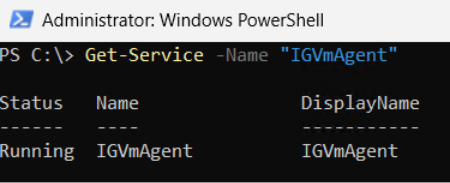
Trusted Launch for virtual machines We are excited to announce Trusted Launch for virtual machines (TVMs) in Windows Server Insider Preview. Trusted Launch is a security feature you can enable when creating Hyper-V Generation 2 VMs. It enables Secure Boot, installs a virtual Trusted Platform Module (vTPM), protects vTPM state at rest, and supports boot integrity verification (ability to verify if the VM started in a well-known good state). Further, when the VM runs in a Failover Cluster, the vTPM state is automatically made available when the VM live migrates or fails over to other nodes in the cluster – this ensures the VM remains available after migration or failover. This is unlike a Generation 2 VM with a vTPM, which will not start after migration or failover to another node in the cluster – the TPM state protection key needs to be moved to the destination node manually so the VM can start. With boot integrity verification, the entire boot path is measured and boot integrity is verified by Microsoft Azure Attestation service. This helps detect any alterations to the boot path or boot components. Such alterations, e.g. implanting malware in the boot path, can be detected by boot integrity verification. Increasingly attackers prefer implanting malware in the boot path for a variety of reasons: the OS layer is usually well protected, while firmware – as highly privileged code – can be used to alter what gets loaded (boot loader and drivers). Such alterations are not easily detectable by anti-virus software running at the OS layer. Boot integrity verification helps detect such alterations so a relying party (such as an app or service) can take suitable remediation actions, e.g. shutting down the VM. Boot integrity verification is an important part of establishing trust by verifying that the virtual machine started in a well-known good state. Insider preview TVMs are available for preview starting with Windows Server Insider preview build 29621. This initial preview only supports some of the Trusted Launch capabilities: Secure boot, vTPM, and vTPM state protection (at rest). You can create and manage TVMs using PowerShell. Guest state protection: The guest state (including the vTPM state) for each TVM is protected using a unique key that is stored in a KSP (Key Storage Provider) local to the server. Without this key, the VM will not start. Moving the VM to another server is not supported in this release. Not supported in this release: Moving TVMs to another server. TVMs in Failover Clusters or Hyper-V Replica. Boot integrity verification. Support for TVMs in Windows Admin Center (WAC). Instructions At a high-level, the steps involve: Install Windows Server Insider preview build on your server Enable Hyper-V Enable Trusted Launch feature Verify guest state protection 1. Install Windows Server Insider preview build Trusted Launch for virtual machines is available starting with the Windows Insider preview build number 29621. Install this build or a later build on your server. (Join Windows Server Insiders if you haven’t already!) 2. Enable Hyper-V (if it is not already enabled) Install-WindowsFeature -Name Hyper-V -IncludeManagementTools -Restart After enabling Hyper-V, the server needs to be restarted. 3. Set registry key property value (required to enable the Trusted Launch feature) New-Item -Path "HKLM:\SOFTWARE\Microsoft\AszIgvmAgent" -Force New-ItemProperty -Path "HKLM:\SOFTWARE\Microsoft\AszIgvmAgent" -Name "TvmWinServer" -Value 1 -PropertyType DWord -Force Setting the above regkey informs relevant system components that the Trusted Launch feature is being used in a Windows Server environment. 4. Enable Trusted Launch feature Enable-WindowsOptionalFeature -Online -FeatureName "IsolatedGuestVm" -NoRestart 5. Verify if IgvmAgent is running IgvmAgent (Isolated Guest Virtual Machine agent) is a system-level service that helps support Trusted Launch capabilities. Get-Service -Name "IGVmAgent" The output should show Status as Running. If the Status is Running, you can skip to next step. If the Status is not Running, please report the issue. Add the following event logs to the report: Event Viewer: Applications and Services Logs => Microsoft => Windows => IGVmAgent => Operational Event Viewer: Applications and Services Logs => Microsoft => Windows => IGVmSystem => Operational You can open Event Viewer via the Run dialog: Press Win + R → type "eventvwr.msc" → press Enter 6. Create an external virtual switch (if you don't already have one you can use) Create and configure a virtual switch with Hyper-V | Microsoft Learn To see available external virtual switches: (Get-VMSwitch | Where-Object { $_.SwitchType -eq "External" }).Name 7. Create TVM If you already have a virtual hard disk (VHD or VHDX) for a Gen 2 VM with an installed guest OS, run: New-VM -Name <VMName> -Generation 2 -GuestStateIsolationType TrustedLaunch -SwitchName <virtual switch name> -VHDPath <path to vhdx> -Path <path to where VM config files will be stored> Else, run: New-VM -Name <VMName> -SwitchName <virtual switch name> -NewVHDPath <path to where new VHD will be stored> -NewVHDSizeBytes 40GB -Generation 2 -GuestStateIsolationType TrustedLaunch -Path <path to where VM config files will be stored> Then, add to the VM a virtual DVD drive containing an ISO image for the guest OS (Windows or Linux OS-compatible with Hyper-V Gen 2 virtual machine). Add-VMDvdDrive -VMName <VMName> -Path <Guest OS ISO image path> Note: The guest OS will be installed when the VM starts up. When connecting to the VM you will be prompted to install the guest OS from the DVD drive. Make sure that the DVD drive is at the top of the boot order specified in the firmware so the VM will boot from the DVD drive. For more information, see New-VM. 8. Verify VM guest state isolation type (Get-VM -name <VMName>).GuestStateIsolationType should return "TrustedLaunch". 9. Verify guest state protection To verify guest state protection, stop IGVmAgent service and restart the VM. Without IGVmAgent in Running state, a TVM with guest state protection will not start. Call to action Trusted Launch brings foundational VM security — Secure Boot, a vTPM, and protected guest state — to Windows Server, helping safeguard your VMs against boot-level and firmware threats. Please try out TVMs and provide your feedback via the Windows Server Insiders Forum. — Christina Curlette and Ram Jeyaraman (and the Windows Server team)
Analyst Corner
First published on TECHNET on Apr 15, 2008 Mark Bowker, Enterprise Strategy Group on what customers want when it comes to Virtualization Robb Mapp of Microsoft Integrated Virtualization analyst relations speaks to ESG Analyst Mark Bowker at MMS 2008 about his role as an IT analyst, his recent research and his perspective on the virtualization industry.702Views0likes1Comment