virtualization
284 TopicsAnnouncing Trusted Launch for Virtual Machines for Windows Server Insiders
Trusted Launch for virtual machines We are excited to announce Trusted Launch for virtual machines (TVMs) in Windows Server Insider Preview. Trusted Launch is a security feature you can enable when creating Hyper-V Generation 2 VMs. It enables Secure Boot, installs a virtual Trusted Platform Module (vTPM), protects vTPM state at rest, and supports boot integrity verification (ability to verify if the VM started in a well-known good state). Further, when the VM runs in a Failover Cluster, the vTPM state is automatically made available when the VM live migrates or fails over to other nodes in the cluster – this ensures the VM remains available after migration or failover. This is unlike a Generation 2 VM with a vTPM, which will not start after migration or failover to another node in the cluster – the TPM state protection key needs to be moved to the destination node manually so the VM can start. With boot integrity verification, the entire boot path is measured and boot integrity is verified by Microsoft Azure Attestation service. This helps detect any alterations to the boot path or boot components. Such alterations, e.g. implanting malware in the boot path, can be detected by boot integrity verification. Increasingly attackers prefer implanting malware in the boot path for a variety of reasons: the OS layer is usually well protected, while firmware – as highly privileged code – can be used to alter what gets loaded (boot loader and drivers). Such alterations are not easily detectable by anti-virus software running at the OS layer. Boot integrity verification helps detect such alterations so a relying party (such as an app or service) can take suitable remediation actions, e.g. shutting down the VM. Boot integrity verification is an important part of establishing trust by verifying that the virtual machine started in a well-known good state. Insider preview TVMs are available for preview starting with Windows Server Insider preview build 29621. This initial preview only supports some of the Trusted Launch capabilities: Secure boot, vTPM, and vTPM state protection (at rest). You can create and manage TVMs using PowerShell. Guest state protection: The guest state (including the vTPM state) for each TVM is protected using a unique key that is stored in a KSP (Key Storage Provider) local to the server. Without this key, the VM will not start. Moving the VM to another server is not supported in this release. Not supported in this release: Moving TVMs to another server. TVMs in Failover Clusters or Hyper-V Replica. Boot integrity verification. Support for TVMs in Windows Admin Center (WAC). Instructions At a high-level, the steps involve: Install Windows Server Insider preview build on your server Enable Hyper-V Enable Trusted Launch feature Verify guest state protection 1. Install Windows Server Insider preview build Trusted Launch for virtual machines is available starting with the Windows Insider preview build number 29621. Install this build or a later build on your server. (Join Windows Server Insiders if you haven’t already!) 2. Enable Hyper-V (if it is not already enabled) Install-WindowsFeature -Name Hyper-V -IncludeManagementTools -Restart After enabling Hyper-V, the server needs to be restarted. 3. Set registry key property value (required to enable the Trusted Launch feature) New-Item -Path "HKLM:\SOFTWARE\Microsoft\AszIgvmAgent" -Force New-ItemProperty -Path "HKLM:\SOFTWARE\Microsoft\AszIgvmAgent" -Name "TvmWinServer" -Value 1 -PropertyType DWord -Force Setting the above regkey informs relevant system components that the Trusted Launch feature is being used in a Windows Server environment. 4. Enable Trusted Launch feature Enable-WindowsOptionalFeature -Online -FeatureName "IsolatedGuestVm" -NoRestart 5. Verify if IgvmAgent is running IgvmAgent (Isolated Guest Virtual Machine agent) is a system-level service that helps support Trusted Launch capabilities. Get-Service -Name "IGVmAgent" The output should show Status as Running. If the Status is Running, you can skip to next step. If the Status is not Running, please report the issue. Add the following event logs to the report: Event Viewer: Applications and Services Logs => Microsoft => Windows => IGVmAgent => Operational Event Viewer: Applications and Services Logs => Microsoft => Windows => IGVmSystem => Operational You can open Event Viewer via the Run dialog: Press Win + R → type "eventvwr.msc" → press Enter 6. Create an external virtual switch (if you don't already have one you can use) Create and configure a virtual switch with Hyper-V | Microsoft Learn To see available external virtual switches: (Get-VMSwitch | Where-Object { $_.SwitchType -eq "External" }).Name 7. Create TVM If you already have a virtual hard disk (VHD or VHDX) for a Gen 2 VM with an installed guest OS, run: New-VM -Name <VMName> -Generation 2 -GuestStateIsolationType TrustedLaunch -SwitchName <virtual switch name> -VHDPath <path to vhdx> -Path <path to where VM config files will be stored> Else, run: New-VM -Name <VMName> -SwitchName <virtual switch name> -NewVHDPath <path to where new VHD will be stored> -NewVHDSizeBytes 40GB -Generation 2 -GuestStateIsolationType TrustedLaunch -Path <path to where VM config files will be stored> Then, add to the VM a virtual DVD drive containing an ISO image for the guest OS (Windows or Linux OS-compatible with Hyper-V Gen 2 virtual machine). Add-VMDvdDrive -VMName <VMName> -Path <Guest OS ISO image path> Note: The guest OS will be installed when the VM starts up. When connecting to the VM you will be prompted to install the guest OS from the DVD drive. Make sure that the DVD drive is at the top of the boot order specified in the firmware so the VM will boot from the DVD drive. For more information, see New-VM. 8. Verify VM guest state isolation type (Get-VM -name <VMName>).GuestStateIsolationType should return "TrustedLaunch". 9. Verify guest state protection To verify guest state protection, stop IGVmAgent service and restart the VM. Without IGVmAgent in Running state, a TVM with guest state protection will not start. Call to action Trusted Launch brings foundational VM security — Secure Boot, a vTPM, and protected guest state — to Windows Server, helping safeguard your VMs against boot-level and firmware threats. Please try out TVMs and provide your feedback via the Windows Server Insiders Forum. — Christina Curlette and Ram Jeyaraman (and the Windows Server team)Feature Request: More Cursor/Pointer Roles
We need a feature that makes us customize the cursor roles (below)! Because Linux has more cursor roles, we cannot customize them in Windows. Cursor Roles Suggested: No drop - arrow with a no sign overlay Column Resize - horizontal resize but for grid resizing Row Resize - vertical resize but for grid resizing Vertical text - I-beam rotated 90 degrees Grab - open hand Grabbing - closed hand Cell - bold plus sign Copy - arrow with a plus overlay Alias - arrow with an iron chain overlay Zoom In - magnifying glass with plus sign overlay Zoom Out - magnifying glass with minus sign overlay Tags/Keywords: pointer, cursor, mouse, customizable, custom33Views0likes0CommentsPublic Preview: User-initiated provisioning for Windows 365 Reserve
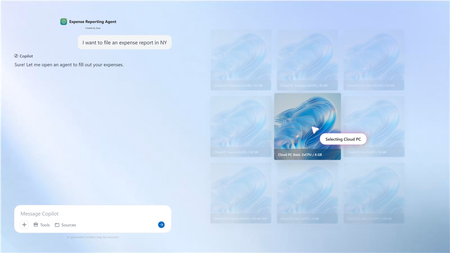
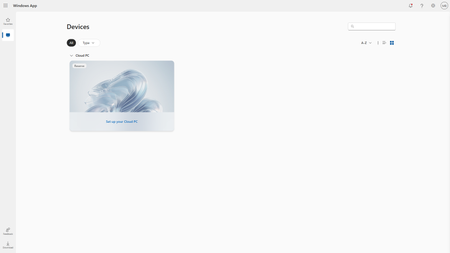
Announcing public preview of user-initiated provisioning for Windows 365 Reserve, a new capability that allows eligible users to provision their own Reserve Cloud PC directly from the Windows App. This capability helps provide more direct access to Reserve Cloud PCs when devices are unavailable- especially during large-scale device disruptions, for time-critical roles, or when support teams are already under load.858Views1like1CommentCustomer Offerings: Hyper-V - Implementation, Migration, and Management
Happy April everyone! Brandon here, back once again to talk to you about a couple of new offerings that have just been released to assist our Unified customers with their on-premises virtualization needs! I continue to have the privilege of leading a great program and team helping customers to migrate from VMware to more cost-effective and/or modern solutions. These new offerings are <drum roll>: Hyper-V - Implementation, Migration, and Management Azure Local - Implementation, Migration, and Management NOTE: These offerings do not provide hands on keyboard support, do not create custom documentation for customers, and cannot provide direct support for any 3 rd party products that may be used in the process of migrations. Many customers are taking a closer look at Microsoft Hyper‑V as a strategic alternative to traditional virtualization platforms. Whether driven by changing licensing models, cost optimization, or the need for deeper hybrid cloud integration, a successful transition requires more than a technology shift—it requires a structured, outcome‑focused approach. While we are providing these new offerings to customers, you do also have the option of more extended engagements as well that are broader in scope and more tailored to the end goals while we work side by side with you. If you are a Unified customer and looking to move off of VMware to Hyper-V, or you just need help with your on-premises Microsoft virtualization technologies in general, have your account manager (CSAM) reach out to me! Planning to go at it alone?? I’m starting here for a very good reason… Virtually (no pun intended) every environment reviewed by my team (and that is a LOT) that was set up for a VMware migration, will have configuration issues, many times warranting a complete redesign and re-deployment. Problem 1: There are some potentially significant differences between the way VMware and Hyper-V are architected from the start, especially in areas of networking and storage, where mimicking methods used in the VMware world can actually lead to performance degradation in your target Hyper-V environment. Problem 2: To achieve feature parity, or near feature parity, your management method must also change. Additionally, if you are converting/migrating to Hyper-V, the available methods need to be determined, the terminology and functional differences identified and learned, well, honestly, I could go on for awhile on this, but I’ll spare you until we talk… Problem 3: Perhaps the most obvious is that this may be a new platform for your team, and its important for them to gain experience through guided actions and knowledge transfer on the fly for those questions they really have, which is exactly what we aim to provide in guiding implementations and migrations! You mentioned management and conversion tools, what do you mean?? Hyper‑V has several methods for management, which can vary based on the feature needs and environment size. As a simple example, if I have 1500 virtualization hosts and 30,000 virtual machines spread out globally, its probably not going to be as efficient to manage everything only through locally available consoles. The capabilities of these management methods are continuing to grow and improve based on customer feedback, along with feedback from the field team. Let’s take a quick look at these options: Native Windows tools: Hyper-V management console, Failover Clustering management console, Server Manager, etc This management method is typically used for small labs or smaller production environments (for migrations/conversions these methods do not provide feature parity with VMware). System Center Virtual Machine Manager (SCVMM) This management method is fully supported for environments of all sizes. For migrations/conversions this method provides feature parity with VMware for management and features, along with offering VMware migration/conversion capability (offline). If you are already using any product from the System Center suite (SCCM, SCOM, SCORCH, SCSM, or DPM) then this can prove to be a great no cost option for you! Windows Admin Center: Administration Mode (aMode) This management method is fully supported for environments of all sizes, however, is not designed as an infrastructure wide virtualization management method, but for server management and administration. If your environment isn’t extremely large, and VMware feature parity is not a necessity, this can provide a great no cost option for management of your physical and virtual servers. In addition, this method provides an online conversion option (currently public preview), allowing for a more seamless migration from VMware. Windows Admin Center: Virtualization Mode (vMode) (currently public preview) This management method is fully supported for environments of all sizes, and is designed solely for the purpose of managing the Hyper-V virtualization infrastructure, tying together the primary needs for virtualization fabric into an easy to navigate web-based UI. Azure You can Arc enable any Windows host or virtual machine and have a method of management and integration with cloud based services. In addition, these can work in conjunction with all of the above options to improve your management experience for your platform, and allows for the easy implementation and integration of many cloud based technologies (such as Hyper-V replica backups to ASR) NOTE: You can learn more about Windows Admin Center evolution here: Windows Admin Center Architectural Changes | Microsoft Community Hub A Structured Engagement Model Successful Hyper‑V implementations are built around a guided engagement model rather than a one‑size‑fits‑all checklist. Each engagement is tailored to the customer environment, acknowledging that differences in scale, workloads, hardware, and operational maturity directly influence the migration approach. The framework emphasizes collaboration, clarity of expectations, and incremental progress instead of disruptive “lift‑and‑shift” execution. Whether we are talking about a migration from another virtualization platform, or simply trying to reduce costs by implementing a new virtualization infrastructure, we’re here to help! Key Phases of a Hyper‑V Implementation and/or Migration Most Hyper‑V engagements progress through a common set of phases: Engagement scoping and technical discovery to understand goals and current state (this is the conversation I, or one of the TZ Leads in the VMware Migration Program have with customers) Planning and design aligned to business and operational outcomes, with a limited scope Deployment and configuration validation to ensure platform readiness Security and migration testing to reduce risk and confirm workload compatibility Optional feature enablement, including Azure Arc, to extend governance and management While these phases provide structure, the sequence and depth of each stage are adapted based on the customer environment and objectives. Key Outcomes for Customers Organizations that engage in Hyper-V implementation or migration efforts commonly achieve: Deeper familiarity with Microsoft virtualization technologies Successful deployment of PoC, pilot, or production environments Validated test migrations of virtual machines Identification and resolution of technical blockers Increased confidence in operational readiness These engagements are advisory and collaborative in nature, prioritizing customer enablement and success. Knowledge Transfer and Operational Readiness A central focus of a Hyper‑V engagement is ensuring that IT teams are prepared to operate the platform long after deployment completes. Knowledge transfer is embedded throughout the engagement through working sessions and direct participation in implementation activities. This approach helps organizations move confidently into steady‑state operations without relying on long‑term external support. As I mentioned above, if you do feel you will need longer term support, we have your back on that front as well. Looking Beyond Migration A Hyper‑V migration is often the first step in a broader transformation journey. Many organizations use this transition to enable hybrid management, strengthen security posture, and prepare for future application or cloud modernization initiatives. When approached strategically, Hyper‑V becomes a platform for long‑term innovation, not just a replacement hypervisor. Conclusion Moving from VMware to Hyper‑V is not simply a technical migration—it is an opportunity to modernize how infrastructure is managed and governed. With structured planning, guided execution, and a focus on operational readiness, organizations can transition with confidence to a virtualization platform built for today’s hybrid cloud realities and tomorrow’s growth. Thanks for reading, and maybe we’ll talk soon!