virtual wan
51 Topics
Simplify Virtual WAN Spoke Connectivity at Scale with Azure Virtual Network Manager
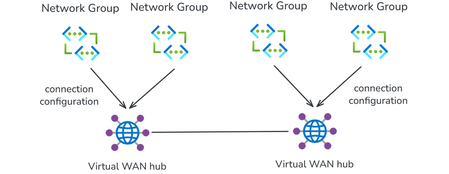
With Azure Virtual Network Manager (AVNM) integration, organizations using Virtual WAN for transitive connectivity can simplify spoke connectivity and policy management across large-scale hub-and-spoke deployments. By using a Virtual WAN hub as the hub in an AVNM hub-and-spoke topology, organizations can define connectivity and routing intent once at the network group level and apply it consistently across large numbers of spoke VNets. This reduces repetitive per-spoke connection and routing configuration, helps maintain operational consistency as deployments expand, and makes it easier to manage hub-and-spoke environments at scale. Together, AVNM’s centralized, group-based orchestration and Virtual WAN’s managed routing, security integration, and hybrid connectivity provide a more streamlined way to simplify operations and scale with confidence. What is Azure Virtual Network Manager? Azure Virtual Network Manager is a management service that lets you group, configure, and deploy network connectivity and security policies across virtual networks at scale. Instead of configuring VNet peering and access rules on each virtual network individually, you define network groups — logical collections of virtual networks based on static selection or dynamic Azure Policy conditions — and apply connectivity configurations and security admin rules to those groups. Key capabilities include: Hub-and-spoke and mesh topologies — Define how virtual networks in a network group connect to a central hub or to each other. Network groups — Group VNets statically or dynamically (using tags, subscriptions, resource group names, or other Azure Policy conditions). Security admin rules — Author and enforce access control lists across all VNets in a network group, providing a centralized layer of defense that complements NSGs and firewalls. Region-scoped deployment — Deploy configurations to specific Azure regions, enabling incremental rollout and controlled blast radius. AVNM operates as an overlay management layer — it orchestrates VNet peering, connectivity, and security rules without replacing the underlying networking primitives. What is Azure Virtual WAN? Azure Virtual WAN as a service brings together routing, security, VPN, ExpressRoute, and transitive connectivity in a hub-and-spoke architecture. A Virtual WAN hub is a managed regional resource that acts as a central transit point for branch connectivity, remote users, private enterprise connectivity, spoke virtual networks, and private traffic routing through security services. Site-to-site VPN connectivity (branch offices, SD-WAN devices) Point-to-site VPN connectivity (remote users) ExpressRoute private connectivity (on-premises datacenters) VNet-to-VNet transitive connectivity (spoke virtual networks) Routing, firewall, and encryption for private traffic All hubs in a Standard Virtual WAN are connected in a full mesh over the Microsoft backbone, enabling any-to-any connectivity between spokes, branches, and remote users across regions. Virtual WAN removes the need to manually manage complex route tables and transit VNets — routing is handled by the hub's built-in router. What this integration enables When you select a Virtual WAN hub as the hub in an AVNM connectivity configuration, AVNM handles the spoke-to-hub wiring for you. For each virtual network in your selected network groups: If the VNet is not yet connected to the Virtual WAN hub, AVNM creates the Virtual Network connection to Virtual WAN hub and applies a consistent routing configuration with Virtual WAN connection policy. If the VNet is already connected, AVNM updates the existing Virtual Network connection to utilize the routing properties in the Virtual WAN connection policy. A connection policy is a hub-level Virtual WAN resource that defines shared routing behavior for the virtual network connections it governs, including route table association and propagation, route maps, internet security settings, and propagated labels. Because the policy applies these settings consistently across governed connections, it helps standardize routing and overrides conflicting settings configured directly on individual connections. How it works The setup follows AVNM's standard workflow: Create a network group. Add virtual networks as members — either statically (by selecting specific VNets) or dynamically (using Azure Policy conditions such as tags or resource group names). Create a connectivity configuration. Choose hub-and-spoke topology, select your Virtual WAN hub as the hub, and select or create a connection policy. Deploy. Commit the configuration to your target regions. AVNM connects all VNets in the network groups to the Virtual WAN hub and applies the connection policy in parallel. You can also enable direct connectivity within a spoke network group. When enabled, VNet-to-VNet traffic within that group routes directly between virtual networks instead of transiting the Virtual WAN hub — useful for latency-sensitive or high-throughput east-west workloads. By default, direct connectivity is regional; enable global mesh to extend it across Azure regions. Key use cases Bulk spoke onboarding Connect many virtual networks to a Virtual WAN hub in one operation. All connections are orchestrated in parallel by AVNM, and the pre-defined routing configuration is automatically applied. Policy-based dynamic onboarding Use Azure Policy to define network group membership conditions. When a new virtual network matches those conditions—for example, a VNet tagged env:prod—it is automatically added to the network group. On the next deployment, AVNM connects it to the Virtual WAN hub with the correct routing configuration, reducing manual onboarding effort. Batch routing configuration updates Push routing changes to all virtual networks in a network group as a single, fully parallelized operation. This significantly reduces maintenance window duration for network-wide changes and makes rollback straightforward. Incremental deployment Segment your network into precise update domains by creating separate network groups — for example, by environment (staging, dev, production) or by region. Deploy connection policies to each group or region independently. This lets you test changes on a smaller subset before applying them broadly, minimizing blast radius. Mesh for selective inspection bypass If you use routing intent to send all private traffic through a firewall in the Virtual WAN hub, certain high-throughput or latency-sensitive flows (such as database replication) may benefit from bypassing that inspection. Enable direct connectivity in AVNM to create a mesh between selected spokes, allowing VNet-to-VNet traffic to route directly while all other traffic continues through the hub firewall. Security admin rules at scale Define network groups for your Virtual WAN spokes, then use AVNM security admin rules to author and deploy access control lists across those spokes. This provides an additional layer of defense alongside next-generation firewalls in the Virtual WAN hub. Getting started Prerequisites: An existing Azure Virtual Network Manager instance An existing Azure Virtual WAN and Virtual WAN hub One or more virtual networks to use as spoke members To configure: Go to your Network Manager instance in the Azure portal. Create a network group and add your spoke VNets. Create a connectivity configuration → select hub-and-spoke → select your Virtual WAN hub → select or create a connection policy → add spoke network groups. Deploy the configuration to your target regions. In your Virtual WAN resource, verify that the expected spoke VNet connections are in a connected state. Review effective routes in the virtual hub to confirm routing behavior matches the selected connection policy. For detailed step-by-step instructions, see Configure Azure Virtual WAN hub for Azure Virtual Network Manager. For more on connection policy, see Connection policy in Azure Virtual WAN. Learn more Azure Virtual Network Manager documentation Virtual WAN and Virtual Network Manager integration overview Azure Virtual WAN documentation911Views1like1Comment
Help! - How is VNet traffic reaching vWAN/on‑prem when the VNet isn’t connected to the vWAN hub
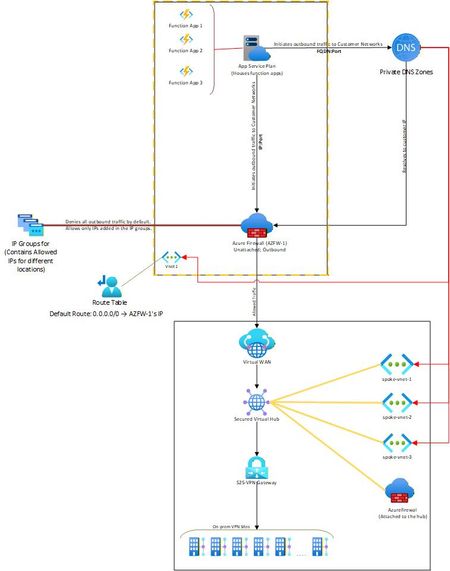
Hello, I needed some clarity on how the following is working: Attached is a network diagram of our current setup. The function apps (in VNet-1) initiate a connection(s) to a specific IP:Port or FQDN:Port in the on-premises network(s). A Private DNS zone ensures that any FQDN is resolved to the correct internal IP address of the on-prem endpoint. In our setup, both the function app and the external firewall reside in the same VNet. This firewall is described as “Unattached” because it is not the built-in firewall of a secured vWAN hub, but rather an independent Azure Firewall deployed in that VNet. The VNet has a user-defined default route (0.0.0.0/0) directing all outbound traffic to the firewall’s IP. The firewall then filters the traffic, allowing only traffic destined to whitelisted on-premises IP: Port or FQDN: Port combinations (using IP Groups), and blocking everything else. The critical question and the part that I am unable to figure out is: Once the firewall permits a packet, how does Azure know to route it to the vWAN hub and on to the site-to-site VPN? Because VNet-1 truly has no connection at all to the vWAN hub (no direct attachment, no peering, no VPN from the NVA). But the traffic is still reaching the on-prem sites. Unable to figure out how this is happening. Am I missing something obvious? Any help on this would be appreciated. Thank you!535Views0likes4Comments
Azure VNet Data Gateway for Secure Power BI & Power Platform Access in Enterprises
What Is a VNet data gateway? The VNet data gateway is a Microsoft‑managed gateway service that runs inside a delegated subnet of an Azure Virtual Network. It allows supported Microsoft cloud services—such as Power BI, Power Platform dataflows, and Microsoft Fabric workloads—to securely connect to data sources that are protected using private networking. Key characteristics: No customer‑managed VM or container No OS, patching, or gateway software upgrades Gateway lifecycle fully managed by Microsoft Traffic stays on the Azure backbone network Works seamlessly with Private Endpoints This makes it ideal for enterprise and regulated environments where security and operational efficiency are equally important. Why Enterprises need VNet data gateway Eliminates gateway infrastructure management Traditional gateways require: Virtual machines High availability setup OS patching and scaling Monitoring and troubleshooting With the VNet data gateway: Microsoft manages compute lifecycle No VM or gateway software to maintain No HA or load balancer design needed ✅ Result: Significant reduction in operational and maintenance overhead for platform and infrastructure teams. Secure access to private Azure resources Most enterprise Azure environments use: Private Endpoints NSGs and route tables Firewalls blocking public access The VNet data gateway: Is injected into a delegated subnet in your VNet Uses private IP addressing Enforces NSG and UDR rules Communicates with Microsoft services over a Microsoft‑managed internal tunnel ✅ Result: Data sources remain fully private—no public endpoints or inbound ports required. Designed for Power Platform & Power BI at Scale The gateway supports secure access for: Power BI semantic models Power BI paginated reports Microsoft Fabric Dataflow Gen2 Fabric pipelines and copy jobs Because it’s cloud‑native and centrally managed, the VNet data gateway scales well in large enterprises standardizing on Power Platform and Fabric. High‑level architecture overview At runtime, the VNet data gateway works as follows: A query is initiated from Power BI / Power Platform Query details and credentials are sent to the Microsoft Power Platform VNet service A containerized gateway instance is injected into the delegated subnet The gateway connects to the private data source using private networking Results are sent back to Power BI or Power Platform via a Microsoft‑managed internal tunnel Key security highlights: No inbound connectivity No public IP exposure Traffic remains on Azure backbone Full enforcement of NSGs and routing rules Key Enterprise benefits Least management overhead – no gateway servers Zero Trust aligned – private-only connectivity Fully managed by Microsoft Enterprise-grade security & governance Works with Azure Private Endpoint architectures When to Use VNet Data Gateway Scenario Recommendation Azure private PaaS services ✅ VNet data gateway Private Endpoint–only access ✅ VNet data gateway Zero Trust network model ✅ VNet data gateway Minimal ops & maintenance ✅ VNet data gateway On‑prem only, no Azure ❌ Traditional gateway Step‑by‑step configuration: VNet data gateway (Enterprise setup) High‑level flow (What you will configure) Register required Azure resource provider Prepare Azure Virtual Network and subnet Configure private connectivity to data source Create the VNet data gateway Create and bind data source connections Validate with Power BI / Power Platform workloads Step 1: Register Microsoft.PowerPlatform resource provider Why this step is required The VNet data gateway is a Microsoft‑managed service that is injected into your Azure VNet. Azure must explicitly allow Power Platform to deploy managed infrastructure into your subscription. Configuration steps Sign in to Azure portal Navigate to Subscriptions Select the subscription that hosts the target VNet Go to Resource providers Search for Microsoft.PowerPlatform Click Register ✅ Status must show Registered This step enables subnet delegation to Power Platform services. Step 2: Prepare the Azure Virtual Network Why this step is required The gateway runs inside your VNet. It must be placed in a dedicated, delegated subnet to maintain isolation and security boundaries. Requirements VNet can be in any Azure region Subnet must be exclusive to VNet data gateway Subnet must have outbound connectivity to the data source Configuration steps Go to Azure portal → virtual networks Select your existing VNet (or create one) Navigate to Subnets → + Subnet Configure: Subnet name: snet-vnet-datagateway Address range: /27 or larger (recommended) Subnet delegation: Microsoft.PowerPlatform/vnetaccesslinks Save the subnet ⚠️ Do not place any VMs, app gateway, or other workloads in this subnet. Step 3: Configure private connectivity to the data source Why this step is required Enterprises typically block public access to PaaS services. The VNet data gateway is designed to work natively with private endpoints. Example: Azure SQL / SQL Managed Instance Create Private Endpoint for the data service Attach it to the same VNet (can be different subnet) Create or link a Private DNS Zone, for example: privatelink.database.windows.net Link the Private DNS Zone to the VNet Ensure DNS resolution from the delegated subnet resolves to private IP ✅ This ensures all traffic remains private and internal. Step 4: Create the VNet data gateway Why this step is required This is where the actual Microsoft‑managed gateway is logically created and associated with your VNet. Configuration steps You can do this from either Power BI Service or Power Platform Admin Center. Using Power Platform Admin Center Go to https://admin.powerplatform.microsoft.com Select Data → Gateways Click + New → Virtual network data gateway Provide: Gateway name Azure subscription Resource group Virtual network Delegated subnet Click Create 📌 Notes: Gateway metadata is stored in Power BI tenant home region Gateway runtime executes in the VNet region No VM or scale settings are required Step 5: Create and configure data source connections Why this step is required The gateway exists, but Power BI / Power Platform must know which data sources can be accessed via it. Configuration steps (Power BI example) Go to Power BI Service Navigate to Settings → Manage connections and gateways Select the newly created VNet data gateway Click + New connection Provide: Data source type (Azure SQL, Storage, Databricks, etc.) Server / endpoint name (private DNS name) Authentication (SQL / Entra ID) Save the connection Assign users or security groups ✅ This step enables governance and access control. Step 6: Use the gateway in Power BI / Power Platform Power BI Open dataset or semantic model settings Under Gateway connection, select: Use a data gateway Choose the VNet data gateway Apply changes Refresh or run queries Power Platform / Fabric Select the same connection when configuring: Dataflows Gen2 Fabric pipelines Copy jobs Step 7: Validate and test Validation Checklist ✅ DNS resolves to private IP ✅ No public endpoint access enabled ✅ NSGs allow outbound traffic to data source ✅ Dataset refresh succeeds ✅ No gateway VM exists in subscription Optional: Enable logging and auditing from Power BI / Fabric Monitor gateway health in Admin Center Key Enterprise design guidance (Best practices) Use one gateway per environment tier (Prod / Non‑Prod) Use dedicated VNets for data access where possible Use Private Endpoint only (avoid service endpoints) Control access via AAD groups, not individuals Avoid mixing gateway subnet with other workloads Conclusion: For enterprises looking to consume Power Platform, Power BI, and Microsoft Fabric securely while keeping operational overhead close to zero, the VNet data gateway is the recommended approach. It removes gateway infrastructure complexity, strengthens security posture, and aligns perfectly with modern Azure landing zone and Zero Trust architectures.1.8KViews0likes0CommentsAzure Networking 2025: Powering cloud innovation and AI at global scale
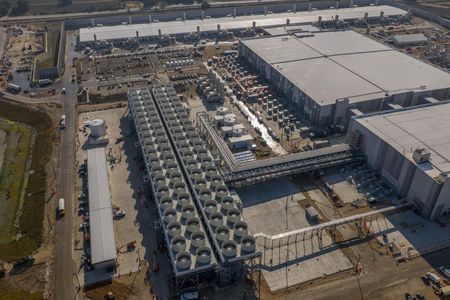
In 2025, Azure’s networking platform proved itself as the invisible engine driving the cloud’s most transformative innovations. Consider the construction of Microsoft’s new Fairwater AI datacenter in Wisconsin – a 315-acre campus housing hundreds of thousands of GPUs. To operate as one giant AI supercomputer, Fairwater required a single flat, ultra-fast network interconnecting every GPU. Azure’s networking team delivered: the facility’s network fabric links GPUs at 800 Gbps speeds in a non-blocking architecture, enabling 10× the performance of the world’s fastest supercomputer. This feat showcases how fundamental networking is to cloud innovation. Whether it’s uniting massive AI clusters or connecting millions of everyday users, Azure’s globally distributed network is the foundation upon which new breakthroughs are built. In 2025, the surge of AI workloads, data-driven applications, and hybrid cloud adoption put unprecedented demands on this foundation. We responded with bold network investments and innovations. Each new networking feature delivered in 2025, from smarter routing to faster gateways, was not just a technical upgrade but an innovation enabling customers to achieve more. Recapping the year’s major releases across Azure Networking services and key highlights how AI both drive and benefit from these advancements. Unprecedented connectivity for a hybrid and AI era Hybrid connectivity at scale: Azure’s network enhancements in 2025 focused on making global and hybrid connectivity faster, simpler, and ready for the next wave of AI-driven traffic. For enterprises extending on-premises infrastructure to Azure, Azure ExpressRoute private connectivity saw a major leap in capacity: Microsoft announced support for 400 Gbps ExpressRoute Direct ports (available in 2026) to meet the needs of AI supercomputing and massive data volumes. These high-speed ports – which can be aggregated into multi-terabit links – ensure that even the largest enterprises or HPC clusters can transfer data to Azure with dedicated, low-latency links. In parallel, Azure VPN Gateway performance reached new highs, with a generally available upgrade that delivers up to 20 Gbps aggregate throughput per gateway and 5 Gbps per individual tunnel. This is a 3× increase over previous limits, enabling branch offices and remote sites to connect to Azure even more seamlessly without bandwidth bottlenecks. Together, the ExpressRoute and VPN improvements give customers a spectrum of high-performance options for hybrid networking – from offices and datacenters to the cloud – supporting scenarios like large-scale data migrations, resilient multi-site architectures, and hybrid AI processing. Simplified global networking: Azure Virtual WAN (vWAN) continued to mature as the one-stop solution for managing global connectivity. Virtual WAN introduced forced tunneling for Secure Virtual Hubs (now in preview), which allows organizations to route all Internet-bound traffic from branch offices or virtual networks back to a central hub for inspection. This capability simplifies the implementation of a “backhaul to hub” security model – for example, forcing branches to use a central firewall or security appliance – without complex user-defined routing. Empowering multicloud and NVA integration: Azure recognizes that enterprise networks are diverse. Azure Route Server improvements enhanced interoperability with customer equipment and third-party network virtual appliances (NVAs). Notably, Azure Route Server now supports up to 500 virtual network connections (spokes) per route server, a significant scale boost that enables larger hub-and-spoke topologies and simplified Border Gateway Protocol (BGP) route exchange even in very large environments. This helps customers using SD-WAN appliances or custom firewalls in Azure to seamlessly learn routes from hundreds of VNet spokes – maintaining central routing control without manual configuration. Additionally, Azure Route Server introduced a preview of hub routing preference, giving admins the ability to influence BGP route selection (for example, preferring ExpressRoute over a VPN path, or vice versa). This fine-grained control means hybrid networks can be tuned for optimal performance and cost. Resilience and reliability by design Azure’s growth has been underpinned by making the network “resilient by default.” We shipped tools to help validate and improve network resiliency. ExpressRoute Resiliency Insights was released for general availability – delivering an intelligent assessment of an enterprise’s ExpressRoute setup. This feature evaluates how well your ExpressRoute circuits and gateways are architected for high availability (for example, using dual circuits in diverse locations, zone-redundant gateways, etc.) and assigns a resiliency index score as a percentage. It will highlight suboptimal configurations – such as routes advertised on only one circuit, or a gateway that isn’t zone-redundant – and provide recommendations for improvement. Moreover, Resiliency Insights includes a failover simulation tool that can test circuit redundancy by mimicking failures, so you can verify that your connections will survive real-world incidents. By proactively monitoring and testing resilience, Azure is helping customers achieve “always-on” connectivity even in the face of fiber cuts, hardware faults, or other disruptions. Security, governance, and trust in the network As enterprises entrust more core business to Azure, the platform’s networking services advanced on security and governance – helping customers achieve Zero Trust networks and high compliance with minimal complexity. Azure DNS now offers DNS Security Policies with Threat Intelligence feeds (GA). This capability allows organizations to protect their DNS queries from known malicious domains by leveraging continuously updated threat intel. For example, if a known phishing domain or C2 (command-and-control) hostname appears in DNS queries from your environment, Azure DNS can automatically block or redirect those requests. Because DNS is often the first line of detection for malware and phishing activities, this built-in filtering provides a powerful layer of defense that’s fully managed by Azure. It’s essentially a cloud-delivered DNS firewall using Microsoft’s vast threat intelligence – enabling all Azure customers to benefit from enterprise-grade security without deploying additional appliances. Network traffic governance was another focus. The introduction of forced tunneling in Azure Virtual WAN hubs (preview) shared above is a prime example where networking meets security compliance. Optimizing cloud-native and edge networks We previewed DNS intelligent traffic control features – such as filtering DNS queries to prevent data exfiltration and applying flexible recursion policies – which complement the DNS Security offering in safeguarding name resolution. Meanwhile, for load balancing across regions, Azure Traffic Manager’s behind-the-scenes upgrades (as noted earlier) improved reliability, and it’s evolving to integrate with modern container-based apps and edge scenarios. AI-powered networking: Both enabling and enabled by AI We are infusing AI into networking to make management and troubleshooting more intelligent. Networking functionality in Azure Copilot accelerates tasks like never before: it outlines the best practices instantly and troubleshooting that once required combing through docs and logs can be conversational. It effectively democratizes networking expertise, helping even smaller IT teams manage sophisticated networks by leveraging AI recommendations. The future of cloud networking in an AI world As we close out 2025, one message is clear: networking is strategic. The network is no longer a static utility – it is the adaptive circulatory system of the cloud, determining how far and fast customers can go. By delivering higher speeds, greater reliability, tighter security, and easier management, Azure Networking has empowered businesses to connect everything to anything, anywhere – securely and at scale. These advances unlock new scenarios: global supply chains running in real-time over a trusted network, multi-player AR/VR and gaming experiences delivered without lag, and AI models trained across continents. Looking ahead, AI-powered networking will become the norm. The convergence of AI and network tech means we will see more self-optimizing networks that can heal, defend, and tune themselves with minimal human intervention.1.7KViews3likes0Comments
IKEv2 and Windows 10/11 drops connectivity but stays connected in Windows
I’ve seen this with 2 different customers using IKEv2 User VPNs (virtual wan) and Point to Site gateways in hub and spoke whereby using the VPN in a Always On configuration (device and user tunnel) that after a specific amount of time (56 minutes) the IKEv2 connection will drop the tunnel but stay connected in Windows. To restore the connection, you just reconnect. has anyone else had a similar experience? I’ve seen the issue with ExpressRoute and with/without Azure firewalls in the topology too.1.7KViews0likes1CommentAzure Virtual Network Manager + Azure Virtual WAN
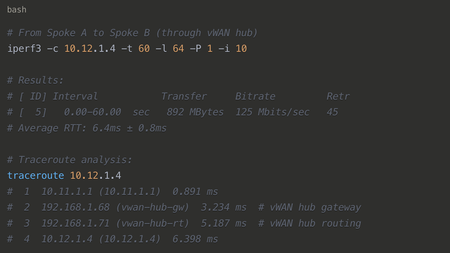
Azure continues to expand its networking capabilities, with Azure Virtual Network Manager and Azure Virtual WAN (vWAN) standing out as two of the most transformative services. When deployed together, they offer the best of both worlds: the operational simplicity of a managed hub architecture combined with the ability for spoke VNets to communicate directly, avoiding additional hub hops and minimizing latency Revisiting the classic hub-and-spoke pattern Element Traditional hub-and-spoke role Hub VNet Centralized network that hosts shared services including firewalls (e.g., Azure Firewall, NVAs), VPN/ExpressRoute gateways, DNS servers, domain controllers, and central route tables for traffic management. Acts as the connectivity and security anchor for all spoke networks. Spoke VNets Host individual application workloads and peer directly to the hub VNet. Traffic flows through the hub for north-south connectivity (to/from on-premises or internet) and cross-spoke communication (east-west traffic between spokes). Benefits • Single enforcement point for security policies and network controls • No duplication of shared services across environments • Simplified routing logic and traffic flow management • Clear network segmentation and isolation between workloads • Cost optimization through centralized resources However, this architecture comes with a trade-off: every spoke-to-spoke packet must route through the hub, introducing additional network hops, increased latency, and potential throughput constraints. How Virtual WAN modernizes that design Virtual WAN replaces a do-it-yourself hub VNet with a fully managed hub service: Managed hubs – Azure owns and operates the hub infrastructure. Automatic route propagation – routes learned once are usable everywhere. Integrated add-ons – Firewalls, VPN, and ExpressRoute ports are first-class citizens. By default, Virtual WAN enables any-to-any routing between spokes. Traffic transits the hub fabric automatically—no configuration required. Why direct spoke mesh? Certain patterns require single-hop connectivity Micro-service meshes that sit in different spokes and exchange chatty RPC calls. Database replication / backups where throughput counts, and hub bandwidth is precious. Dev / Test / Prod spokes that need to sync artifacts quickly yet stay isolated from hub services. Segmentation mandates where a workload must bypass hub inspection for compliance yet still talk to a partner VNet. Benefits Lower latency – the hub detour disappears. Better bandwidth – no hub congestion or firewall throughput cap. Higher resilience – spoke pairs can keep talking even if the hub is under maintenance. The peering explosion problem With pure VNet peering, the math escalates fast: For n spokes you need n × (n-1)/2 links. Ten spokes? 45 peerings. Add four more? Now 91. Each extra peering forces you to: Touch multiple route tables. Update NSG rules to cover the new paths. Repeat every time you add or retire a spoke. Troubleshoot an ever-growing spider web. Where Azure Virtual Network Manager Steps In? Azure Virtual Network Manager introduces Network Groups plus a Mesh connectivity policy: Azure Virtual Network Manager Concept What it gives you Network group A logical container that groups multiple VNets together, allowing you to apply configurations and policies to all members simultaneously Mesh connectivity Automated peering between all VNets in the group, ensuring every member can communicate directly with every other member without manual configuration Declarative config Intent-based approach where you define the desired network state, and Azure Virtual Network Manager handles the implementation and ongoing maintenance Dynamic updates Automatic topology management—when VNets are added to or removed from a group, Azure Virtual Network Manager reconfigures all necessary connections without manual intervention Operational complexity collapses from O(n²) to O(1)—you manage a group, not 100+ individual peerings. A complementary model: Azure Virtual Network Manager mesh inside vWAN Since Azure Virtual Network Manager works on any Azure VNet—including the VNets you already attach to a vWAN hub—you can apply mesh policies on top of your existing managed hub architecture: Spoke VNets join a vWAN hub for branch connectivity, centralized firewalling, or multi-region reach. The same spokes are added to an Azure Virtual Network Manager Network Group with a mesh policy. Azure Virtual Network Manager builds direct peering links between the spokes, while vWAN continues to advertise and learn routes. Result: All VNets still benefit from vWAN’s global routing and on-premises integration. Latency-critical east-west flows now travel the shortest path—one hop—as if the VNets were traditionally peered. Rather than choosing one over the other, organizations can leverage both vWAN and Azure Virtual Network Manager together, as the combination enhances the strengths of each service. Performance illustration Spoke-to-Spoke Communication with Virtual WAN without Azure Virtual Network Manager mesh: Spoke-to-Spoke Communication with Virtual WAN with Azure Virtual Network Manager mesh: Observability & protection NSG flow logs – granular packet logs on every peered VNet. Azure Virtual Network Manager admin rules – org-wide guardrails that trump local NSGs. Azure Monitor + SIEM – route flow logs to Log Analytics, Sentinel, or third-party SIEM for threat detection. Layered design – hub firewalls inspect north-south traffic; NSGs plus admin rules secure east-west flows. Putting it all together Virtual WAN offers fully managed global connectivity, simplifying the integration of branch offices and on-premises infrastructure into your Azure environment. Azure Virtual Network Manager mesh establishes direct communication paths between spoke VNets, making it ideal for workloads requiring high throughput or minimal latency in east-west traffic patterns. When combined, these services provide architects with granular control over traffic routing. Each flow can be directed through hub services when needed or routed directly between spokes for optimal performance—all without re-architecting your network or creating additional management complexity. By pairing Azure Virtual Network Manager’s group-based mesh with VWAN’s managed hubs, you get the best of both worlds: worldwide reach, centralized security, and single-hop performance where it counts.3.1KViews5likes0CommentsExtending Layer-2 (VXLAN) networks over Layer-3 IP network
Introduction Virtual Extensible LAN (VXLAN) is a network virtualization technology that encapsulates Layer-2 Ethernet frames inside Layer-3 UDP/IP packets. In essence, VXLAN creates a logical Layer-2 overlay network on top of an IP network, allowing Ethernet segments (VLANs) or underlay IP packet to be stretched across routed infrastructures. A key advantage is scale: VXLAN uses a 24-bit segment ID (VNI) instead of the 12-bit VLAN ID, supporting around 16 million isolated networks versus the 4,094 VLAN limit. This makes VXLAN ideal for large cloud data centers and multi-tenant environments that demand many distinct network segments. VXLAN’s Layer-2 overlays bring flexibility and mobility to modern architectures. Because VXLAN tunnels can span multiple Layer-3 domains, organizations can extend VLANs across different sites or subnets – for example, creating a tunnel that extends over two data centers over an IP WAN as long as underlying tunnel IP is reachable. This enables seamless workload mobility and disaster recovery: also helps virtual machines or applications can move between physical locations without changing IP addresses, since they remain in the same virtual L2 network. The overlay approach also decouples the logical network from the physical underlay, meaning you can run your familiar L2 segments over any IP routing infrastructure while leveraging features like equal-cost multi-path (ECMP) load balancing and avoiding large spanning-tree domains. In short, VXLAN combines the best of both worlds – the simplicity of Layer-2 adjacency with the scalability of Layer-3 routing – making it a foundational tool in cloud networking and software-defined data centers. Layer-2 VXLAN overlay on a Layer-3 IP network allows customers or edge networks to stretch Ethernet (VLAN) segments across geographically distributed sites using an IP backbone. This approach preserves VLAN tags end-to-end and enables flexible segmentation across locations without needing an extend or continuous Layer-2 network in the core. It also helps hide or avoid the underlying IP network complexities. However, it’s crucial to account for MTU overhead (VXLAN adds ~50 bytes of header) so that the overlay’s VLAN MTU is set smaller than the underlay IP MTU – otherwise fragmentation or packet loss can occur. Additionally, because VXLAN doesn’t inherently signal link status, implementing Bidirectional Forwarding Detection (BFD) on the VXLAN interfaces provides rapid detection of neighbor failures, ensuring quick rerouting or recovery when a tunnel endpoint goes down. VXLAN overlay use case and benefits VXLAN is a standard protocol (IETF RFC 7348) that can encapsulate Layer-2 Ethernet frames into Layer-3 UDP/IP packets. By doing so, VXLAN creates an L2 overlay network on top of an L3 underlay. The VXLAN tunnel endpoints (VTEPs), which can be routers, switches, or hosts, wrap the original Ethernet frame (including its VLAN tag) with an IP/UDP header plus a VXLAN header, then send it through the IP network. The default UDP port for VXLAN is 4789. This mechanism offers several key benefits: Preserves VLAN Tags and L2 Segmentation: The entire Ethernet frame is carried across, so the original VLAN ID (802.1Q tag) is maintained end-to-end through the tunnel. Even if an extra tag is added at the ingress for local tunneling, the customer’s inner VLAN tag remains intact across the overlay. This means a VLAN defined at one site will be recognized at the other site as the same VLAN, enabling seamless L2 adjacency. In practice, VXLAN can transport multiple VLANs transparently by mapping each VLAN or service to a VXLAN Network Identifier (VNI). Flexible network segmentation at scale: VXLAN uses a 24-bit VNI (VXLAN Network ID), supporting about 16 million distinct segments, far exceeding the 4094 VLAN limit of traditional 802.1Q networks. This gives architects freedom to create many isolated L2 overlay networks (for multi-tenant scenarios, application tiers, etc.) over a shared IP infrastructure. Geographically distributed sites can share the same VLANs and broadcast domain via VXLAN, without the WAN routers needing any VLAN configurations. The IP/MPLS core only sees routed VXLAN packets, not individual VLANs, simplifying the underlay configuration. No need for end-to-end VLANs in underlay: Traditional solutions to extend L2 might rely on methods like MPLS/VPLS or long ethernet trunk lines, which often require configuring VLANs across the WAN and can’t scale well. In a VXLAN overlay, the intermediate L3 network remains unaware of customer VLANs, and you don’t need to trunk VLANs across the WAN. Each site’s VTEP encapsulates and decapsulates traffic, so the core routers/switches just forward IP/UDP packets. This isolation improves scalability and stability—core devices don’t carry massive MAC address tables or STP domains from all sites. It also means the underlay can use robust IP routing (OSPF, BGP, etc.) with ECMP, rather than extending spanning-tree across sites. In short, VXLAN lets you treat the WAN like an IP cloud while still maintaining Layer-2 connectivity between specific endpoints. Multi-path and resilience: Since the overlay runs on IP, it naturally leverages IP routing features. ECMP in the underlay, for example, can load-balance VXLAN traffic across multiple links, something not possible with a single bridged VLAN spanning the WAN. The encapsulated traffic’s UDP header even provides entropy (via source port hashing) to help load-sharing on multiple paths. Furthermore, if one underlay path fails, routing protocols can reroute VXLAN packets via alternate paths without disrupting the logical L2 network. This increases reliability and bandwidth usage compared to a Layer-2 only approach. Diagram: VXLAN Overlay Across a Layer-3 WAN – Below is a simplified illustration of two sites using a VXLAN overlay. “Site A” and “Site B” each have a local VLAN (e.g. VLAN 100) that they want to bridge across an IP WAN. The VTEPs at each site encapsulate the Layer-2 frames into VXLAN/UDP packets and send them over the IP network. Inside the tunnel, the original VLAN tag is preserved. In this example, a BFD session (red dashed line) runs between the VTEPs to monitor the tunnel’s health, as explained later. Figure 1: Two sites (A and B) extend “VLAN 100” across an IP WAN using a VXLAN tunnel. The inner VLAN tag is preserved over the L3 network. A BFD keepalive (every 900ms) runs between the VXLAN endpoints to detect failures. The practical effect of this design is that devices in Site A and Site B can be in the same VLAN and IP subnet, broadcast to each other, etc., even though they are connected by a routed network. For example, if Site A has a machine in VLAN 100 with IP 10.1.100.5/24 and Site B has another in VLAN 100 with IP 10.1.100.10/24, they can communicate as if on one LAN – ARP, switches, and VLAN tagging function normally across the tunnel. MTU and overhead considerations One critical consideration for deploying VXLAN overlays is handling the increased packet size due to encapsulation. A VXLAN packet includes additional headers on top of the original Ethernet frame: an outer IP header, UDP header, and VXLAN header (plus an outer Ethernet header on the WAN interface). This encapsulation adds approximately 50 bytes of overhead to each packet (for IPv4; about 70 bytes for IPv6). In practical terms, if your original Ethernet frame was the typical 1500-byte payload (1518 bytes with Ethernet header and CRC, or 1522 with a VLAN tag), the VXLAN-encapsulated version will be ~1550 bytes. **The underlying IP network *must* accommodate these larger frames**, or you’ll get fragmentation or drops. Many network links by default only support 1500-byte MTUs, so without adjustments, a VXLAN carrying a full-sized VLAN packet would exceed that. Though modern networks runs jumbo frames (~9k), if the underlying encapsulated packet frames exceeds 8950 bytes it can create problems like control-plane failure (ex BGP session tear down) or fragmentation for data packet causing out of order packet. Solution: Either raise the MTU on the underlay network or enforce a lower MTU on the overlay. Network architects generally prefer to increase the IP MTU of the core so the overlay can carry standard 1500-byte Ethernet frames unfragmented. For example, one vendor’s guide recommends configuring at least a 1550-byte MTU on all network segments to account for VXLAN’s ~50B overhead. In enterprise environments, it’s common to use “baby jumbo” frames (e.g. 1600 bytes) or full jumbo (9000 bytes) in the datacenter/WAN to accommodate various tunneling overheads. If increasing the underlay MTU is not possible (say, over an ISP that only supports 1500), then the VLAN MTU on the overlay should be reduced – for instance, set the VLAN interface MTU to 1450 bytes, so that even with the 50B VXLAN overhead the outer packet remains 1500 bytes. This prevents any IP fragmentation. Why Fragmentation is Undesirable: VXLAN itself doesn’t include any fragmentation mechanism; it relies on the underlay IP to fragment if needed. But IP fragmentation can harm performance and some devices/drop policies might simply drop oversized VXLAN packets instead of fragmenting. In fact, certain implementations don’t support VXLAN fragmentation or Path MTU discovery on tunnels. The safe approach is to ensure no encapsulated packet ever exceeds the physical MTU. That means planning your MTUs end-to-end: make the core links slightly larger than the largest expected overlay packet. Diagram: VXLAN Encapsulation and MTU Layering – The figure below illustrates the components of a VXLAN-encapsulated frame and how they contribute to packet size. The original Ethernet frame (yellow) with a VLAN tag is wrapped with a new outer Ethernet, IP, UDP, and VXLAN header . The extra headers add ~50 bytes. If the inner (yellow) frame was, say, 1500 bytes of payload plus 18 bytes Ethernet overhead, the outer packet becomes ~1568 bytes (including new headers and FCS). In practice the old FCS is replaced by a new one, so the net growth is ~50 bytes. The key takeaway: the IP transport must handle the total size. Figure 2: Layered view of a VXLAN-encapsulated packet (not to scale). The original Ethernet frame with VLAN tag (yellow) is encapsulated by outer headers (blue/green/red/gray), resulting in ~50 bytes of overhead for IPv4. The outer packet must fit within the WAN MTU (e.g. 1518B if inner frame is 1468B) to avoid fragmentation. In summary, ensure the IP underlay’s MTU is configured to accommodate the VXLAN overhead. If using standard 1500-byte MTUs on the WAN, set your overlay interfaces (VLAN SVIs or bridge MTUs) to around 1450 bytes. In many cases if possible, raising the WAN MTU to 1600 or using jumbo frames throughout is the best practice to provide ample headroom. Always test your end-to-end path with ping sweeps (e.g. using the DF-bit and varying sizes) to verify that the encapsulated packets aren’t being dropped due to MTU limits. Neighbor failure detection with BFD One challenge with overlays like VXLAN is that the logical link lacks immediate visibility into physical link status. If one end of the VXLAN tunnel goes down or the path fails, the other end’s VXLAN interface may remain “up” (since its own underlay interface is still up), potentially blackholing traffic until higher-level protocols notice. VXLAN itself doesn’t send continuous “link alive” messages to check the remote VTEP’s reachability. To address this, network engineers deploy BFD on VXLAN endpoints. BFD is a lightweight protocol specifically designed for rapid failure detection independent of media or routing protocol. It works by two endpoints periodically sending very fast, small hello packets to each other (often every 50ms or less). If a few consecutive hellos are missed, BFD declares the peer down – often within <1 second, versus several seconds (or tens of seconds) with conventional detection. Applying BFD to VXLAN: Many router and switch vendors support running BFD over a VXLAN tunnel or on the VTEP’s loopback adjacencies. When enabled, the two VTEPs will continuously ping each other at the configured interval. If the VXLAN tunnel fails (e.g. one site loses connectivity), BFD on the surviving side will quickly detect the loss of response. This can then trigger corrective actions: for instance, the BFD can generate logs for the logical interface or notify the routing protocol to withdraw routes via that tunnel. In designs with redundant tunnels or redundant VTEPs, BFD helps achieve sub-second failover – traffic can switch to a backup VXLAN tunnel almost immediately upon a primary failure. Even in a single-tunnel scenario, BFD gives an early alert to the network operator or applications that the link is down, rather than quietly dropping packets. Example: If Site A and Site B have two VXLAN tunnels (primary and backup) connecting them, running BFD on each tunnel interface means that if the primary’s path goes down, BFD at Site A and B will detect it within milliseconds and inform the routing control-plane. The network can then shift traffic to the backup tunnel right away. Without BFD, the network might have to wait for a timeout (e.g. OSPF dead interval or even ARP timeouts) to realize the primary tunnel is dead, causing a noticeable outage. BFD is protocol-agnostic – it can integrate with any routing protocols. For VXLAN, it’s purely a monitoring mechanism: lightweight and with minimal overhead on the tunnel. Its messages are small UDP packets (often on port 3784/3785) that can be sourced from the VTEP’s IP. The frequency is configurable based on how fast you need detection vs. how much overhead you can afford; common timers are 300ms with 3x multiplier (detect in ~1s) for moderate speeds, or even 50ms with 3x (150ms detection) for high-speed failover requirements. Bottom line: Implementing BFD dramatically improves the reliability of a VXLAN-based L2 extension. Since VXLAN tunnels don’t automatically signal if a neighbor is unreachable, BFD acts as the heartbeat. Many platforms even allow BFD to directly influence interface state (for example, the VXLAN interface can be tied to go down when BFD fails) so that any higher-level protocols (like VRRP, dynamic routing, etc.) immediately react to the loss. This prevents lengthy outages and ensures the overlay network remains robust even over a complex WAN. Conclusion Deploying a Layer-2 VXLAN overlay across a Layer-3 WAN unlocks powerful capabilities: you can keep using familiar VLAN-based segmentation across sites while taking advantage of an IP network’s scalability and resilience. It’s a vendor-neutral solution widely supported in modern networking gear. By preserving VLAN tags over the tunnel, VXLAN makes it possible to stretch subnets and broadcast domains to remote locations for workloads that require Layer-2 adjacency. With the huge VNI address space, segmentation can scale for large enterprises or cloud providers well beyond traditional VLAN limits. However, to realize these benefits successfully, careful attention must be paid to MTU and link monitoring. Always accommodate the ~50-byte VXLAN overhead by configuring proper MTUs (or adjusting the overlay’s MTU) – this prevents fragmentation and packet loss that can be very hard to troubleshoot after deployment. And since a VXLAN tunnel’s health isn’t apparent to switches/hosts by default, use tools like BFD to add fast failure detection, thereby avoiding black holes and improving convergence times. In doing so, you ensure that your stretched network is not only functional but also resilient and performant. By following these guidelines – leveraging VXLAN for flexible L2 overlays, minding the MTU, and bolstering with BFD – network engineers can build a robust, wide-area Layer-2 extension that behaves nearly indistinguishably from a local LAN, yet rides on the efficiency and reliability of a Layer-3 IP backbone. Enjoy the best of both worlds: VLANs without borders, and an IP network without unnecessary constraints. References: VXLAN technical overview and best practices from vendor documentation and industry sources have been used to ensure accuracy in the above explanations. This ensures the blog is grounded in real-world proven knowledge while remaining vendor-neutral and applicable to a broad audience of cloud and network professionals.3KViews3likes0Comments
Azure Firewall query
Hi Community, Our customer has a security layer subscription which they want to route and control all other subscription traffic via. Basically, they want to remove direct VPeers between subscriptions and to configure Azure Firewalls to allow them to control and route all other subscriptions traffic. All internet traffic would then be routed down our S2S VPN to our Palo Alto’s in Greenwich for internet access (both ways). However, there may be some machines they would assign Azure Public IP’s to for inbound web server connectivity, but all other access from external clients would be routed via the Palos inbound. Questions: Which one (Azure Firewall or Azure WAN) would be best option? What are the pros and cons? Any reference would be of great help.1.1KViews0likes3Comments
Can only remote into azure vm from DC
Hi all, I have set up a site to site connection from on prem to azure and I can remote in via the main dc on prem but not any other server or ping from any other server to the azure. Why can I only remote into the azure VM from the server that has Routing and remote access? Any ideas on how I can fix this?1.1KViews0likes2CommentsAzure traffic to storage account
Hello, I’ve set up a storage account in Tenant A, located in the AUEast region, with public access. I also created a VM in Tenant B, in the same region (AUEast). I’m able to use IP whitelisting on the storage account in Tenant A to allow traffic only from the VM in Tenant B. However, in the App Insights logs, the traffic appears as 10.X.X.X, likely because the VM is in the same region. I'm unsure why the public IP isn't reflected in the logs. Moreover, I am not sure about this part https://learn.microsoft.com/en-us/azure/storage/common/storage-network-security-limitations#:~:text=You%20can%27t%20use%20IP%20network%20rules%20to%20restrict%20access%20to%20clients%20in%20the%20same%20Azure%20region%20as%20the%20storage%20account.%20IP%20network%20rules%20have%20no%20effect%20on%20requests%20that%20originate%20from%20the%20same%20Azure%20region%20as%20the%20storage%20account.%20Use%20Virtual%20network%20rules%20to%20allow%20same%2Dregion%20requests. This seems contradictory, as IP whitelisting is working on the storage account. I assume the explanation above applies only when the client is hosted in the same tenant and region as the storage account, and not when the client is in a different tenant, even if it's in the same region. I’d appreciate it if someone could shed some light on this. Thanks, Mohsen356Views0likes3Comments