vba
4 Topics
Publisher ExportAsFixedFormat ignores “Publication Page” while manual PDF/XPS export works
I am migrating a large archive of Microsoft Publisher files to PDF before Publisher is retired. We have isolated a repeatable problem in older publications. Example publication: Publisher page size: 210 x 148 mm, landscape • Manual export through File → Export → Create PDF/XPS → Options → Print Options • Settings shown by Publisher: • One page per sheet • Paper size: Publication Page • 210 x 148 mm • Landscape • Resulting PDF: 210 x 148 mm — correct However, both PowerShell/COM and VBA using Document.ExportAsFixedFormat produce a 215.9 x 279.4 mm portrait PDF. Explicitly using: PrintStyle:=pbPrintStyleOnePagePerSheet does not fix the problem. We tested the same publication using: Application.CommandBars.ExecuteMso "FileSaveAsPdfOrXps" This opens Publisher’s own PDF/XPS dialog. The dialog still shows Publication Page, 210 x 148 mm, landscape, and when published through that UI the resulting PDF is correct. We analysed 349 Publisher files: •120 exported with the correct page size • 229 exported with the wrong page size • all 229 failing files opened with an Adobe PDF / A4 portrait printer context The Publisher PageSetup.PageWidth and PageHeight values themselves remain correct. Question: Is there any documented or undocumented Publisher VBA/COM property, parameter, registry setting, or command that corresponds specifically to the PDF/XPS Print Options setting “Paper size: Publication Page”? In other words, how can ExportAsFixedFormat be made to reproduce exactly the same page-size behaviour as Publisher’s interactive PDF/XPS dialog? If this is not exposed through the Publisher object model, is automating the built-in FileSaveAsPdfOrXps command the only reliable approach? Publisher: Microsoft 365 desktop version on Windows.22Views0likes0Comments
What does the "sourcedoc" part of a SharePoint filepath represent?
Hi all, I've been working on opening sharepoint files with VBA (reference PowerPoint decks via a ribbon button). I'm using "Application.ActivePresentation.FollowHyperlink SharePointPath" which is working fine. The constant SharePointPath is the direct SharePoint link for the files I want, which takes this form: https://tenant.sharepoint.com/:p:/r/sites/sitecollection/_layouts/15/Doc.aspx?sourcedoc=%7BB60C7EC5-A285-4BC7-9B0B-B98A148A26D7%7D&file=filename.pptx I've been testing different combinations of replacing the file in place, changing the filename, etc. to see how this can be broken and have noticed a strange behaviour. When I: - Uploaded a different file to the same folder - Deleted the original file - Renamed the new file to the filename of the old file I got a different "sourcedoc" (the bit in blue), however, the original link still worked. To play out the example: - I uploaded a file, which had this path https://tenant.sharepoint.com/:p:/r/sites/sitecollection/_layouts/15/Doc.aspx?sourcedoc=xxxxxx&file=originalfilename.pptx (this path was put in the constant "SharePointPath" in VBA) - I uploaded a new file, which had this path https://tenant.sharepoint.com/:p:/r/sites/sitecollection/_layouts/15/Doc.aspx?sourcedoc=yyyyyy&file=newfilename.pptx - I renamed the new file to the filename of the original file, which then had this path https://tenant.sharepoint.com/:p:/r/sites/sitecollection/_layouts/15/Doc.aspx?sourcedoc=yyyyyy&file=originalfilename.pptx - Then tried "Application.ActivePresentation.FollowHyperlink SharePointPath" WITHOUT updating SharePointPath (so the path was the xxxxxx path) and it still successfully opened the new file. So my question is, what is that "sourcedoc" reference? What does it represent and why didn't it matter that I changed it? I have seen it is a "document_GUID" but not clear on how it works why it didn't matter that it changed9.2KViews2likes2CommentsSet up "automatic login" on SharePoint
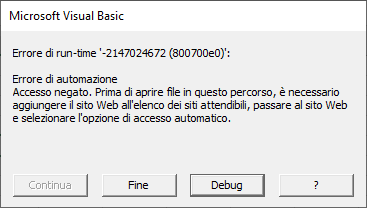
Hello. I wrote some VBA code in an Excel sheet with the intention of copying to SharePoint some managed files inside this sheet. Before I even confirm if the code works, I received an error message inviting me to add the SharePoint site to the trusted websites, and so I did. But then a second message appeared, which I am attaching here and I translate it from Italian: "Run-time error '-2147024672 (800700e0)': Automation error Access denied. Before opening files in this path, you must add the website to the list of trusted sites, go to the website and select the automatic login option." But I don't understand when says to go to the website (therefore to the SharePoint site) and set the "automatic login"... what does this mean? I tried to automate the credentials login but obviously this is not what it was referring to. Is there any configuration to set up automatic login that eludes me? If it can be useful, I also enter the VBA code used:5.2KViews0likes0Comments
Update managed metadata column via VBA
We are trying to upload files to a SharePoint and update some columns with managed metadata (MM). We have done this successfully before for normal "single text lines", but it seems like there must be special trick to do that for MM. We have realized that the related ContentTypeProperties.Item.Value(0) and .Value(1). are only available if the file already has a value in there. Before it has msoMetaPropertyType Unknown - afterwards it is changed and looks like it is a string type. When opening the file on SharePoint and trying to apply the managed metadata value simply nothing is happening to the file... no error ... just passing the piece of code. Any ideas?3.4KViews0likes2Comments