traffic manager
15 TopicsAzure Networking Portfolio Consolidation
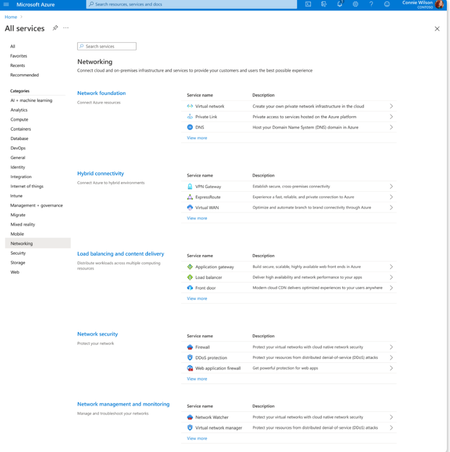
Overview Over the past decade, Azure Networking has expanded rapidly, bringing incredible tools and capabilities to help customers build, connect, and secure their cloud infrastructure. But we've also heard strong feedback: with over 40 different products, it hasn't always been easy to navigate and find the right solution. The complexity often led to confusion, slower onboarding, and missed capabilities. That's why we're excited to introduce a more focused, streamlined, and intuitive experience across Azure.com, the Azure portal, and our documentation pivoting around four core networking scenarios: Network foundations: Network foundations provide the core connectivity for your resources, using Virtual Network, Private Link, and DNS to build the foundation for your Azure network. Try it with this link: Network foundations Hybrid connectivity: Hybrid connectivity securely connects on-premises, private, and public cloud environments, enabling seamless integration, global availability, and end-to-end visibility, presenting major opportunities as organizations advance their cloud transformation. Try it with this link: Hybrid connectivity Load balancing and content delivery: Load balancing and content delivery helps you choose the right option to ensure your applications are fast, reliable, and tailored to your business needs. Try it with this link: Load balancing and content delivery Network security: Securing your environment is just as essential as building and connecting it. The Network Security hub brings together Azure Firewall, DDoS Protection, and Web Application Firewall (WAF) to provide a centralized, unified approach to cloud protection. With unified controls, it helps you manage security more efficiently and strengthen your security posture. Try it with this link: Network security This new structure makes it easier to discover the right networking services and get started with just a few clicks so you can focus more on building, and less on searching. What you’ll notice: Clearer starting points: Azure Networking is now organized around four core scenarios and twelve essential services, reflecting the most common customer needs. Additional services are presented within the context of these scenarios, helping you stay focused and find the right solution without feeling overwhelmed. Simplified choices: We’ve merged overlapping or closely related services to reduce redundancy. That means fewer, more meaningful options that are easier to evaluate and act on. Sunsetting outdated services: To reduce clutter and improve clarity, we’re sunsetting underused offerings such as white-label CDN services and China CDN. These capabilities have been rolled into newer, more robust services, so you can focus on what’s current and supported. What this means for you Faster decision-making: With clearer guidance and fewer overlapping products, it's easier to discover what you need and move forward confidently. More productive sales conversations: With this simplified approach, you’ll get more focused recommendations and less confusion among sellers. Better product experience: This update makes the Azure Networking portfolio more cohesive and consistent, helping you get started quickly, stay aligned with best practices, and unlock more value from day one. The portfolio consolidation initiative is a strategic effort to simplify and enhance the Azure Networking portfolio, ensuring better alignment with customer needs and industry best practices. By focusing on top-line services, combining related products, and retiring outdated offerings, Azure Networking aims to provide a more cohesive and efficient product experience. Azure.com Before: Our original Solution page on Azure.com was disorganized and static, displaying a small portion of services in no discernable order. After: The revised solution page is now dynamic, allowing customers to click deeper into each networking and network security category, displaying the top line services, simplifying the customer experience. Azure Portal Before: With over 40 networking services available, we know it can feel overwhelming to figure out what’s right for you and where to get started. After: To make it easier, we've introduced four streamlined networking hubs each built around a specific scenario to help you quickly identify the services that match your needs. Each offers an overview to set the stage, key services to help you get started, guidance to support decision-making, and a streamlined left-hand navigation for easy access to all services and features. Documentation For documentation, we looked at our current assets as well as created new assets that aligned with the changes in the portal experience. Like Azure.com, we found the old experiences were disorganized and not well aligned. We updated our assets to focus on our top-line networking services, and to call out the pillars. Our belief is these changes will allow our customers to more easily find the relevant and important information they need for their Azure infrastructure. Azure Network Hub Before the updates, we had a hub page organized around different categories and not well laid out. In the updated hub page, we provided relevant links for top-line services within all of the Azure networking scenarios, as well as a section linking to each scenario's hub page. Scenario Hub pages We added scenario hub pages for each of the scenarios. This provides our customers with a central hub for information about the top-line services for each scenario and how to get started. Also, we included common scenarios and use cases for each scenario, along with references for deeper learning across the Azure Architecture Center, Well Architected Framework, and Cloud Adoption Framework libraries. Scenario Overview articles We created new overview articles for each scenario. These articles were designed to provide customers with an introduction to the services included in each scenario, guidance on choosing the right solutions, and an introduction to the new portal experience. Here's the Load balancing and content delivery overview: Documentation links Azure Networking hub page: Azure networking documentation | Microsoft Learn Scenario Hub pages: Azure load balancing and content delivery | Microsoft Learn Azure network foundation documentation | Microsoft Learn Azure hybrid connectivity documentation | Microsoft Learn Azure network security documentation | Microsoft Learn Scenario Overview pages What is load balancing and content delivery? | Microsoft Learn Azure Network Foundation Services Overview | Microsoft Learn What is hybrid connectivity? | Microsoft Learn What is Azure network security? | Microsoft Lea Improving user experience is a journey and in coming months we plan to do more on this. Watch out for more blogs over the next few months for further improvements.3.2KViews4likes0CommentsAzure Networking 2025: Powering cloud innovation and AI at global scale
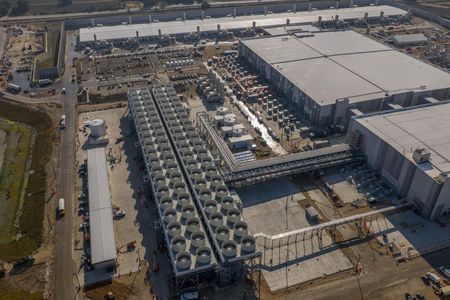
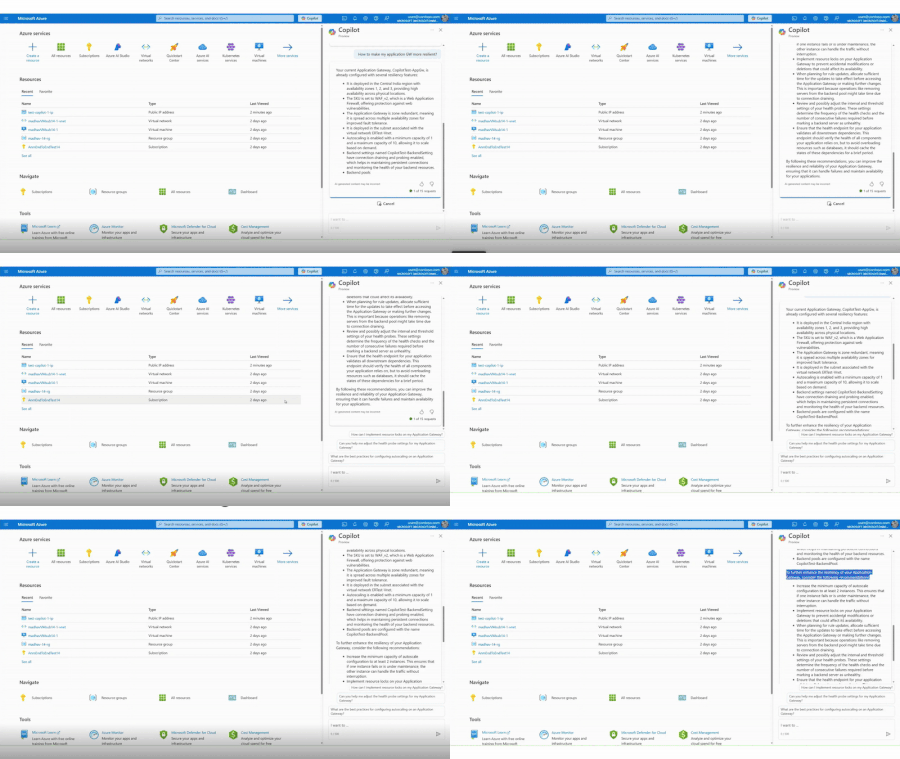
In 2025, Azure’s networking platform proved itself as the invisible engine driving the cloud’s most transformative innovations. Consider the construction of Microsoft’s new Fairwater AI datacenter in Wisconsin – a 315-acre campus housing hundreds of thousands of GPUs. To operate as one giant AI supercomputer, Fairwater required a single flat, ultra-fast network interconnecting every GPU. Azure’s networking team delivered: the facility’s network fabric links GPUs at 800 Gbps speeds in a non-blocking architecture, enabling 10× the performance of the world’s fastest supercomputer. This feat showcases how fundamental networking is to cloud innovation. Whether it’s uniting massive AI clusters or connecting millions of everyday users, Azure’s globally distributed network is the foundation upon which new breakthroughs are built. In 2025, the surge of AI workloads, data-driven applications, and hybrid cloud adoption put unprecedented demands on this foundation. We responded with bold network investments and innovations. Each new networking feature delivered in 2025, from smarter routing to faster gateways, was not just a technical upgrade but an innovation enabling customers to achieve more. Recapping the year’s major releases across Azure Networking services and key highlights how AI both drive and benefit from these advancements. Unprecedented connectivity for a hybrid and AI era Hybrid connectivity at scale: Azure’s network enhancements in 2025 focused on making global and hybrid connectivity faster, simpler, and ready for the next wave of AI-driven traffic. For enterprises extending on-premises infrastructure to Azure, Azure ExpressRoute private connectivity saw a major leap in capacity: Microsoft announced support for 400 Gbps ExpressRoute Direct ports (available in 2026) to meet the needs of AI supercomputing and massive data volumes. These high-speed ports – which can be aggregated into multi-terabit links – ensure that even the largest enterprises or HPC clusters can transfer data to Azure with dedicated, low-latency links. In parallel, Azure VPN Gateway performance reached new highs, with a generally available upgrade that delivers up to 20 Gbps aggregate throughput per gateway and 5 Gbps per individual tunnel. This is a 3× increase over previous limits, enabling branch offices and remote sites to connect to Azure even more seamlessly without bandwidth bottlenecks. Together, the ExpressRoute and VPN improvements give customers a spectrum of high-performance options for hybrid networking – from offices and datacenters to the cloud – supporting scenarios like large-scale data migrations, resilient multi-site architectures, and hybrid AI processing. Simplified global networking: Azure Virtual WAN (vWAN) continued to mature as the one-stop solution for managing global connectivity. Virtual WAN introduced forced tunneling for Secure Virtual Hubs (now in preview), which allows organizations to route all Internet-bound traffic from branch offices or virtual networks back to a central hub for inspection. This capability simplifies the implementation of a “backhaul to hub” security model – for example, forcing branches to use a central firewall or security appliance – without complex user-defined routing. Empowering multicloud and NVA integration: Azure recognizes that enterprise networks are diverse. Azure Route Server improvements enhanced interoperability with customer equipment and third-party network virtual appliances (NVAs). Notably, Azure Route Server now supports up to 500 virtual network connections (spokes) per route server, a significant scale boost that enables larger hub-and-spoke topologies and simplified Border Gateway Protocol (BGP) route exchange even in very large environments. This helps customers using SD-WAN appliances or custom firewalls in Azure to seamlessly learn routes from hundreds of VNet spokes – maintaining central routing control without manual configuration. Additionally, Azure Route Server introduced a preview of hub routing preference, giving admins the ability to influence BGP route selection (for example, preferring ExpressRoute over a VPN path, or vice versa). This fine-grained control means hybrid networks can be tuned for optimal performance and cost. Resilience and reliability by design Azure’s growth has been underpinned by making the network “resilient by default.” We shipped tools to help validate and improve network resiliency. ExpressRoute Resiliency Insights was released for general availability – delivering an intelligent assessment of an enterprise’s ExpressRoute setup. This feature evaluates how well your ExpressRoute circuits and gateways are architected for high availability (for example, using dual circuits in diverse locations, zone-redundant gateways, etc.) and assigns a resiliency index score as a percentage. It will highlight suboptimal configurations – such as routes advertised on only one circuit, or a gateway that isn’t zone-redundant – and provide recommendations for improvement. Moreover, Resiliency Insights includes a failover simulation tool that can test circuit redundancy by mimicking failures, so you can verify that your connections will survive real-world incidents. By proactively monitoring and testing resilience, Azure is helping customers achieve “always-on” connectivity even in the face of fiber cuts, hardware faults, or other disruptions. Security, governance, and trust in the network As enterprises entrust more core business to Azure, the platform’s networking services advanced on security and governance – helping customers achieve Zero Trust networks and high compliance with minimal complexity. Azure DNS now offers DNS Security Policies with Threat Intelligence feeds (GA). This capability allows organizations to protect their DNS queries from known malicious domains by leveraging continuously updated threat intel. For example, if a known phishing domain or C2 (command-and-control) hostname appears in DNS queries from your environment, Azure DNS can automatically block or redirect those requests. Because DNS is often the first line of detection for malware and phishing activities, this built-in filtering provides a powerful layer of defense that’s fully managed by Azure. It’s essentially a cloud-delivered DNS firewall using Microsoft’s vast threat intelligence – enabling all Azure customers to benefit from enterprise-grade security without deploying additional appliances. Network traffic governance was another focus. The introduction of forced tunneling in Azure Virtual WAN hubs (preview) shared above is a prime example where networking meets security compliance. Optimizing cloud-native and edge networks We previewed DNS intelligent traffic control features – such as filtering DNS queries to prevent data exfiltration and applying flexible recursion policies – which complement the DNS Security offering in safeguarding name resolution. Meanwhile, for load balancing across regions, Azure Traffic Manager’s behind-the-scenes upgrades (as noted earlier) improved reliability, and it’s evolving to integrate with modern container-based apps and edge scenarios. AI-powered networking: Both enabling and enabled by AI We are infusing AI into networking to make management and troubleshooting more intelligent. Networking functionality in Azure Copilot accelerates tasks like never before: it outlines the best practices instantly and troubleshooting that once required combing through docs and logs can be conversational. It effectively democratizes networking expertise, helping even smaller IT teams manage sophisticated networks by leveraging AI recommendations. The future of cloud networking in an AI world As we close out 2025, one message is clear: networking is strategic. The network is no longer a static utility – it is the adaptive circulatory system of the cloud, determining how far and fast customers can go. By delivering higher speeds, greater reliability, tighter security, and easier management, Azure Networking has empowered businesses to connect everything to anything, anywhere – securely and at scale. These advances unlock new scenarios: global supply chains running in real-time over a trusted network, multi-player AR/VR and gaming experiences delivered without lag, and AI models trained across continents. Looking ahead, AI-powered networking will become the norm. The convergence of AI and network tech means we will see more self-optimizing networks that can heal, defend, and tune themselves with minimal human intervention.1.6KViews3likes0Comments
Azure virtual network terminal access point (TAP) public preview announcement
What is virtual network TAP? Virtual network TAP allows customers continuously stream virtual machine network traffic to a network packet collector or analytics tool. Many security and performance monitoring tools rely on packet-level insights that are difficult to access in cloud environments. Virtual network TAP bridges this gap by integrating with our industry partners to offer: Enhanced security and threat detection: Security teams can inspect full packet data in real-time to detect and respond to potential threats. Performance monitoring and troubleshooting: Operations teams can analyze live traffic patterns to identify bottlenecks, troubleshoot latency issues, and optimize application performance. Regulatory compliance: Organizations subject to compliance frameworks such as Health Insurance Portability and Accountability Act (HIPAA), and General Data Protection Regulation (GDPR) can use virtual network TAP to capture network activity for auditing and forensic investigations. Why use virtual network TAP? Unlike traditional packet capture solutions that require deploying additional agents or network appliances, virtual network TAP leverages Azure's native infrastructure to enable seamless traffic mirroring without complex configurations and without impacting the performance of the virtual machine. A key advantage is that mirrored traffic does not count towards virtual machine’s network limits, ensuring complete visibility without compromising application performance. Additionally, virtual network TAP supports all Azure virtual machine SKU. Deploying virtual network TAP The portal is a convenient way to get started with Azure virtual network TAP. However, if you have a lot of Azure resources and want to automate the setup you may want to use a PowerShell, CLI, or REST API. Add a TAP configuration on a network interface that is attached to a virtual machine deployed in your virtual network. The destination is a virtual network IP address in the same virtual network as the monitored network interface or a peered virtual network. The collector solution for virtual network TAP can be deployed behind an Azure Internal Load balancer for high availability. You can use the same virtual network TAP resource to aggregate traffic from multiple network interfaces in the same or different subscriptions. If the monitored network interfaces are in different subscriptions, the subscriptions must be associated to the same Microsoft Entra tenant. Additionally, the monitored network interfaces and the destination endpoint for aggregating the TAP traffic can be in peered virtual networks in the same region. Partnering with industry leaders to enhance network monitoring in Azure To maximize the value of virtual network TAP, we are proud to collaborate with industry-leading security and network visibility partners. Our partners provide deep packet inspection, analytics, threat detection, and monitoring solutions that seamlessly integrate with virtual network TAP: Network packet brokers Partner Product Gigamon GigaVUE Cloud Suite for Azure Keysight CloudLens Security analytics, network/application performance management Partner Product Darktrace Darktrace /NETWORK Netscout Omnis Cyber Intelligence NDR Corelight Corelight Open NDR Platform LinkShadow LinkShadow NDR Fortinet FortiNDR Cloud FortiGate VM cPacket cPacket Cloud Suite TrendMicro Trend Vision One™ Network Security Extrahop RevealX Bitdefender GravityZone Extended Detection and Response for Network eSentire eSentire MDR Vectra Vectra NDR AttackFence AttackFence NDR Arista Networks Arista NDR See our partner blogs: Bitdefender + Microsoft Virtual Network TAP: Deepening Visibility, Strengthening Security Streamline Traffic Mirroring in the Cloud with Azure Virtual Network Terminal Access Point (TAP) and Keysight Visibility | Keysight Blogs eSentire | Unlocking New Possibilities for Network Monitoring and… LinkShadow Unified Identity, Data, and Network Platform Integrated with Microsoft Virtual Network TAP Extrahop and Microsoft Extend Coverage for Azure Workloads Resources | Announcing cPacket Partnership with Azure virtual network terminal access point (TAP) Gain Network Traffic Visibility with FortiGate and Azure virtual network TAP Get started with virtual network TAP To learn more and get started, visit our website. We look forward to seeing how you leverage virtual network TAP to enhance security, performance, and compliance in your cloud environment. Stay tuned for more updates as we continue to refine and expand on our feature set! If you have any questions please reach out to us at azurevnettap@microsoft.com.3.4KViews3likes8CommentsIntroducing Layer 7 Network Policies with Advanced Container Networking Services for AKS Clusters!
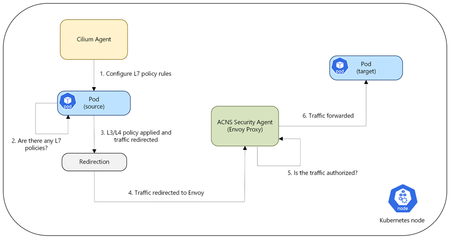
We have been on an exciting journey to enhance the network observability and security capabilities of Azure Kubernetes Service (AKS) clusters through our Azure Container Networking Services offering. Our initial step, the launch of Fully Qualified Domain Name (FQDN) filtering, marked a foundational step in enabling policy-driven egress control. By allowing traffic management at the domain level, we set the stage for more advanced and fine-grained security capabilities that align with modern, distributed workloads. This was just the beginning, a glimpse into our commitment to enabling AKS users with robust and granular security controls. Today, we are thrilled to announce the public preview of Layer 7 (L7) Network Policies for AKS and Azure CNI powered by Cilium users with Advanced Container Networking Services enabled. This update brings a whole new dimension of security to your containerized environments, offering much more granular control over your application layer traffic. Overview of L7 Policy Unlike traditional Layer 3 and Layer 4 policies that operate at the network and transport layers, L7 policies operate at the application layer. This enables more precise and effective traffic management based on application-specific attributes. L7 policies enable you to define security rules based on application-layer protocols such as HTTP(S), gRPC, and Kafka. For example, you can create policies that allow traffic based on HTTP(S) methods (GET, POST, etc.), headers, paths, and other protocol-specific attributes. This level of control helps in implementing fine-grained access control, restricting traffic based on the actual content of the communication, and gaining deeper insights into your network traffic at the application layer. Use cases of L7 policy API Security: For applications exposing APIs, L7 policies provide fine-grained control over API access. You can define policies that only allow specific HTTP(S) methods (e.g., GET for read-only operations, POST for creating resources) on particular API paths. This helps in enforcing API security best practices and prevent unnecessary access. Zero-Trust Implementation: L7 policies are a key component in implementing a Zero-Trust security model within your AKS environment. By default-denying all traffic and then explicitly allowing only necessary communication based on application-layer context, you can significantly reduce the attack surface and improve overall security posture. Microservice Segmentation and Isolation: In microservice architecture, it's essential to isolate services to limit the blast radius of potential security breaches. L7 policies allow you to define precise rules for inter-service communication. For example, you can ensure that a billing service can only be accessed by an order processing service via specific API endpoints and HTTP(S) methods, preventing unauthorized access from other services. How Does It Work? When a pod sends out network traffic, it is first checked against your defined rules using a small, efficient program called an extended Berkley Packet Filter (eBPF) probe. This probe marks the traffic if L7 policies are enabled for that pod, it is then redirected to a local Envoy Proxy. The Envoy proxy here is part of the ACNS Security Agent, separate from the Cilium agent. The Envoy Proxy, part of the ACNS Security Agent, then acts as a gatekeeper, deciding whether the traffic is allowed to proceed based on your policy criteria. If the traffic is permitted, it flows to its destination. If not, the application receives an error message saying access denied. Example: Restricting HTTP POST Requests Let's say you have a web application running on your AKS cluster, and you want to ensure that a specific backend service (backend-app) only accepts GET requests on the /data path from your frontend application (frontend-app). With L7 Network Policies, you can define a policy like this: apiVersion: cilium.io/v2 kind: CiliumNetworkPolicy metadata: name: allow-get-products spec: endpointSelector: matchLabels: app: backend-app # Replace with your backend app name ingress: - fromEndpoints: - matchLabels: app: frontend-app # Replace with your frontend app name toPorts: - ports: - port: "80” protocol: TCP rules: http: - method: "GET" path: "/data" How Can You Observe L7 Traffic? Advanced Container Networking Services with L7 policies also provides observability into L7 traffic, including HTTP(S), gRPC, and Kafka, through Hubble. Hubble is enabled by default with Advanced Container Networking Services. To facilitate easy analysis, Advanced Container Networking Services with L7 policy offers pre-configured Azure Managed Grafana dashboards, located in the Dashboards > Azure Managed Prometheus folder. These dashboards, such as "Kubernetes/Networking/L7 (Namespace)" and "Kubernetes/Networking/L7 (Workload)", provide granular visibility into L7 flow data at the cluster, namespace, and workload levels. The screenshot below shows a Grafana dashboard visualizing incoming HTTP traffic for the http-server-866b29bc75 workload in AKS over the last 5 minutes. It displays request rates, policy verdicts (forwarded/dropped), method/status breakdown, and dropped flow rates for real-time monitoring and troubleshooting. This is just an example; similar detailed metrics and visualizations, including heatmaps, are also available for gRPC and Kafka traffic on our pre-created dashboards. For real-time log analysis, you can also leverage the Hubble CLI and UI options offered as part of the Advanced Container Networking Services observability solution, allowing you to inspect individual L7 flows and troubleshoot any policy enforcement. Call to Action We encourage you to try out the public preview of L7 Network Policies on your AKS clusters and level up your network security controls for containerized workloads. We value your feedback as we continue to develop and improve this feature. Please refer to the Layer 7 Policy Overview for more information and visit How to Apply L7 Policy for an example scenario.1.4KViews2likes0Comments
Delivering web applications over IPv6
The IPv4 address space pool has been exhausted for some time now, meaning there is no new public address space available for allocation from Internet Registries. The internet continues to run on IPv4 through technical measures such as Network Address Translation (NAT) and Carrier Grade NAT, and reallocation of address space through IPv4 address space trading. IPv6 will ultimately be the dominant network protocol on the internet, as IPv4 life-support mechanisms used by network operators, hosting providers and ISPs will eventually reach the limits of their scalability. Mobile networks are already changing to IPv6-only APNs; reachability of IPv4-only destinations from these mobile network is through 6-4 NAT gateways, which sometimes causes problems. Client uptake of IPv6 is progressing steadily. Google reports 49% of clients connecting to its services over IPv6 globally, with France leading at 80%. IPv6 client access measured by Google: Meanwhile, countries around the world are requiring IPv6 reachability for public web services. Examples are the United States, European Union member states among which the Netherlands and Norway, and India, and Japan. IPv6 adoption per country measured by Google: Entities needing to comply with these mandates are looking at Azure's networking capabilities for solutions. Azure supports IPv6 for both private and public networking, and capabilities have developed and expanded over time. This article discusses strategies to build and deploy IPv6-enabled public, internet-facing applications that are reachable from IPv6(-only) clients. Azure Networking IPv6 capabilities Azure's private networking capabilities center on Virtual Networks (VNETs) and the components that are deployed within. Azure VNETs are IPv4/IPv6 dual stack capable: a VNET must always have IPv4 address space allocated, and can also have IPv6 address space. Virtual machines in a dual stack VNET will have both an IPv4 and an IPv6 address from the VNET range, and can be behind IPv6 capable External- and Internal Load Balancers. VNETs can be connected through VNET peering, which effectively turns the peered VNETs into a single routing domain. It is now possible to peer only the IPv6 address spaces of VNETs, so that the IPv4 space assigned to VNETs can overlap and communication across the peering is over IPv6. The same is true for connectivity to on-premise over ExpressRoute: the Private Peering can be enabled for IPv6 only, so that VNETs in Azure do not have to have unique IPv4 address space assigned, which may be in short supply in an enterprise. Not all internal networking components are IPv6 capable yet. Most notable exceptions are VPN Gateway, Azure Firewall and Virtual WAN; IPv6 compatibility is on the roadmap for these services, but target availability dates have not been communicated. But now let's focus on Azure's externally facing, public, network services. Azure is ready to let customers publish their web applications over IPv6. IPv6 capable externally facing network services include: - Azure Front Door - Application Gateway - External Load Balancer - Public IP addresses and Public IP address prefixes - Azure DNS - Azure DDOS Protection - Traffic Manager - App Service (IPv6 support is in public preview) IPv6 Application Delivery IPv6 Application Delivery refers to the architectures and services that enable your web application to be accessible via IPv6. The goal is to provide an IPv6 address and connectivity for clients, while often continuing to run your application on IPv4 internally. Key benefits of adopting IPv6 in Azure include: ✅ Expanded Client Reach: IPv4-only websites risk being unreachable to IPv6-only networks. By enabling IPv6, you expand your reach into growing mobile and IoT markets that use IPv6 by default. Governments and enterprises increasingly mandate IPv6 support for public-facing services. ✅Address Abundance & No NAT: IPv6 provides a virtually unlimited address pool, mitigating IPv4 exhaustion concerns. This abundance means each service can have its own public IPv6 address, often removing the need for complex NAT schemes. End-to-end addressing can simplify connectivity and troubleshooting. ✅ Dual-Stack Compatibility: Azure supports dual-stack deployments where services listen on both IPv4 and IPv6. This allows a single application instance or endpoint to serve both types of clients seamlessly. Dual-stack ensures you don’t lose any existing IPv4 users while adding IPv6 capability. ✅Performance and Future Services: Some networks and clients might experience better performance over IPv6. Also, being IPv6-ready prepares your architecture for future Azure features and services as IPv6 integration deepens across the platform. General steps to enable IPv6 connectivity for a web application in Azure are: Plan and Enable IPv6 Addressing in Azure: Define an IPv6 address space in your Azure Virtual Network. Azure allows adding IPv6 address space to existing VNETs, making them dual-stack. A /56 segment for the VNET is recommended, /64 segment for subnets are required (Azure requires /64 subnets). If you have existing infrastructure, you might need to create new subnets or migrate resources, especially since older Application Gateway v1 instances cannot simply be “upgraded” to dual-stack. Deploy or Update Frontend Services with IPv6: Choose a suitable Azure service (Application Gateway, External / Global Load Balancer, etc.) and configure it with a public IPv6 address on the frontend. This usually means selecting *Dual Stack* configuration so the service gets both an IPv4 and IPv6 public IP. For instance, when creating an Application Gateway v2, you would specify IP address type: DualStack (IPv4 & IPv6). Azure Front Door by default provides dual-stack capabilities with its global endpoints. Configure Backends and Routing: Usually your backend servers or services will remain on IPv4. At the time of writing this in October 2025, Azure Application Gateway does not support IPv6 for backend pool addresses. This is fine because the frontend terminates the IPv6 network connection from the client, and the backend initiates an IPv4 connection to the backend pool or origin. Ensure that your load balancing rules, listener configurations, and health probes are all set up to route traffic to these backends. Both IPv4 and IPv6 frontend listeners can share the same backend pool. Azure Front Door does support IPv6 origins. Update DNS Records: Publish a DNS AAAA record for your application’s host name, pointing to the new IPv6 address. This step is critical so that IPv6-only clients can discover the IPv6 address of your service. If your service also has an IPv4 address, you will have both A (IPv4) and AAAA (IPv6) records for the same host name. DNS will thus allow clients of either IP family to connect. (In multi-region scenarios using Traffic Manager or Front Door, DNS configuration might be handled through those services as discussed later). Test IPv6 Connectivity: Once set up, test from an IPv6-enabled network or use online tools to ensure the site is reachable via IPv6. Azure’s services like Application Gateway and Front Door will handle the dual-stack routing, but it’s good to verify that content loads on an IPv6-only connection and that SSL certificates, etc., work over IPv6 as they do for IPv4. Next, we explore specific Azure services and architectures for IPv6 web delivery in detail. External Load Balancer - single region Azure External Load Balancer (also known as Public Load Balancer) can be deployed in a single region to provide IPv6 access to applications running on virtual machines or VM scale sets. External Load Balancer acts as a Layer 4 entry point for IPv6 traffic, distributing connections across backend instances. This scenario is ideal when you have stateless applications or services that do not require Layer 7 features like SSL termination or path-based routing. Key IPv6 Features of External Load Balancer: - Dual-Stack Frontend: Standard Load Balancer supports both IPv4 and IPv6 frontends simultaneously. When configured as dual-stack, the load balancer gets two public IP addresses – one IPv4 and one IPv6 – and can distribute traffic from both IP families to the same backend pool. - Zone-Redundant by Default: Standard Load Balancer is zone-redundant by default, providing high availability across Azure Availability Zones within a region without additional configuration. - IPv6 Frontend Availability: IPv6 support in Standard Load Balancer is available in all Azure regions. Basic Load Balancer does not support IPv6, so you must use Standard SKU. - IPv6 Backend Pool Support: While the frontend accepts IPv6 traffic, the load balancer will not translate IPv6 to IPv4. Backend pool members (VMs) must have private IPv6 addresses. You will need to add private IPv6 addressing to your existing VM IPv4-only infrastructure. This is in contrast to Application Gateway, discussed below, which will terminate inbound IPv6 network sessions and connect to the backend-end over IPv4. - Protocol Support: Supports TCP and UDP load balancing over IPv6, making it suitable for web applications and APIs, but also for non-web TCP- or UDP-based services accessed by IPv6-only clients. To set up an IPv6-capable External Load Balancer in one region, follow this high-level process: Enable IPv6 on the Virtual Network: Ensure the VNET where your backend VMs reside has an IPv6 address space. Add a dual-stack address space to the VNET (e.g., add an IPv6 space like 2001:db8:1234::/56 to complement your existing IPv4 space). Configure subnets that are dual-stack, containing both IPv4 and IPv6 prefixes (/64 for IPv6). Create Standard Load Balancer with IPv6 Frontend: In the Azure Portal, create a new Standard Load Balancer. During creation, configure the frontend IP with both IPv4 and IPv6 public IP addresses. Create or select existing Standard SKU public IP resources – one for IPv4 and one for IPv6. Configure Backend Pool: Add your virtual machines or VM scale set instances to the backend pool. Note that your backend instances will need to have private IPv6 addresses, in addition to IPv4 addresses, to receive inbound IPv6 traffic via the load balancer. Set Up Load Balancing Rules: Create load balancing rules that map frontend ports to backend ports. For web applications, typically map port 80 (HTTP) and 443 (HTTPS) from both the IPv4 and IPv6 frontends to the corresponding backend ports. Configure health probes to ensure only healthy instances receive traffic. Configure Network Security Groups: Ensure an NSG is present on the backend VM's subnet, allowing inbound traffic from the internet to the port(s) of the web application. Inbound traffic is "secure by default" meaning that inbound connectivity from internet is blocked unless there is an NSG present that explicitly allows it. DNS Configuration: Create DNS records for your application: an A record pointing to the IPv4 address and an AAAA record pointing to the IPv6 address of the load balancer frontend. Outcome: In this single-region scenario, IPv6-only clients will resolve your application's hostname to an IPv6 address and connect to the External Load Balancer over IPv6. Example: Consider a web application running on a VM (or a VM scale set) behind an External Load Balancer in Sweden Central. The VM runs the Azure Region and Client IP Viewer containerized application exposed on port 80, which displays the region the VM is deployed in and the calling client's IP address. The load balancer's front-end IPv6 address has a DNS name of ipv6webapp-elb-swedencentral.swedencentral.cloudapp.azure.com. When called from a client with an IPv6 address, the application shows its region and the client's address. Limitations & Considerations: - Standard SKU Required: Basic Load Balancer does not support IPv6. You must use Standard Load Balancer. - Layer 4 Only: Unlike Application Gateway, External Load Balancer operates at Layer 4 (transport layer). It cannot perform SSL termination, cookie-based session affinity, or path-based routing. If you need these features, consider Application Gateway instead. - Dual stack IPv4/IPv6 Backend required: Backend pool members must have private IPv6 addresses to receive inbound IPv6 traffic via the load balancer. The load balancer does not translate between the IPv6 frontend and an IPv4 backend. - Outbound Connectivity: If your backend VMs need outbound internet access over IPv6, you need to configure an IPv6 outbound rule. Global Load Balancer - multi-region Azure Global Load Balancer (aka Cross-Region Load Balancer) provides a cloud-native global network load balancing solution for distributing traffic across multiple Azure regions. Unlike DNS-based solutions, Global Load Balancer uses anycast IP addressing to automatically route clients to the nearest healthy regional deployment through Microsoft's global network. Key Features of Global Load Balancer: - Static Anycast Global IP: Global Load Balancer provides a single static public IP address (both IPv4 and IPv6 supported) that is advertised from all Microsoft WAN edge nodes globally. This anycast address ensures clients always connect to the nearest available Microsoft edge node without requiring DNS resolution. - Geo-Proximity Routing: The geo-proximity load-balancing algorithm minimizes latency by directing traffic to the nearest region where the backend is deployed. Unlike DNS-based routing, there's no DNS lookup delay - clients connect directly to the anycast IP and are immediately routed to the best region. - Layer 4 Pass-Through: Global Load Balancer operates as a Layer 4 pass-through network load balancer, preserving the original client IP address (including IPv6 addresses) for backend applications to use in their logic. - Regional Redundancy: If one region fails, traffic is automatically routed to the next closest healthy regional load balancer within seconds, providing instant global failover without DNS propagation delays. Architecture Overview: Global Load Balancer sits in front of multiple regional Standard Load Balancers, each deployed in different Azure regions. Each regional load balancer serves a local deployment of your application with IPv6 frontends. The global load balancer provides a single anycast IP address that clients worldwide can use to access your application, with automatic routing to the nearest healthy region. Multi-Region Deployment Steps: Deploy Regional Load Balancers: Create Standard External Load Balancers in multiple Azure regions (e.g. Sweden Central, East US2). Configure each with dual-stack frontends (IPv4 and IPv6 public IPs) and connect them to regional VM deployments or VM scale sets running your application. Configure Global Frontend IP address: Create a Global tier public IPv6 address for the frontend, in one of the supported Global Load Balancer home regions . This becomes your application's global anycast address. Create Global Load Balancer: Deploy the Global Load Balancer in the same home region. The home region is where the global load balancer resource is deployed - it doesn't affect traffic routing. Add Regional Backends: Configure the backend pool of the Global Load Balancer to include your regional Standard Load Balancers. Each regional load balancer becomes an endpoint in the global backend pool. The global load balancer automatically monitors the health of each regional endpoint. Set Up Load Balancing Rules: Create load balancing rules mapping frontend ports to backend ports. For web applications, typically map port 80 (HTTP) and 443 (HTTPS). The backend port on the global load balancer must match the frontend port of the regional load balancers. Configure Health Probes: Global Load Balancer automatically monitors the health of regional load balancers every 5 seconds. If a regional load balancer's availability drops to 0, it is automatically removed from rotation, and traffic is redirected to other healthy regions. DNS Configuration: Create DNS records pointing to the global load balancer's anycast IP addresses. Create both A (IPv4) and AAAA (IPv6) records for your application's hostname pointing to the global load balancer's static IPs. Outcome: IPv6 clients connecting to your application's hostname will resolve to the global load balancer's anycast IPv6 address. When they connect to this address, the Microsoft global network infrastructure automatically routes their connection to the nearest participating Azure region. The regional load balancer then distributes the traffic across local backend instances. If that region becomes unavailable, subsequent connections are automatically routed to the next nearest healthy region. Example: Our web application, which displays the region it is in, and the calling client's IP address, now runs on VMs behind External Load Balancers in Sweden Central and East US2. The External Load Balancer's front-ends are in the backend pool of a Global Load Balancer, which has a Global tier front-end IPv6 address. The front-end has an FQDN of `ipv6webapp-glb.eastus2.cloudapp.azure.com` (the region designation `eastus2` in the FQDN refers to the Global Load Balancer's "home region", into which the Global tier public IP must be deployed). When called from a client in Europe, Global Load Balancer directs the request to the instance deployed in Sweden Central. When called from a client in the US, Global Load Balancer directs the request to the instance deployed in US East 2. Features: - Client IP Preservation: The original IPv6 client address is preserved and available to backend applications, enabling IP-based logic and compliance requirements. - Floating IP Support: Configure floating IP at the global level for advanced networking scenarios requiring direct server return or high availability clustering. - Instant Scaling: Add or remove regional deployments behind the global endpoint without service interruption, enabling dynamic scaling for traffic events. - Multiple Protocol Support: Supports both TCP and UDP traffic distribution across regions, suitable for various application types beyond web services. Limitations & Considerations: - Home Region Requirement: Global Load Balancer can only be deployed in specific home regions, though this doesn't affect traffic routing performance. - Public Frontend Only: Global Load Balancer currently supports only public frontends - internal/private global load balancing is not available. - Standard Load Balancer Backends: Backend pool can only contain Standard Load Balancers, not Basic Load Balancers or other resource types. - Same IP Version Requirement: NAT64 translation isn't supported - frontend and backend must use the same IP version (IPv4 or IPv6). - Port Consistency: Backend port on global load balancer must match the frontend port of regional load balancers for proper traffic flow. - Health Probe Dependencies: Regional load balancers must have proper health probes configured for the global load balancer to accurately assess regional health. Comparison with DNS-Based Solutions: Unlike Traffic Manager or other DNS-based global load balancing solutions, Global Load Balancer provides: - Instant Failover: No DNS TTL delays - failover happens within seconds at the network level. - True Anycast: Single IP address that works globally without client-side DNS resolution. - Consistent Performance: Geo-proximity routing through Microsoft's backbone network ensures optimal paths. - Simplified Management: No DNS record management or TTL considerations. This architecture delivers global high availability and optimal performance for IPv6 applications through anycast routing, making it a good solution for latency-sensitive applications requiring worldwide accessibility with near-instant regional failover. Application Gateway - single region Azure Application Gateway can be deployed in a single region to provide IPv6 access to applications in that region. Application Gateway acts as the entry point for IPv6 traffic, terminating HTTP/S from IPv6 clients and forwarding to backend servers over IPv4. This scenario works well when your web application is served from one Azure region and you want to enable IPv6 connectivity for it. Key IPv6 Features of Application Gateway (v2 SKU): - Dual-Stack Frontend: Application Gateway v2 supports both [IPv4 and IPv6 frontends](https://learn.microsoft.com/en-us/azure/application-gateway/application-gateway-faq). When configured as dual-stack, the gateway gets two IP addresses – one IPv4 and one IPv6 – and can listen on both. (IPv6-only is not supported; IPv4 is always paired). IPv6 support requires Application Gateway v2, v1 does not support IPv6. - No IPv6 on Backends: The backend pool must use IPv4 addresses. IPv6 addresses for backend servers are currently not supported. This means your web servers can remain on IPv4 internal addresses, simplifying adoption because you only enable IPv6 on the frontend. - WAF Support: The Application Gateway Web Application Firewall (WAF) will inspect IPv6 client traffic just as it does IPv4. Single Region Deployment Steps: To set up an IPv6-capable Application Gateway in one region, consider the following high-level process: Enable IPv6 on the Virtual Network: Ensure the region’s VNET where the Application Gateway will reside has an IPv6 address space. Configure a subnet for the Application Gateway that is dual-stack (contains both an IPv4 subnet prefix and an IPv6 /64 prefix). Deploy Application Gateway (v2) with Dual Stack Frontend: Create a new Application Gateway using the Standard_v2 or WAF_v2 SKU. Populate Backend Pool: Ensure your backend pool (the target application servers or service) contains (DNS names pointing to) IPv4 addresses of your actual web servers. IPv6 addresses are not supported for backends. Configure Listeners and Rules: Set up listeners on the Application Gateway for your site. When creating an HTTP(S) listener, you choose which frontend IP to use – you would create one listener for IPv4 address and one for IPv6. Both listeners can use the same domain name (hostname) and the same underlying routing rule to your backend pool. Testing and DNS: After the gateway is deployed and configured, note the IPv6 address of the frontend (you can find it in the Gateway’s overview or in the associated Public IP resource). Update your application’s DNS records: create an AAAA record pointing to this IPv6 address (and update the A record to point to the IPv4 if it changed). With DNS in place, test the application by accessing it from an IPv6-enabled client or tool. Outcome: In this single-region scenario, IPv6-only clients will resolve your website’s hostname to an IPv6 address and connect to the Application Gateway over IPv6. The Application Gateway then handles the traffic and forwards it to your application over IPv4 internally. From the user perspective, the service now appears natively on IPv6. Importantly, this does not require any changes to the web servers, which can continue using IPv4. Application Gateway will include the source IPv6 address in an X-Forwarded-For header, so that the backend application has visibility of the originating client's address. Example: Our web application, which displays the region it is deployed in and the calling client's IP address, now runs on a VM behind Application Gateway in Sweden Central. The front-end has an FQDN of `ipv6webapp-appgw-swedencentral.swedencentral.cloudapp.azure.com`. Application Gateway terminates the IPv6 connection from the client and proxies the traffic to the application over IPv4. The client's IPv6 address is passed in the X-Forwarded-For header, which is read and displayed by the application. Calling the application's API endpoint at `/api/region` shows additional detail, including the IPv4 address of the Application Gateway instance that initiates the connection to the backend, and the original client IPv6 address (with the source port number appended) preserved in the X-Forwarded-For header. { "region": "SwedenCentral", "clientIp": "2001:1c04:3404:9500:fd9b:58f4:1fb2:db21:60769", "xForwardedFor": "2001:1c04:3404:9500:fd9b:58f4:1fb2:db21:60769", "remoteAddress": "::ffff:10.1.0.4", "isPrivateIP": false, "expressIp": "2001:1c04:3404:9500:fd9b:58f4:1fb2:db21:60769", "connectionInfo": { "remoteAddress": "::ffff:10.1.0.4", "remoteFamily": "IPv6", "localAddress": "::ffff:10.1.1.68", "localPort": 80 }, "allHeaders": { "x-forwarded-for": "2001:1c04:3404:9500:fd9b:58f4:1fb2:db21:60769" }, "deploymentAdvice": "Public IP detected successfully" } Limitations & Considerations: - Application Gateway v1 SKUs are not supported for IPv6. If you have an older deployment on v1, you’ll need to migrate to v2. - IPv6-only Application Gateway is not allowed. You must have IPv4 alongside IPv6 (the service must be dual-stack). This is usually fine, as dual-stack ensures all clients are covered. - No IPv6 backend addresses: The backend pool must have IPv4 addresses. - Management and Monitoring: Application Gateway logs traffic from IPv6 clients to Log Analytics (the client IP field will show IPv6 addresses). - Security: Azure’s infrastructure provides basic DDoS protection for IPv6 endpoints just as for IPv4. However, it is highly recommended to deploy Azure DDoS Protection Standard: this provides enhanced mitigation tailored to your specific deployment. Consider using the Web Application Firewall function for protection against application layer attacks. Application Gateway - multi-region Mission-critical web applications should be deploy in multiple Azure regions, achieving higher availability and lower latency for users worldwide. In a multi-region scenario, you need a mechanism to direct IPv6 client traffic to the “nearest” or healthiest region. Azure Application Gateway by itself is a regional service, so to use it in multiple regions, we use Azure Traffic Manager for global DNS load balancing, or use Azure Front Door (covered in the next section) as an alternative. This section focuses on the Traffic Manager + Application Gateway approach to multi-region IPv6 delivery. Azure Traffic Manager is a DNS-based load balancer that can distribute traffic across endpoints in different regions. It works by responding to DNS queries with the appropriate endpoint FQDN or IP, based on the routing method (Performance, Priority, Geographic) configured. Traffic Manager is agnostic to the IP version: it either returns CNAMEs, or AAAA records for IPv6 endpoints and A records for IPv4. This makes it suitable for routing IPv6 traffic globally. Architecture Overview: Each region has its own dual-stack Application Gateway. Traffic Manager is configured with an endpoint entry for each region’s gateway. The application’s FQDN is now a domain name hosted by Traffic Manager such as ipv6webapp.traffimanager.net, or a CNAME that ultimately points to it. DNS resolution will go through Traffic Manager, which decides which regional gateway’s FQDN to return. The client then connects directly to that Application Gateway’s IPv6 address, as follows: 1. DNS query: Client asks for ipv6webapp.trafficmanager.net, which is hosted in a Traffic Manager profile. 2. Traffic Manager decision: Traffic Manager sees an incoming DNS request and chooses the best endpoint (say, Sweden Central) based on routing rules (e.g., geographic proximity or lowest latency). 3. Traffic Manager response: Traffic Manager returns the FQDN of the Sweden Central Application Gateway to the client. 4. DNS Resolution: The client resolves regional FQDN and receives a AAAA response containing the IPv6 address. 5. Client connects: The client’s browser connects to the West Europe App Gateway IPv6 address directly. The HTTP/S session is established via IPv6 to that regional gateway, which then handles the request. 6. Failover: If that region becomes unavailable, Traffic Manager’s health checks will detect it and subsequent DNS queries will be answered with the FQDN of the secondary region’s gateway. Deployment Steps for Multi-Region with Traffic Manager: Set up Dual-Stack Application Gateways in each region: Similar to the single-region case, deploy an Azure Application Gateway v2 in each desired region (e.g., one in North America, one in Europe). Configure the web application in each region, these should be parallel deployments serving the same content. Configure a Traffic Manager Profile: In Azure Traffic Manager, create a profile and choose a routing method (such as Performance for nearest region routing, or Priority for primary/backup failover). Add endpoints for each region. Since our endpoints are Azure services with IPs, we can either use Azure endpoints (if the Application Gateways have Azure-provided DNS names) or External endpoints using the IP addresses. The simplest way is to use the Public IP resource of each Application Gateway as an Azure endpoint – ensure each App Gateway’s public IP has a DNS label (so it has a FQDN). Traffic Manager will detect those and also be aware of their IPs. Alternatively, use the IPv6 address as an External endpoint directly. Traffic Manager allows IPv6 addresses and will return AAAA records for them. DNS Setup: Traffic Manager profiles have a FQDN (like ipv6webapp.trafficmanager.net). You can either use that as your service’s CNAME, or you can configure your custom domain to CNAME to the Traffic Manager profile. Health Probing: Traffic Manager continuously checks the health of endpoints. When endpoints are Azure App Gateways, it uses HTTP/S probes to a specified URI path, to each gateway’s address. Make sure each App Gateway has a listener on the probing endpoint (e.g., a health check page) and that health probes are enabled. Testing Failover and Distribution: Test the setup by querying DNS from different geographical locations (to see if you get the nearest region’s IP). Also simulate a region down (stop the App Gateway or backend) and observe if Traffic Manager directs traffic to the other region. Because DNS TTLs are involved, failover isn’t instant but typically within a couple of minutes depending on TTL and probe interval. Considerations in this Architecture: - Latency vs Failover: Traffic Manager as a DNS load balancer directs users at connect time, but once a client has an answer (IP address), it keeps sending to that address until the DNS record TTL expires and it re-resolves. This is fine for most web apps. Ensure the TTL in the Traffic Manager profile is not too high (the default is 30 seconds). - IPv6 DNS and Connectivity: Confirm that each region’s IPv6 address is correctly configured and reachable globally. Azure’s public IPv6 addresses are globally routable. Traffic Manager itself is a global service and fully supports IPv6 in its decision-making. - Cost: Using multiple Application Gateways and Traffic Manager incurs costs for each component (App Gateway is per hour + capacity unit, Traffic Manager per million DNS queries). This is a trade-off for high availability. - Alternative: Azure Front Door: Azure Front Door is an alternative to the Traffic Manager + Application Gateway combination. Front Door can automatically handle global routing and failover at layer 7 without DNS-based limitations, offering potentially faster failover. Azure Front Door is discussed in the next section. In summary, a multi-region IPv6 web delivery with Application Gateways uses Traffic Manager for global DNS load balancing. Traffic Manager will seamlessly return IPv6 addresses for IPv6 clients, ensuring that no matter where an IPv6-only client is, they get pointed to the nearest available regional deployment of your app. This design achieves global resiliency (withstand a regional outage) and low latency access, leveraging IPv6 connectivity on each regional endpoint. Example: The global FQDN of our application is now ipv6webapp.trafficmanager.net and clients will use this FQDN to access the application regardless of their geographical location. Traffic Manager will return the FQDN of one of the regional deployments, `ipv6webapp-appgw-swedencentral.swedencentral.cloudapp.azure.com` or `ipv6webappr2-appgw-eastus2.eastus2.cloudapp.azure.com` depending on the routing method configured, the health state of the regional endpoints and the client's location. Then the client resolves the regional FQDN through its local DNS server and connects to the regional instance of the application. DNS resolution from a client in Europe: Resolve-DnsName ipv6webapp.trafficmanager.net Name Type TTL Section NameHost ---- ---- --- ------- -------- ipv6webapp.trafficmanager.net CNAME 59 Answer ipv6webapp-appgw-swedencentral.swedencentral.cloudapp.azure.com Name : ipv6webapp-appgw-swedencentral.swedencentral.cloudapp.azure.com QueryType : AAAA TTL : 10 Section : Answer IP6Address : 2603:1020:1001:25::168 And from a client in the US: Resolve-DnsName ipv6webapp.trafficmanager.net Name Type TTL Section NameHost ---- ---- --- ------- -------- ipv6webapp.trafficmanager.net CNAME 60 Answer ipv6webappr2-appgw-eastus2.eastus2.cloudapp.azure.com Name : ipv6webappr2-appgw-eastus2.eastus2.cloudapp.azure.com QueryType : AAAA TTL : 10 Section : Answer IP6Address : 2603:1030:403:17::5b0 Azure Front Door Azure Front Door is an application delivery network with built-in CDN, SSL offload, WAF, and routing capabilities. It provides a single, unified frontend distributed across Microsoft’s edge network. Azure Front Door natively supports IPv6 connectivity. For applications that have users worldwide, Front Door offers advantages: - Global Anycast Endpoint: Provides anycast IPv4 and IPv6 addresses, advertised out of all edge locations, with automatic A and AAAA DNS record support. - IPv4 and IPv6 origin support: Azure Front Door supports both IPv4 and IPv6 origins (i.e. backends), both within Azure and externally (i.e. accessible over the internet). - Simplified DNS: Custom domains can be mapped using CNAME records. - Layer-7 Routing: Supports path-based routing and automatic backend health detection. - Edge Security: Includes DDoS protection and optional WAF integration. Front Door enables "cross-IP version" scenario's: a client can connect to the Front Door front-end over IPv6, and then Front Door can connect to an IPv4 origin. Conversely, an IPv4-only client can retrieve content from an IPv6 backend via Front Door. Front Door preserves the client's source IP address in the X-Forwarded-For header. Note: Front Door provides managed IPv6 addresses that are not customer-owned resources. Custom domains should use CNAME records pointing to the Front Door hostname rather than direct IP address references. Private Link Integration Azure Front Door Premium introduces Private Link integration, enabling secure, private connectivity between Front Door and backend resources, without exposing them to the public internet. When Private Link is enabled, Azure Front Door establishes a private endpoint within a Microsoft-managed virtual network. This endpoint acts as a secure bridge between Front Door’s global edge network and your origin resources, such as Azure App Service, Azure Storage, Application Gateway, or workloads behind an internal load balancer. Traffic from end users still enters through Front Door’s globally distributed POPs, benefiting from features like SSL offload, caching, and WAF protection. However, instead of routing to your origin over public, internet-facing, endpoints, Front Door uses the private Microsoft backbone to reach the private endpoint. This ensures that all traffic between Front Door and your origin remains isolated from external networks. The private endpoint connection requires approval from the origin resource owner, adding an extra layer of control. Once approved, the origin can restrict public access entirely, enforcing that all traffic flows through Private Link. Private Link integration brings following benefits: - Enhanced Security: By removing public exposure of backend services, Private Link significantly reduces the risk of DDoS attacks, data exfiltration, and unauthorized access. - Compliance and Governance: Many regulatory frameworks mandate private connectivity for sensitive workloads. Private Link helps meet these requirements without sacrificing global availability. - Performance and Reliability: Traffic between Front Door and your origin travels over Microsoft’s high-speed backbone network, delivering low latency and consistent performance compared to public internet paths. - Defense in Depth: Combined with Web Application Firewall (WAF), TLS encryption, and DDoS protection, Private Link strengthens your security posture across multiple layers. - Isolation and Control: Resource owners maintain control over connection approvals, ensuring that only authorized Front Door profiles can access the origin. - Integration with Hybrid Architectures: For scenarios involving AKS clusters, custom APIs, or workloads behind internal load balancers, Private Link enables secure connectivity without requiring public IPs or complex VPN setups. Private Link transforms Azure Front Door from a global entry point into a fully private delivery mechanism for your applications, aligning with modern security principles and enterprise compliance needs. Example: Our application is now placed behind Azure Front Door. We are combining a public backend endpoint and Private Link integration, to show both in action in a single example. The Sweden Central origin endpoint is the public IPv6 endpoint of the regional External Load Balancers and the origin in US East 2 is connected via Private Link integration The global FQDN `ipv6webapp-d4f4euhnb8fge4ce.b01.azurefd.net` and clients will use this FQDN to access the application regardless of their geographical location. The FQDN resolves to Front Door's global anycast address, and the internet will route client requests to the nearest Microsoft edge from this address is advertised. Front Door will then transparently route the request to the nearest origin deployment in Azure. Although public endpoints are used in this example, that traffic will be route over the Microsoft network. From a client in Europe: Calling the application's api endpoint on `ipv6webapp-d4f4euhnb8fge4ce.b01.azurefd.net/api/region` shows some more detail. { "region": "SwedenCentral", "clientIp": "2001:1c04:3404:9500:fd9b:58f4:1fb2:db21", "xForwardedFor": "2001:1c04:3404:9500:fd9b:58f4:1fb2:db21", "remoteAddress": "2a01:111:2053:d801:0:afd:ad4:1b28", "isPrivateIP": false, "expressIp": "2001:1c04:3404:9500:fd9b:58f4:1fb2:db21", "connectionInfo": { "remoteAddress": "2a01:111:2053:d801:0:afd:ad4:1b28", "remoteFamily": "IPv6", "localAddress": "2001:db8:1:1::4", "localPort": 80 }, "allHeaders": { "x-forwarded-for": "2001:1c04:3404:9500:fd9b:58f4:1fb2:db21", "x-azure-clientip": "2001:1c04:3404:9500:fd9b:58f4:1fb2:db21" }, "deploymentAdvice": "Public IP detected successfully" } "remoteAddress": "2a01:111:2053:d801:0:afd:ad4:1b28" is the address from which Front Door sources its request to the origin. From a client in the US: The detailed view shows that the IP address calling the backend instance now is local VNET address. Private Link sources traffic coming in from a local address taken from the VNET it is in. The original client IP address is again preserved in the X-Forwarded-For header. { "region": "eastus2", "clientIp": "2603:1030:501:23::68:55658", "xForwardedFor": "2603:1030:501:23::68:55658", "remoteAddress": "::ffff:10.2.1.5", "isPrivateIP": false, "expressIp": "2603:1030:501:23::68:55658", "connectionInfo": { "remoteAddress": "::ffff:10.2.1.5", "remoteFamily": "IPv6", "localAddress": "::ffff:10.2.2.68", "localPort": 80 }, "allHeaders": { "x-forwarded-for": "2603:1030:501:23::68:55658" }, "deploymentAdvice": "Public IP detected successfully" } Conclusion IPv6 adoption for web applications is no longer optional. It is essential as public IPv4 address space is depleted, mobile networks increasingly use IPv6 only and governments mandate IPv6 reachability for public services. Azure's comprehensive dual-stack networking capabilities provide a clear path forward, enabling organizations to leverage IPv6 externally without sacrificing IPv4 compatibility or requiring complete infrastructure overhauls. Azure's externally facing services — including Application Gateway, External Load Balancer, Global Load Balancer, and Front Door — support IPv6 frontends, while Application Gateway and Front Door maintain IPv4 backend connectivity. This architecture allows applications to remain unchanged while instantly becoming accessible to IPv6-only clients. For single-region deployments, Application Gateway offers layer-7 features like SSL termination and WAF protection. External Load Balancer provides high-performance layer-4 distribution. Multi-region scenarios benefit from Traffic Manager's DNS-based routing combined with regional Application Gateways, or the superior performance and failover capabilities of Global Load Balancer's anycast addressing. Azure Front Door provides global IPv6 delivery with edge optimization, built-in security, and seamless failover across Microsoft's network. Private Link integration allows secure global IPv6 distribution while maintaining backend isolation. The transition to IPv6 application delivery on Azure is straightforward: enable dual-stack addressing on virtual networks, configure IPv6 frontends on load balancing services, and update DNS records. With Application Gateway or Front Door, backend applications require no modifications. These Azure services handle the IPv4-to-IPv6 translation seamlessly. This approach ensures both immediate IPv6 accessibility and long-term architectural flexibility as IPv6 adoption accelerates globally.1.2KViews1like0Comments
Accelerate designing, troubleshooting & securing your network with Gen-AI powered tools, now GA.
We are thrilled to announce the general availability of Azure Networking skills in Copilot, an extension of Copilot in Azure and Security Copilot designed to enhance cloud networking experience. Azure Networking Copilot is set to transform how organizations design, operate, and optimize their Azure Network by providing contextualized responses tailored to networking-specific scenarios and using your network topology.1.9KViews1like1Comment