threat intelligence
64 Topics
Understand New Sentinel Pricing Model with Sentinel Data Lake Tier
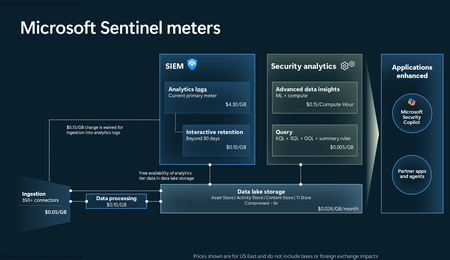
Introduction on Sentinel and its New Pricing Model Microsoft Sentinel is a cloud-native Security Information and Event Management (SIEM) and Security Orchestration, Automation, and Response (SOAR) platform that collects, analyzes, and correlates security data from across your environment to detect threats and automate response. Traditionally, Sentinel stored all ingested data in the Analytics tier (Log Analytics workspace), which is powerful but expensive for high-volume logs. To reduce cost and enable customers to retain all security data without compromise, Microsoft introduced a new dual-tier pricing model consisting of the Analytics tier and the Data Lake tier. The Analytics tier continues to support fast, real-time querying and analytics for core security scenarios, while the new Data Lake tier provides very low-cost storage for long-term retention and high-volume datasets. Customers can now choose where each data type lands—analytics for high-value detections and investigations, and data lake for large or archival types—allowing organizations to significantly lower cost while still retaining all their security data for analytics, compliance, and hunting. Please flow diagram depicts new sentinel pricing model: Now let's understand this new pricing model with below scenarios: Scenario 1A (PAY GO) Scenario 1B (Usage Commitment) Scenario 2 (Data Lake Tier Only) Scenario 1A (PAY GO) Requirement Suppose you need to ingest 10 GB of data per day, and you must retain that data for 2 years. However, you will only frequently use, query, and analyze the data for the first 6 months. Solution To optimize cost, you can ingest the data into the Analytics tier and retain it there for the first 6 months, where active querying and investigation happen. After that period, the remaining 18 months of retention can be shifted to the Data Lake tier, which provides low-cost storage for compliance and auditing needs. But you will be charged separately for data lake tier querying and analytics which depicted as Compute (D) in pricing flow diagram. Pricing Flow / Notes The first 10 GB/day ingested into the Analytics tier is free for 31 days under the Analytics logs plan. All data ingested into the Analytics tier is automatically mirrored to the Data Lake tier at no additional ingestion or retention cost. For the first 6 months, you pay only for Analytics tier ingestion and retention, excluding any free capacity. For the next 18 months, you pay only for Data Lake tier retention, which is significantly cheaper. Azure Pricing Calculator Equivalent Assuming no data is queried or analyzed during the 18-month Data Lake tier retention period: Although the Analytics tier retention is set to 6 months, the first 3 months of retention fall under the free retention limit, so retention charges apply only for the remaining 3 months of the analytics retention window. Azure pricing calculator will adjust accordingly. Scenario 1B (Usage Commitment) Now, suppose you are ingesting 100 GB per day. If you follow the same pay-as-you-go pricing model described above, your estimated cost would be approximately $15,204 per month. However, you can reduce this cost by choosing a Commitment Tier, where Analytics tier ingestion is billed at a discounted rate. Note that the discount applies only to Analytics tier ingestion—it does not apply to Analytics tier retention costs or to any Data Lake tier–related charges. Please refer to the pricing flow and the equivalent pricing calculator results shown below. Monthly cost savings: $15,204 – $11,184 = $4,020 per month Now the question is: What happens if your usage reaches 150 GB per day? Will the additional 50 GB be billed at the Pay-As-You-Go rate? No. The entire 150 GB/day will still be billed at the discounted rate associated with the 100 GB/day commitment tier bucket. Azure Pricing Calculator Equivalent (100 GB/ Day) Azure Pricing Calculator Equivalent (150 GB/ Day) Scenario 2 (Data Lake Tier Only) Requirement Suppose you need to store certain audit or compliance logs amounting to 10 GB per day. These logs are not used for querying, analytics, or investigations on a regular basis, but must be retained for 2 years as per your organization’s compliance or forensic policies. Solution Since these logs are not actively analyzed, you should avoid ingesting them into the Analytics tier, which is more expensive and optimized for active querying. Instead, send them directly to the Data Lake tier, where they can be retained cost-effectively for future audit, compliance, or forensic needs. Pricing Flow Because the data is ingested directly into the Data Lake tier, you pay both ingestion and retention costs there for the entire 2-year period. If, at any point in the future, you need to perform advanced analytics, querying, or search, you will incur additional compute charges, based on actual usage. Even with occasional compute charges, the cost remains significantly lower than storing the same data in the Analytics tier. Realized Savings Scenario Cost per Month Scenario 1: 10 GB/day in Analytics tier $1,520.40 Scenario 2: 10 GB/day directly into Data Lake tier $202.20 (without compute) $257.20 (with sample compute price) Savings with no compute activity: $1,520.40 – $202.20 = $1,318.20 per month Savings with some compute activity (sample value): $1,520.40 – $257.20 = $1,263.20 per month Azure calculator equivalent without compute Azure calculator equivalent with Sample Compute Conclusion The combination of the Analytics tier and the Data Lake tier in Microsoft Sentinel enables organizations to optimize cost based on how their security data is used. High-value logs that require frequent querying, real-time analytics, and investigation can be stored in the Analytics tier, which provides powerful search performance and built-in detection capabilities. At the same time, large-volume or infrequently accessed logs—such as audit, compliance, or long-term retention data—can be directed to the Data Lake tier, which offers dramatically lower storage and ingestion costs. Because all Analytics tier data is automatically mirrored to the Data Lake tier at no extra cost, customers can use the Analytics tier only for the period they actively query data, and rely on the Data Lake tier for the remaining retention. This tiered model allows different scenarios—active investigation, archival storage, compliance retention, or large-scale telemetry ingestion—to be handled at the most cost-effective layer, ultimately delivering substantial savings without sacrificing visibility, retention, or future analytical capabilities.Solved3.4KViews2likes6Comments
Threat Intelligence Indicators in Microsoft Sentinel
Hello Microsoft Community, This is my first post and I hope it will be helpful for those who are trying to understand how the Threat Intelligence (TI) Indicators feature works on Microsoft and especially in Microsoft Sentinel. But before that, I would like to share my own experience. Working with a lot of customers I have had a big number of questions about how to automate the purging process of stale TI indicators from Sentinel. There is a way to do it manually, but if you have thousands of them, it will be a tough task to remove only one hundred at a time. I decided to automate this process and started investigating different kinds of automation (Graph API, PowerShell, etc.). After some investigation, the API command that allows to get a list of all indicators stored in Microsoft tenant was found. This one: GET https://graph.microsoft.com/beta/security/tiIndicators. And I decided to build a Logic App that will get all TI indicators, extract their IDs and then remove each of them by running DELETE https://graph.microsoft.com/beta/security/tiIndicators/{id}. Unfortunately, when I was testing it, I stuck with the situation when I was getting nothing even though I have more than one thousand indicators in my test environment. Trying to search on forums, asking questions I got no answers and decided to open a case for Microsoft Support. I really appreciate Microsoft Support team for providing a professional and fast response and explanation. Now, I will try to explain a little bit how the TI backend works on Microsoft. Let’s move to the technical part. 1. TI indicators ingestion There are a few ways to ingest TI indicators. The first one is to use a built-in TAXII connector. There are plenty of them. You can use, for example, Anomali, IBM X-Force, Pulsedive, and others. The configuration is simple, based on Microsoft you only need to get the TAXII server API Root and Collection ID, and then enable the Threat Intelligence - TAXII data connector in Microsoft Sentinel. The second way is to build a playbook that will pull TI indicators from a TI provider and push them into Sentinel Using Graph Security API. There is a great playbook for pulling TI indicators from Alien Vault: Azure-Sentinel/Playbooks/Get-AlienVault_OTX at master · Azure/Azure-Sentinel (github.com) Such kinds of playbooks require minor configuration and can be deployed from GitHub. The third way for adding TI indicators is flat file import. This feature is currently in Private Preview and will be available soon for the Public. Sentinel administrators will be able to import indicators from a CSV or JSON file. And the last way is manual creation. This is a good option only if you have a few indicators to add and have no time to write scripts and build automation. One more important thing to mention is the fact that Graph Security API serves Threat Intelligence by TenantID and AppID (the application ID that uploads the TI through GSA and was configured in Azure AD). If the TI indicators were uploaded using one application (AppID) and then queried with another application (AppID), the data will not be returned. For example, if you use the playbook mentioned above, you should Register an application in your Azure AD to ingest indicators. Then you will not be able to query those indicators with another application, for example, with Microsoft Graph Explorer. You must use the same application to get the list of indicators you uploaded. 2. TI indicators storing Based on Microsoft, when using the tiIndicators entity, you must specify the Microsoft security solution you want to utilize the indicators for via the targetProduct property and define the action (allow, block, or alert) to which the security solution should apply the indicators via the action property. In the playbook for pulling indicators from GitHub, we have the following parameter: “targetProduct” that should be “Azure Sentinel”. Yes, Azure and not Microsoft Sentinel. By setting this parameter, we configure the playbook to ingest logs into Sentinel Log Analytics Workspace and so we will be able to process the ingested indicators later. In Logs under Microsoft Sentinel, a new table is created “ThreatIntelligenceIndicator”. This is our final diagram for Microsoft Sentinel: TI indicators are not stored only in the Sentinel LAW. There are also stored in Microsoft backend with a retention period of 1 year or if deleted via the API. For Log Analytics Workspace the retention period is usually configured by a customer and data is there until deleted. 3. TI indicators pulling As well as for ingesting indicators, there are a few ways for pulling them from Microsoft backend and from Log Analytics Workspace. It was mentioned previously that to pull indicators from Microsoft Graph backend you should use Microsoft Security Graph API with the same Application and Tenant ID. Otherwise, you will get nothing. You should also pay attention to the expiration date of the ingested certificates. If you try to get a specific indicator(s) and get nothing, probably it has been expired and removed from the Graph backend. Use this resource Graph Explorer | Try Microsoft Graph APIs - Microsoft Graph to test the API. Pulling TI indicators from Sentinel Log Analytics Workspace is simpler. You need to open a Sentinel LAW and get them by running a KQL query. For example, this one: ThreatIntelligenceIndicator | project TimeGenerated, Description, IndicatorId | top 100 by IndicatorId This KQL will show you the first 100 indicators by IndicatorID. Don’t forget to set a date under “Time range”. You can also use built-in queries to protect your environment or build your own queries based on your company requirements. The last way to see TI indicators ingested into your Sentinel is by opening Threat Intelligence page in Microsoft Sentinel. This page will provide you with details for each indicator, allow you to remove them (only 100 at a time) and edit their details. Summary Microsoft's security ecosystem has a huge number of capabilities that help organizations to protect their environments from modern security threats. And TI indicators is only one piece of the puzzle called Threat Intelligence. It is important to understand how this feature works to gain the best results from it. I hope the information provided in this article will be helpful for the community and will allow to understand how the Microsoft TI works better. If you have any questions or suggestions for the text, I will be glad to hear them. There is an amazing webinar Threat Intelligence published by Microsoft Team: Cyber Threat Intelligence Demystified in Microsoft Sentinel - YouTube You can also find the article on LinkedIn: Threat Intelligence Indicators in Microsoft Sentinel | LinkedIn7.4KViews1like3Comments
Azure-Sentinel/Playbooks/Get-GeoFromIpAndTagIncident
Hi I am really scratching my head with this one, I want to use the Get-GeoFromIpAndTagIncident playbook which is available on GitHub from the Community page in Sentinel. I've set up the playbook but when I run it I get a failure with the message 'SSL unavailable for this endpoint, order a key at https://members.ip.api.com/' , I'm positive there's a way to circumvent this but I am drawing a blank as to where?2.2KViews1like3Comments