test automation
18 Topics
AI‑Powered Performance Test Analysis using GHCP
Problem Statement Performance testing teams often face significant challenges in comparing JMeter test results across environments or test runs. Manual comparison and analysis of multiple result files is time-consuming, error-prone, and lacks actionable insights. Solution An AI-powered solution leveraging GHCP has been developed to address the identified challenge. This solution is designed to deliver Seamlessly compare JMeter performance results across environments (e.g., On-Prem vs. Azure) or test runs. Provide AI-driven insights to highlight endpoints with significant performance changes. Deliver clear, prioritized recommendations for faster issue resolution. Reduce analysis time by up to 80%, minimizing resource utilization and enabling cost savings. Business Outcomes Automated Performance Comparison: Seamlessly compare JMeter performance test results across two environments (e.g., On-Prem vs. Azure) or between different test runs, reducing manual effort and accelerating analysis. AI-Driven Insights for Decision Making: Leverage AI to identify endpoints with the most significant performance improvements or degradations. Actionable Observations and Recommendations: Generate clear, prioritized recommendations based on key performance trends, ensuring faster resolution of bottlenecks and improved application reliability. Enhanced Efficiency and Cost Savings: Minimize analysis time and resource utilization through automation, contributing to measurable effort savings and improved operational efficiency. manual comparison of multiple JMeter result files is time-consuming and automation can reduce analysis time by up to 80% Pre-Requisites Visual Studio code with GHCP Enabled. Usage Guidelines Start GitHub Copilot Chat from within Visual Studio Code. Attach follow files in GHCP Chat Azure_PerfTestResults.json OnPrem_PerfTestResults.json PerfResultsAnalysis_Instructions.md Note: *.json files are statistics.json files generated as part of JMeter Html Reports. Execute below UserPrompt UserPrompt: “Follow the steps in #file:PerfResultsAnalysis_Instructions.md and compare the two JMeter result files uploaded.” File Structure Validation is performed to ensure both files conform to the expected test results format. Upon successful validation, select the performance metric for comparison. Ex: AverageResponseTime Test results are analyzed, and Response Time Comparison between Baseline (On-Prem) and Azure is presented, including deviation and performance status. Results are also exported to a CSV file for easy reference. AI-Driven Performance Insights are generated to provide actionable recommendations. Use the prompts below to perform a more detailed analysis of your test results. UserPrompt: “Get me the Average Response time of GetProducts API between Azure and On-Prem” User Prompt: “Expected SLA on Azure is 150 ms, Get me the APIs whos Average Response Time is > 150 ms on Azure” GitHub Repository for project is available at https://github.com/AnilKumarGolla/PerfAnalysisUsingGHCP811Views4likes2CommentsContinuous Testing with Selenium and Azure DevOps
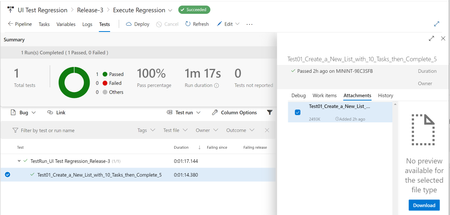
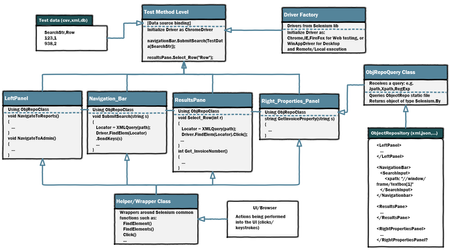
Creating stable automated tests is most of the battle. However, the real value of automation is realized when the execution and reporting is automatic as well. This article provides a tutorial on how to automate triggering Selenium UI Test with Azure Pipelines.20KViews3likes2CommentsTest Automation and EasyRepro: 01 - Overview and Getting Started
Learn in detail how to use the EasyRepro framework to do automated UI tests of Dynamics 365. You can use it to automate testing such as Smoke, Regression, Load, etc. The framework is built from the Open Source Selenium web drivers used by the industry across a wide range of projects and applications. This article is to walk through the setup of the EasyRepro framework and works with Unit Tests in Visual Studio and GitHub repositories.45KViews3likes10CommentsAdvanced Logger for UI Tests - now on NuGet Package!
Need a way to create reports for your Selenium, WinAppDriver or Xamarin UI TESTS? Use this NuGet package to create HTML reports with embedded screenshots and step descriptions for your tests flows. Inside is code and git repo example.8.3KViews2likes3CommentsSimulating Targeted Throughput for Load testing with JMeter
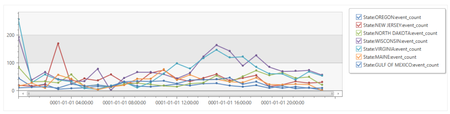
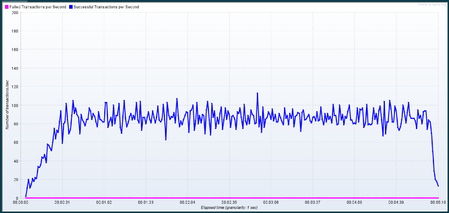
Learn how to use JMeter to simulate a targeted throughput pattern for load testing an application by using APIs (e.g. for a specific throughput: requests per second and for a specified duration). In this post, we will take a look at some JMeter plugins that we can use for controlling throughput and ways to use these plugins more efficiently.18KViews2likes0Comments