tde
9 TopicsTDE High availability with customer-managed key for Azure SQL Databases
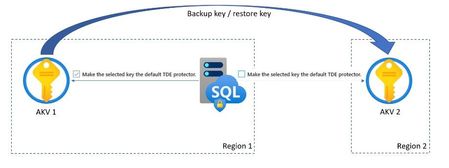
If the server loses access to the stored Database Encryption Key (DEK) in AKV, in up to 10 minutes a database will start denying all connections with the corresponding error message and change its state to Inaccessible. The only action allowed on a database in the Inaccessible state is deleting it. Thus, it's highly recommended to configure the server to use two different key vaults in two different regions with the same key material.4.8KViews3likes1CommentLesson Learned #360: Unsupported Key Size or Key Type. The supported RSA Key Size is 2048 or 3072.
We worked on a service request that our customer faced the following error message. Failed to save Transparent Data Encryption settings for SQL resource: azmsqldbunuatcog01. Error message: The key vault provided 'https://XYZ.vault.azure.net/keys/XYZ1/fdXXXXX on server 'ServerName' uses unsupported Key Size or Key Type. The supported RSA Key Size is 2048 or 3072 and Key Type is RSA or RSA-HSM.3.4KViews0likes0Comments
Using Different Azure Key Vault Keys for Azure SQL Servers in a Failover Group
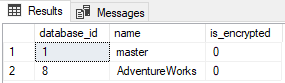
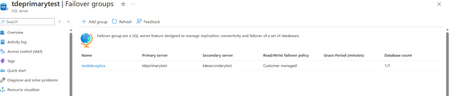
Transparent Data Encryption (TDE) in Azure SQL Database encrypts data at rest using a database encryption key (DEK). The DEK itself is protected by a TDE protector, which can be either: A service-managed key (default), or A customer-managed key (CMK) stored in Azure Key Vault. Many enterprises adopt customer-managed keys to meet compliance, key rotation, and security governance requirements. When configuring Geo-replication or Failover Groups, Azure SQL supports using different Key Vault keys on the primary and secondary servers. This provides additional flexibility and allows organizations to isolate encryption keys across regions or subscriptions. Microsoft documentation describes this scenario for new deployments in detail. If you are configuring geo-replication from scratch, refer to the following article: Geo-Replication and Transparent Data Encryption Key Management in Azure SQL Database | Microsoft Community Hub However, customers often ask: How can we change the Azure Key Vault and use different customer-managed keys on the primary and secondary servers when the failover group already exists without breaking the replication? This article walks through the safe process to update Key Vault keys in an existing failover group configuration. Architecture Overview In a failover group configuration: Primary Server Uses CMK stored in Key Vault A Secondary Server Uses CMK stored in Key Vault B Even though each server uses its own key, both servers must be able to access both keys. This requirement exists because during failover operations the database must still be able to decrypt the existing Database Encryption Key (DEK). Therefore: Each logical server must have both Key Vault keys registered and have the required permissions Only one key is configured as the active TDE protector Scenario Existing environment: Azure SQL Failover Group configured TDE enabled with Customer Managed Key with same key. Primary server: Secondary server: Customer wants to: Move to different Azure Key Vaults Use separate CMKs for primary and secondary servers Step-by-Step Implementation Step 1 – Add the Secondary Server Key to the Primary Server Before changing the TDE protector on the secondary server, the secondary CMK must first be registered on the primary logical server. This ensures that both servers are aware of both encryption keys. Add-AzSqlServerKeyVaultKey -KeyId ‘https://testanu2.vault.azure.net/keys/tey/29497babb0cb4af58a773104a5dd61e5' -ServerName 'tdeprimarytest' -ResourceGroupName ‘harshitha_lab’ This command registers the Key Vault key with the logical SQL server but does not change the active TDE protector. Step 2 – Change the TDE Protector on the Secondary Server After registering the key, update the TDE protector on the secondary server to use its designated CMK. This can be done from the Azure Portal: Navigate to Azure SQL Server (Secondary) Select Transparent Data Encryption Choose Customer-managed key Select the Key Vault key intended for the secondary server Save the configuration At this stage: Secondary server uses Key Vault B Primary server still uses Key Vault A Step 3 – Add the Primary Server Key to the Secondary Server Next, perform the same operation in reverse. Register the primary server CMK on the secondary server. Add-AzSqlServerKeyVaultKey -KeyId ‘https://testprimarysubham.vault.azure.net/keys/subham/e0637ed7e3734f989b928101c79ca565' -ServerName ‘tdesecondarytest’ -ResourceGroupName ‘harshitha_lab’ Now both servers contain references to both keys. Step 4 – Change the TDE Protector on the Primary Server Once the key is registered, update the primary server TDE protector to use its intended CMK. This can also be done through the Azure Portal or PowerShell. After this step: Server Key Vault Active CMK Primary Key Vault A Primary CMK Secondary Key Vault B Secondary CMK Step 5 – Verify Keys Registered on Both Servers Use the following PowerShell command to confirm that both keys are registered on each server. Primary Server Get-AzSqlServerKeyVaultKey -ServerName "tdeprimarytest" -ResourceGroupName "harshitha_lab" Secondary Server Get-AzSqlServerKeyVaultKey -ServerName "tdesecondarytest" -ResourceGroupName "harshitha_lab" Both outputs should list both Key Vault keys. Step 6 – Verify Database Encryption State Connect to the database using SQL Server Management Studio (SSMS) and run the following query to verify the encryption configuration. SELECT DB_NAME(db_id()) AS database_name, dek.encryption_state, dek.encryption_state_desc, dek.key_algorithm, dek.key_length, dek.encryptor_type, dek.encryptor_thumbprint FROM sys.dm_database_encryption_keys AS dek WHERE database_id <> 2; Key columns to check: Column Description encryption_state Shows if the database is encrypted encryptor_type Indicates if the key is from Azure Key Vault encryptor_thumbprint Identifies the CMK used for encryption At this stage, the primary database thumbprint should match the primary server CMK on the secondary database. Primary: Secondary: Step 7 – Validate After Failover Perform a planned failover of the failover group. After failover, run the same query again. SELECT DB_NAME(db_id()) AS database_name, dek.encryption_state, dek.encryption_state_desc, dek.key_algorithm, dek.key_length, dek.encryptor_type, dek.encryptor_thumbprint FROM sys.dm_database_encryption_keys AS dek WHERE database_id <> 2; You should observe: The encryptor_thumbprint changes The database is now encrypted using the secondary server’s CMK which is now primary Primary server after failover: Secondary server which is primary before failover This confirms that the failover group is successfully using different Key Vault keys for each server. Key Takeaways Azure SQL Failover Groups support different Customer Managed Keys across regions. Both logical servers must have access to both keys. Only one key acts as the active TDE protector per server. Validation should always include checking the encryptor thumbprint before and after failover. This approach allows organizations to implement regional key isolation, meet compliance requirements, and maintain high availability with secure key management.